
How to Automate Lead-to-CRM Data Entry and Stop Manually Logging Web Form Submissions
April 24, 2026To automate lead-to-CRM data entry from web forms, eZintegrations listens for webhook events from Typeform, Gravity Forms, HubSpot Forms, Webflow, or any form tool, maps the incoming field values to CRM fields (Salesforce Lead or Contact, HubSpot Contact or Deal), runs deduplication to check if the email already exists in the CRM, and either creates a new record or updates the existing one. Owner assignment rules route the lead to the correct sales rep based on geography, product line, company size, or any other field. The entire process completes within seconds of the form submission, with no manual data entry at any point.
TL;DR
- Every minute between a web form submission and CRM entry is a minute during which the lead is not being followed up. Research from Harvard Business Review shows leads contacted within 1 hour are 7x more likely to qualify than leads contacted after 24 hours.
- Manual lead logging wastes sales team time, introduces data quality errors, and creates response time delays that directly reduce conversion rates.
- eZintegrations connects any web form (Typeform, Gravity Forms, HubSpot Forms, Webflow, Jotform, Formstack, or custom forms) to any CRM (Salesforce, HubSpot, Pipedrive, Zoho, or Microsoft Dynamics) in real time, with field mapping, deduplication, owner assignment, and enrichment.
- Level 1 (iPaaS Workflows) handles webhook receipt, field mapping, deduplication lookup, CRM record creation or update, and owner assignment. Level 2 (AI Workflows) enriches incoming leads with company data, validates email addresses and phone numbers, classifies leads by industry or company size, and scores leads based on firmographic data. Level 3 (AI Agents) monitors lead routing quality, detects leads that have not been followed up within the configured SLA, and flags lead data quality issues. Level 4 (Goldfinch AI) provides the Goldfinch AI Chat UI as a Workflow Node: “How many leads came in today?”, “Which sales rep has the most uncontacted leads?”, or “What is our average form-to-CRM entry time?”
- Configuration time: 1-2 hours for a single form-to-CRM flow. No developer required.
The Manual Lead Entry Problem: Speed, Accuracy, and Scale
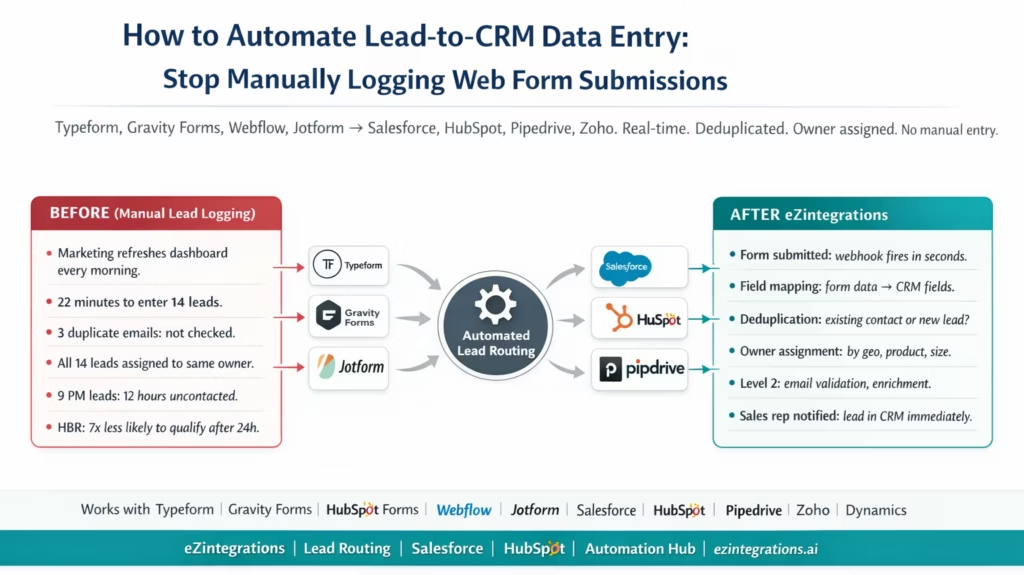
Your marketing manager refreshes the Typeform dashboard every morning. There are 14 new leads from yesterday’s campaign. She opens the Salesforce tab. She starts entering the first lead: name, company, email, phone, job title, what they said they were interested in. She hits a required field she does not have. She skips it and moves to the next lead.
Twenty-two minutes later, she has entered 14 leads. Three of them had email addresses that already existed in Salesforce (she did not check: now there are duplicates). One lead was from a competitor (she did not notice: it is now in the pipeline as a prospect). The owner assignment is the default: all 14 leads are assigned to her own name because that is what the default field said.
The leads from yesterday have not been contacted yet. It is 9:35 AM. The leads submitted at 9 PM last night have been sitting for 12 hours. Harvard Business Review research found that leads contacted within 1 hour are 7x more likely to qualify for a sale than leads contacted 24 hours later.
Your sales team does not know these leads exist yet. They are not in the CRM. They will not be visible until someone enters them.
This is manual lead logging. It is slow, error-prone, and invisible exactly the type of inefficiency that Gartner identifies as a primary driver for adopting sales automation platforms.
The Lead Response Time Imperative
Before getting into the technical automation architecture, it is worth establishing why the speed of form-to-CRM entry matters so much for sales outcomes.
Harvard Business Review researchers studied the lead response time of 2,241 US companies and found that leads contacted within 1 hour of submitting a web form were 7 times more likely to qualify for a sale than those contacted after 24 hours. The same study found that fewer than 37% of companies responded within an hour.
The gap between what the data says is optimal (respond within 1 hour) and what most companies actually do (24+ hours) is almost entirely explained by the gap in the middle: the time between form submission and the sales rep knowing the lead exists. This gap is also reflected in broader sales performance benchmarks from Salesforce’s State of Sales report, which highlights speed-to-lead as a primary driver of conversion rates.
In a manual process: lead submits form → someone downloads or refreshes the form dashboard → someone enters the lead in the CRM → the CRM sends a notification to the sales rep → the sales rep contacts the lead. Each hand-off adds time. The 1-hour window closes before the lead is even in the CRM.
In an automated process: lead submits form → webhook fires immediately → CRM record created in seconds → sales rep notified → sales rep contacts the lead within minutes.
The automation does not change your sales team’s behaviour. It removes the delay that makes their behaviour irrelevant.
How Web Form-to-CRM Automation Works
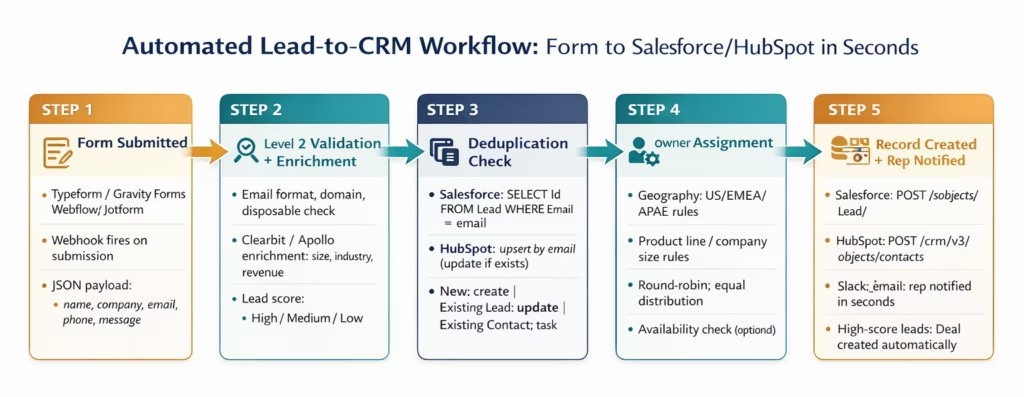
The architecture has four components:
1. Form event trigger: when a form is submitted, the form tool sends a webhook event to eZintegrations. The webhook payload contains all the form field values as JSON.
2. Field mapping: eZintegrations maps the incoming form field names to the corresponding CRM field names. “What is your company name?” → Company in Salesforce. “Your email” → Email in HubSpot. This mapping is configured once and applies to every subsequent submission.
3. Deduplication: before creating a new CRM record, eZintegrations checks whether a record with the same email address already exists. If it does: update the existing record. If it does not: create a new record.
4. Owner assignment: the new lead is assigned to a sales rep based on configurable rules: geography (US West → Rep A, US East → Rep B, EMEA → Rep C), product line (Product A interest → Product A team), company size (enterprise → enterprise team), or round-robin assignment.
Connecting Your Web Form: Webhook or Native Integration
Webhook-Based Connection (Works with Any Form Tool)
Most modern form tools support outgoing webhooks: when a form is submitted, the tool sends a POST request with the submission data to a URL you specify.
Typeform: In Typeform Settings → Connect → Webhooks, add your eZintegrations webhook endpoint URL. Test the webhook with a sample submission to confirm the payload format.
Typeform webhook payload (example):
{
  "event_id": "abc123",
  "event_type": "form_response",
  "form_response": {
    "form_id": "YOUR_FORM_ID",
    "submitted_at": "2026-03-10T14:22:33Z",
    "answers": [
      { "field": { "id": "q1", "type": "short_text", "ref": "first_name" }, "text": "Emma" },
      { "field": { "id": "q2", "type": "short_text", "ref": "company_name" }, "text": "Acme Corp" },
      { "field": { "id": "q3", "type": "email", "ref": "email" }, "email": "[email protected]" },
      { "field": { "id": "q4", "type": "phone_number", "ref": "phone" }, "phone_number": "+1 555-0122" }
    ]
  }
}
Gravity Forms (WordPress): Use the Gravity Forms Webhooks add-on. In the form editor: Add-Ons → Webhooks. Configure the endpoint URL and map form fields to the webhook payload.
Webflow: Webflow Forms support outgoing webhooks via the Site Settings → Integrations panel. Each form submission POSTs the field values to the registered URL.
Jotform: Jotform → Settings → Integrations → Webhooks. Add the eZintegrations webhook URL.
Custom HTML Forms: Any HTML form can send a webhook submission via JavaScript:
form.addEventListener('submit', async (e) => {
  e.preventDefault();
  const formData = new FormData(form);
  const data = Object.fromEntries(formData.entries());
  await fetch('{eZintegrations_webhook_url}', {
    method: 'POST',
    headers: { 'Content-Type': 'application/json' },
    body: JSON.stringify(data)
  });
  // Show confirmation to user
});
Native Integration (HubSpot Forms, Marketo, Pardot)
For marketing automation platforms with native CRM forms:
- HubSpot Forms: already integrated with HubSpot CRM natively. eZintegrations connects to the HubSpot API to apply additional routing logic (owner assignment, cross-CRM sync to Salesforce, enrichment) that HubSpot’s native form integration does not provide.
- Marketo Forms: eZintegrations connects to the Marketo API to pull new lead activity and create corresponding records in Salesforce or another CRM.
- Pardot: similar pattern: Pardot prospect creation triggers downstream CRM routing via eZintegrations.
Field Mapping: From Form Fields to CRM Fields
Field mapping translates the form’s field names to the CRM’s expected field names. This is a configuration step done once in eZintegrations.
Salesforce Field Mapping Example
| Form Field (Typeform) | Salesforce Lead Field |
|---|---|
answers[ref=first_name].text | FirstName |
answers[ref=last_name].text | LastName |
answers[ref=email].email | Email |
answers[ref=company_name].text | Company |
answers[ref=phone].phone_number | Phone |
answers[ref=job_title].text | Title |
answers[ref=interest].choice.label | LeadSource (mapped from choice to picklist value) |
form_response.submitted_at | LeadSource_Date__c (custom field) |
Static value: "Typeform - Demo Request" | LeadSource |
Static value: "New" | Status |
The field mapping configuration is a visual drag-and-drop in eZintegrations: left side shows form fields, right side shows CRM fields.
HubSpot Field Mapping Example
HubSpot uses property names (lowercase with underscores):
| Form Field | HubSpot Contact Property |
|---|---|
first_name | firstname |
last_name | lastname |
email | email |
company | company |
phone | phone |
job_title | jobtitle |
Static: "Website Demo Request" | hs_lead_status → NEW |
submitted_at | createdate |
Deduplication: Existing Contact or New Lead?
Deduplication is the check that prevents the most common CRM data quality problem: the same person submitting a form twice and appearing as two separate leads.
Salesforce Deduplication
Before creating a Salesforce Lead, eZintegrations queries Salesforce for existing records:
GET https://{instance}.salesforce.com/services/data/v59.0/query
    ?q=SELECT+Id,Email,Name,IsConverted+FROM+Lead+WHERE+Email='{form_email}'
Authorization: Bearer {salesforce_token}
Also check Contacts (in case the email belongs to an existing customer):
SELECT Id, Email, AccountId FROM Contact WHERE Email = '{form_email}'
Three outcomes:
- No match: create a new Lead record.
- Existing Lead (unconverted): update the existing Lead with any new information from the form submission (phone number, job title, message). Do not create a duplicate.
- Existing Contact (converted customer): do not create a new Lead. Instead, create an Activity or Task on the Contact record to notify the account owner that this customer submitted a new form.
HubSpot Deduplication
HubSpot natively deduplicates by email: if you POST to POST /crm/v3/objects/contacts with an email that already exists, HubSpot returns the existing contact and does not create a duplicate. This is HubSpot’s default behaviour.
For explicit control: use UPSERT semantics:
POST https://api.hubapi.com/crm/v3/objects/contacts/batch/upsert
{
  "inputs": [{
    "idProperty": "email",
    "id": "{email_address}",
    "properties": {
      "firstname": "{first_name}",
      "lastname": "{last_name}",
      "company": "{company}",
      "phone": "{phone}"
    }
  }]
}
The idProperty: "email" tells HubSpot to look up the contact by email: if found, update; if not found, create.
Owner Assignment: Who Gets This Lead?
Owner assignment is the routing logic that determines which sales rep receives each lead. This is where the “we all get the same leads” problem is solved.
Rule-Based Assignment
Configure assignment rules in eZintegrations using the condition builder:
IF lead.country IN ("US", "CA", "MX")
    THEN owner = round_robin(us_sales_team)

IF lead.country IN ("GB", "DE", "FR", "NL", "SE")
    THEN owner = round_robin(emea_sales_team)

IF lead.company_size = "Enterprise (1000+ employees)"
    THEN owner = enterprise_team_lead

IF lead.interest = "Product A"
    THEN owner = product_a_specialist

IF lead.annual_revenue > 5000000
    THEN owner = senior_account_executive
Round-Robin Assignment
For teams where all reps should receive equal lead volume:
- Maintain a round-robin counter in eZintegrations (which rep is next in the rotation)
- On each lead: assign to the next rep in the rotation and increment the counter
- The counter resets at the end of the list
Availability-Aware Assignment
Level 3 can check rep availability (from a connected calendar or a simple out-of-office flag) before assignment: if the next rep in rotation is marked as out-of-office, skip to the next available rep.
Salesforce Owner Assignment
POST https://{instance}.salesforce.com/services/data/v59.0/sobjects/Lead/
Authorization: Bearer {salesforce_token}
Content-Type: application/json

{
  "FirstName": "Emma",
  "LastName": "Thompson",
  "Email": "[email protected]",
  "Company": "Acme Corp",
  "Phone": "+1 555-0122",
  "Title": "VP Marketing",
  "LeadSource": "Website - Demo Request",
  "Status": "New",
  "OwnerId": "{salesforce_rep_user_id}"
}
HubSpot Owner Assignment
POST https://api.hubapi.com/crm/v3/objects/contacts
Authorization: Bearer {hubspot_token}

{
  "properties": {
    "email": "[email protected]",
    "firstname": "Emma",
    "lastname": "Thompson",
    "company": "Acme Corp",
    "phone": "+15155550122",
    "jobtitle": "VP Marketing",
    "hubspot_owner_id": "{hubspot_rep_owner_id}",
    "hs_lead_status": "NEW"
  }
}
Level 2 Lead Enrichment and Validation
Before creating the CRM record, Level 2 runs automated enrichment and validation to improve lead data quality.
Email Validation
Level 2 checks the submitted email address for:
- Format validation: is it a valid email format?
- Domain validation: is the domain a real domain (not a fake or typo)?
- Disposable email detection: is the email from a known disposable email service (10minutemail, guerrillamail, etc.)? Disposable emails indicate low intent leads.
- Role address detection: is it a generic role address (info@, support@, sales@)? These are lower quality than personal business emails.
Validation outcome: if the email fails validation, the lead is flagged but still created (the sales team may still want to follow up). The validation result is stored as a CRM field: Email_Quality__c = "Suspicious".
Company Enrichment
Level 2 can enrich the submitted company name with firmographic data from enrichment APIs (Clearbit, Apollo, ZoomInfo, or Hunter):
- Company domain from email ([email protected] → acmecorp.com)
- Company industry, size, revenue range, employee count from enrichment API
- LinkedIn company URL
This data is written to the CRM record alongside the form submission data, giving sales reps more context without requiring them to research the company manually.
Lead Scoring
Based on firmographic data, Level 2 assigns a preliminary lead score:
- High score: company size > 200 employees, domain matches known ICP, job title is decision-maker level
- Medium score: company size 50-200, domain not blacklisted, business email
- Low score: company size < 50, or personal email (gmail, outlook.com), or role email
The lead score is stored as a CRM field and can be used to trigger different follow-up sequences.
CRM Record Creation: Salesforce and HubSpot
Salesforce: Lead vs Contact Decision
In Salesforce, you typically create a Lead record for new web form submissions. If the email matches an existing Contact, you create a Task on the Contact instead.
For the standard Lead creation (no existing record):
POST /services/data/v59.0/sobjects/Lead/
{
  "FirstName": "{first_name}",
  "LastName": "{last_name}",
  "Email": "{email}",
  "Company": "{company_name}",
  "Phone": "{phone}",
  "Title": "{job_title}",
  "LeadSource": "Website - {form_name}",
  "Status": "New",
  "OwnerId": "{assigned_rep_id}",
  "Description": "{message_field}",
  "Email_Quality__c": "{validation_result}",
  "Lead_Score__c": "{calculated_score}",
  "Form_Submitted_At__c": "{submission_timestamp}"
}
After Lead creation, send a Slack or email notification to the assigned rep:
"New lead assigned to you: Emma Thompson from Acme Corp (VP Marketing).
Submitted: Demo Request form.
Email: [email protected] | Phone: +1 415 555 0122
Score: High | Company size: 1,200 employees (from Clearbit)
View in Salesforce: [link]"
HubSpot: Contact Creation with Deal
For HubSpot, create the Contact and optionally a Deal (for high-score leads):
POST https://api.hubapi.com/crm/v3/objects/contacts
{
  "properties": {
    "email": "{email}",
    "firstname": "{first_name}",
    "lastname": "{last_name}",
    "company": "{company}",
    "phone": "{phone}",
    "jobtitle": "{job_title}",
    "hubspot_owner_id": "{owner_id}",
    "hs_lead_status": "NEW",
    "lead_score": "{score}",
    "form_source": "Website - {form_name}"
  }
}
For high-score leads (score > 70), create a Deal automatically:
POST https://api.hubapi.com/crm/v3/objects/deals
{
  "properties": {
    "dealname": "Emma Thompson - Acme Corp",
    "pipeline": "default",
    "dealstage": "appointmentscheduled",
    "hubspot_owner_id": "{owner_id}",
    "amount": ""
  }
}
Then associate the Deal with the Contact:
POST /crm/v3/objects/deals/{dealId}/associations/contacts/{contactId}/deal_to_contact
Before vs After: Manual Lead Logging vs Automated
| Step | Manual Lead Logging | Automated with eZintegrations |
|---|---|---|
| Lead detection | Marketing refreshes dashboard periodically | Webhook: detected in seconds of submission |
| Entry delay | 8-24 hours (next business day check) | Under 10 seconds from form submission |
| Data entry time | 22 minutes for 14 leads (per example) | 0 minutes: automatic |
| Field mapping errors | Common: wrong fields, missing required data | Configured once, applied consistently |
| Duplicate check | Manual: rarely done | Automatic: every submission checked |
| Duplicate creation rate | Common: 10-20% of manual entries | Near-zero: email-based deduplication |
| Owner assignment | Default user or whoever processes the batch | Rules-based: geography, product, size, round-robin |
| Lead enrichment | Manual: sales rep researches the company | Level 2: automatic from Clearbit/Apollo |
| Email validation | Not done | Level 2: format, domain, disposable, role check |
| Sales rep notification | Manual email or morning queue check | Slack/email notification within seconds of submission |
| Lead response time | 8-24+ hours (leads age overnight) | Minutes (rep notified immediately) |
| CRM data quality | Variable: typos, missing fields, wrong picklists | Consistent: mapped, validated, enriched |
| Competitor/fake lead filtering | Not done | Level 2 flags suspicious emails |
| After-hours submissions | Not processed until next business day | Processed in real time, 24/7 |
| Scale | Constrained by team bandwidth | Unlimited: same flow handles 1 or 10,000 submissions |
| Audit trail | None | Full log: every submission, every CRM action |
Step-by-Step: A Demo Request Through the Full Automated Flow
Here is the complete automated flow for a demo request form submission on the eZintegrations.ai website. The form is built in Typeform. The CRM is Salesforce.
Setup: Typeform webhook configured to POST to eZintegrations. Salesforce connection using OAuth 2.0. Field mapping configured: Typeform ref values mapped to Salesforce Lead fields. Owner assignment: US West (based on IP geolocation) assigned to Rep A (Sarah Chen, User ID SF_USER_SARAH). Clearbit enrichment connected.
March 10, 9:14 PM: Emma Thompson submits the demo request form. Form fields: First Name (Emma), Last Name (Thompson), Company (Acme Corp), Email ([email protected]), Phone (+1 415 555 0122), Job Title (VP Marketing), Message (“We need to automate our expense reporting and AP workflows across 3 ERPs”).
March 10, 9:14:02 PM: Typeform webhook fires. eZintegrations receives the webhook payload. 2 seconds after form submission.
March 10, 9:14:04 PM: Level 2 validation and enrichment (7 seconds).
- Email validation: [email protected] → valid format, acmecorp.com is a real domain, not disposable, not a role address. Result:
Email_Quality = "Good". - Clearbit enrichment: acmecorp.com → Acme Corp, Technology sector, 1,200 employees, $85M revenue range, San Francisco CA.
- Lead score: 1,200 employees (above 200 threshold), VP Marketing (decision-maker level), business email. Score: 87 (High).
- Competitor check: acmecorp.com not on competitor domain list. Proceed.
March 10, 9:14:11 PM: Deduplication check. Salesforce query:
SELECT Id, Email, Name FROM Lead WHERE Email = '[email protected]'
SELECT Id, Email FROM Contact WHERE Email = '[email protected]'
Results: no existing Lead or Contact with this email. Create new Lead.
March 10, 9:14:11 PM: Owner assignment. Enrichment data shows San Francisco, CA → US West territory. Assigned to Sarah Chen (Sales Rep, US West).
March 10, 9:14:11 PM: Salesforce Lead created.
POST /services/data/v59.0/sobjects/Lead/
{
  "FirstName": "Emma",
  "LastName": "Thompson",
  "Email": "[email protected]",
  "Company": "Acme Corp",
  "Phone": "+14155550122",
  "Title": "VP Marketing",
  "LeadSource": "Website - Demo Request",
  "Status": "New",
  "OwnerId": "SF_USER_SARAH",
  "Description": "We need to automate our expense reporting and AP workflows across 3 ERPs",
  "Email_Quality__c": "Good",
  "Lead_Score__c": 87,
  "Employee_Count__c": 1200,
  "Industry__c": "Technology",
  "Form_Submitted_At__c": "2026-03-10T21:14:02Z"
}
Salesforce Lead ID: 00Q5f00000AbC123. Created at 9:14:11 PM.
March 10, 9:14:12 PM: Sarah Chen notified via Slack.
 High-score lead assigned to you:

Name: Emma Thompson | VP Marketing | Acme Corp
Email: [email protected] | Phone: +1 415 555 0122
Industry: Technology | Employees: 1,200 | Revenue: $85M
Lead Score: 87 (HIGH)

Message: "We need to automate our expense reporting and AP workflows across 3 ERPs"

Form: Website - Demo Request
Submitted: March 10, 9:14 PM (2 minutes ago)

View in Salesforce: [https://meridian.salesforce.com/00Q5f00000AbC123]
Total elapsed time from form submission to Sarah Chen’s Slack notification: 70 seconds.
Sarah is at dinner when the notification arrives on her phone. She bookmarks the lead and sends Emma a quick reply email at 9:52 PM. Emma replies the next morning.
Previous process: the lead would have been in the morning queue, processed the next day, assigned to the default user, and not followed up until Tuesday at the earliest. Emma would have received no response until 12+ hours after submission.
Key Outcomes and Results
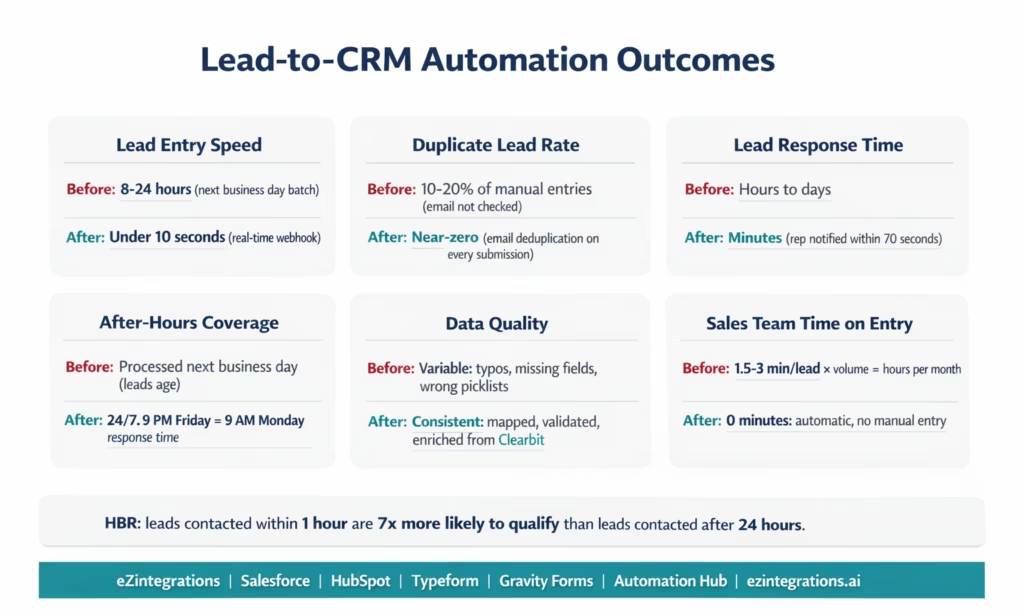
Lead response time: manual lead logging creates an 8-24+ hour delay between submission and CRM entry. Automated processing creates CRM records within 10 seconds of submission, and sales reps are notified within 70 seconds (based on the Meridian example above). Response time goes from hours to minutes.
Lead conversion impact: Harvard Business Review data shows a 7x improvement in lead qualification rate when responding within 1 hour vs 24+ hours. The automation enables the 1-hour response window for every lead, not just the ones submitted during business hours.
Data quality: duplicate entry rate in manual processes is typically 10-20% of submissions. Email-based deduplication eliminates this entirely. GL coding errors (which do not apply here, but field mapping errors are the equivalent) drop from variable to near-zero with consistent mapping rules.
Sales team productivity: manual lead entry takes 1.5-3 minutes per lead (optimistic estimate). At 100 leads per month, that is 2.5-5 hours of manual data entry that produces no sales activity. Automated entry recovers that time for actual selling.
After-hours and weekend coverage: manual processes handle only business-hours submissions efficiently. Automated routing handles every submission identically regardless of time: a 9 PM Friday submission gets the same real-time processing as a 9 AM Monday submission. A sales rep who chooses to follow up on Friday evening can close a deal before competitors even know the lead exists.
Scale: manual lead entry is constrained by the bandwidth of whoever enters them. Automated routing handles 1 or 10,000 submissions per day with the same response time.
How to Get Started
Step 1: Choose Your Form Tool and CRM Combination
Identify which form tool you use (Typeform, Gravity Forms, Webflow, Jotform, Formstack, or custom HTML forms) and which CRM (Salesforce, HubSpot, Pipedrive, Zoho, or Microsoft Dynamics). Each combination has a pre-built template in the Automation Hub. The template handles the webhook receiver, field mapping scaffold, deduplication query, owner assignment placeholder, and CRM record creation call.
Step 2: Import the Template and Configure Field Mapping
Go to the Automation Hub and search for your form-to-CRM combination (e.g., “Typeform to Salesforce” or “Gravity Forms to HubSpot”). Import the template. Connect your CRM using OAuth 2.0 (Salesforce or HubSpot). Map your form’s field names to the CRM fields in the visual mapping interface. This takes 15-30 minutes for a standard contact form with 6-8 fields.
Step 3: Configure Deduplication and Owner Assignment
Set up the deduplication query: define which CRM field to use as the unique identifier (almost always email). Configure the create-vs-update logic. Then configure owner assignment: define the rules (by geography, product interest, or round-robin). Upload or specify the sales rep user IDs or email addresses from your CRM. The condition builder requires no code.
Step 4: Test with Real Form Submissions
Submit 3-5 test entries through your actual form (use [email protected] variants to avoid polluting your CRM). Verify: does each test lead appear in the CRM within seconds? Is the owner assigned correctly? Are field mappings accurate? Submit a duplicate email and confirm the update logic fires instead of creating a new record. Submit an after-hours test and confirm the same response time.
Start your free trial to import the lead routing template and build your first form-to-CRM flow. No credit card required. Most teams are live within 1-2 hours.
FAQs
eZintegrations receives a webhook event from your form tool (Typeform, Gravity Forms, Webflow, Jotform, or any custom form) the moment a lead submits a form. The webhook payload (containing all form field values as JSON) is received by eZintegrations, which applies your configured field mapping to translate form field names to CRM field names. Before creating the CRM record, Level 2 validates the email address and optionally enriches the lead with firmographic data. A deduplication check queries the CRM by email: if a record exists, it is updated; if not, a new record is created. Owner assignment rules route the lead to the correct sales rep. The CRM record is created via REST API (Salesforce or HubSpot) and the assigned rep is notified via Slack or email. The full process completes within 10-70 seconds of the form submission.
1-2 hours for a standard single form-to-CRM flow (one form tool, one CRM, 6-8 field mappings, basic owner assignment). Breakdown: CRM OAuth connection (10-15 minutes), form webhook configuration (5-10 minutes), field mapping (15-30 minutes), deduplication configuration (10-15 minutes), owner assignment rules (15-30 minutes), and test validation (15-30 minutes). Clearbit or Apollo enrichment adds another 30-60 minutes if you choose to include it.
Yes, All five major CRMs are supported. Salesforce: REST API with OAuth 2.0, POST /services/data/v59.0/sobjects/Lead/ for new leads, SOQL query for deduplication. HubSpot: REST API with private app token, POST /crm/v3/objects/contacts with upsert by email for built-in deduplication. Pipedrive: REST API, POST /persons for contacts, deduplication by email. Zoho CRM: REST API, POST /crm/v2/Leads for new records. Microsoft Dynamics 365: Dataverse REST API, POST /api/data/v9.2/leads. Pre-built templates for each CRM are available in the Automation Hub.
Before creating any CRM record, eZintegrations queries the CRM by email address. In Salesforce: SELECT Id FROM Lead WHERE Email = '{email}' and SELECT Id FROM Contact WHERE Email = '{email}'. If a Lead exists: update the existing record with any new information from the form. If a Contact exists: create a Task or Activity on the Contact record. If neither exists: create a new Lead. In HubSpot: the contacts API uses upsert by email natively, meaning submitting the same email twice automatically updates the existing contact rather than creating a duplicate. For other CRMs: the deduplication query is configured per CRM using the appropriate API endpoint and field.
Yes, Each form can have its own workflow in eZintegrations with its own field mapping, deduplication logic, owner assignment rules, and CRM destination. For example: your 'Request a Demo' form may create a Salesforce Lead and assign based on geography and company size, while your 'Contact Us' form may create a HubSpot Contact and assign to the support team via round-robin. Both forms post to different webhook endpoints in eZintegrations, each with its own independent configuration. You can also build conditional logic within a single workflow: if the form has a 'Department' or 'Product Interest' field, route to different teams based on the value without needing separate workflows.1. How does web form-to-CRM automation work with eZintegrations?
2. How long does it take to set up web form-to-CRM automation?
3. Does eZintegrations work with Salesforce, HubSpot, Pipedrive, Zoho, and Microsoft Dynamics?
4. How does the deduplication logic work to prevent duplicate leads?
5. Can the automation handle different assignment rules for different forms on the same website?
The Lead Was Submitted at 9 PM. Sarah Responded at 9:52 PM.
The lead that used to sit in a queue overnight, get manually entered the next morning, and reach a sales rep by Tuesday afternoon was contacted the same evening. Not because Sarah was at her desk. Because the automation delivered the lead to her phone in 70 seconds.
The automation did not change Sarah’s behaviour. It gave her the opportunity to respond within the 1-hour window that Harvard Business Review identified as 7x more likely to result in a qualified lead.
No code required. Most teams are live in under 2 hours.
Start your free trial to import the lead routing template and connect your first form to your CRM today. No credit card required.
For more complex lead workflows (lead scoring with multiple data sources, multi-step nurture sequences, or cross-CRM sync between Salesforce and HubSpot), see the AI Agents for sales automation guide and the Automation Hub template library.

