
How to Automate IT Ticket Routing and Escalation Without Writing a Single Script
April 26, 2026To automate IT ticket routing and escalation without scripting, eZintegrations monitors your ITSM platform (ServiceNow, Jira Service Management, or Freshservice) for new tickets, classifies each ticket by keyword pattern, category, and priority, routes it to the correct team or individual based on configurable rules (keyword, SLA tier, team capacity, or caller VIP status), and triggers escalation sequences automatically when SLA thresholds are breached, all without writing a single ServiceNow script, Jira automation rule, or Groovy expression. Configuration takes 1-2 days using pre-built templates.
TL;DR:
- Manual IT ticket routing wastes L1 triage time, delays resolution, and causes SLA breaches that could be avoided with rules-based automation.
- The three routing failures that happen every week: tickets assigned to the wrong team, VIP tickets sitting in the general queue, and SLA escalations that fire too late (or not at all).
- eZintegrations connects to ServiceNow, Jira Service Management, and Freshservice via REST API and routes tickets by keyword, category, priority, SLA tier, and team capacity, no scripting required.
- Level 1 (iPaaS Workflows) handles ITSM polling or webhook receipt, keyword classification, routing rule evaluation, and assignment API calls. Level 2 (AI Workflows) classifies ticket content intelligently: maps free-text descriptions to categories, detects sentiment (angry user = escalate flag), identifies duplicate or related tickets, and suggests priority upgrades for mis-categorised tickets. Level 3 (AI Agents) monitors SLA compliance across the ticket queue, fires pre-breach alerts before the deadline hits, detects capacity bottlenecks (one team member drowning in tickets while others are idle), and generates daily triage summaries. Level 4 (Goldfinch AI) provides the Goldfinch AI Chat UI as a Workflow Node: “How many P1 tickets are open right now?”, “Which team has the highest SLA breach rate this week?”, or “What are the most common ticket categories this month?”
- Configuration time: 1-2 days. Works with ServiceNow, Jira Service Management, and Freshservice.
Why IT Ticket Routing Is Still Manual at Most Service Desks
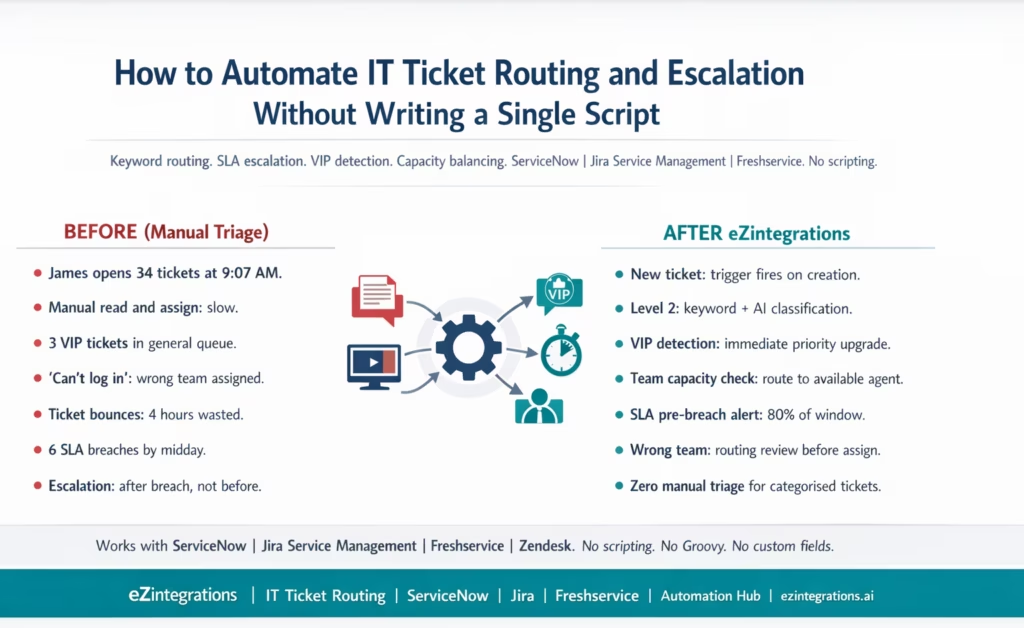
It is 9:07 AM on a Monday. Your IT service desk opens. There are 34 new tickets from the weekend.
Your L1 analyst, James, starts triaging. He opens each ticket, reads the description, decides which team or individual it belongs to, and manually assigns it. Some are easy: “printer not working” goes to the hardware team. Some are ambiguous: “I can’t log in” could be an Active Directory issue, a VPN issue, a Citrix issue, or an MFA problem. James makes his best guess. Sometimes he is right. Sometimes the ticket bounces back from the wrong team 4 hours later, and the SLA clock has been running the whole time.
Meanwhile, three of those 34 tickets are from VIP users (C-suite or board members). They are sitting in the general queue with the same priority as a request for a new monitor stand. Nobody flagged them as VIP. James did not know they were VIP users when he triaged. The VIP users have been waiting since Saturday.
By midday, 6 tickets have breached their SLA. The IT manager gets a report. He forwards it to the helpdesk lead. The helpdesk lead finds that 4 of the 6 breached tickets were assigned to the wrong team and bounced, consuming the entire SLA window in transit.
This is manual IT ticket triage. It is the default at most service desks under 50 seats, and at many larger ones too.
The Three Routing Failures That Happen Every Week
Every IT service desk running manual triage experiences the same three failures repeatedly.
Failure 1: Wrong team assignment. The ticket description says “I cannot access the system.” This could mean VPN, Active Directory, Citrix, application-specific access, or the user’s own laptop needing a restart. A manually triaged ticket often goes to the wrong team first. The receiving team reads it, decides it is not theirs, reassigns it, and adds a note. The original SLA clock is still running. The ticket may bounce 2-3 times before reaching the right person.
Failure 2: VIP tickets in the general queue. C-suite, board members, and other high-priority users typically have different SLA commitments: often a 15-minute response time versus the standard 4-hour SLA. Manual triage has no automatic way to detect VIP status unless the submitter’s email is cross-referenced against a VIP list, which rarely happens at triage speed. VIP tickets sit in the general queue, the executive waits, and the IT manager finds out when a senior leader complains.
Failure 3: Post-breach escalation. Most ITSM platforms have native escalation rules. But they fire when the SLA has already breached. The manager gets a notification 30 seconds after the SLA window closes. By that point, the damage is done. Pre-breach escalation (an alert at 80% of the SLA window) gives the team enough time to act before the breach occurs. This is available in some ITSM platforms but rarely configured correctly because it requires scripting (ServiceNow Business Rules, Jira Automation with complex JQL, or Freshservice workflow automations with time-based triggers).
How Automated Ticket Routing Works
The routing automation has four components:
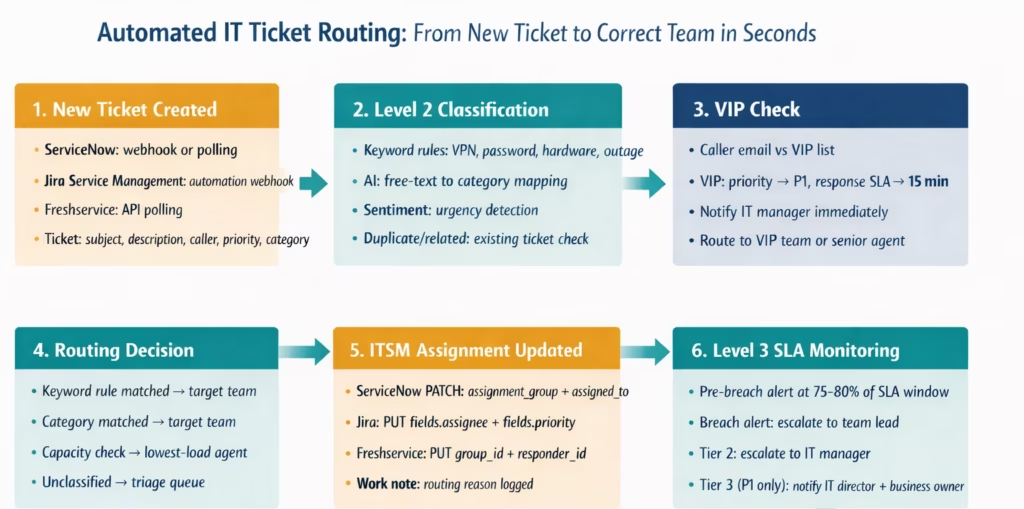
1. Ticket event trigger: eZintegrations monitors the ITSM for new ticket creation events (via webhook or polling). When a new ticket is created, the routing workflow starts.
2. Classification: the ticket’s description, subject, and category are analysed by keyword rules and Level 2 AI classification to determine the correct team or individual. Classification produces a routing decision: which group receives this ticket and at what priority.
3. Assignment: the ITSM record is updated with the assigned group or individual. For tickets that cannot be confidently classified, they are routed to a triage queue for human review (rather than the general queue).
4. SLA monitoring: Level 3 monitors every open ticket against its SLA commitment. Pre-breach alerts fire at a configurable percentage of the SLA window (e.g., 80%), giving teams time to act before the breach occurs.
Connecting to Your ITSM: ServiceNow, Jira, and Freshservice
ServiceNow
ServiceNow provides a comprehensive REST API for ticket management. New ticket events can be detected via:
Polling the incident table:
GET https://{instance}.service-now.com/api/now/table/incident
    ?sysparm_query=sys_created_on>={last_check_timestamp}
    &sysparm_fields=sys_id,number,short_description,description,
    priority,assignment_group,assigned_to,caller_id,category,
    state,sys_created_on
    &sysparm_limit=50
Authorization: Basic {servicenow_credentials}
Business Rule webhook (real-time): Configure a ServiceNow Business Rule that fires an outbound REST message on ticket creation. This is a one-time configuration in ServiceNow (no ongoing scripting), sending the ticket payload to the eZintegrations webhook endpoint.
Reading ticket details for classification:
GET https://{instance}.service-now.com/api/now/table/incident/{sys_id}
    ?sysparm_fields=short_description,description,caller_id,
    priority,category,assignment_group,sys_created_on
Authorization: Basic {servicenow_credentials}
Updating assignment after routing decision:
PATCH https://{instance}.service-now.com/api/now/table/incident/{sys_id}
Authorization: Basic {servicenow_credentials}
Content-Type: application/json

{
  "assignment_group": { "value": "{target_group_sys_id}" },
  "assigned_to": { "value": "{target_agent_sys_id}" },
  "priority": "{priority_value}",
  "work_notes": "Auto-routed by eZintegrations routing engine: {routing_reason}"
}
Jira Service Management
Jira Service Management (JSM) uses the Jira REST API:
Polling for new issues:
GET https://{domain}.atlassian.net/rest/api/3/search
    ?jql=project={project_key}+AND+created>=-1h+AND+issuetype=Incident
    &fields=summary,description,priority,assignee,status,
    customfield_10020,reporter,created
Authorization: Bearer {jira_token}
JSM-specific webhook: JSM supports outgoing webhooks via Jira Automation (no coding needed): create an automation rule that fires a webhook when a new issue is created. The webhook payload goes to eZintegrations.
Updating assignment:
PUT https://{domain}.atlassian.net/rest/api/3/issue/{issue_key}
Authorization: Bearer {jira_token}
Content-Type: application/json

{
  "fields": {
    "assignee": { "accountId": "{jira_agent_account_id}" },
    "priority": { "name": "{priority_name}" },
    "customfield_10020": { "id": "{jira_service_team_id}" }
  }
}
Adding a routing comment:
POST https://{domain}.atlassian.net/rest/api/3/issue/{issue_key}/comment
{
  "body": {
    "type": "doc", "version": 1,
    "content": [{ "type": "paragraph", "content": [
      { "type": "text", "text": "Auto-routed: {routing_reason}" }
    ]}]
  }
}
Freshservice
Freshservice provides a clean REST API:
Polling new tickets:
GET https://{domain}.freshservice.com/api/v2/tickets
    ?order_type=desc&order_by=created_at&updated_since={last_check}
Authorization: Basic {base64(api_key:X)}
Updating assignment after routing:
PUT https://{domain}.freshservice.com/api/v2/tickets/{ticket_id}
Authorization: Basic {base64(api_key:X)}
Content-Type: application/json

{
  "ticket": {
    "group_id": {target_group_id},
    "responder_id": {target_agent_id},
    "priority": {priority_value}
  }
}
Routing Rule Engine: Keywords, Categories, and Capacity
The routing rule engine is the core of the automation. Rules are configured in eZintegrations using the visual condition builder, no scripting required.
Keyword-Based Routing
Each routing rule defines keywords or phrases that, when found in the ticket subject or description, trigger assignment to a specific team:
KEYWORD RULES:
IF description CONTAINS ANY OF [
  "vpn", "virtual private network", "cannot connect remotely",
  "remote access", "ssl vpn", "cisco anyconnect"
]
THEN assign_to = "Network-VPN-Team"
AND priority_minimum = "P2"

IF description CONTAINS ANY OF [
  "password", "locked out", "account locked", "reset password",
  "cannot log in", "login failed", "authentication"
]
THEN assign_to = "Identity-Access-Team"
AND priority_minimum = "P3"

IF description CONTAINS ANY OF [
  "laptop", "computer slow", "blue screen", "bsod", "hardware",
  "keyboard", "mouse", "monitor", "screen"
]
THEN assign_to = "Hardware-Support-Team"
AND priority_minimum = "P3"

IF description CONTAINS ANY OF [
  "outage", "down", "all users", "everyone affected",
  "production down", "cannot work", "critical"
]
THEN assign_to = "Major-Incident-Team"
AND priority = "P1"
AND escalate_immediately = true
Category-Based Routing
For tickets where the submitter selects a category from a dropdown (in the ITSM form), routing is simpler:
IF category = "Network" THEN assign_to = "Network-Team"
IF category = "Hardware" THEN assign_to = "Hardware-Team"
IF category = "Software" AND subcategory = "Microsoft 365" THEN assign_to = "M365-Team"
IF category = "Software" AND subcategory = "ERP" THEN assign_to = "ERP-Support-Team"
IF category = "Access" THEN assign_to = "Identity-Access-Team"
IF category = "Security" THEN assign_to = "Security-Operations-Team"
Capacity-Based Routing
Instead of always routing to a team group, route to the specific available agent with the lowest current workload:
Level 2 queries the ITSM for each agent’s current open ticket count:
ServiceNow agent workload query:
GET /api/now/table/incident
    ?sysparm_query=assigned_to={agent_sys_id}AND
    state!=6AND state!=7AND state!=8
    &sysparm_fields=sys_id
    &sysparm_limit=200
The agent with the fewest open tickets in the target team receives the new assignment (within a configurable maximum per agent: when all agents exceed the maximum, the ticket goes to the team queue without individual assignment).
Conflict Resolution: Multiple Rules Match
When a ticket matches multiple routing rules (e.g., “password reset for VPN access”), the priority order:
- Explicit Major Incident keywords (highest: always P1, always Major Incident Team)
- VIP user flag (second: elevated priority regardless of category)
- Specific category match (third: software > network > hardware)
- General keyword match (fourth: broadest keywords)
- Default queue (last resort: unclassified tickets go to triage queue, not general queue)
VIP and Priority Routing
VIP User Detection
Maintain a VIP list (C-suite, board members, high-value customers, or any other defined VIP group) as a lookup table in eZintegrations.
When a ticket is received, the caller’s email is checked against the VIP list:
VIP_LIST = [
  { "email": "[email protected]", "sla_tier": "VIP", "priority": "P1", "response_time_minutes": 15 },
  { "email": "[email protected]", "sla_tier": "VIP", "priority": "P1", "response_time_minutes": 15 },
  { "email": "[email protected]", "sla_tier": "VIP", "priority": "P1", "response_time_minutes": 15 }
]
If ticket.caller_email matches VIP list:
- Override ticket priority to
P1regardless of submitted priority - Route to the VIP support team or the most senior available agent
- Send an immediate notification to the IT manager
- Set a 15-minute response SLA regardless of the ticket category
The VIP check happens before keyword classification, ensuring VIP tickets always receive elevated treatment.
SLA Tier Assignment
Not all tickets have the same SLA. Common tiers:
| Priority | Response SLA | Resolution SLA | Escalation at |
|---|---|---|---|
| P1 (Critical) | 15 minutes | 4 hours | 10 minutes (67% of response window) |
| P2 (High) | 1 hour | 8 hours | 45 minutes (75% of response window) |
| P3 (Medium) | 4 hours | 24 hours | 3 hours (75% of response window) |
| P4 (Low) | 8 hours | 72 hours | 6 hours (75% of response window) |
| VIP | 15 minutes | 4 hours | 10 minutes |
These SLA tiers are configured in eZintegrations and applied to every ticket based on the routing decision. These SLA tiers align with common service desk benchmarks used across IT support organizations.
SLA-Based Escalation: Before the Breach, Not After
The most valuable part of ticket escalation automation is the pre-breach alert: a notification that fires when a ticket has consumed 75-80% of its SLA window, giving the assigned team time to act before the breach occurs.
Pre-Breach Alert Architecture
Level 3 runs a continuous monitoring loop across all open tickets:
FOR each open ticket in ITSM:
    elapsed_time = now - ticket.created_at (or last_status_change)
    sla_limit = SLA_TIERS[ticket.priority]["response_sla_minutes"]
    elapsed_percentage = (elapsed_time / sla_limit) * 100

    IF elapsed_percentage >= 80 AND ticket.pre_breach_alert_sent = false:
        SEND pre-breach alert to ticket.assigned_to AND ticket.assignment_group.manager
        SET ticket.pre_breach_alert_sent = true

    IF elapsed_percentage >= 100 AND ticket.breach_alert_sent = false:
        SEND breach alert to ticket.assignment_group.manager AND IT_director
        ESCALATE ticket to next tier team
        SET ticket.breach_alert_sent = true

    IF elapsed_percentage >= 150 AND ticket.executive_alert_sent = false:
        SEND executive alert to CTO
        SET ticket.executive_alert_sent = true
The Pre-Breach Alert Content
When a P2 ticket has been open for 45 minutes (75% of its 1-hour response SLA):
Subject: SLA Pre-Breach Alert: INC-2026-0441 (15 minutes remaining)

Ticket: INC-2026-0441 | Priority: P2 | Assigned: James Chen (Network-VPN-Team)
Subject: "Cannot connect to VPN - working from home today"
Opened: 9:15 AM | SLA: 1 hour | Elapsed: 45 minutes | Remaining: 15 minutes

STATUS: No response yet. No notes added.

Action: Please respond to this ticket immediately or escalate to your team lead.

[Open ticket in ServiceNow]
This alert goes to the assigned agent and their manager simultaneously. The 15-minute window gives the agent time to at least add an acknowledgment response before the SLA breaches.
Escalation Tier Structure
When a breach occurs despite the pre-breach alert:
Tier 1 escalation: ticket is reassigned to the senior agent in the team or the team lead. A note is added explaining the escalation and the reason.
Tier 2 escalation (if Tier 1 does not respond within 50% of remaining resolution SLA): ticket is escalated to the IT manager with a summary of all actions taken.
Tier 3 escalation (critical P1 tickets only): the IT director and the relevant business owner are notified.
Level 2 AI Classification: Beyond Keyword Matching
Keyword matching handles 70-80% of tickets correctly. The remaining 20-30% require deeper classification. Level 2 (AI Workflows) applies AI-based text classification to improve routing accuracy.
Free-Text to Category Mapping
Level 2 reads the full ticket description and classifies it even when the submitter has not selected the correct category:
Examples:
- “My Excel keeps crashing every time I open large files” → Software / Microsoft 365 / Excel → route to M365-Team
- “The office printer on the third floor is showing an error code E03” → Hardware / Printer → route to Hardware-Team with printer model cross-reference
- “I cannot access the HR system” → Software / Business Applications / HR → route to ERP-Support-Team (cross-referencing the “HR system” against the application catalogue)
Sentiment and Urgency Detection
Level 2 detects sentiment signals in the ticket description:
- Escalating language: “urgent”, “critical”, “need this now”, “losing a customer”, “board meeting today”
- Frustration indicators: “this is the third time”, “still broken”, “nobody has helped me”, “not fixed since last week”
- Business impact: “cannot process payroll”, “cannot ship orders”, “customer demo in 2 hours”
When these signals are detected: the ticket’s priority is flagged for upgrade and a note is added to the ticket. The assigned agent sees the sentiment flag immediately.
Duplicate and Related Ticket Detection
Level 2 checks whether the incoming ticket is a duplicate or related to an existing open ticket:
GET /api/now/table/incident
    ?sysparm_query=short_descriptionLIKEvpn+AND+state!=6
    &sysparm_fields=sys_id,number,short_description,state,assignment_group
If a related open ticket exists: the new ticket is linked to the existing one and the submitter is notified. If the new ticket is from a second or third user reporting the same issue: this suggests a potential major incident (multiple users affected = escalate to Major Incident Team).
Cross-Platform Ticket Routing (ServiceNow to Jira and Back)
Many IT organisations use multiple ITSM platforms: ServiceNow for internal IT, Jira Service Management for development and software incidents, and potentially Freshservice for a subsidiary or a specific department. Tickets sometimes need to be routed across platforms.
eZintegrations handles cross-platform routing:
ServiceNow ticket → Jira issue (when a software bug needs developer involvement):
POST https://{domain}.atlassian.net/rest/api/3/issue
{
  "fields": {
    "project": { "key": "DEV" },
    "issuetype": { "name": "Bug" },
    "summary": "[From ServiceNow {sn_ticket_number}] {ticket_short_description}",
    "description": {
      "type": "doc", "version": 1,
      "content": [{ "type": "paragraph", "content": [
        { "type": "text", "text": "Originated from ServiceNow: {sn_ticket_number}\n{full_description}" }
      ]}]
    },
    "priority": { "name": "{mapped_priority}" },
    "assignee": { "accountId": "{dev_team_lead_account_id}" }
  }
}
The Jira issue key is written back to the ServiceNow ticket as an external reference. Status syncing between the two: when the Jira issue is resolved, eZintegrations updates the ServiceNow ticket status automatically.
Before vs After: Manual Triage vs Automated Routing
| Triage Step | Manual Process | Automated with eZintegrations |
|---|---|---|
| Ticket detection | Analyst opens queue periodically | Webhook or 5-min polling: detected immediately |
| Queue size at start of day | Entire backlog visible, manual prioritisation | Rules process new tickets as they arrive, overnight included |
| VIP detection | Manual: analyst may not know VIP status | Lookup table: VIP auto-detected at receipt |
| VIP response time | Same as general queue (4+ hours) | Immediately escalated: 15-min SLA, IT manager notified |
| Category classification | Manual read: often ambiguous | Level 2 keyword + AI: 70-80% accuracy, exceptions to triage |
| Wrong team assignment | Common: ticket bounces 1-3 times | Near-zero: multi-rule classification with conflict resolution |
| Routing time per ticket | 2-5 minutes manual reading and assigning | Under 10 seconds automated |
| Capacity-aware assignment | Ignored: round-robin or whoever is next | Level 2 workload check: route to agent with fewest open tickets |
| SLA escalation timing | After breach: manager gets report post-facto | Pre-breach: alert at 75-80% of window, action still possible |
| Overnight and weekend tickets | Queued until Monday morning | Processed in real time, pre-breach alerts fire even at 2 AM |
| Duplicate ticket handling | Manual: analyst may not notice duplicates | Level 2: cross-check, link to existing ticket, notify submitter |
| Major incident detection | Depends on analyst recognising pattern | Level 2: multiple tickets same issue = Major Incident flag |
| Routing audit trail | None: who assigned what is not tracked | Every routing decision logged: rule matched, reason, timestamp |
| Cross-platform routing | Manual: analyst creates ticket in second system | API: auto-creates linked Jira issue from ServiceNow ticket |
Step-by-Step: A VPN Ticket Through the Full Automated Flow
Here is the complete automated routing for a VPN connectivity ticket submitted by a VIP user on a Monday morning.
Setup: Meridian Manufacturing uses ServiceNow. VIP list includes the CEO ([email protected]). Routing rules: VPN keywords → Network-VPN-Team. VIP tier: priority P1, 15-minute response SLA, route to senior network engineer (James Chen). Level 3 monitoring enabled.
March 10, 8:47 AM: David Park (CEO) submits a ticket. ServiceNow ticket INC-2026-1104 created:
- Caller: David Park ([email protected])
- Category: Network
- Subject: “Cannot connect to VPN from home office”
- Description: “I have been trying to connect to the VPN since 8:00 AM for a board prep meeting starting at 9:30 AM. Cisco AnyConnect shows error: ‘connection attempt failed’. This is urgent.”
March 10, 8:47:03 AM: eZintegrations detects the new ticket. ServiceNow polling fires (5-minute cycle, last run 8:45 AM). Ticket INC-2026-1104 retrieved.
March 10, 8:47:07 AM: Level 2 classification (4 seconds).
- VIP check: [email protected] → found in VIP list. CEO. SLA tier: VIP (15-min response).
- Keyword match: “VPN”, “Cisco AnyConnect”, “cannot connect” → Network-VPN-Team.
- Sentiment: “urgent”, “board meeting at 9:30 AM” → business impact detected. Urgency flag raised.
- Priority override: ticket submitted as P3 by submitter → override to P1 (VIP + business impact).
- Duplicate check: no related open VPN tickets for David Park in last 7 days.
March 10, 8:47:09 AM: Routing decision. VIP P1: route to senior network engineer James Chen (lowest current open P1 tickets: 0). Team: Network-VPN-Team.
March 10, 8:47:09 AM: ServiceNow updated.
PATCH /api/now/table/incident/INC-2026-1104
{
  "assignment_group": { "value": "{network_vpn_group_sys_id}" },
  "assigned_to": { "value": "{james_chen_sys_id}" },
  "priority": "1",
  "work_notes": "Auto-routed by eZintegrations: VIP caller (CEO), keyword match VPN/AnyConnect, business impact (board meeting 9:30 AM). Priority upgraded P3→P1. Assigned to James Chen (senior network engineer)."
}
March 10, 8:47:10 AM: Notifications sent. James Chen receives a Slack message:
PATCH /api/now/table/incident/INC-2026-1104
{
  "assignment_group": { "value": "{network_vpn_group_sys_id}" },
  "assigned_to": { "value": "{james_chen_sys_id}" },
  "priority": "1",
  "work_notes": "Auto-routed by eZintegrations: VIP caller (CEO), keyword match VPN/AnyConnect, business impact (board meeting 9:30 AM). Priority upgraded P3→P1. Assigned to James Chen (senior network engineer)."
}
IT Manager Sarah Park receives:
VIP ticket assigned: David Park (CEO) - VPN issue - P1. James Chen handling. Board meeting 9:30 AM.
March 10, 8:52 AM: James Chen responds. James calls David directly and resolves the VPN issue (expired certificate on the device) in 8 minutes. Ticket resolved at 9:00 AM.
Total elapsed time from ticket creation to James’s notification: 7 seconds. Previous manual process: ticket in general queue until an analyst triaged it (est. 9:15-9:30 AM). David Park would have missed the board prep window.
Key Outcomes and Results
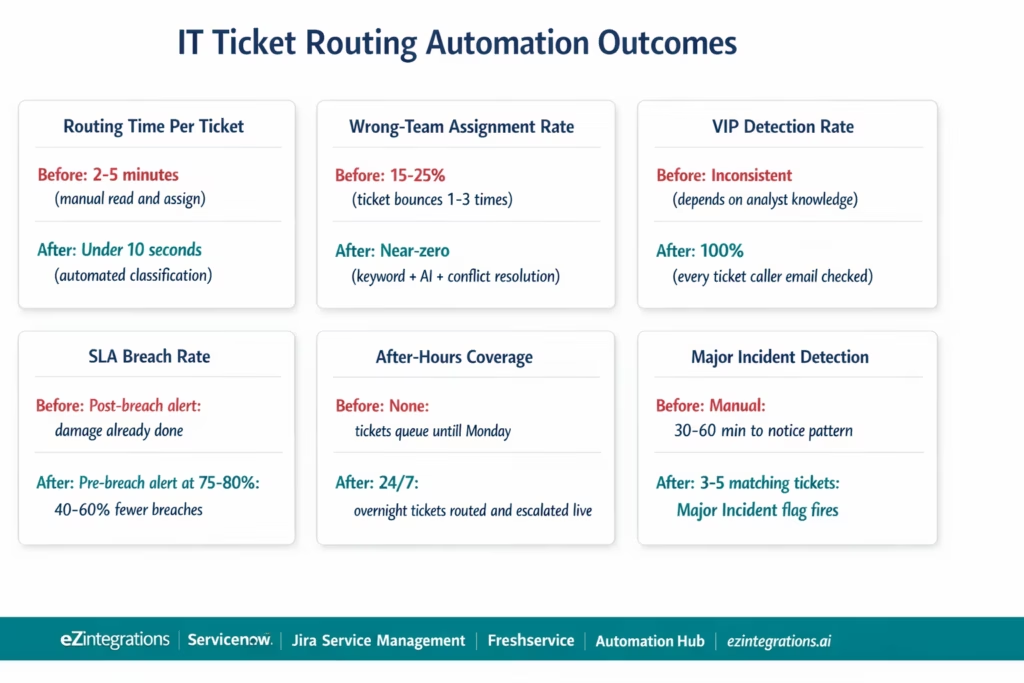
Routing time: manual triage takes 2-5 minutes per ticket (reading, deciding, assigning). Automated routing completes assignment in under 10 seconds. For a service desk processing 50 tickets per day: 100-250 minutes of triage time per day recovered.
Routing accuracy: wrong-team assignment rates in manual triage are typically 15-25% (industry estimates). Automated routing with keyword + AI classification achieves 80-85% correct first-assignment rates for categorised tickets. Tickets classified with low confidence route to a dedicated triage queue rather than a wrong team.
VIP response compliance: manual triage detects VIP tickets based on analyst knowledge, which is inconsistent. Automated VIP lookup achieves 100% detection (every ticket’s caller email is checked against the VIP list). VIP response SLA compliance improves from variable to near-100%.
SLA breach rate: pre-breach alerts at 75-80% of the SLA window give teams 15-20% of the window to respond before the breach. Organisations implementing pre-breach alerting typically reduce SLA breach rates by 40-60% compared to post-breach notification only.
After-hours and weekend coverage: manual triage does not happen outside business hours. Automated routing processes tickets 24/7 with the same response time. For organisations with global users or on-call IT teams, overnight tickets are routed and escalated as they arrive rather than queuing until the next business day.
Major incident detection: multiple tickets matching the same keyword pattern within a short time window trigger a Major Incident flag. Manual triage may not notice this pattern until 30-60 minutes of tickets have accumulated. Automated pattern detection fires after 3-5 matching tickets.
How to Get Started
Step 1: Audit Your Current Routing Failures
Pull the last 90 days of ticket data from your ITSM and identify: what percentage of tickets were reassigned after initial assignment (wrong-team rate)? What percentage of tickets breached their SLA? What percentage of those breached tickets were bounced tickets? Which ticket categories have the highest bounce rates? Which ticket categories have the longest average resolution times? This data tells you exactly where to apply routing automation first for maximum impact.
Step 2: Build Your Routing Rule Catalogue
Document the routing rules your best analysts apply instinctively: which keywords go to which teams, how VIP users are identified, what the SLA tiers are for each priority, and what the escalation sequence looks like. This does not need to be exhaustive from day one: start with the top 10-15 keyword patterns that cover 70-80% of your ticket volume. Add rules incrementally as you see exceptions in the routing data.
Step 3: Import the IT Ticket Routing Template
Go to the Automation Hub and explore the IT automation templates. Import the IT Ticket Routing template for your ITSM (ServiceNow, Jira Service Management, or Freshservice). The template includes: ITSM polling or webhook configuration, keyword routing rule engine, VIP lookup table, SLA tier assignment, Level 3 pre-breach escalation, and routing audit log.
Step 4: Configure Rules, VIP List, and SLA Tiers
Add your ITSM API credentials (ServiceNow user/password, Jira API token, or Freshservice API key). Upload your VIP user list (email addresses and SLA tier overrides). Enter your routing rules in the visual condition builder (keyword patterns, team group IDs from your ITSM, individual agent IDs for capacity routing). Configure your SLA tiers (response and resolution times by priority) and escalation thresholds (pre-breach percentage and escalation chain).
Total configuration time: 1-2 days for a single ITSM with 10-15 routing rules, VIP list, and SLA escalation.
FAQs
eZintegrations connects to ServiceNow via REST API (no Business Rules, no script includes, no client scripts required). New tickets are detected via webhook or polling (GET /api/now/table/incident). The routing engine in eZintegrations evaluates the ticket against your configured rules (keyword patterns, category, caller VIP status, team capacity) and updates the ServiceNow record via PATCH /api/now/table/incident/{sys_id} with the correct assignment_group and assigned_to. The routing reason is written as a work note. No ServiceNow scripting is required at any point: all logic lives in eZintegrations.
1-2 days for a single ITSM with 10-15 routing rules, VIP list, and SLA escalation configuration. Key steps: ITSM API credentials (30-60 minutes), VIP list upload (30-60 minutes), routing rule entry in condition builder (2-4 hours for 10-15 rules), SLA tier configuration (1-2 hours), Level 3 escalation chain setup (1-2 hours), and test validation with 10-15 sample tickets (1-2 hours). More complex configurations (cross-platform routing, capacity-aware assignment with agent workload API calls, or advanced AI classification) add 1-2 days.
Yes, All three are supported via REST API. ServiceNow: Table API (/api/now/table/incident), OAuth or basic authentication, PATCH for assignment updates, work notes for routing reasons. Jira Service Management: Jira REST API v3 (/rest/api/3/issue), Atlassian API token, PUT for field updates, POST for comments. Freshservice: REST API v2 (/api/v2/tickets), API key authentication, PUT for assignment updates. Pre-built templates for each ITSM are available in the Automation Hub with pre-mapped field configurations.
Level 3 runs a continuous monitoring loop across all open tickets. For each ticket, it calculates elapsed time as a percentage of the SLA window. At 75-80% of the window: a pre-breach alert is sent to the assigned agent and their manager simultaneously, specifying the ticket, the time remaining, and the current status. This fires before the breach, giving the team time to act. If no response occurs and the SLA is breached: a breach notification escalates the ticket to the next tier (team lead, then IT manager, then IT director for critical tickets). The escalation chain and percentage thresholds are configurable per priority tier.
Yes, When no keyword rule matches and Level 2 AI classification produces a confidence score below the configured threshold (e.g., below 70%), the ticket is routed to a dedicated triage queue rather than the general queue or a wrong team. The triage queue is monitored by a designated L1 analyst whose sole job is to handle the unclassified exceptions. In practice, keyword + AI classification covers 80-90% of tickets correctly, leaving 10-20% for the triage queue, which is significantly better than the 100% manual triage of the baseline process.1. How does eZintegrations automate IT ticket routing without ServiceNow scripting?
2. How long does IT ticket routing automation take to set up?
3. Does eZintegrations work with ServiceNow, Jira Service Management, and Freshservice?
4. How does the pre-breach SLA escalation work?
5. Can the automation handle tickets that cannot be classified by keyword matching?
The CEO Could Not Connect to VPN. His Board Meeting Was at 9:30 AM. James Got the Alert at 8:47 AM.
Manual triage would have surfaced David Park’s ticket at 9:15 or 9:30 AM, when a general queue analyst finally reached it. The board meeting would have started without the CEO’s prep work done, and nobody in IT would have known until the complaint arrived.
The automated version flagged the VIP caller, matched the VPN keywords, upgraded the priority, assigned to the right engineer, and delivered a Slack notification with the board meeting context, in 7 seconds. James resolved the ticket in 13 minutes. David was ready for his 9:30 AM meeting.
No scripting. No Business Rules. No Groovy. No Jira Automation expressions. Just rules configured in a visual builder that any IT ops manager can maintain.
Explore the IT Ticket Routing Templates in the Automation Hub. Or visit the Automation Hub directly to import the template for your ITSM platform.
For the related IT provisioning workflows (onboarding and offboarding that generate IT tickets), see the employee onboarding automation guide.

