
How to Automate Invoice Approval Workflows Without Writing a Single Line of Code
April 22, 2026To automate an invoice approval workflow without code, use eZintegrations to build a visual flow: invoices received via email or webhook are validated by Level 2 (duplicate check, PO matching), routed by configurable rules (amount, department, vendor), approved via one-click in email or Slack, and written back automatically to SAP S/4HANA, NetSuite, Oracle Fusion Cloud, or QuickBooks. Configuration takes 2-4 hours with no developer involvement.
TL;DR
- Manual invoice processing costs 15/invoiceandaverages9.2days.Automated:1-$3, hours.
- Four steps: receive, route, approve, write back to ERP. eZintegrations automates all four, no code.
- Route by amount (under 1Kauto−approve,1K-10Koneapprover,over10K two), by department, by vendor type.
-
- Level 1 (iPaaS Workflows) handles trigger, routing, notification, and ERP write-back.
- Level 2 (AI Workflows) validates every invoice before routing: duplicate check, PO matching, vendor master validation, amount anomaly detection.
- Level 3 (AI Agents) monitors SLA breaches, early payment discount windows, and bottleneck approvers.
- Level 4 (Goldfinch AI) orchestrates the complete approval cycle as a Workflow Node and provides the Goldfinch AI Chat UI: “What invoices are pending approval for more than 3 days?” or “What is our total AP liability awaiting approval right now?”
- ERP write-back: SAP S/4HANA
API_SUPPLIERINVOICE_PROCESS_SRV, NetSuitePOST /vendorBill, Oracle fscmRestApi, QuickBooks REST. - Automation Hub template: live in 2-4 hours.
The Invoice Approval Problem
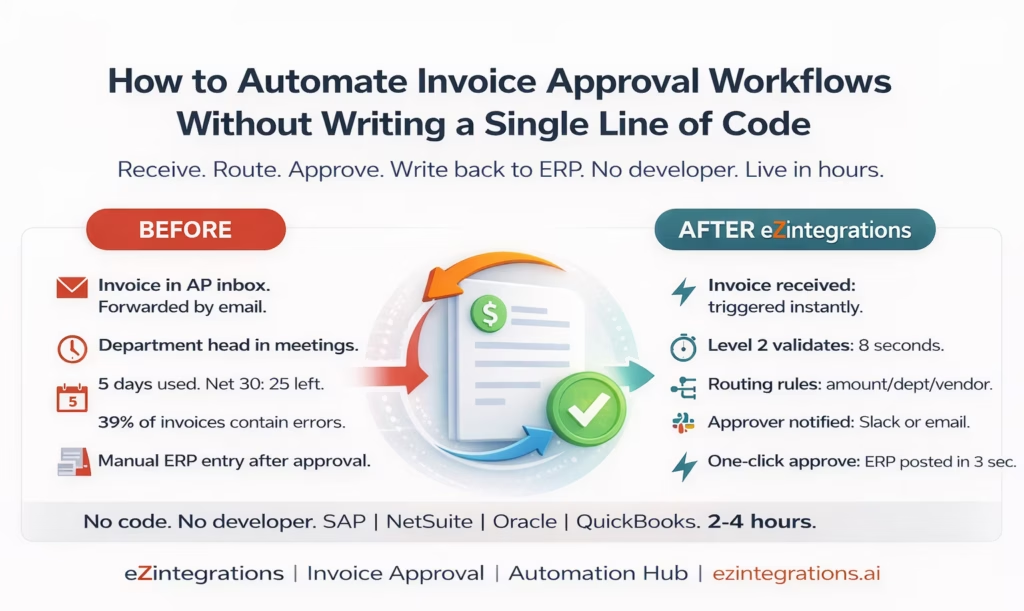
It is Tuesday afternoon. A $4,200 invoice from your IT supplier landed in the AP inbox at 9 AM. It is now 2 PM and nobody has looked at it.
Your AP coordinator forwarded it to the department head. The department head is in meetings. She forwarded it to her assistant “for tracking.” Nobody knows if the invoice is correct, whether a PO covers it, or which GL account it belongs to.
The supplier’s payment terms are Net 30. You have already used 5 of those days.
This is not unusual. Average invoice processing time is 9.2 days. About 39% of invoices contain errors. Accounting staff spend roughly 12 hours per week on invoices. Finance teams describe invoice approval as one of their highest-volume, lowest-value tasks.
The cause is not laziness. It is the absence of a system. Without defined routing rules, every invoice is a judgment call. Each question takes time. Time taken is cash flow delayed.
The solution is not a new ERP. It is a workflow: a defined, automated, repeatable process that routes every invoice to the right person at the right time and writes the result back to your existing ERP. Without writing code.
What an Automated Invoice Approval Workflow Does
Precisely: four things. Receive the invoice. Validate it. Route it. Write the result to the ERP. Every automated invoice approval workflow needs all four, and most manual processes only complete the third one (routing via email) inconsistently.
The four steps:
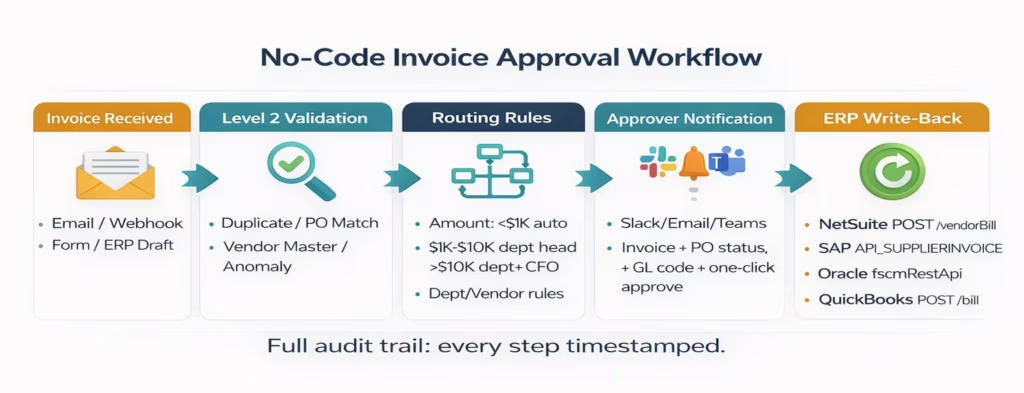
- Receive the invoice from any source: email, vendor portal webhook, form submission, ERP draft, or file drop.
- Validate it automatically: is this a duplicate? Does a PO cover it? Is the vendor in the master? Is the amount anomalous?
- Route it to the right approver based on rules: amount threshold, cost center, vendor type, or any combination.
- Write back the approved result to the ERP: vendor bill created, GL coded, payment terms set. No manual re-entry.
All four are configured visually in eZintegrations. No code at any step.
The Four Steps of Invoice Approval Automation
Step 1: The Trigger
An invoice approval workflow starts with a trigger.
- Email trigger: invoice email arrives in
AP@yourcompany.com. eZintegrations reads the email and parses the attachment. - Webhook trigger: a vendor portal sends a webhook when a new invoice is submitted.
- Form trigger: an employee submits an invoice via a simple form (for non-PO or expense reimbursements).
- ERP trigger: a draft invoice record created in NetSuite or SAP triggers the approval flow.
- File trigger: invoices dropped to SharePoint, Google Drive, or SFTP trigger the flow.
Step 2: The Routing Rules
Routing rules define who receives which invoice. Configured once, applied to every invoice automatically.
Amount-based routing (the most common):
IF invoice.amount <= 1,000: auto-approve
IF invoice.amount > 1,000 AND <= 10,000: route to department_manager
IF invoice.amount > 10,000 AND <= 50,000: route to department_manager, then CFO
IF invoice.amount > 50,000: route to department_manager, then CFO, then CEO
Department-based routing:
IF invoice.cost_center = "IT": route to IT_manager
IF invoice.cost_center = "Marketing": route to Marketing_director
IF invoice.cost_center = "Facilities": route to Facilities_manager
Vendor-based routing:
IF vendor.type = "preferred": single approval
IF vendor.type = "new": two approvers + legal review
IF vendor.type = "critical_supplier": finance_director required
These are configured in the visual condition builder using dropdowns, not code.
Step 3: The Approver Notification
The approver receives a notification with everything needed to make a decision:
- The invoice document (PDF)
- Vendor name and payment history
- PO match status (matched, partial, or no PO)
- GL account and cost center pre-coded from routing rules
- One-click Approve/Reject/Return action (from email, Slack, or Teams)
The approver never needs to log into any system. One click in the notification records the decision.
Step 4: ERP Write-Back
When the invoice is approved, eZintegrations writes the vendor bill to the ERP:
NetSuite:
POST /services/rest/record/v1/vendorBill
{
  "entity": { "id": "{vendor_netsuite_id}" },
  "tranDate": "{invoice_date}",
  "dueDate": "{payment_due_date}",
  "externalId": "{invoice_number}",
  "memo": "{invoice_number} - approved via workflow",
  "expense": {
    "items": [{
      "account": { "id": "{gl_account_id}" },
      "amount": {approved_amount},
      "department": { "id": "{cost_center_id}" }
    }]
  }
}
SAP S/4HANA:
POST /sap/opu/odata/sap/API_SUPPLIERINVOICE_PROCESS_SRV/A_SupplierInvoice
{
  "CompanyCode": "1000",
  "DocumentType": "RE",
  "PostingDate": "{posting_date}",
  "DocumentDate": "{invoice_date}",
  "InvoicingParty": "{vendor_code}",
  "DocumentCurrency": "USD",
  "InvoiceGrossAmount": "{approved_amount}",
  "to_SupplierInvoiceItemGLAcct": [{
    "SupplierInvoiceItem": "1",
    "GLAccount": "{gl_account}",
    "CostCenter": "{cost_center}",
    "AmtInDocCurr": "{line_amount}"
  }]
}
Oracle Fusion Cloud:
POST /fscmRestApi/resources/11.13.18.05/invoices
{
  "LegalEntityName": "YourCompany",
  "VendorName": "{vendor_name}",
  "InvoiceDate": "{invoice_date}",
  "InvoiceAmount": {approved_amount}
}
No one types anything. The approved invoice appears in the ERP within seconds of the final approval click.
How to Build Invoice Approval Routing Rules Without Code
Step 1: Open the Automation Hub, search “Invoice Approval Workflow”, and import the template for your ERP.
Step 2: Configure the trigger. Select “Email” as trigger type. Add AP@yourcompany.com. Set attachment filter to PDF.
Step 3: Configure routing rules using the condition builder. Click “Add Condition,” select invoice.totalAmount, set condition and value, assign approver. Repeat for each tier.
Step 4: Configure the approver notification. Select channel (email, Slack, or Teams). Set the template to include invoice PDF, vendor name, and PO match status.
Step 5: Set SLA and escalation. SLA: 24 hours. Reminder at 20 hours. Escalation to AP supervisor if SLA breached.
Step 6: Configure ERP write-back. Select your ERP. Map invoice fields to ERP record fields.
Total setup time: 2-4 hours for a three-tier routing workflow with one ERP.
ERP Write-Back: What Happens After Approval
The ERP write-back step is where most no-code AP automation tools fall short. They automate routing and notification but leave ERP posting as a manual step.
eZintegrations closes this gap. When the final approver clicks Approve:
- The approval decision is recorded (approver ID, timestamp, notes).
- eZintegrations retrieves the vendor master record from the ERP to confirm vendor ID, payment terms, and GL mapping.
- The vendor bill or supplier invoice is created via REST API.
- Invoice status is updated to “Posted.”
- Confirmation notification goes to the AP team and the original submitter.
- Audit trail completed: submission time, each approval step, ERP posting reference.
A $4,200 IT invoice approved at 2:14 PM appears in NetSuite as a vendor bill at 2:14 PM. The AP coordinator does not open NetSuite. The GL account is pre-coded from routing rules. Payment terms come from the vendor master. Nothing is typed.
Level 2 and Level 3: AI Validation and Agent Monitoring
Level 2: AI Validation Before Routing
Level 1 handles the routine flow. Level 2 (AI Workflows) adds intelligence before any invoice reaches a human approver.
Duplicate detection: checks ERP vendor bill history for same vendor, invoice number, and amount. Potential duplicates routed to AP supervisor, not standard approver.
PO matching: if invoice references a PO number, Level 2 retrieves the open PO from the ERP and checks: does amount match? Is the PO line still open? Is quantity within tolerance? Mismatches noted in the approver notification with specific discrepancy.
Vendor master validation: confirms vendor exists in ERP with active status. New vendors flagged for vendor setup before standard approval routing.
Amount anomaly detection: compares invoice amount against vendor’s historical average for same category. More than 2x average: anomaly flag added to notification. Not blocked, but noted.
Level 3: Monitoring Agents
Level 3 (AI Agents) runs continuous monitoring on the approval queue:
- SLA breach alert: fires when an invoice has been waiting for 80% of the SLA window (before the SLA is breached).
- Aged invoice report: daily summary of invoices pending approval, sorted by days waiting, sent to AP manager.
- Bottleneck detection: if one approver’s average approval time is significantly above team average, the Level 3 agent flags this for the AP manager.
- Payment terms alert: for invoices with early payment discount terms (e.g., 2/10 net 30), a priority flag is added and the SLA shortened to capture the discount window.
Level 4 (Goldfinch AI) orchestrates the complete invoice approval cycle as a Workflow Node, with the Goldfinch AI Chat UI for the AP team: “What invoices are pending for more than 3 days?”, “Which vendors have had the most approval delays this quarter?”, or “What is the total AP liability awaiting approval right now?”
Before vs After: Manual vs Automated Invoice Approval
| Process Step | Manual Invoice Approval | Automated with eZintegrations |
|---|---|---|
| Invoice receipt | AP inbox, forwarded manually | Triggered automatically on receipt |
| Duplicate detection | Manual: occasionally checked | Level 2: every invoice, before routing |
| PO match check | Manual: someone pulls up the PO | Level 2: automatic, discrepancy noted |
| Routing decision | Manual: AP coordinator decides | Rules-based: amount, dept, vendor auto-route |
| Approver notification | Email forwarded with attachment | Structured: invoice + PO match + context |
| Approval action | Email reply or verbal confirmation | One-click in email, Slack, or Teams |
| SLA tracking | Manual: someone follows up | Level 3: alert before SLA breach |
| Escalation | Manual: AP manager follows up | Auto-escalation after SLA |
| Audit trail | Email thread (incomplete) | Full timestamp log: every step |
| ERP write-back | Manual: AP coordinator enters in ERP | Automatic: API write-back on approval |
| GL coding | Manual: AP coordinator decides | Pre-coded from routing rules |
| Payment terms capture | Manual: sometimes missed | Pulled from vendor master on receipt |
| Early payment discount | Often missed | Level 3: priority flag when window active |
| Processing time | 9.2-14.6 days average | Hours (single approver), 1-2 days (multi-tier) |
| Cost per invoice | ~$15 (manual) | $1− $3 (automated) |
Step-by-Step: An Invoice Through the Full Automated Flow
Setup: Meridian Manufacturing uses NetSuite. Three-tier routing: under 1Kauto−approve,1K-10Ktodepartmenthead,over10K to department head then CFO. TechServ Corp is a preferred vendor, Net 30 terms.
9:14 AM: Invoice arrives. TechServ Corp sends invoice INV-2026-0441 ($4,200, IT infrastructure maintenance) to AP@meridian.com.
9:14 AM: Trigger fires. eZintegrations detects the email, parses: vendor TechServ Corp, invoice INV-2026-0441, amount $4,200, date March 1 2026, Net 30 terms.
9:14 AM: Level 2 validation (8 seconds).
- Duplicate check: no existing NetSuite bill for INV-2026-0441 from TechServ Corp.
- PO match: no PO reference on this invoice (service invoice, non-PO flag added).
- Vendor master: TechServ Corp found, status Active, GL 6200 (IT Maintenance) pre-mapped.
- Anomaly: average TechServ Corp invoice 3,800,thisis4,200 (10.5% above average, minor anomaly noted).
- All validations pass.
9:15 AM: Routing decision. 4,200between1K and $10K: route to IT department head James Chen.
9:15 AM: Slack notification sent to James Chen.
New Invoice for Approval: TechServ Corp | $4,200 | Non-PO Service Invoice
Invoice: INV-2026-0441 | March 1, 2026 | Net 30 (Due April 1)
GL Account: 6200 (IT Maintenance) | Cost Center: IT
Note: Amount is 10.5% above this vendor's average ($3,800 typical).
[VIEW INVOICE] [APPROVE] [REJECT] [REQUEST CHANGES]
10:22 AM: James Chen approves. James clicks “APPROVE” in Slack. Note: “Annual maintenance contract renewal.”
10:22 AM: NetSuite write-back (3 seconds).
POST /services/rest/record/v1/vendorBill
{
  "entity": { "id": "TECHSERVCORP_NS" },
  "tranDate": "2026-03-01",
  "dueDate": "2026-04-01",
  "externalId": "INV-2026-0441",
  "memo": "INV-2026-0441 - Annual maintenance approved by J.Chen 10:22 AM",
  "expense": { "items": [{
    "account": { "id": "6200" },
    "amount": 4200.00,
    "department": { "id": "IT_DEPT" }
  }]}
}
NetSuite vendor bill VB-2026-0339 created. Status: Open. Due April 1, 2026.
10:22 AM: Confirmation sent. AP coordinator receives: “Invoice INV-2026-0441 from TechServ Corp ($4,200) approved by J. Chen at 10:22 AM. NetSuite VB-2026-0339 created. Due April 1, 2026.”
Total elapsed time: 1 hour 8 minutes from receipt to NetSuite posting. Previous: 3-5 business days.
Key Outcomes and Results
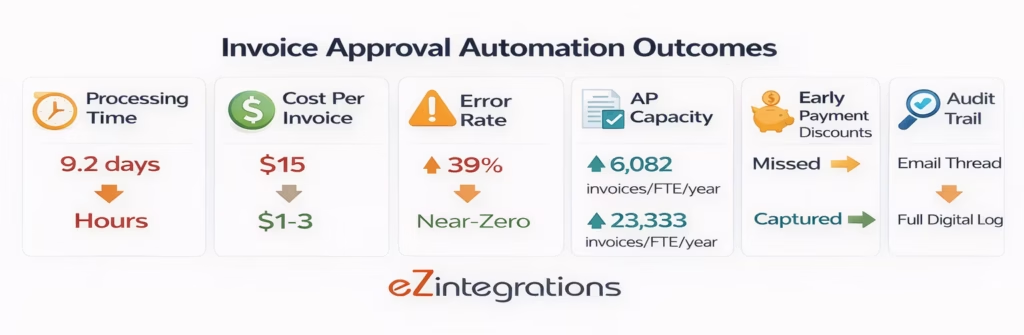
Processing time: 9.2 days average manual (Ardent Partners 2025) to hours (single approver) or 1-2 days (multi-tier). Reduction: 70-90%.
Cost per invoice: 15manualto1-$3 automated. Reduction: 80-93%.
Error rate: 39% of manual invoices contain errors. Level 2 duplicate detection and PO matching catches errors before approval. Duplicate payments and GL miscoding: near-zero.
AP team capacity: 23,333 invoices/FTE/year (automated) vs 6,082 (manual). 3-4x capacity increase.
Early payment discounts: Level 3 priority flagging for discount-eligible invoices. At 5MannualAPspend,capturing3030,000/year.
Audit readiness: every invoice has a complete digital trail: receipt, validation results, routing decision, approver action with timestamp and notes, ERP posting reference. Finance close and external audits supported without additional reconciliation.
How to Get Started
Step 1: Map Your Current Invoice Approval Process
Document what you currently do: How do invoices arrive? Who approves by amount? Which ERP do you use? What are current approval SLAs? Common delays? Takes 30-60 minutes. The output is the routing logic you will configure next.
Step 2: Import the Invoice Approval Workflow Template
Go to the Automation Hub and search “Invoice Approval Workflow.” Import for your ERP (NetSuite, SAP, Oracle, or QuickBooks). The template includes the email trigger, routing placeholder, approver notification, SLA and escalation logic, and ERP write-back step.
Step 3: Configure Routing Rules and ERP Credentials
Add ERP credentials (NetSuite TBA, SAP BTP, Oracle OAuth, or QuickBooks OAuth). Configure routing rules in the condition builder. Set approvers and notification channel. Map GL accounts to department and vendor types. Set SLA and escalation targets.
Step 4: Test with 5 Live Invoices
Run five invoices: one auto-approve, one single-approver, one multi-tier, one with PO match, and one deliberate duplicate to test Level 2 detection. Validate routing, notification content, and ERP write-back. Allow 2-4 hours for test validation.
Start your free trial to import the invoice approval template. No credit card required.
FAQs
eZintegrations provides a visual workflow builder where you configure invoice approval by selecting triggers, routing conditions, and ERP connections from dropdown menus and condition builders, no coding required. Invoice received via email or webhook is parsed automatically, Level 2 validates it (duplicate check, PO matching, vendor master, anomaly detection), routing rules direct it to the correct approver, one-click approval is recorded in email or Slack, and the approved invoice is written to the ERP (NetSuite, SAP, Oracle, or QuickBooks) via REST API in seconds. 2-4 hours to configure from template import to live workflow.
2-4 hours for a single-ERP workflow with three-tier routing, email or Slack notification, and ERP write-back. Main time: ERP credential setup (30-60 minutes), routing rule configuration (30-60 minutes), test validation (1-2 hours). More complex workflows with multiple ERPs or custom validation logic take 1-2 additional days.
Yes, SAP S/4HANA via API_SUPPLIERINVOICE_PROCESS_SRV (OData V4, no ABAP required), NetSuite via SuiteTalk REST POST /vendorBill, Oracle Fusion Cloud via fscmRestApi POST /invoices, and QuickBooks Online via the QuickBooks REST API POST /bill. Pre-mapped field configurations for each ERP are included in the template. Select your ERP during template import and the field mappings are pre-populated.
Any combination of: invoice amount (greater than, less than, between ranges), vendor type (preferred, new, critical, blacklisted), cost center or department, vendor category (IT, facilities, marketing, professional services), PO status (matched, unmatched, partial match), and payment terms (including early payment discount eligible). Combined with AND/OR logic in the visual condition builder.
Every action is logged: receipt timestamp, Level 2 validation results (duplicate check, PO match, anomaly flags), routing decision, each approver action (approved/rejected/returned with timestamp and notes), escalation events, ERP write-back reference (vendor bill ID, posting timestamp). Exportable as CSV or PDF for external audits. Default retention: 7 years to match standard financial record-keeping requirements. 1. How does no-code invoice approval automation work with eZintegrations?
2. How long does it take to set up an invoice approval workflow?
3. Does eZintegrations work with SAP, NetSuite, Oracle, and QuickBooks?
4. What routing rules can be configured without code?
5. How does the audit trail work for invoice approvals?
The Invoice in the AP Inbox Does Not Have to Wait Until Thursday
Manual invoice approval is not a people problem. Your AP coordinator is not slow. Your department heads are not obstructionist. The problem is that every invoice goes through a chain of manual steps with no routing logic, no SLA, and no ERP write-back.
The automated version compresses all of that: invoice arrives, Level 2 validates in 8 seconds, approver gets everything in one notification, clicks Approve in Slack, vendor bill in NetSuite before the original email chain would have reached the department head.
No code. No developer. Live in hours.
Import the Invoice Approval Workflow template from the Automation Hub. Or start your free trial today. No credit card required.

