
How to Automate the Purchase Requisition to PO Workflow: End-to-End Procurement Guide
April 22, 2026To automate the purchase requisition to PO workflow end-to-end, eZintegrations connects your requisition submission (web form, ERP draft, or email) to a multi-tier approval flow (by spend amount, category, or cost centre), creates the PO automatically in SAP S/4HANA, NetSuite, Microsoft Dynamics 365, or Acumatica when all approvals are complete, sends a PO confirmation to the supplier via email or EDI, and updates the requisitioner with a PO number and expected delivery date. The full configuration, from PR trigger to supplier notification, takes 3-5 days using Automation Hub templates and requires no developer or ERP customisation.
TL;DR
- The PR-to-PO process is broken for most organisations: PRs submitted by email, approvals chased manually, POs typed into the ERP from approved PRs, suppliers notified by a separate email that may arrive days late.
- End-to-end procurement automation covers five stages: PR submission, PR validation, multi-tier approval, ERP PO creation, and supplier notification.
- Works with SAP S/4HANA, NetSuite, Microsoft Dynamics 365, and Acumatica using published REST APIs, no ERP customisation or custom code required.
- Level 1 (iPaaS Workflows) handles PR capture, routing, PO creation via ERP API, and supplier notification. Level 2 (AI Workflows) validates PRs: duplicate check, budget availability, preferred vendor check, policy compliance. Level 3 (AI Agents) monitors cycle times, flags budget overruns before they happen, and identifies PRs that missed SLA. Level 4 (Goldfinch AI) orchestrates the entire procurement cycle as a Workflow Node with the Goldfinch AI Chat UI: “What PRs are awaiting approval right now?” or “How much is committed against the IT budget this quarter?”
- Typical cycle time reduction: from 7-14 days (manual PR-to-PO) to 1-3 days (automated). For urgent items with pre-approved vendors: under 4 hours.
- CTA: Explore Templates in the Automation Hub.
Why the PR-to-PO Process Is Broken at Most Organisations
Your procurement manager gets a requisition on a Monday. It arrives as an email from the IT department head: “We need 15 additional Figma licences for the design team. Approx 225/seat/year.Total 3,375. Please process.”
Your procurement manager reads it, flags it for budget checking, and forwards it to the CFO for approval. The CFO is travelling this week. By Thursday, no reply. Your procurement manager sends a follow-up. The CFO replies Friday afternoon: “Approved, please proceed.”
Your procurement manager now has to find the vendor contact for Figma (B2B sales), negotiate or confirm the pricing, open the ERP, create a vendor record if it does not exist, type in the PO with the correct GL account, cost centre, and line item description, and send the PO to the vendor.
The vendor receives the PO on Monday of the following week. Almost two full weeks after the initial request. The IT department head has been asking every day.
This is the standard PR-to-PO experience for most mid-market and enterprise organisations. Not because procurement teams are inefficient, but because the process has no automation: every step is a manual handoff between a person and their inbox.
The automated version of this same workflow takes under 4 hours for a pre-approved vendor category. Under 2 days for a new vendor requiring multiple approvals. The PO is created in the ERP automatically. The supplier receives a formatted PO. The requisitioner gets the PO number without asking.
The Five Stages of an Automated PR-to-PO Workflow
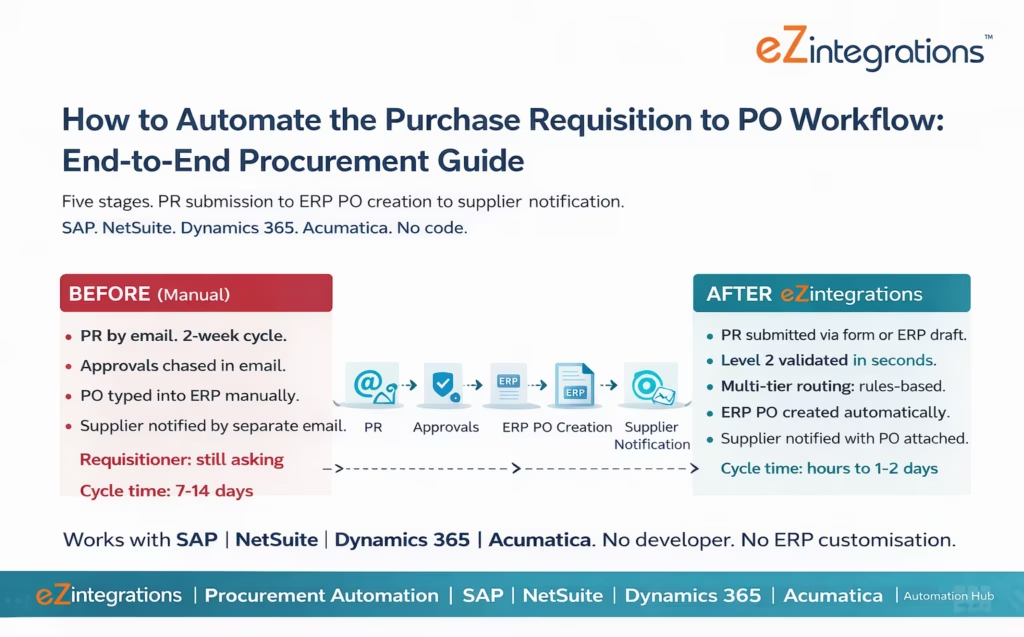
Every PR-to-PO workflow, regardless of ERP or industry, requires the same five stages. The differences are in the routing rules, approval hierarchy, vendor master, and ERP PO format. All five stages are configured visually in eZintegrations using Automation Hub templates.
Stage 1: PR Submission and Capture. The requisitioner submits the PR via a web form, an ERP draft record, an email to a monitored inbox, or a self-service procurement portal. eZintegrations captures the PR data and standardises it into a structured record.
Stage 2: PR Validation. Before routing for approval, Level 2 runs automated checks: duplicate PR detection, budget availability against the cost centre’s remaining budget, preferred vendor check, and policy compliance (is the requested item/service category approvable without additional sign-off?).
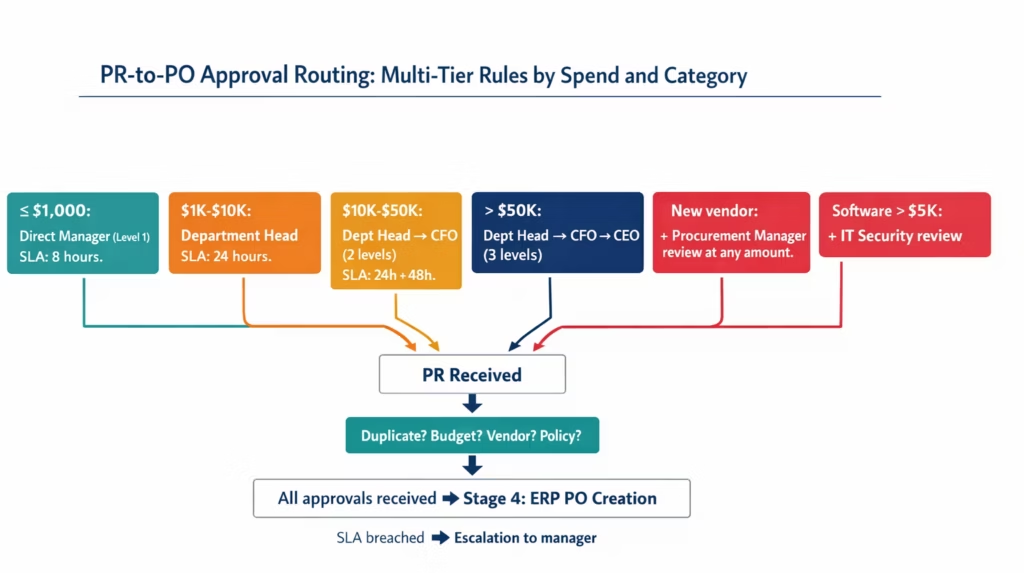
Stage 3: Multi-Tier Approval Routing. Based on spend amount, category, cost centre, and vendor type, the PR is routed to one or more approvers. Each approver receives a structured notification with full PR context and one-click approve/reject action.
Stage 4: ERP PO Creation. When all required approvals are received, eZintegrations creates the PO in the ERP via REST API: SAP API_PURCHASEORDER_PROCESS_SRV, NetSuite POST /purchaseOrder, Dynamics 365 POST /purchaseorders, or Acumatica PUT /PurchaseOrder. The PO number is returned from the ERP and stored.
Stage 5: Supplier Notification. The approved PO is formatted and delivered to the supplier: via email (PDF attachment), via EDI (ANSI X12 850) for EDI-connected suppliers, or via a supplier portal webhook. The requisitioner receives the PO number and expected delivery date.
Stage 1: PR Submission and Capture
PR Submission Methods
Web form (recommended for most organisations): eZintegrations provides a configurable PR submission form that captures: requestor name and department, item description, quantity, estimated unit cost, cost centre, GL account suggestion, required by date, preferred vendor (if known), and supporting attachments (quotes, specifications).
The form validates required fields before submission. Requestors cannot submit a PR without a cost centre and GL account suggestion (reducing the most common approval delay: “which account does this go to?”).
ERP draft record trigger: For organisations where employees create draft purchase requisitions directly in SAP (ME51N), NetSuite, or Dynamics 365, eZintegrations monitors for draft PR records and triggers the approval flow when a draft is submitted for approval.
Email trigger: For organisations not ready to migrate to a form, a monitored inbox (PR@yourcompany.com) captures PR emails. Level 2 (AI Workflows) parses the email body and attachment to extract the structured fields (item, quantity, cost estimate, requestor) and creates a structured PR record.
PR Data Standardisation
Regardless of submission method, eZintegrations creates a standardised PR record:
{
  "pr_number": "PR-2026-IT-0441",
  "requestor": "James Chen",
  "department": "IT",
  "cost_center": "CC-IT-001",
  "gl_account": "6200",
  "item_description": "Figma Professional licence - 15 seats",
  "quantity": 15,
  "estimated_unit_cost": 225.00,
  "estimated_total": 3375.00,
  "currency": "USD",
  "required_by_date": "2026-04-15",
  "preferred_vendor": "Figma, Inc.",
  "vendor_type": "software",
  "supporting_attachments": ["figma_quote_2026.pdf"]
}
This standard record format is used for all downstream steps: validation, routing, PO creation, and notification.
Stage 2: PR Validation (Level 2 AI Checks)
Before any PR reaches an approver, Level 2 (AI Workflows) runs four automated checks. This is the step that eliminates the most common approval delays and errors.
Check 1: Duplicate PR Detection
The Level 2 agent queries the ERP for any open purchase orders or purchase requisitions for the same vendor, similar item description, and similar amount within the last 30 days. If a potential duplicate is found, the PR is flagged with the specific existing PO or PR reference. The approver sees the flag: “Possible duplicate: similar PR submitted on March 1 (PR-2026-IT-0432, Figma licences, $3,000). Please confirm this is a new requirement.”
Check 2: Budget Availability Check
Level 2 queries the ERP for the current committed and actual spend against the cost centre and GL account, then compares against the remaining budget:
NetSuite SuiteQL:
SELECT
  bd.amount AS budget,
  COALESCE(SUM(t.amount), 0) AS committed,
  bd.amount - COALESCE(SUM(t.amount), 0) AS available
FROM budgetCategory bd
LEFT JOIN transaction t ON t.department = bd.department
  AND t.account = bd.account
WHERE bd.department = '{cost_center_id}'
  AND bd.account = '{gl_account_id}'
  AND t.tranDate >= '{budget_period_start}'
GROUP BY bd.amount
If available budget is insufficient: the PR is flagged with the current committed spend, remaining budget, and the deficit. The approver sees this before deciding. The PR is not blocked (the approver may authorise a budget exception), but the context is presented.
SAP Budget Check:
GET /sap/opu/odata/sap/ZBW_BUDGET_SRV/BudgetAvailabilitySet
    ?$filter=CostCenter eq '{cost_center}' and GLAccount eq '{gl_account}'
Returns available budget amount in the cost centre’s period. If the PR amount exceeds available budget, a budget exception flag is added to the approval notification.
Check 3: Preferred Vendor Check
Level 2 checks the vendor master in the ERP for the preferred vendor submitted with the PR:
- Is the vendor in the vendor master with an active status?
- Is the vendor on the approved vendor list for this category?
- Does the vendor have any open procurement holds?
If the vendor is not in the master (a new vendor), the PR is flagged: “Vendor ‘Figma, Inc.’ not in vendor master. Approval will trigger a new vendor setup request.” The PR continues to the approval flow, but the approver is informed that vendor setup is required before the PO can be issued.
Check 4: Policy Compliance
Level 2 checks configurable procurement policy rules:
- Does the amount exceed the three-quote requirement threshold (e.g., purchases over $10,000 require three quotes)?
- Does the category require legal review (e.g., software licences over $5,000 require IT security review)?
- Is the required-by date achievable given the approval cycle time?
Policy violations add flags to the PR notification. The approver can override with a justification note.
Stage 3: Multi-Tier Approval Routing
The approval routing configuration for PR-to-PO follows the same logic as invoice approval, but with procurement-specific rules.
Typical PR Approval Hierarchy
IF pr.estimated_total <= 1,000:
    Approver: direct_manager (Level 1)

IF pr.estimated_total > 1,000 AND <= 10,000:
    Approver: department_head (Level 1)

IF pr.estimated_total > 10,000 AND <= 50,000:
    Approver: department_head (Level 1) → CFO (Level 2)

IF pr.estimated_total > 50,000:
    Approver: department_head (Level 1) → CFO (Level 2) → CEO (Level 3)

IF pr.vendor_type = "new":
    Additional: procurement_manager review required at any amount

IF pr.category = "software" AND pr.estimated_total > 5,000:
    Additional: IT security review required
The Approver Notification
Each approver receives a structured notification with:
- PR number, requestor, department, and required-by date
- Item description, quantity, estimated cost, and total
- Level 2 validation results (budget status, duplicate flag, vendor status, policy flags)
- Previous approver’s comments (for multi-tier approvals)
- Preferred vendor details
- Supporting attachments (quotes, specifications)
- One-click Approve/Reject/Request Information actions
The approver acts from email, Slack, or Microsoft Teams. No portal login required.
SLA and Escalation
For each approval level, a configurable SLA applies. If the approver has not acted within the SLA window (e.g., 24 hours for Level 1, 48 hours for Level 2), an escalation sequence fires:
- Reminder to the approver at 80% of SLA window
- Second reminder at 100% of SLA window (SLA breached)
- Escalation notification to the approver’s manager with the current PR status and delay
Stage 4: ERP PO Creation (SAP, NetSuite, Dynamics 365, Acumatica)
When all required approvals are received, eZintegrations creates the PO in the ERP via REST API. This is the step that eliminates the most significant manual effort: the procurement coordinator typing a PO into the ERP from the approved PR.
SAP S/4HANA PO Creation
POST https://{sap-instance}/sap/opu/odata/sap/API_PURCHASEORDER_PROCESS_SRV/A_PurchaseOrder
Authorization: Bearer {sap_token}
Content-Type: application/json

{
  "CompanyCode": "1000",
  "PurchaseOrderType": "NB",
  "Supplier": "{vendor_number}",
  "PurchasingOrganization": "1000",
  "PurchasingGroup": "001",
  "DocumentCurrency": "USD",
  "to_PurchaseOrderItem": [{
    "PurchaseOrderItem": "00010",
    "PurchaseOrderItemCategory": "0",
    "Material": "",
    "PurchaseOrderItemText": "Figma Professional licence - 15 seats",
    "Plant": "1000",
    "OrderQuantity": "15",
    "NetPriceAmount": "225.00",
    "NetPriceCurrency": "USD",
    "AccountAssignmentCategory": "K",
    "to_PurchaseOrderAccount": [{
      "PurchaseOrderItem": "00010",
      "CostCenter": "CC-IT-001",
      "GLAccount": "0000620000"
    }]
  }]
}
SAP returns the created PO number (e.g., 4500882411) in the response. This PO number is stored in eZintegrations and used for supplier notification and PR status update.
NetSuite PO Creation
POST https://{accountId}.suitetalk.api.netsuite.com/services/rest/record/v1/purchaseOrder
Authorization: {TBA headers}
Content-Type: application/json

{
  "entity": { "id": "{vendor_netsuite_id}" },
  "tranDate": "{today}",
  "expectedClose": "{required_by_date}",
  "memo": "PR-2026-IT-0441 - Figma licences - Approved by J.Smith",
  "item": {
    "items": [{
      "item": { "id": "{figma_service_item_id}" },
      "description": "Figma Professional licence - 15 seats",
      "quantity": 15,
      "rate": 225.00,
      "department": { "id": "{it_department_id}" },
      "account": { "id": "{gl_6200_id}" }
    }]
  }
}
Microsoft Dynamics 365 PO Creation
POST https://{tenant}.dynamics.com/api/data/v9.2/purchaseorders
Authorization: Bearer {d365_token}
Content-Type: application/json

{
  "vendorid": "{vendor_account_id}",
  "purchordername": "PO-2026-IT-0441",
  "approvalstatus": 1,
  "purchaseorderproducts": [{
    "productdescription": "Figma Professional licence - 15 seats",
    "quantity": 15,
    "priceperunit": 225.00,
    "msdyn_lineorder": 1
  }]
}
Acumatica PO Creation
PUT https://{tenant}.acumatica.com/entity/Default/23.200.001/PurchaseOrder
Authorization: Bearer {acumatica_token}
Content-Type: application/json

{
  "Type": { "value": "Normal" },
  "Vendor": { "value": "{vendor_code}" },
  "Description": { "value": "PR-2026-IT-0441: Figma Professional licence - 15 seats" },
  "Details": [{
    "BranchID": { "value": "{branch}" },
    "InventoryID": { "value": "{service_item_code}" },
    "Description": { "value": "Figma Professional licence - 15 seats" },
    "OrderQty": { "value": 15 },
    "UnitCost": { "value": 225.00 },
    "Account": { "value": "{gl_account}" },
    "Subaccount": { "value": "{cost_center}" }
  }]
}
Stage 5: Supplier Notification and PO Delivery
The final stage completes the procurement cycle: the supplier receives the PO.
Delivery Methods
Email with PDF attachment (most common): eZintegrations generates a formatted PO document (PDF) from the ERP PO data and emails it to the supplier’s procurement contact. The email includes: PO number, line items, quantities, unit prices, delivery address, required-by date, and payment terms.
EDI 850 (for EDI-connected suppliers): For suppliers integrated via EDI (common in manufacturing and retail), eZintegrations generates the ANSI X12 850 PO document and transmits via AS2. The EDI 997 functional acknowledgment is monitored.
Supplier portal webhook: For suppliers with a procurement portal (e.g., Coupa, Ariba, or the supplier’s own portal), eZintegrations sends a webhook with the PO data. The supplier’s system creates the order automatically.
Supplier self-service portal: eZintegrations can post the PO to a supplier-facing page where the supplier can view, accept, or propose delivery changes.
Requisitioner Notification
Simultaneously with supplier notification, the original requisitioner receives:
- PO number (from the ERP)
- Approved amount
- Supplier name
- Expected delivery date (from the required-by date or supplier confirmation)
- Link to view the PO status
The requisitioner no longer needs to ask “has my PR been processed?” The notification arrives automatically when the PO is issued.
Before vs After: Manual vs Automated PR-to-PO
| Process Step | Manual PR-to-PO | Automated with eZintegrations |
|---|---|---|
| PR submission method | Email to procurement@company.com | Structured form, ERP draft, or monitored inbox |
| PR data quality | Inconsistent: missing GL, cost centre | Form validation: required fields enforced |
| Duplicate PR check | Manual: procurement team checks | Level 2: automatic before routing |
| Budget check | Manual: finance checks on request | Level 2: ERP budget query on every PR |
| Vendor status check | Manual: procurement checks vendor master | Level 2: ERP vendor master query automated |
| Policy compliance | Manual: known by experience | Level 2: configurable policy rules applied |
| Approval routing | Manual: procurement decides who to send to | Rules-based: amount, dept, vendor, category |
| Approver notification | Email forwarded with attachment | Structured: PR context + budget + vendor + one-click |
| Approval SLA tracking | Manual: follow-up emails | Level 3: SLA monitoring, automatic escalation |
| ERP PO creation | Manual: procurement types PO in ERP | API: POST to SAP / NetSuite / D365 / Acumatica |
| PO number returned | Manual: procurement notes the PO number | Auto: ERP response stored and shared |
| Supplier notification | Separate manual email | Auto: email with PDF, EDI 850, or portal webhook |
| Requisitioner update | Manual: procurement emails the requestor | Auto: PO number and delivery date sent immediately |
| PR-to-PO cycle time | 7-14 days | Hours (pre-approved vendor), 1-2 days (new vendor) |
| Process visibility | None: email threads | Dashboard: every PR, status, approver, days pending |
| Audit trail | Email threads (incomplete) | Full digital trail: submission to PO issuance |
| Three-quote enforcement | Manual: often skipped | Level 2: policy flag when three quotes required |
Step-by-Step: A Software Licence PR Through the Full Automated Cycle
Here is a complete end-to-end example of a software licence purchase requisition for Meridian Manufacturing, using NetSuite as their ERP.
Setup: Meridian uses NetSuite. PR-to-PO workflow configured with: three-tier approval (under 2Ktodirectmanager,2K-15KtoITdirector,over15K to IT director then CFO). Software licences over $5,000 require IT security review. Figma, Inc. is in the NetSuite vendor master (vendor ID 447).
March 10, 9:22 AM: PR submitted. James Chen (IT lead) fills in the PR form:
- Item: Figma Professional licence, 15 seats
- Estimated unit cost: $225/seat/year
- Total: $3,375
- Cost centre: CC-IT-001
- GL: 6200 (Software Licences)
- Required by: April 15, 2026
- Preferred vendor: Figma, Inc.
- Attachment: Figma_Quote_2026.pdf
PR number assigned: PR-2026-IT-0441. PR record created in eZintegrations.
March 10, 9:22 AM: Level 2 validation (12 seconds).
- Duplicate check: NetSuite query returns no existing PO or PR for Figma, Inc. in the last 30 days with a similar amount.
- Budget check: NetSuite SuiteQL returns CC-IT-001 GL-6200 available budget 12,400(of18,000 annual budget). $3,375 is within budget.
- Vendor check: Figma, Inc. (vendor ID 447) found in NetSuite vendor master, status Active, approved for software category.
- Policy check: 3,375<5,000 software threshold. No IT security review required. No three-quote flag.
- All validations pass. No flags.
March 10, 9:23 AM: Routing decision. 3,375isbetween2,000 and $15,000: route to IT Director, Sarah Park (Level 1).
March 10, 9:23 AM: Slack notification to Sarah Park.
Purchase Requisition for Approval: PR-2026-IT-0441
Requestor: James Chen (IT) | Required by: April 15, 2026
Item: Figma Professional licence - 15 seats
Vendor: Figma, Inc. | Amount: $3,375 (15 × $225/seat/year)
Budget: CC-IT-001 GL-6200: $12,400 of $18,000 remaining ($3,375 requested)
Vendor status: Active, approved for software purchases
Validation: No flags. Budget available.
Attachment: Figma_Quote_2026.pdf
[APPROVE] [REJECT] [REQUEST INFORMATION]
March 10, 11:41 AM: Sarah Park approves. Sarah clicks APPROVE. Note: “Approved. Please proceed. Q2 design team expansion.”
March 10, 11:41 AM: NetSuite PO created (4 seconds).
POST /services/rest/record/v1/purchaseOrder
{
  "entity": { "id": "447" },
  "tranDate": "2026-03-10",
  "expectedClose": "2026-04-15",
  "memo": "PR-2026-IT-0441 - Figma licences - Approved by S.Park 11:41",
  "item": { "items": [{
    "item": { "id": "FIGMA_SERVICE" },
    "description": "Figma Professional licence - 15 seats",
    "quantity": 15,
    "rate": 225.00,
    "department": { "id": "IT_DEPT" },
    "account": { "id": "6200" }
  }]}
}
NetSuite returns PO number PO-2026-0339.
March 10, 11:41 AM: Supplier notification. Figma, Inc.’s procurement contact receives an email:
Subject: Purchase Order PO-2026-0339 from Meridian Manufacturing

Dear Figma Sales Team,

Please find attached Purchase Order PO-2026-0339 from Meridian Manufacturing for:
- Figma Professional Licence: 15 seats × $225.00/year = $3,375.00
- Required by: April 15, 2026
- Ship to: Meridian Manufacturing, 450 Industrial Blvd, Austin TX 78701
- Payment terms: Net 30

Please confirm receipt and expected activation date.

[PDF: PO-2026-0339.pdf attached]
March 10, 11:41 AM: James Chen notified. James receives a Slack message: “Your PR PR-2026-IT-0441 has been approved and PO PO-2026-0339 has been issued to Figma, Inc. Expected delivery by April 15, 2026.”
Total elapsed time: 2 hours 19 minutes from PR submission to supplier notification. Previous process (email-based): 7-10 business days.
Key Outcomes and Results
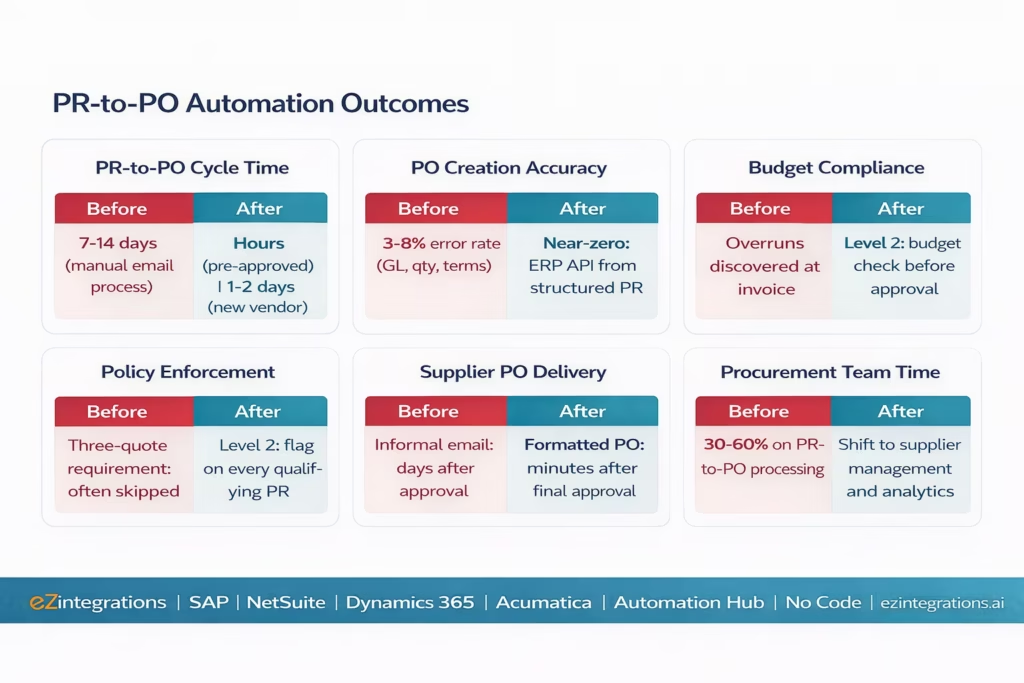
Cycle time reduction: manual PR-to-PO averages 7-14 days. Automated: under 4 hours for pre-approved vendor categories (routine software licences, approved supplier list), 1-2 days for multi-tier approvals. Time reduction: 70-90%.
PO creation accuracy: manual PO entry has error rates of 3-8% (GL miscoding, quantity errors, missing payment terms). Automated PO creation from approved PR data: near-zero errors, because the PO is created from the structured PR record with ERP vendor master data applied automatically.
Budget compliance: Level 2 budget checking on every PR means budget overruns are identified before approval, not after. Finance teams report fewer budget exception invoices (invoices received without a covering PO from an open PR).
Three-quote enforcement: organisations with a three-quote policy for purchases over a threshold report that manual processes enforce the policy inconsistently (it is often skipped when the procurement team is busy). Level 2 policy flag enforcement makes the three-quote requirement visible on every qualifying PR.
Supplier relationship improvement: suppliers receive formatted POs promptly instead of informal emails days or weeks after the internal approval. On-time PO delivery improves supplier delivery reliability because suppliers can plan production and fulfillment from the PO date.
Procurement team capacity: manual PR-to-PO processing consumes 30-60% of a procurement coordinator’s time at medium-volume organisations. Automation shifts this time from processing to supplier management, contract negotiation, and spend analytics.
How to Get Started
Step 1: Map Your Current PR-to-PO Process
Document your current state: how do PRs arrive today (email, forms, ERP draft)? What is your approval hierarchy by spend tier? Which ERPs do you use for PO creation? How are suppliers notified? What are the most common causes of delay?
This 60-90 minute exercise produces the routing logic for your configuration. Key questions: “What is the minimum spend threshold requiring approval?”, “Who approves at each spend tier?”, “Which vendor categories require additional reviews?”, and “Which suppliers can receive EDI versus email POs?”
Step 2: Explore and Import the PR-to-PO Templates
Go to the Automation Hub and explore the procurement automation templates. Import the PR-to-PO Workflow template for your ERP (SAP, NetSuite, Dynamics 365, or Acumatica). The template includes: PR submission form, Level 2 validation (duplicate, budget, vendor, policy), multi-tier approval routing, ERP PO creation via REST API, supplier notification (email and EDI), and requisitioner update.
Step 3: Configure Validation Rules, Approval Hierarchy, and ERP Credentials
Add ERP credentials (SAP BTP Communication Arrangement, NetSuite TBA, Dynamics 365 OAuth, or Acumatica OAuth). Configure Level 2 validation thresholds (three-quote amount, IT security review trigger, new vendor flag). Build the approval routing rules using the condition builder. Connect your supplier email list or EDI configuration. Set SLA windows and escalation targets.
Step 4: Run a Pilot with 10 Real PRs
Before full deployment, run 10 real PRs through the automated workflow: 2 auto-approve (low-value, pre-approved vendor), 3 single-tier approval, 2 multi-tier approval, 2 new vendor (triggering vendor setup flag), and 1 budget-flag scenario (PR exceeds remaining budget). Validate that each routes correctly, approver notifications contain the right context, ERP POs are created with correct GL and cost centre coding, and suppliers receive the PO promptly.
Total configuration time: 3-5 days for a full PR-to-PO workflow with one ERP and email supplier notification. Add 1-2 days for EDI supplier integration.
FAQs
eZintegrations captures PRs from a web form, email inbox, or ERP draft record and standardises them into a structured record. Level 2 validates the PR automatically: duplicate detection, budget availability check via ERP query, vendor master validation, and policy compliance flags. Based on configurable routing rules (spend amount, category, cost centre, vendor type), the PR is sent to the appropriate approvers with a one-click action in email, Slack, or Teams. When all approvals are complete, eZintegrations creates the PO in the ERP via REST API (SAP API_PURCHASEORDER_PROCESS_SRV, NetSuite POST /purchaseOrder, Dynamics 365 POST /purchaseorders, Acumatica PUT /PurchaseOrder) and notifies the supplier via email, EDI 850, or portal webhook. The PR-to-PO cycle is completed in hours rather than days.
3-5 days for a full PR-to-PO workflow with one ERP and email supplier notification. Add 1-2 days for EDI supplier integration. The configuration includes: ERP API credentials (1-2 hours), Level 2 validation rules (2-3 hours), approval routing configuration (2-4 hours), ERP PO field mapping (2-3 hours), supplier notification template (1-2 hours), and pilot testing with 10 real PRs (1-2 days).
Yes, All four ERPs are supported via published REST APIs: SAP S/4HANA via API_PURCHASEORDER_PROCESS_SRV (OData V4, no ABAP required), NetSuite via SuiteTalk REST POST /purchaseOrder (TBA authentication), Microsoft Dynamics 365 via the Dataverse REST API POST /purchaseorders (OAuth 2.0), and Acumatica via the Acumatica REST API PUT /PurchaseOrder (OAuth 2.0). Pre-mapped field configurations for each ERP are included in the Automation Hub templates. Select your ERP during template import and the field mappings are pre-populated.
Level 2 queries your ERP for the current committed and actual spend against the cost centre and GL account on the PR, then compares against the remaining budget for the current period. In NetSuite, a SuiteQL query retrieves the budgeted amount and committed spend. In SAP, the ZBW_BUDGET_SRV or Funds Management service is queried. If available budget is insufficient, a budget flag is added to the approver notification: the approver sees the current committed spend, remaining budget, and the deficit before making a decision. The PR is not automatically rejected: the approver may authorise a budget exception. The flag ensures the decision is informed.
Yes, For EDI-connected suppliers, eZintegrations generates an ANSI X12 850 Purchase Order document from the ERP PO data and transmits it via AS2. The EDI 997 functional acknowledgment is monitored, and if not received within the configured window, an alert is sent to the procurement team. For non-EDI suppliers, the PO is delivered as a formatted PDF email with the supplier's procurement contact, PO number, line items, quantities, prices, delivery address, and payment terms. You can configure different delivery methods per supplier in the supplier master configuration. 1. How does eZintegrations automate the purchase requisition to PO process?
2. How long does it take to set up the PR-to-PO automation?
3. Does eZintegrations work with SAP, NetSuite, Dynamics 365, and Acumatica for PO creation?
4. How does the budget check work in the PR-to-PO workflow?
5. Can the PR-to-PO automation send the PO to suppliers via EDI as well as email?
The PR Submitted on Monday Does Not Have to Arrive at the Supplier on the Following Monday
Manual PR-to-PO is not a procurement team problem. It is a routing and automation problem. Your procurement coordinator is talented. They should not spend their day typing POs into an ERP from approved emails.
The automated version is not complicated. PR captured in a form. Level 2 validates it in seconds. Approval routing fires automatically. Approver clicks one button. ERP creates the PO. Supplier receives the PO. Requisitioner gets the PO number. All before lunch on the same day.
eZintegrations handles all five stages with pre-built templates for SAP, NetSuite, Dynamics 365, and Acumatica. No ERP customisation. No developer. 3-5 days to live.
Explore the Procurement Automation Templates in the Automation Hub. Or visit the Automation Hub and import the PR-to-PO template for your ERP directly.
For the parallel invoice approval workflow that completes the procure-to-pay cycle, see the invoice approval workflow automation guide.

