
How to Build Multi-Step AI Agent Workflows: Enterprise Implementation Guide
May 17, 2026To build a multi-step AI agent workflows in eZintegrations: define the agent goal and scope boundaries, select tools from the 9 native enterprise tools (Document Intelligence, Knowledge Base Vector Search, API Tool Call, Data Analysis, Web Crawling, Watcher Tools, Integration Workflow as Tool, Integration Flow as MCP, Data Analytics with Charts/Graphs/Dashboards), configure the reasoning loop (max iterations, reflection depth, stop conditions), set confidence thresholds and human-in-the-loop gates, connect your ERP systems (SAP, NetSuite, Oracle), build the context retrieval chain, configure autonomous and HITL output paths, test with 10-20 representative exception cases, and deploy with accuracy monitoring. Most enterprise AI agent workflows go live in 2-5 days using an Automation Hub template.
TL;DR
- A multi-step AI agent workflow is not a chatbot and not a rule-based automation. It is an Autonomous agent process that receives a goal, determines which tools to use, executes actions across enterprise systems, evaluates its own output, retries when confidence is low, and escalates to a human only when genuinely needed.
- Rule-based automation follows a predetermined path. An AI agent determines its path based on what it finds. When a 3-way match fails on an invoice, a rules workflow routes to the exception queue. An AI agent retrieves the PO, queries the GR, checks vendor history, identifies the discrepancy type, drafts a vendor query if needed, and packages everything for one-click human approval.
- This guide covers the complete implementation across 9 steps: agent architecture, goal and tool configuration, reasoning loop setup, human-in-the-loop design, ERP integration, testing, and production deployment.
- Audience: technical (IT architect, developer, or technically fluent operations manager).
- Primary CTA: import the relevant Automation Hub AI Agent template.
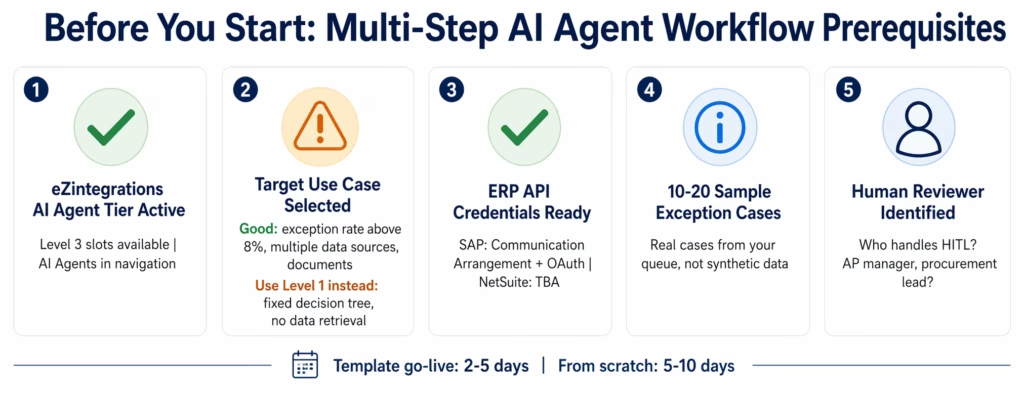
Before You Start
eZintegrations account: active account with Level 3 AI Agent automation slots. Confirm “AI Agents” appears in the platform navigation. If not, upgrade your automation tier.
Target use case selected: AI agent workflows fit processes with: exception rate above 8%, variable data sources (agent pulls context from 2+ systems), and a document or unstructured data component. If your process has a fixed, predictable decision tree, Level 1 rule-based automation is the right tool.
ERP API credentials: the agent retrieves data from at least one enterprise system. For SAP: Communication Arrangement configured and OAuth client credentials available. All data in transit through eZintegrations agent workflows is processed within the platform’s HIPAA, GDPR, and SOC 2 Type II compliance boundary. For NetSuite: Token-Based Authentication credentials. For Oracle: OAuth assertion flow credentials.
Sample exception cases: gather 10-20 representative cases from your exception queue. Real cases are significantly more useful than synthetic test data for calibrating confidence thresholds.
Human reviewer identified: determine who handles the human-in-the-loop gate (AP manager, procurement lead, compliance officer) and confirm they understand the action format the agent will send them.
Template Shortcut: Import a Pre-Built AI Agent
Open the Automation Hub (1,000+ enterprise templates) and filter by “AI Agents.”
Available templates:
AP Invoice Exception Agent: retrieves PO and GR from SAP or NetSuite, identifies discrepancy type, drafts vendor query, routes structured recommendation for AP manager one-click approval. Go-live: 2-3 days.
Vendor Due Diligence Agent: searches public records and sanctions lists, retrieves existing vendor data, assesses compliance risk, produces due diligence summary. Go-live: 3-4 days.
Procurement Matching Agent: searches vendor master and contract database, validates pricing, identifies closest match with confidence score, routes for buyer approval. Go-live: 2-3 days.
Contract Clause Extraction Agent: extracts key clauses from contract PDFs, compares to standard template, flags non-standard clauses, routes for legal review. Go-live: 3-5 days.
If your use case matches: import, configure credentials and confidence thresholds, proceed to Step 8 (testing). If not, follow the full guide below.
Understanding Multi-Step AI Agent Architecture
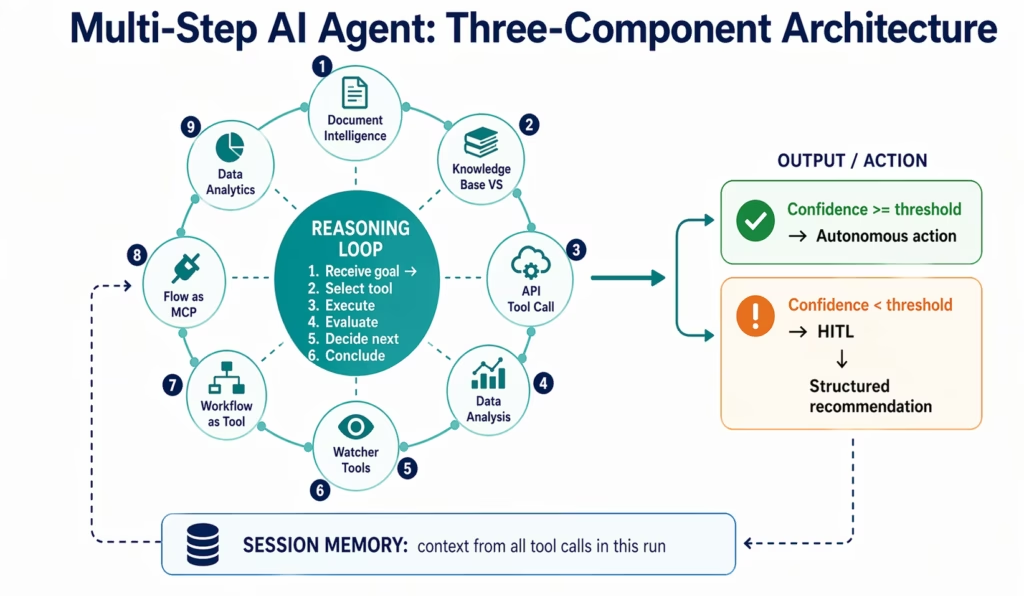
Three components form every AI agent workflow:
1. The Reasoning Loop (the brain): receives a goal and tool set, decides which tool to use, executes it, evaluates the result, decides what to do next, following reasoning-and-acting patterns described in the ReAct framework.
2. The Tool Set (the hands): 9 native enterprise tools in eZintegrations Level 3, enabling tool use by language models for real-world actions:
| Tool | What It Does | AP Exception Use |
|---|---|---|
| Document Intelligence | Extracts structured data from unstructured documents | Read invoice fields from any vendor PDF |
| Knowledge Base Vector Search | Semantic search across a document corpus | Find applicable contract pricing |
| API Tool Call | Authenticated API calls to enterprise systems | Query SAP PO and GR |
| Data Analysis | Structured data analysis and calculation | Compare invoice vs PO amounts |
| Web Crawling | Public web search | Research unknown vendors |
| Watcher Tools | Monitor systems for conditions | Wait for GR to post |
| Integration Workflow as Tool | Trigger Level 1 workflows | Post approved invoice to SAP |
| Integration Flow as MCP | Expose integration data via MCP protocol | Live ERP data as agent context |
| Data Analytics with Charts/Graphs/Dashboards | Visual analytics from structured data | Spend analysis for procurement |
3. The Memory Layer: agent maintains context across tool calls within a single run. Session memory: does not persist between separate runs.
Step 1: Define the Agent Goal and Scope
What you will do: write a clear goal statement and define scope boundaries before touching any configuration.
Step 1a: Write the Goal Statement
Bad (too vague): “Process invoice exceptions.”
Bad (too prescriptive: this is a rule, not an agent): “If amount matches, approve. If not, send to manager.”
Good (specific goal, flexible approach):
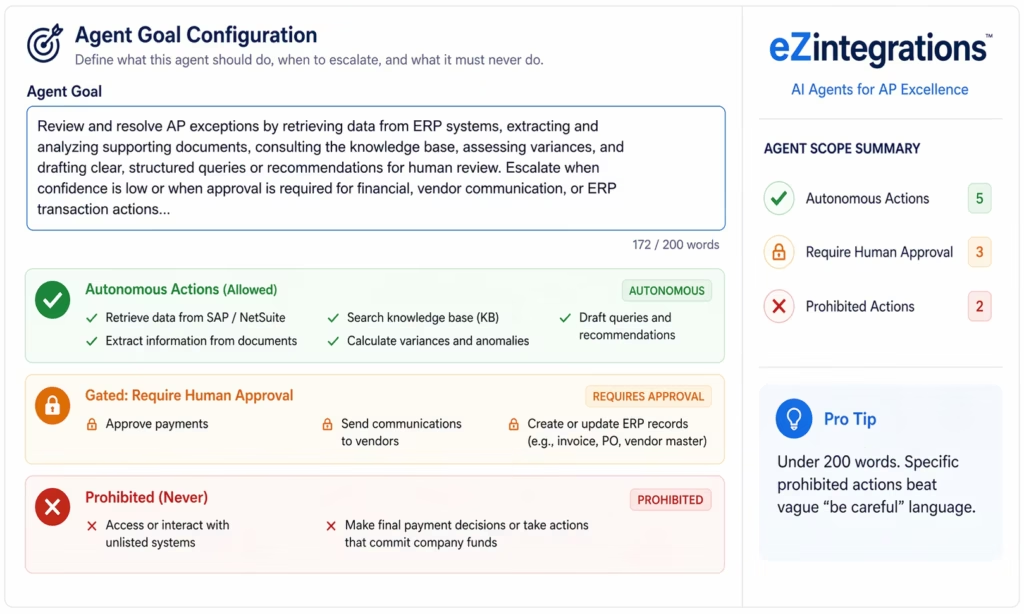
“You are an AP exception agent. You have received an invoice that failed the automated 3-way match. Determine the cause of the discrepancy, gather sufficient evidence to form a recommendation, and produce a structured output enabling the AP manager to approve, reject, or request vendor clarification with one action. Do not make final payment decisions. Output must include: discrepancy type, supporting evidence, recommendation with confidence score, and draft vendor query if applicable.”
Enter this in the Agent Goal field in the AI Agent configuration panel.
Step 1b: Define Scope Boundaries
Autonomous (no human approval):
- Retrieve data from SAP, NetSuite, or vendor database
- Run document extraction
- Search knowledge base
- Calculate variances
- Draft vendor query (not send it)
Gated (human approval required):
- Approve a payment
- Send communication to a vendor
- Create or modify any ERP record
Prohibited:
- Access systems not listed in tool configuration
- Make final payment decisions
Step 2: Select the Agent’s Tool Set
What you will do: enable and configure only the tools your agent needs.
In the AI Agent panel, click Tool Configuration. Toggle the tools required for your use case.
For the AP Exception Agent: enable four tools:
- Document Intelligence: invoice extraction
- API Tool Call: SAP/NetSuite PO and GR retrieval
- Data Analysis: amount comparison and discrepancy classification
- Knowledge Base Vector Search: vendor contract and policy lookup
Configuring Document Intelligence: select document type (invoice), set confidence threshold at 0.85, upload 3-5 sample invoices from your exception queue to calibrate extraction.
Configuring API Tool Call: add a connection (select your SAP or NetSuite connector). For SAP, add two operations:
- PO read:
/sap/opu/odata/sap/MM_PUR_PO_MAINT_V2_SRV/A_PurchaseOrder - GR read:
/sap/opu/odata/sap/API_MATERIAL_DOCUMENT_SRV/A_MaterialDocumentHeader
Add a plain-language description for each operation (the agent uses this to decide when to call it): “Use this to retrieve the purchase order associated with an invoice. Pass the PO number as the parameter.”
Configuring Knowledge Base Vector Search: upload your vendor contracts, AP policy document, and vendor master data export. Documents are chunked and indexed automatically.
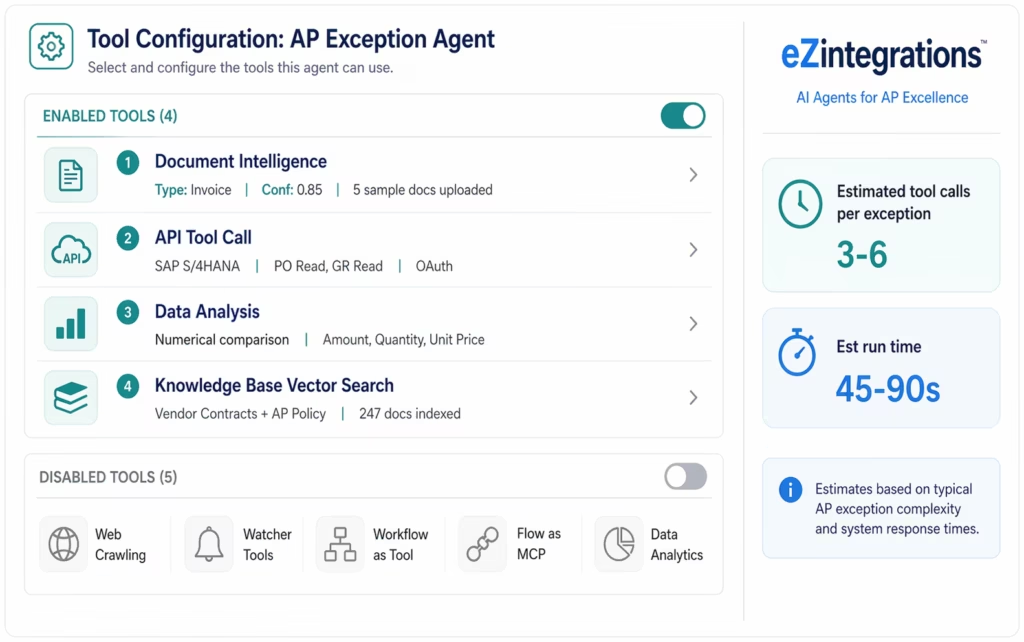
Pro tip: Enable only the tools the agent needs. Every additional tool increases reasoning steps, token usage, and run time. Start minimal and add tools only if testing reveals a capability gap.
Step 3: Configure the Reasoning Loop
What you will do: set max iterations, reflection depth, and stop conditions, following best practices for building effective AI agents.
In the AI Agent panel, click Reasoning Settings.
Max Iterations: the maximum tool calls before forced conclusion.
- AP exception resolution: 6-8
- Vendor due diligence: 10-15
- Contract review: 12-20
Set to 1.5x expected iterations (if you expect 4-6, set to 8-9).
Reflection Depth:
- Low: fast, minimal self-evaluation. Use for routine exception types.
- Medium: evaluates sufficiency before proceeding. Recommended for most enterprise use cases.
- High: critical evaluation, considers alternatives. Use for high-stakes decisions.
Stop Conditions (configure all four):
- Confidence above threshold
- All relevant tools exhausted
- Max iterations reached
- HITL gate triggered
Reasoning Model: standard capability for exception handling; high-capability for complex multi-document analysis.
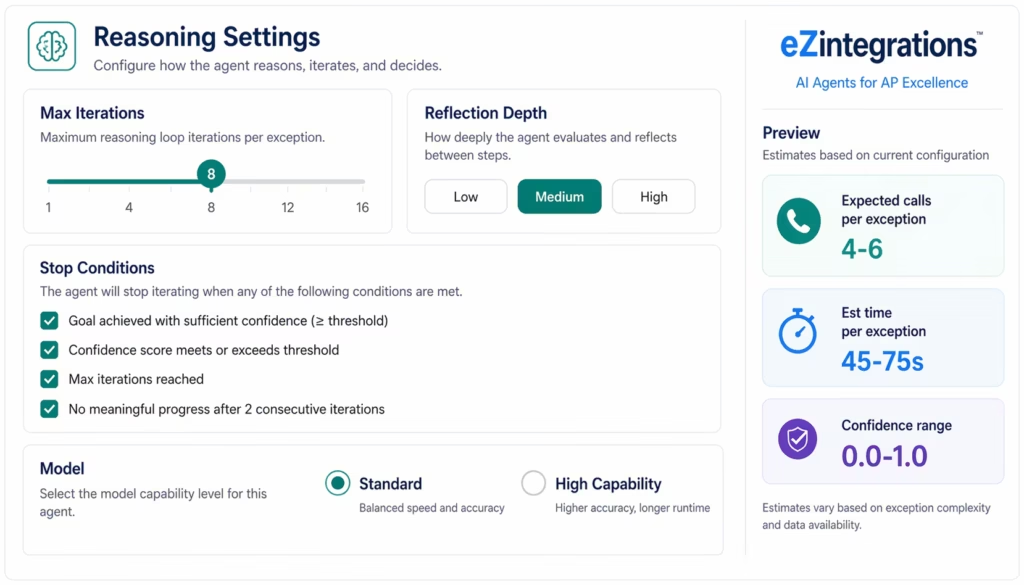
Pro tip: Start with Medium depth and 8 max iterations. After testing, review reasoning traces. If intermediate decisions are poor, increase reflection depth. If run time is too long, reduce max iterations and identify unnecessary tool calls.
Step 4: Set Confidence Thresholds and Human-in-the-Loop Gates
What you will do: define when the agent acts autonomously versus requests human review.
The Confidence Score
The agent produces a 0.0-1.0 confidence score reflecting: completeness of evidence, absence of contradictions between sources, and pattern familiarity.
Autonomous Action Threshold
Recommended starting thresholds:
- AP exception: 0.90
- Vendor due diligence: 0.85
- Expense compliance: 0.92
- Procurement matching: 0.88
Enter in the Autonomous Action Threshold field.
Human-in-the-Loop Gate Configuration
- Click Human-in-the-Loop Settings.
- Routing: select Slack, Teams, email, or ticketing system.
- Package contents (check all):
- Agent conclusion and confidence score
- Evidence gathered
- Reasoning summary
- Recommended action with one-click button
- Alternative actions (reject, request clarification, escalate)
- Response SLA: time before escalation to supervisor.
Example HITL package content:
Invoice: INV-2026-4421 | TechEquip Inc. | $18,500
Discrepancy: Price variance +8.57% vs PO ($17,040)
Evidence: MSA pricing $85.20/unit, invoice shows $92.50/unit
No price amendment found in contract database.
Confidence: 0.87: below 0.90 threshold
Recommendation: Request price clarification
[Approve] [Reject] [Send Vendor Query] [Escalate]
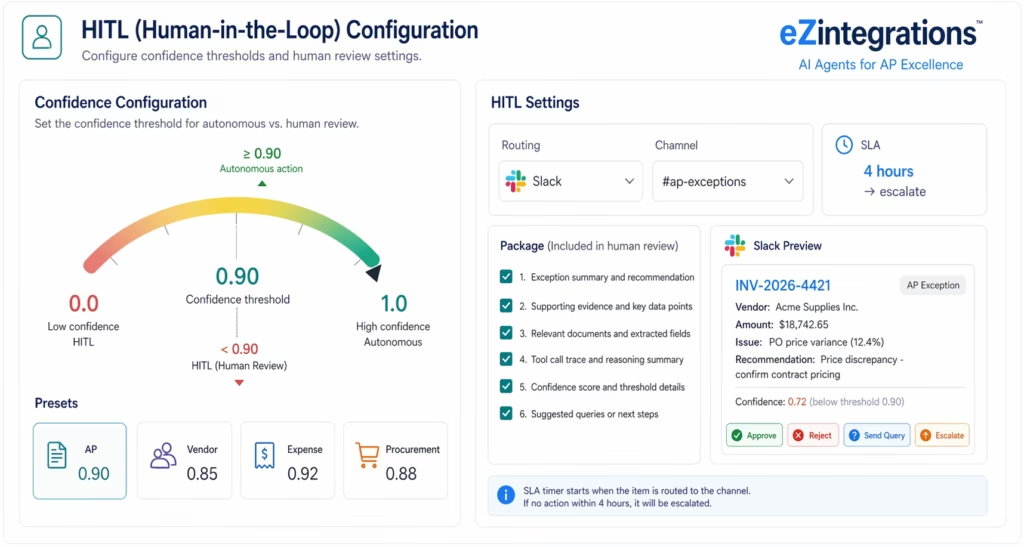
Pro tip: Start conservatively (lower threshold = more human review). In the first two weeks, review all cases the agent escalated. Cases where the human agreed with the agent: the threshold was too strict. Raise incrementally. This calibration takes 3-4 weeks.
Step 5: Connect Enterprise Systems
What you will do: configure the ERP connections the agent uses to retrieve and write data.
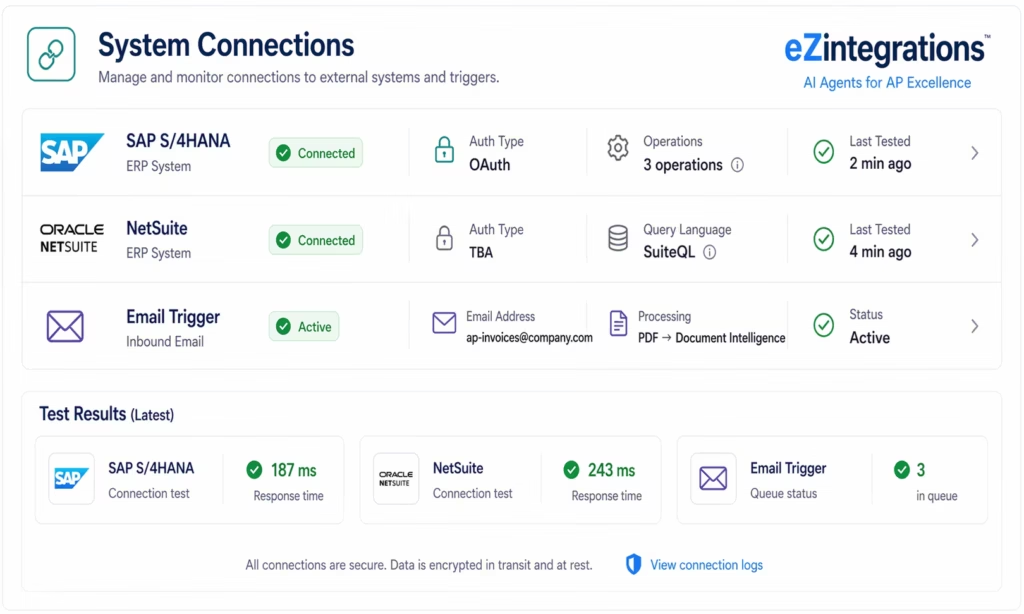
In the AI Agent panel, click System Connections.
SAP S/4HANA
- Click Add Connection and select SAP S/4HANA.
- Enter system URL, OAuth client ID, and client secret.
- Select the Communication Arrangement granting access to purchasing and finance APIs.
- Click Test Connection (green = success).
- In API Tool Call, add operations:
- PO read:
/sap/opu/odata/sap/MM_PUR_PO_MAINT_V2_SRV/A_PurchaseOrder - GR read:
/sap/opu/odata/sap/API_MATERIAL_DOCUMENT_SRV/A_MaterialDocumentHeader - Vendor read:
/sap/opu/odata/sap/API_BUSINESS_PARTNER/A_BusinessPartner
- PO read:
Add plain-language descriptions for each so the agent knows when to call them.
NetSuite
- Select NetSuite, enter Account ID and TBA credentials.
- Select SuiteQL mode.
- Add operations:
SELECT * FROM transaction WHERE type = 'VendorBill' AND tranid = ?
Document Source
Email trigger: select Email Trigger, enter monitored inbox (ap-invoices@yourcompany.com). PDF attachments automatically route to Document Intelligence.
Webhook trigger: select Webhook Trigger, copy the URL, configure your document system to POST document data.
Step 6: Build the Context Retrieval Chain
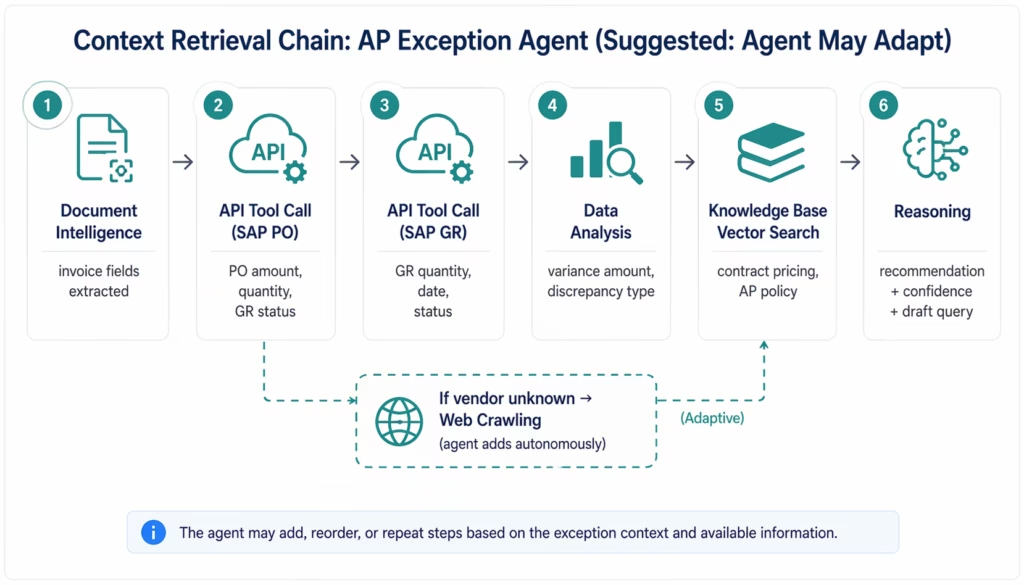
What you will do: define the suggested tool sequence. This is a starting point, not a constraint: the agent may add steps based on findings.
Suggested sequence for the AP Exception Agent:
- Document Intelligence: extract vendor, invoice number, amounts, PO reference from the invoice PDF.
- API Tool Call (SAP PO): retrieve the purchase order using the PO reference.
- API Tool Call (SAP GR): retrieve the goods receipt for the PO.
- Data Analysis: calculate the variance, classify the discrepancy type (price variance, quantity mismatch, duplicate, scope discrepancy).
- Knowledge Base Vector Search: search vendor contracts for applicable pricing, search AP policy for handling guidance.
- Reasoning synthesis: produce discrepancy type, evidence, recommendation, confidence score, draft vendor query if applicable.
Enter this sequence in the Suggested Tool Sequence field. If the agent encounters a vendor name not in SAP, it may autonomously add a Web Crawling step to search publicly, even if Web Crawling is not in the suggested sequence.
Step 7: Configure the Output and Escalation Path
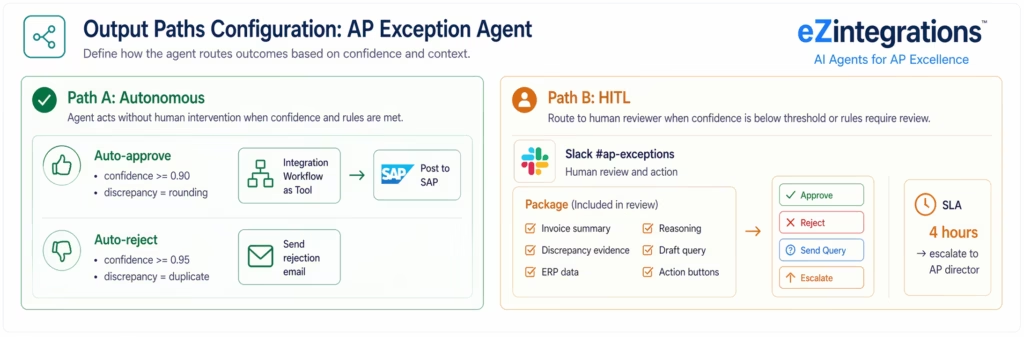
What you will do: define both output paths: autonomous action (high confidence) and HITL (low confidence).
Path A: Autonomous Action
Auto-approve (confidence >= 0.90, discrepancy is rounding):
- Set Auto-Approve Action: Integration Workflow as Tool → “Post Approved Invoice to SAP.”
- Trigger condition:
confidence >= 0.90 AND discrepancy_type == "rounding".
Auto-reject (confidence >= 0.95, clear duplicate):
- Set Auto-Reject Action: send rejection email to vendor using a pre-configured template.
- Trigger condition:
confidence >= 0.95 AND discrepancy_type == "duplicate".
Path B: Human-in-the-Loop
When confidence falls below threshold, the agent routes the structured package to the AP manager. Design principle: the human must be able to act on the agent’s package without going back to the source systems.
The package includes: exception summary, discrepancy evidence, ERP data retrieved, reasoning summary, draft vendor query if applicable, and action buttons (Approve, Reject, Send Query, Escalate).
Step 8: Test the Agent with Representative Cases
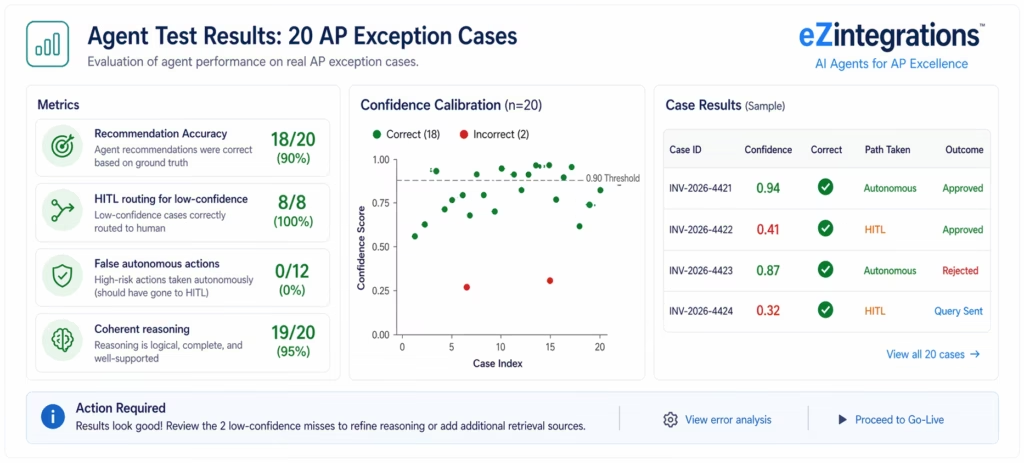
What you will do: run the agent against 10-20 real exception cases before production.
[VIDEO PLACEHOLDER: agent testing walkthrough | “Multi-Step AI Agent Testing: How to Evaluate AP Exception Agent Output Quality” | Embed here | Show: loading real AP exception cases, agent reasoning trace review, evaluating output quality against historical human decisions, confidence calibration analysis, and threshold adjustment. Duration: 12-15 minutes.]
Step 8a: Load Test Cases
- Click Load Test Cases in the agent test panel.
- Upload your 10-20 exception cases (email files, PDFs, or CSV with invoice metadata).
- Record the historical human decision for each case (approved/rejected/clarified) as ground truth.
Step 8b: Run the Test Suite
Click Run All Test Cases. Each case shows:
- Tools called in order
- Data retrieved from each tool
- Intermediate reasoning at each step
- Final recommendation and confidence score
- Path A or Path B routing decision
Processing time: 45-90 seconds per case. A 20-case suite takes 20-30 minutes.
Step 8c: Evaluate Results
Compare agent recommendations to ground truth human decisions.
Target metrics before production:
| Metric | Minimum |
|---|---|
| Recommendation accuracy | 90%+ |
| Low-confidence cases routed to HITL | 100% |
| False autonomous actions (wrong above threshold) | 0% |
| Coherent reasoning traces | 95%+ |
If false autonomous action rate is above 0%, lower the threshold and re-test before production.
Step 9: Deploy to Production and Monitor
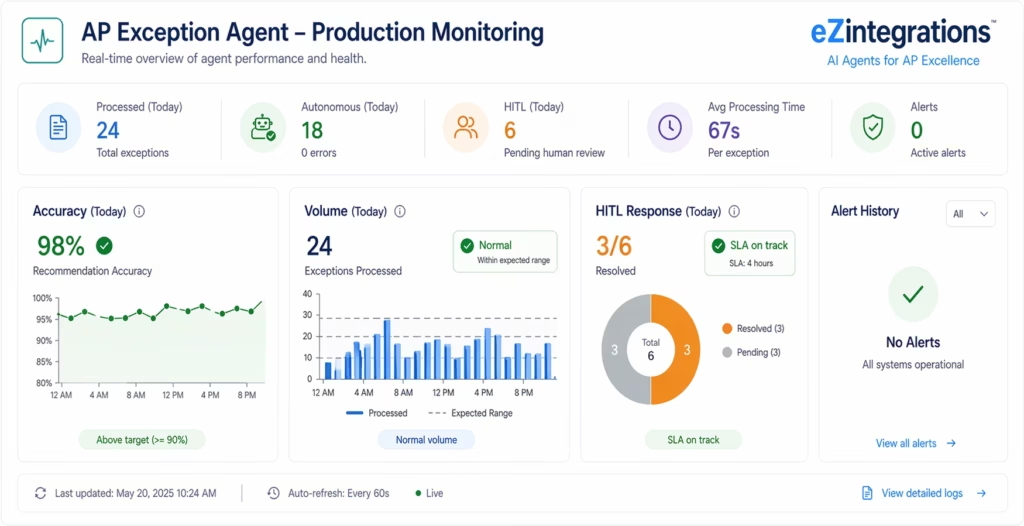
What you will do: activate the agent and configure monitoring to detect calibration drift.
Step 9a: Activate
- Review all configuration settings.
- Set trigger to production (monitored email inbox or webhook endpoint).
- Click Activate Agent. Status changes to Active.
Step 9b: Configure Monitoring
Accuracy monitoring: weekly 10% spot-check of autonomous actions reviewed by AP manager. If disagreement rate exceeds 5%, alert fires and agent pauses for threshold review.
Volume monitoring: alert if exception volume drops below 50% of 30-day average (may indicate incorrect auto-approvals).
Latency monitoring: alert if average run time exceeds 3 minutes (agent hitting max iterations, indicates tool configuration or data issue).
HITL response monitoring: alert if AP manager response time exceeds SLA (4 hours). Escalation fires to AP director.
Troubleshooting Common Issues
Issue 1: Agent Hits Max Iterations Without Conclusion
Symptom: most runs exhaust max iterations and route to HITL without confident conclusion.
Fixes: narrow the tool set to the 3-4 most relevant operations. Tighten the goal statement with more specific directives. Check data quality in SAP/NetSuite for the exception types that fail (missing line items, closed POs with no GR data).
Issue 2: Confidence Always Below Threshold
Symptom: agent processes correctly but always below threshold, every case routes to HITL.
Fixes: check Document Intelligence confidence on recent cases. If extraction confidence is below 0.85, improve document quality (request structured invoice formats, improve scan resolution). Add missing vendor contracts to the knowledge base. Re-run test cases after improving data quality.
Issue 3: False Autonomous Actions (Wrong Above Threshold)
Symptom: spot-check reveals agent autonomously handled cases that should have been reviewed.
Fix: lower confidence threshold by 0.02-0.05 increments until false autonomous rate drops to zero on test cases. Review reasoning traces for incorrectly handled cases: if reasoning was logically sound but data was wrong (outdated contract in knowledge base), the fix is data quality, not threshold.
Issue 4: API Tool Call Authentication Errors
Symptom: API Tool Call fails with auth errors during agent runs, even though connection test passed.
Cause: OAuth tokens expired (typically 1 hour for SAP) or CSRF tokens are session-specific.
Fix: enable Automatic Token Refresh in the System Connection settings. For SAP, confirm automatic CSRF token management is enabled in the native SAP connector. If using an HTTP connector instead of the native SAP connector, switch to the native connector.
FAQs
Using an Automation Hub template: 2-5 days (credential configuration, threshold calibration, representative case testing, production deployment). Building from scratch: 5-10 days. The most time-intensive step is testing with representative exception cases, not platform configuration.
No, All configuration is through the visual UI: goal statement, tool toggles, reasoning parameters, confidence thresholds, system connections, output paths. API Tool Call requires entering endpoint URLs and plain-language operation descriptions. Knowledge base indexing is automatic.
Two safeguards: confidence threshold prevents autonomous action below threshold (recommended 0.90+); weekly 10% spot-check of autonomous actions. If human disagreement exceeds 5%, the agent automatically pauses. Start conservatively and raise threshold incrementally as the track record builds.
Level 1 follows a predetermined path: if X then Y. It cannot handle cases outside defined conditions. Level 3 AI Agents determine their own path based on findings. When encountering an unknown case type, the agent retrieves additional context and reasons to a conclusion instead of routing to an exception queue. Level 1 handles the standard 80-85% of transactions. Level 3 handles the remaining 15-20% requiring judgment. Together they eliminate the manual exception queue.
Yes, API Tool Call connects to any HTTP API (REST, GraphQL, SOAP) with endpoint URL, credentials, and plain-language description. For non-HTTP systems, Integration Workflow as Tool triggers any Level 1 workflow, which has access to the full connector library including database, SFTP, and messaging connectors. 1. How long does it take to build and deploy a multi-step AI agent workflow?
2. Do I need coding skills to build an AI agent workflow in eZintegrations?
3. What if the agent makes a wrong autonomous decision?
4. How does an AI agent differ from a Level 1 workflow automation?
5. Can the agent connect to systems not in the eZintegrations connector library?
Conclusion
A production-grade multi-step AI agent workflow covers nine steps: goal and scope definition, tool selection and configuration, reasoning loop setup, confidence threshold and HITL design, enterprise system connections, context retrieval chain, output path configuration, representative case testing, and production monitoring with accuracy spot-checks.
The result: 70-85% of your exception queue resolved autonomously or as fast human approval of AI-packaged recommendations. AP analyst exception time drops from 38 minutes to 8 minutes per case. For 225 exceptions/month: 112 hours of analyst time recovered monthly.
Import an Automation Hub AI Agent template to start with a pre-configured AP Exception Agent, Vendor Due Diligence Agent, or Procurement Matching Agent.
Book a free AI agent implementation demo to walk through your specific use case, identify the closest template match, and plan testing with your actual exception data.
For the AI workflow automation ROI framework, see the AI workflow automation ROI guide. For the broader multi-agent platform, see the Goldfinch AI agentic platform overview. Level 4 (Goldfinch AI) builds on your Level 3 AI Agents: the Chat UI allows the CFO or COO to ask natural language questions of live enterprise data, and the Workflow Node embeds multi-agent intelligence inside Level 1 automation processes.

