
How to Automate Employee Offboarding: Revoke Access, Update Payroll and Notify IT Instantly
April 23, 2026To automate employee offboarding, eZintegrations monitors Workday, BambooHR, or SAP SuccessFactors for termination events and immediately triggers: Azure AD or Active Directory account disablement (blocking all Microsoft 365, Slack, and connected app access), Slack deactivation, payroll system termination date update, IT asset recovery ticket creation in ServiceNow or Jira, manager notification with handover checklist, and audit log creation. The full offboarding sequence executes within minutes of the HRIS termination record being saved, eliminating the 24-72 hour manual delay that is the most common source of post-departure credential risk.
TL;DR
- Manual employee offboarding takes 24-72 hours on average from HR marking a termination to IT actually revoking access. During that window, departed employees often still have active credentials.
- IBM’s Cost of a Data Breach Report identifies insider threats and compromised credentials as among the most costly breach vectors. A 48-hour window of active credentials for a departed employee is a material security risk. Cost of a Data Breach Report identifies insider threats and compromised credentials as among the most costly breach vectors.
- The six offboarding steps that must happen the moment an employee leaves: AD/Azure AD account disablement, Slack and SaaS application deactivation, payroll termination date update, IT asset recovery ticket, manager handover notification, and audit log creation.
- eZintegrations monitors the HRIS (Workday, BambooHR, or SAP SuccessFactors) for termination events and triggers all six steps within minutes, not hours.
- Level 1 (iPaaS Workflows) handles HRIS polling, Azure AD account disablement via Microsoft Graph API, Slack deactivation, payroll update, and IT service desk ticket creation. Level 2 (AI Workflows) validates the termination record: confirms the effective date, checks for active PTO payout obligations, detects voluntary vs involuntary termination (affecting the deactivation sequence), and validates that all required exit checklist items have been initiated. Level 3 (AI Agents) monitors completion of all offboarding steps, alerts IT if access revocation is not confirmed within 30 minutes of the trigger, and detects any login attempts from the disabled account. Level 4 (Goldfinch AI) provides the Goldfinch AI Chat UI as a Workflow Node: “Which employees are leaving this month and what is their offboarding status?”, “Are there any accounts that were not disabled within the SLA?”, or “What is our average time from HRIS termination to full access revocation?”
- Configuration time: 2-4 days. The same Automation Hub templates as onboarding, in reverse.
Why Offboarding Is More Urgent Than Onboarding
When a new hire starts, a 24-hour delay in setting up their Slack access is inconvenient. When an employee leaves, a 24-hour delay in revoking their access is a security incident.
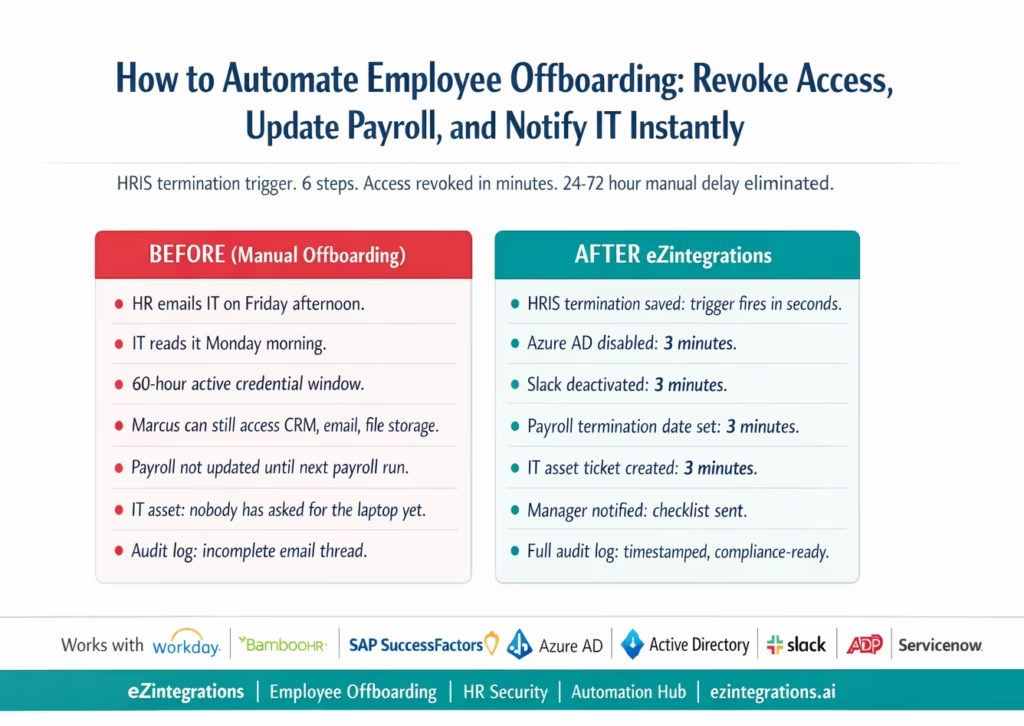
Your IT admin gets an email from HR on a Friday afternoon: “Just to let you know, Marcus Chen’s last day was today.” IT reads it Monday morning. Marcus still has active credentials to your CRM, your cloud file storage, your accounting software, and your email system. He has had active access to all of these since Friday afternoon. That is a 60-hour window.
In most organisations, this is not unusual. Survey data from Society for Human Resource Management and industry research on offboarding best practices consistently shows that access revocation in manual processes takes 24–72 hours, and in some organisations the delay is measured in weeks when the departure involves travel, illness, or an HR team managing high volume simultaneously.
The consequences range from inconvenient to severe:
- The former employee can still access their emails (including confidential communications)
- They can still download files from cloud storage
- In sales roles: they can still access the CRM, customer lists, and pipeline data
- In finance roles: they can still access the accounting system, bank portal connections, and payment authorisation tools
- If their departure was involuntary and contentious: the risk of deliberate data exfiltration is highest during precisely the window when access is most likely to still be active
IBM’s Cost of a Data Breach Report consistently identifies insider threats and compromised credentials as among the most expensive breach vectors. The cost of a data breach involving an insider averages $4.9 million. The cost of automating offboarding: a few thousand dollars of annual platform cost.
The disparity is stark.
The 24-72 Hour Window: What Can Go Wrong
The manual offboarding window is not just a theoretical risk. Here is what the 24-72 hour active credential window enables for a departing employee:
Email and calendar access: access to confidential emails, meeting notes, board communications, and client correspondence for all active conversations at the time of departure.
Cloud file storage (SharePoint, Google Drive, Dropbox): ability to download, copy, or share any files the employee has access to, including proprietary processes, customer lists, financial models, and strategic plans.
CRM access (Salesforce, HubSpot): for sales roles, this means access to contact records, deal notes, pipeline data, and sometimes pricing information. Sales data is among the most sensitive and most portable categories of corporate information.
Accounting and ERP access: for finance roles, access to payment authorisation tools, vendor master data, bank portal integrations, and financial reports.
Email forwarding rules: an employee who knew their departure was coming could have set up email forwarding rules before their last day. Without prompt account deactivation, those rules continue to run after departure.
Password manager and shared credentials: if the employee used a company password manager or had access to shared team credentials, those remain accessible until the account is disabled.
The scenario where all of this is most dangerous: involuntary termination. When an employee is dismissed, their incentive to use remaining access is highest in precisely the first hours after departure. And those are exactly the hours during which manual processes are most likely to fail to revoke access promptly.
The Six Offboarding Steps That Must Happen Immediately
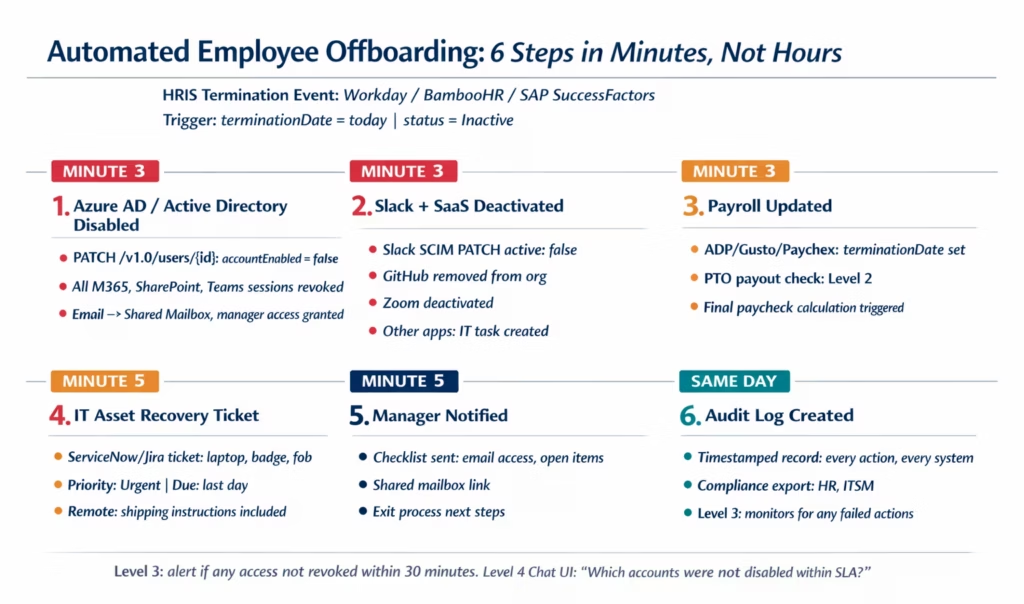
Unlike onboarding, which runs on a pre-boarding schedule over 7-10 days, offboarding must execute in a compressed timeframe. Some steps must happen within minutes. Others within hours. All should be complete on the day of departure.
Step 1: Azure AD or Active Directory account disablement. This is the single most important step. In Identity and access management (IAM), immediate credential revocation is the primary control for preventing unauthorized access after user lifecycle changes. Disabling the AD account immediately revokes access to everything authenticated via Azure AD SSO, including Microsoft 365 (email, SharePoint, Teams), and any other applications federated via Azure AD. This is not deletion: the account is preserved for 30 days (configurable) for IT purposes, but login is blocked.
Step 2: Slack and SaaS application deactivation. Applications not federated via Azure AD must be deactivated separately. Slack, GitHub, Notion, Figma, Zoom, and similar tools require direct API calls to deactivate the user account.
Step 3: Payroll termination date update. The payroll system must be updated with the exact termination date to ensure the final paycheck is calculated correctly and that benefits are terminated on the correct date.
Step 4: IT asset recovery ticket. A service desk ticket is created to initiate laptop, badge, and equipment recovery. For remote employees, this includes shipping instructions.
Step 5: Manager handover notification. The departing employee’s manager receives a notification with: the offboarding checklist (what the manager must do), a request to identify open work items needing reassignment, and a request to confirm data handover.
Step 6: Audit log and compliance record. A complete timestamped log of every offboarding action is created: termination detected, each system disabled (with timestamp and confirmation), assets flagged, manager notified. This audit log is critical for employment law compliance and security incident investigation.
Detecting Termination Events in the HRIS
Workday
Workday Business Processes support notifications when termination actions complete. eZintegrations registers as a notification endpoint for the Terminate Employee business process event. When the termination record reaches Completed status, the notification fires immediately.
Alternatively, polling the Workday RaaS custom report:
GET https://{tenant}.workday.com/ccx/service/customreport2/{tenant}/{owner}/{report}
    ?format=json&terminationDate_gte={today}&terminationDate_lte={today}
Authorization: Basic {base64(ISU:password)}
This returns employees whose termination date is today, run on a 15-minute polling schedule during business hours and an hourly schedule off-hours.
BambooHR
BambooHR webhook fires when employee status changes to Inactive:
Trigger: employee.status changed to "Inactive"
OR employee.terminationDate set and employee.terminationDate = today
Or polling:
GET https://api.bamboohr.com/api/gateway.php/{company}/v1/employees/changed
    ?since={last_check}&type=changed
Authorization: Basic {base64(api_key:x)}
Filter the response for records where status = Inactive AND terminationDate = today.
SAP SuccessFactors
SuccessFactors Intelligent Services fires a TerminateEmployee event notification via REST to the registered endpoint. Or OData polling:
GET /odata/v2/EmpEmployment
    ?$filter=endDate eq datetime'{today}' and status eq 'T'
Authorization: Bearer {sf_token}
Critical: Time-of-Day Handling
Offboarding automation must handle timing carefully:
Immediate-effect terminations (involuntary dismissals, gross misconduct): the trigger must fire and all access revocation steps must execute within minutes of the HRIS update, regardless of time of day. eZintegrations monitors the HRIS in near real-time (5-minute polling or webhook) for these events.
End-of-day terminations (resigned employees serving notice, planned departures): the trigger fires on the departure date, timed to execute at the end of the working day rather than mid-day (to avoid disrupting the employee’s ability to complete handover work on their last day).
The distinction is controlled by a flag in the offboarding workflow: terminationType = involuntary triggers immediate execution; terminationType = voluntary triggers end-of-day execution.
Step 1: Azure AD and Active Directory Account Disablement
Account disablement (not deletion) is the correct action for offboarding. Deletion removes the account immediately and irreversibly. Disablement blocks login while preserving the account and its data for 30 days (or your configurable retention period), allowing IT to recover files, emails, and data before the account is fully deleted.
Azure AD / Microsoft 365 via Microsoft Graph API
PATCH https://graph.microsoft.com/v1.0/users/{userId}
Authorization: Bearer {microsoft_graph_token}
Content-Type: application/json

{
  "accountEnabled": false
}
This single API call immediately:
- Blocks all Azure AD sign-in for the user
- Revokes all active Microsoft 365 sessions (email, SharePoint, Teams, OneDrive)
- Invalidates all active OAuth tokens issued to the user
After disablement, revoke all active sign-in sessions explicitly:
POST https://graph.microsoft.com/v1.0/users/{userId}/revokeSignInSessions
Authorization: Bearer {microsoft_graph_token}
This invalidates any cached tokens that may still be active even after account disablement.
Converting the Email to a Shared Mailbox
After disablement, convert the user’s email to a shared mailbox so their manager or a designated person can access their email for business continuity:
POST https://graph.microsoft.com/v1.0/users/{userId}
{
  "mailboxSettings": { "userPurpose": "shared" }
}
Or use Exchange Online PowerShell via the Exchange Admin API. The shared mailbox allows the manager to access historical emails without the departed employee’s account being active.
Manager Access Grant
Grant the manager read access to the shared mailbox:
POST https://graph.microsoft.com/v1.0/users/{managerId}/mailFolders/inbox/messages
{
  "action": "delegate",
  "delegateUserId": "{managerId}"
}
Step 2: Slack and SaaS Application Deactivation
Slack Deactivation
Applications not federated via Azure AD must be deactivated separately. Slack is the most critical:
Via Slack SCIM API (preferred for enterprise):
PATCH https://api.slack.com/scim/v1/Users/{slackUserId}
Authorization: Bearer {slack_scim_token}
Content-Type: application/json

{
  "schemas": ["urn:scim:schemas:core:1.0"],
  "active": false
}
Via Slack Admin API:
POST https://slack.com/api/admin.users.setInactive
Authorization: Bearer {slack_admin_token}

{
  "user_id": "{slack_user_id}"
}
To find the Slack user ID from the email address:
GET https://slack.com/api/users.lookupByEmail?email={user_email}
Authorization: Bearer {slack_token}
GitHub, Notion, Figma, Zoom
For other SaaS tools with user management APIs:
GitHub (remove from organisation):
DELETE https://api.github.com/orgs/{org}/members/{username}
Authorization: Bearer {github_token}
Notion (deactivate workspace member):
PATCH https://api.notion.com/v1/users/{user_id}
Authorization: Bearer {notion_token}
{ "type": "person", "active": false }
Zoom (deactivate account):
PUT https://api.zoom.us/v2/users/{userId}/status
Authorization: Bearer {zoom_token}
{ "action": "deactivate" }
For SaaS tools without API deactivation, eZintegrations creates a task in the IT service desk to manually deactivate the account, with the specific tool and user email included.
Step 3: Payroll Termination Date Update
The payroll system must be updated with the exact last day to:
- Stop salary payments after the termination date
- Calculate the final paycheck correctly (including any accrued PTO payout, if applicable)
- Terminate benefits (health insurance, retirement contributions) on the correct date
ADP Workforce Now
PATCH https://api.adp.com/hr/v2/workers/{associateOID}
Authorization: Bearer {adp_token}
Content-Type: application/json

{
  "workers": [{
    "associateOID": "{associateOID}",
    "workers": [{
      "terminationDate": "{last_day}",
      "terminationReasonCode": "{reason_code}"
    }]
  }]
}
terminationReasonCode values: RES (resignation), TER (termination for cause), LAY (layoff), RET (retirement). This code affects how the final paycheck and severance are calculated.
Gusto
POST https://api.gusto.com/v1/employees/{employee_id}/terminations
Authorization: Bearer {gusto_token}

{
  "effective_date": "{last_day}",
  "run_termination_payroll": true
}
Setting run_termination_payroll: true initiates a final paycheck calculation in Gusto. Any owed PTO payout is included based on the employee’s accrual balance.
Level 2 PTO Payout Check
Before updating the payroll termination date, Level 2 checks the employee’s accrued PTO balance from the HRIS:
GET https://api.bamboohr.com/api/gateway.php/{company}/v1/employees/{id}/time_off/calculator
    ?end={last_day}
Authorization: Basic {base64(api_key:x)}
If PTO balance > 0 AND company policy requires PTO payout on termination: the payroll termination call includes the PTO balance as an additional pay item. If state law mandates PTO payout (California, Massachusetts, and others): the Level 2 check enforces this regardless of company policy.
Step 4: IT Asset Recovery Ticket
A ServiceNow or Jira ticket is created to initiate recovery of the employee’s corporate assets:
ServiceNow:
POST https://{instance}.service-now.com/api/now/table/sc_request
Authorization: Basic {servicenow_token}

{
  "short_description": "IT Asset Recovery - Marcus Chen - Terminated {last_day}",
  "description": "Please arrange recovery of the following assets:\n- MacBook Pro 14\" (Asset Tag: MB-2024-0441)\n- Corporate mobile phone\n- Security badge\n- Office access fob\n\nEmployee location: Austin HQ\nLast day in office: {last_day}\nManager: Sarah Park (sarah.park@meridian.com)\nRemote employee: No",
  "assignment_group": "IT_Asset_Management",
  "priority": "1",
  "due_date": "{last_day}"
}
For remote employees, the ticket includes shipping instructions and a prepaid return label request.
Step 5: Manager Handover Notification
The departing employee’s manager receives an immediate notification:
Subject: Marcus Chen offboarding initiated - Action required

Marcus Chen's access has been revoked as of {timestamp}.

Your offboarding checklist:
✓ AD account disabled
✓ Email converted to shared mailbox (you have read access)
✓ Slack deactivated
✓ Payroll updated (final day: {last_day})
✓ IT asset recovery ticket created (INC-2026-0994)

Action required from you:
☐ Review Marcus's open work items and reassign
☐ Confirm data handover completed (files, docs, contacts)
☐ Forward or archive any client emails requiring follow-up
☐ Contact HR regarding exit interview scheduling

For access to Marcus's email: sign in to the shared mailbox at [link]

HR Contact: hr@meridian.com
IT Helpdesk: it@meridian.com
Step 6: Audit Log and Compliance Record
Every offboarding action is logged with:
- Trigger event: HRIS termination record, timestamp, detected by eZintegrations
- Each system action: system name, action (disabled/deactivated/updated), timestamp, confirmation (API response code and reference)
- Exception log: any system where the action failed or was not confirmed, with error detail
- Responsible party: for automated actions, the eZintegrations service account; for manual actions, the IT or HR team member
The audit log is:
- Stored in eZintegrations for the configurable retention period (default: 7 years, to match employment record retention requirements)
- Exported to the HRIS or ITSM for centralised record-keeping
- Available for immediate export in response to an HR investigation, security incident inquiry, or employment tribunal
Level 3 monitors the audit log for any failed actions and creates escalation tickets for IT to complete manually within 2 hours.
Handling Voluntary vs Involuntary Terminations
The offboarding workflow branches based on termination type. This is the most important configuration decision in offboarding automation.
Involuntary Termination (Dismissal)
Execution timing: immediate. When the HRIS termination record is saved with terminationType = involuntary, all access revocation steps execute within minutes.
Rationale: an employee who has just been dismissed has the highest motivation and the most recent opportunity to access and exfiltrate sensitive data. The window between notification and access revocation must be as short as possible. For serious misconduct terminations, some organisations coordinate the access revocation to occur simultaneously with the notification conversation (the manager calls IT from the meeting to confirm the moment the conversation begins).
Additional steps for involuntary:
- Preserve all email and file activity logs from the 30 days prior to termination for potential legal or security review
- Flag the account in the security monitoring system for post-departure login attempt alerts
- If the employee had privileged access (admin rights, database access, finance system roles): accelerate the access revocation SLA to 5 minutes and alert the security team immediately
Voluntary Resignation (Notice Period Active)
Execution timing: end-of-last-day. When the HRIS termination type is voluntary and the employee is serving their notice period, access revocation executes at the end of the last working day (typically 5:30 PM local time, configurable).
Rationale: the employee still needs system access to complete handover work during their notice period. Revoking access immediately on notice submission would prevent legitimate work completion.
During notice period:
- Level 3 monitors for anomalous data download activity (unusual file downloads, large email exports, CRM bulk exports) during the notice period
- Any anomalous activity alert flags the account for security review
- Temporary read-only access mode (configurable): some organisations switch departing employees to read-only access in sensitive systems during the notice period, preventing data modification or deletion
Same-Day Resignation or No Notice
When an employee resigns with immediate effect (no notice period): treat as involuntary for access revocation timing purposes. Immediate execution.
Before vs After: Manual Offboarding vs Automated
| Offboarding Step | Manual Process | Automated with eZintegrations |
|---|---|---|
| Termination detection | HR emails IT when they remember | HRIS trigger: webhook or polling fires within 5 minutes |
| Active credential window | 24-72 hours average (60+ hours on weekends) | Under 5 minutes from HRIS update |
| Azure AD account | IT admin manually disables: 1+ days delay | PATCH /v1.0/users: accountEnabled = false in 3 minutes |
| Active session revocation | Often omitted (cached tokens remain active) | POST /revokeSignInSessions: all tokens invalidated immediately |
| Email to shared mailbox | Manual: IT admin action, often forgotten | Graph API: auto-converted, manager access granted |
| Slack deactivation | Separate IT action: often forgotten for days | SCIM PATCH: active = false in 3 minutes |
| GitHub, Notion, Zoom | Separate IT actions: often forgotten for weeks | API calls per system: same session |
| Payroll termination date | HR updates payroll separately: delay common | Payroll API: updated same session with PTO payout check |
| Final PTO payout check | Manual: finance cross-references | Level 2: automated check, state law compliance applied |
| IT asset recovery ticket | Email to IT: content often incomplete | ServiceNow/Jira: ticket with full asset list and due date |
| Manager notification | HR sends an email if remembered | Auto-checklist with shared mailbox link and action items |
| Audit log | Email threads and manual notes | Full digital log: system, action, timestamp, confirmation |
| Compliance record | Reconstruction under pressure | Immediate export at any point |
| Level 3 monitoring | None: gaps discovered at security audit | 30-min SLA monitoring, login attempt detection |
| Weekend/after-hours departures | Covered on Monday | Monitoring runs 24/7: same response time regardless of day |
| Time to full revocation | 24-72 hours (average) | Under 5 minutes (involuntary), same-day (voluntary EOD) |
| Security risk window | 24-72 hours of active credentials | Under 5 minutes |
Step-by-Step: A Sales Manager Departure Through the Full Automated Flow
Here is the complete automated offboarding for Marcus Chen, Sales Manager at Meridian Manufacturing. Voluntary resignation. Last day: Friday, March 28, 2026.
Setup: Meridian uses BambooHR, Azure AD, Microsoft 365, Slack, ADP Workforce Now, and ServiceNow. Marcus has a MacBook Pro (Asset Tag MB-2024-0441) and a security badge.
March 28, 5:00 PM: BambooHR status updated to Inactive. HR changes Marcus’s status to Inactive with terminationDate = 2026-03-28 at 5:00 PM. BambooHR webhook fires at 5:00 PM.
March 28, 5:00 PM: Level 2 validation (8 seconds).
- Termination type: voluntary (confirmed from
terminationReason = resignedin BambooHR). - Execution timing: end-of-day trigger confirmed (voluntary rule applied, timing already correct).
- PTO balance check: Marcus has 3.5 days accrued PTO. California location: PTO payout required by state law. Payroll update will include 3.5 days × daily rate as final paycheck addition.
- Privileged access flag: Marcus has
SALESFORCE_ADMINrole. Flag raised: accelerated SLA for Salesforce admin access revocation (5 minutes vs standard). - All validations pass.
March 28, 5:01 PM: Azure AD account disabled.
PATCH /v1.0/users/{marcus_user_id}
{ "accountEnabled": false }
Marcus’s Microsoft 365 access (email, SharePoint, Teams, OneDrive) blocked. All active sessions invalidated via POST /revokeSignInSessions. Response: 204 No Content. Account disabled.
Email converted to shared mailbox. Marcus’s manager Sarah Park granted read access.
March 28, 5:01 PM: Slack deactivated.
PATCH /scim/v1/Users/{marcus_slack_id}
{ "active": false }
Slack sessions terminated. Marcus can no longer access Meridian’s Slack workspace.
March 28, 5:01 PM: Salesforce admin access revoked (accelerated SLA). Salesforce API call removes SALESFORCE_ADMIN profile from Marcus’s user record. Marcus’s Salesforce access downgraded to inactive. CRM data protected.
March 28, 5:02 PM: ADP payroll updated.
PATCH /hr/v2/workers/{marcus_associateOID}
{
  "terminationDate": "2026-03-28",
  "terminationReasonCode": "RES",
  "additionalPay": { "ptoPayoutDays": 3.5 }
}
ADP final paycheck calculation triggered. 3.5 days PTO payout included per California law.
March 28, 5:02 PM: ServiceNow asset recovery ticket created. Ticket INC-2026-0994:
"IT Asset Recovery - Marcus Chen - Last Day March 28, 2026
Assets: MacBook Pro 14" (MB-2024-0441), Security Badge
Location: Austin HQ
Priority: High | Due: March 29 (next business day)"
March 28, 5:02 PM: Manager notification sent to Sarah Park.
Subject: Marcus Chen offboarding completed: Action required

Marcus Chen's access has been revoked as of March 28, 5:01 PM.
Slack: deactivated
Azure AD (M365, Teams, SharePoint): disabled
Salesforce: inactive
Payroll: final day March 28, PTO payout (3.5 days) included

Your action items:
☐ Access Marcus's email via shared mailbox [link]
☐ Review and reassign open sales pipeline opportunities
☐ Confirm Salesforce contact records are up to date
☐ Confirm any in-progress client proposals have been handed off
March 28, 5:02 PM: Audit log completed. Full timestamped record: BambooHR webhook received (5:00:07 PM), Level 2 validation (5:00:15 PM), Azure AD disabled (5:01:02 PM, Document: API response 204), Slack deactivated (5:01:04 PM), Salesforce admin revoked (5:01:09 PM), ADP updated (5:02:14 PM), ServiceNow ticket INC-2026-0994 created (5:02:22 PM), manager notified (5:02:31 PM).
Total elapsed time from BambooHR status update to full offboarding completion: 2 minutes 31 seconds.
Previous manual process (best case): HR emails IT on Monday. IT processes by Tuesday. Active credential window: 60 hours minimum.
Key Outcomes and Results
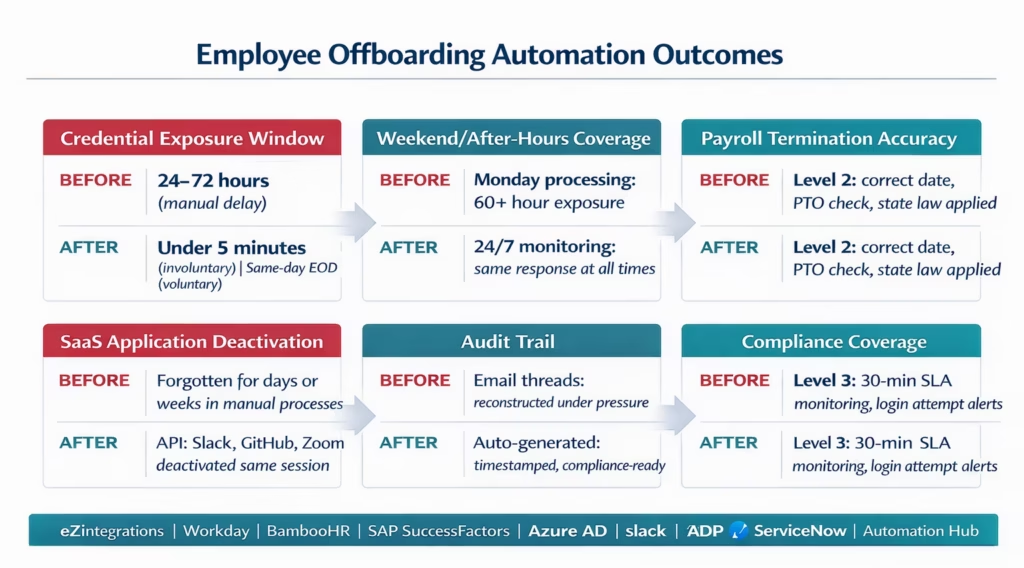
Access revocation time: manual offboarding averages 24-72 hours from departure to full access revocation. Automated offboarding with eZintegrations completes Azure AD disablement, Slack deactivation, and primary access revocation within 3-5 minutes of the HRIS trigger. For involuntary terminations: this window is measured in minutes regardless of time of day or day of week.
Security risk reduction: the credential exposure window drops from 24-72 hours to under 5 minutes. For organisations in regulated industries (finance, healthcare, defence): this directly addresses access control requirements under SOC 2, HIPAA, and ISO 27001.
Weekend and after-hours coverage: manual processes fail disproportionately for departures that occur on Fridays, public holidays, or outside business hours. Automated offboarding runs 24/7 with the same response time regardless of timing.
Payroll accuracy: manual offboarding frequently results in payroll errors: one extra pay cycle included, PTO payout miscalculated, or benefits not terminated on the correct date. Level 2 automation enforces correct termination date, PTO payout calculation, and state-law compliance (California, Massachusetts, and others with mandatory PTO payout).
Compliance and audit readiness: complete digital audit trail generated automatically. For organisations subject to GDPR, SOC 2, or employment tribunal requirements: the audit log provides a timestamped record of every access revocation action without manual reconstruction from email threads.
IT team time: manual offboarding requires IT to act on multiple notifications across potentially dozens of systems. Automated offboarding handles every API-accessible system automatically and creates explicit tickets for the handful of systems without deactivation APIs.
How to Get Started
Step 1: Audit Your Current Offboarding Process
Document every step in your current offboarding: how is IT notified, which systems require manual deactivation, how long does each step take, and which steps are most commonly missed or delayed. Review your incident history: has a former employee accessed systems after their departure? Has a payroll error occurred due to late termination date update? These incidents define your risk baseline.
Step 2: Identify Your Highest-Risk Access Types
Some access types are more critical to revoke immediately than others. Rank your systems by sensitivity: privileged access (admin rights, root access, financial system roles) is highest priority; general productivity tools (email, calendar) are second; peripheral tools (Zoom, Notion) are third. Configure the offboarding workflow to escalate and accelerate for employees with privileged access, and to create explicit IT tasks for systems without deactivation APIs.
Step 3: Import the Offboarding Workflow Template and Mirror Your Onboarding Config
Go to the Automation Hub and import the Employee Offboarding Workflow template. If you have already configured the employee onboarding workflow, 80% of the configuration (HRIS connection, Azure AD credentials, Slack SCIM token, payroll credentials, IT service desk connection) can be reused. The offboarding template mirrors the onboarding template in reverse, with the addition of the session revocation and shared mailbox conversion steps.
Step 4: Configure Voluntary vs Involuntary Branching and Test Both Paths
Configure the termination type branching: which HRIS field distinguishes voluntary from involuntary terminations, and what the execution timing rules are for each. Test both paths: run a voluntary termination test (confirm end-of-day execution, PTO payout check) and an involuntary termination test (confirm immediate execution, privileged access escalation). Test a Saturday departure to confirm 24/7 coverage. Book a demo to review your specific HRIS, security requirements, and privileged access configuration.
Book a free demo with your HRIS type, current access revocation timeline, and your highest-risk access categories. We will build the offboarding automation configuration for your environment.
Total configuration time: 2-4 days, or 1-2 days if onboarding is already configured and credentials can be reused.
FAQ
eZintegrations monitors Workday, BambooHR, or SAP SuccessFactors for termination events (via webhook or polling every 5 minutes). When a termination is detected, the workflow immediately calls the Microsoft Graph API (PATCH /v1.0/users/{id} with accountEnabled: false and POST /revokeSignInSessions) to disable the Azure AD account and revoke all active sessions. Slack is deactivated via SCIM PATCH. Other SaaS tools (GitHub, Zoom, Notion) are deactivated via their respective APIs or flagged for IT action. The payroll system is updated with the termination date and PTO payout. An IT asset recovery ticket is created. The manager receives a handover checklist. A full audit log is generated. All six steps complete within 3-5 minutes of the HRIS trigger.
2-4 days for a standard HRIS, Azure AD, Slack, payroll, and IT service desk configuration. If the onboarding workflow is already configured, 80% of the credentials and connections can be reused, reducing setup to 1-2 days. Key steps: termination event detection configuration (2-4 hours), voluntary vs involuntary branching (1-2 hours), Azure AD and session revocation testing (2-3 hours), Slack and SaaS deactivation testing (2-3 hours), payroll PTO payout logic (1-2 hours), and pilot testing with test accounts (1-2 days).
Yes, For Azure AD and hybrid environments: Microsoft Graph API (PATCH /v1.0/users/{id} with accountEnabled: false) and session revocation (POST /revokeSignInSessions). For pure on-premises Active Directory: LDAP or an on-premises agent that executes account disablement via PowerShell (Disable-ADAccount). For most modern organisations with hybrid AD (on-premises AD synced to Azure AD via Azure AD Connect): the Microsoft Graph API call disables the Azure AD account and the sync propagates the disablement to on-premises AD within minutes.
Account disablement blocks login immediately while preserving the account, its emails, files, and audit history. Account deletion removes the account immediately and irreversibly. eZintegrations uses disablement (not deletion) in the automated offboarding workflow for two reasons: a 30-day retention window allows IT to recover business-critical data, transfer email to a shared mailbox, and reassign files before permanent deletion; in employment disputes or security investigations, the preserved account provides evidence. Permanent deletion is handled as a separate, manual, time-delayed step (typically 30 days after departure) after the manager has confirmed data handover is complete.
Level 2 checks the employee's role and permission set for privileged access flags: AD admin rights, database admin roles, financial system admin, security tool admin, cloud platform root access. If privileged access is detected, the offboarding SLA is shortened to 5 minutes (vs the standard 30-minute SLA for standard access), the security team is immediately alerted, and the relevant system admin teams receive explicit action items to revoke any privileged access that cannot be automated via API. Level 3 monitors for any login attempts from a disabled privileged account and generates a security incident ticket if any are detected. 1. How does eZintegrations automate employee offboarding to revoke access instantly?
2. How long does it take to set up automated offboarding?
3. Does eZintegrations handle both Azure AD and on-premises Active Directory for access revocation?
4. What is the difference between account disablement and account deletion in offboarding?
5. How does the automated offboarding handle an employee with admin or privileged access?
The 60-Hour Window Is Closed
Manual offboarding leaves a 24-72 hour window of active credentials for departed employees. It is not intentional. It is the result of a process that relies on an email chain to coordinate time-sensitive security actions.
The automated version closes that window. The HRIS update fires a trigger. Azure AD is disabled in 3 minutes. Slack is deactivated in 3 minutes. Payroll is updated. The manager has a checklist. The audit trail is complete. And if Marcus ever attempts to log in after that point, Level 3 detects it and creates a security incident.
The cost of automating offboarding is a few days of configuration and a platform subscription. The cost of not automating it is one data breach away from being a very expensive mistake.
Book a free demo with your HRIS type, current access revocation timeline, and your highest-risk access categories. For the complementary onboarding workflow, see the employee onboarding automation guide.

