
How to Automate Expense Report Processing: From Submission to ERP Reimbursement
April 23, 2026 To automate expense report processing from Concur or Expensify to your ERP, eZintegrations connects to the Concur API (GET /api/v3.0/expense/reports) or Expensify API when an expense report reaches “Approved” status, extracts the line items with amounts, GL codes, cost centres, and receipts, posts a journal entry or vendor bill to SAP S/4HANA, NetSuite, Oracle Fusion Cloud, or Acumatica, and triggers the reimbursement payment workflow. The average manual expense processing cycle of 15 days is reduced to same-day GL posting and next-day reimbursement, with Level 2 policy validation running on every report before posting.
TL:DR
- Manual expense report processing takes an average of 15 days from submission to reimbursement. Employees Fimagetice. They ask. Finance gets the same questions every month.
- The six steps where time is lost: submission, policy check, manager approval, finance review, ERP journal entry posting, and payment initiation.
- eZintegrations connects Concur, Expensify, or any expense platform to SAP S/4HANA, NetSuite, Oracle Fusion Cloud, or Acumatica. Approved reports trigger automatic GL posting and reimbursement initiation.
- Level 1 (iPaaS Workflows) handles the Concur or Expensify API polling, data extraction, GL code mapping, and ERP posting. Level 2 (AI Workflows) validates every report before posting: policy limits by category (meals, travel, accommodation), duplicate receipt detection, GL account validation, and cost centre check. Level 3 (AI Agents) monitors the reimbursement cycle for overdue reports and flags policy violation patterns by employee or department. Level 4 (Goldfinch AI) provides the Goldfinch AI Chat UI as a Workflow Node: “Which expense reports are awaiting reimbursement?”, “What is our average expense cycle time this quarter?”, or “Which employees have submitted the most policy exceptions?”
- Typical outcome: 15-day cycle to same-day GL posting, next-day reimbursement initiation.
- CTA: Explore Templates.
Why Expense Reports Are Still a Manual Bottleneck
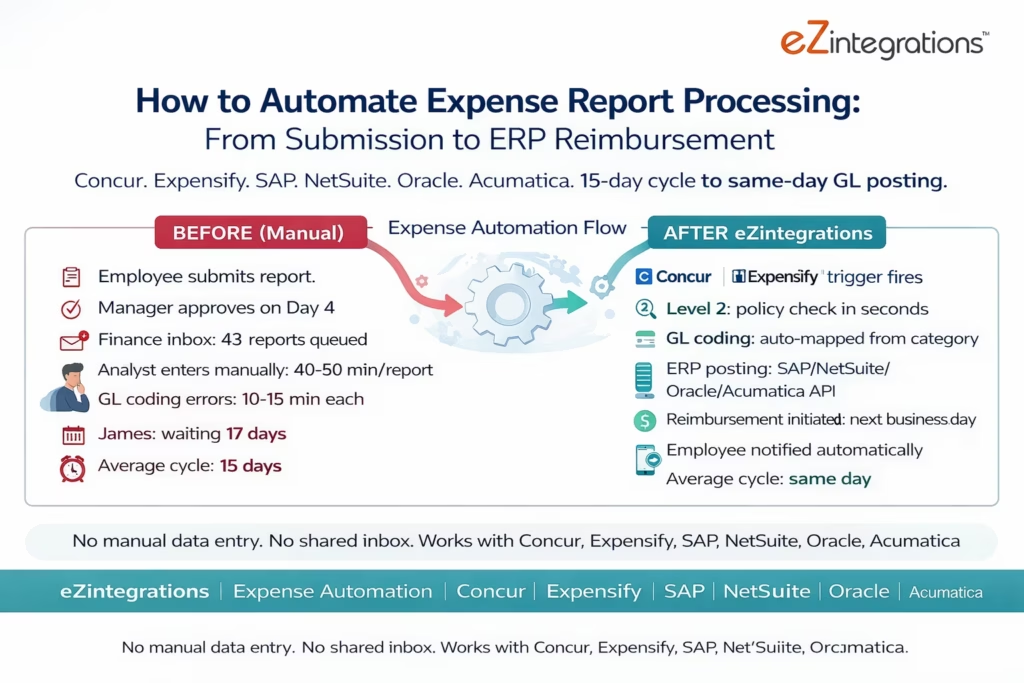
It is the third week of March. Your sales manager James submitted his February travel expenses on March 1. Today is March 18. He has not been reimbursed.
He sent an email to finance on March 10 asking for an update. Nobody replied. He sent a Slack message on March 15. Someone replied: “Checking with the manager, it’s in the queue.” Today he asked again.
Meanwhile, in finance, the expense report is sitting in a shared inbox that three people technically own and nobody actively monitors. It was approved by James’s manager on March 4. It was forwarded to the finance team on March 5. It was reviewed by a finance analyst who noticed one hotel receipt was over the $200 per-night policy limit. She emailed James to ask for a justification. James replied on March 9. The analyst did not see the reply until March 13. She approved the report on March 14. It still has not been entered in NetSuite.
The finance analyst has 43 other expense reports to process this month. She enters them manually into NetSuite: vendor ID, amount, GL account, cost centre, and payment terms. Eight reports have errors in the GL coding submitted by the employee. Each error takes 10-15 minutes to investigate and correct.
James has been waiting 17 days for £840 of his own money back.
This is the average manual expense report experience: 15 days from submission to reimbursement, 40-50 finance team minutes per report, and a steady stream of “where is my reimbursement?” queries that no one wants to answer.
The Six Steps Where Time Disappears
Manual expense report processing fails at the same six points every month. Each is solvable with automation.
Step 1: Submission. Employees submit expense reports in Concur or Expensify. Some submit receipts correctly. Some submit JPEG screenshots that cannot be read. Some use the wrong GL code. Some forget the business purpose. The submission step sets the quality of everything downstream.
Step 2: Policy check. Someone on the finance team (or sometimes the manager’s assistant) reviews the report against the company policy: meal limits, hotel per-night caps, travel class rules, receipt requirements. This is done manually, by memory or by consulting a policy document. Exceptions are emailed back to the employee. The policy check cycle takes 2-5 days for reports with exceptions.
Step 3: Manager approval. Most expense systems include a manager approval step. But if the manager is travelling, in meetings, or simply deprioritises expense approvals, the report waits. Average manager approval time: 2-4 days. Some managers approve in 10 minutes. Others take a week.
Step 4: Finance review and GL coding. When the report reaches finance (post-manager approval), a finance analyst reviews it and enters it into the ERP: vendor (the employee), amount, GL account per line item (meals vs travel vs accommodation vs software), cost centre, and billing reference (if client-billable). An experienced analyst takes 40-50 minutes per report. A new analyst takes longer. GL coding errors are common: employees select the wrong category in the expense tool, and the finance analyst either catches it or does not.
Step 5: ERP journal entry or vendor bill creation. The finance analyst opens the ERP and creates either a journal entry (debit expense GL, credit AP or employee payable) or a vendor bill (with the employee as vendor). This is the step that most directly benefits from automation: the data is already in the expense system, and the ERP creation is pure data transcription.
Step 6: Payment initiation. Once the ERP record is created, payment is either batched into the next payment run (weekly or biweekly) or initiated directly. This adds another 3-7 days to the cycle for employees who submitted a report in the wrong week.
Total time: 15 days on average. Finance team cost: 40-50 minutes per report × volume.
How Expense Automation Connects Concur/Expensify to the ERP
Concur API Integration
SAP Concur provides a REST API for expense report data. The key endpoint:
GET https://us.api.concursolutions.com/api/v3.0/expense/reports
    ?approvalStatusCode=A_APPR&user=ALL&limit=25&offset={offset}
Authorization: Bearer {concur_oauth_token}
approvalStatusCode=A_APPR returns only fully approved reports (all approval steps complete). This is the trigger status for ERP posting: only approved reports enter the GL posting flow.
Each report response includes:
ReportID: Concur’s unique report identifierReportName: the employee’s report titleOwnerNameandOwnerLoginID: the submitting employeeTotal: the approved total amountCurrencyCode: the currency of the reportApprovalStatusCodeandPaymentStatusCode: current statusSubmitDateandLastModifiedDate: submission and approval timestamps
To get line item detail (required for GL posting):
GET https://us.api.concursolutions.com/api/v3.0/expense/reportentries
    ?reportID={ReportID}&user=ALL
Authorization: Bearer {concur_oauth_token}
Response includes per-line: ExpenseTypeCode (the category: MEALS, HOTEL, AIRFR, PARKG, etc.), TransactionAmount, TransactionCurrencyCode, BusinessPurpose, MerchantName, and OrgUnit (cost centre).
The ExpenseTypeCode is the critical field for GL mapping: each Concur expense type maps to a specific GL account in the chart of accounts. This mapping is maintained as a reference dataset in eZintegrations and applied to every report line automatically.
Expensify API Integration
Expensify uses a different API architecture based on JSON request files:
POST https://integrations.expensify.com/Integration-Server/ExpensifyIntegrations
Content-Type: application/x-www-form-urlencoded

requestJobDescription={
  "type": "export",
  "credentials": { "partnerUserID": "{user_id}", "partnerUserSecret": "{secret}" },
  "test": false,
  "onReceive": { "immediateResponse": ["returnRandomFileName"] },
  "inputSettings": {
    "type": "combinedReportData",
    "reportState": "APPROVED",
    "startDate": "{start_date}",
    "endDate": "{end_date}"
  },
  "outputSettings": { "fileExtension": "json" }
}
The response returns approved expense reports with line items, categories, amounts, receipts, and policy tags (cost centres, departments, projects).
eZintegrations polls the Expensify API on a configurable schedule (daily or real-time via Expensify webhook) and processes all newly approved reports.
Level 2 Policy Validation: What Runs Before Every GL Posting
Before any expense report data is posted to the ERP, Level 2 runs automated policy validation. This is the automation that replaces the finance analyst’s manual policy review.
Policy Check 1: Per-Category Spend Limits
Each expense line is checked against the company’s policy limits by category:
Policy rules (configurable per company):
MEALS: maximum $75 per day per person
HOTEL: maximum $200 per night
AIRFR: economy class only for flights under 5 hours (no first class)
PARKG: maximum $30 per day
ENTMT: requires manager approval for any amount over $100
If a line exceeds the policy limit:
- The line is flagged with the specific policy rule violated and the amount over limit
- The policy exception is noted in the ERP posting (so finance can track policy compliance trends)
- If the excess is above a configurable threshold (e.g., more than 20% over the limit), the report is routed back to the finance team for explicit approval rather than auto-posting
For pre-approved exceptions (where the manager has already noted a justification in the approval workflow), the flag is informational rather than blocking.
Policy Check 2: Duplicate Receipt Detection
Level 2 checks whether the same receipt has been submitted before: same merchant, same date, same amount from the same employee (or from a different employee, which may indicate a shared expense submitted twice).
Query against the ERP expense history:
-- NetSuite: check for duplicate expense reimbursement
SELECT id, tranDate, amount, memo
FROM transaction
WHERE type = 'VendBill'
AND entity = {employee_vendor_id}
AND tranDate = {expense_date}
AND amount = {expense_amount}
AND memo LIKE '%{merchant_name}%'
AND tranDate >= DATEADD('month', -3, SYSDATE)
If a potential duplicate is detected: the report line is flagged and routed to the finance team for review rather than auto-posting.
Policy Check 3: GL Account Validation
Each expense line’s mapped GL account is validated against the ERP chart of accounts:
- Does the GL account exist?
- Is it active (not blocked for posting)?
- Is it appropriate for the expense type? (Does the account belong to the “Expenses” account class?)
Invalid GL accounts are flagged before posting rather than causing a failed ERP API call.
Policy Check 4: Cost Centre and Project Code Validation
The cost centre and project code on each expense line are validated against the ERP:
- Does the cost centre exist?
- Is the employee authorised to post to this cost centre?
- If the report is flagged as client-billable, does the project code exist and is it active?
ERP GL Posting: SAP, NetSuite, Oracle, and Acumatica
When all policy validations pass (or exceptions are acknowledged), the expense report is posted to the ERP.
SAP S/4HANA: Vendor Invoice Posting for Employee Expenses
SAP S/4HANA handles employee expense reimbursements as vendor invoices, with the employee as a vendor (typically configured via the HR-FI integration or as a manual creditor vendor). The posting uses API_SUPPLIERINVOICE_PROCESS_SRV:
POST /sap/opu/odata/sap/API_SUPPLIERINVOICE_PROCESS_SRV/A_SupplierInvoice
{
  "CompanyCode": "1000",
  "DocumentType": "KR",
  "PostingDate": "{today}",
  "DocumentDate": "{report_submit_date}",
  "InvoicingParty": "{employee_vendor_code}",
  "DocumentCurrency": "USD",
  "InvoiceGrossAmount": "{report_total}",
  "Reference": "{concur_report_id}",
  "DocumentHeaderText": "Expense: {report_name} - {employee_name}",
  "to_SupplierInvoiceItemGLAcct": [
    {
      "SupplierInvoiceItem": "1",
      "GLAccount": "0000631100",
      "AmtInDocCurr": "74.50",
      "CostCenter": "CC-SALES-001",
      "AssignmentReference": "MEALS-2026-03-{report_id}"
    },
    {
      "SupplierInvoiceItem": "2",
      "GLAccount": "0000631200",
      "AmtInDocCurr": "195.00",
      "CostCenter": "CC-SALES-001",
      "AssignmentReference": "HOTEL-2026-03-{report_id}"
    }
  ]
}
SAP returns the supplier invoice document number, which is stored as the ERP reference for the expense report.
NetSuite: Vendor Bill for Employee Expenses
In NetSuite, employee expense reimbursements are typically posted as vendor bills with the employee as a vendor, or as employee expense reports (if the NetSuite Expense module is active):
POST /services/rest/record/v1/vendorBill
{
  "entity": { "id": "{employee_vendor_id}" },
  "tranDate": "{today}",
  "dueDate": "{reimbursement_date}",
  "externalId": "{concur_report_id}",
  "memo": "Expense: {report_name} - {employee_name}",
  "expense": {
    "items": [
      {
        "account": { "id": "{meals_gl_account_id}" },
        "amount": 74.50,
        "department": { "id": "{sales_dept_id}" },
        "memo": "Meals: {merchant_name} {expense_date}"
      },
      {
        "account": { "id": "{travel_gl_account_id}" },
        "amount": 195.00,
        "department": { "id": "{sales_dept_id}" },
        "memo": "Hotel: {hotel_name} {check_in_date}"
      }
    ]
  }
}
Setting externalId to the Concur or Expensify report ID prevents duplicate postings if the process runs again before the first posting is confirmed.
Oracle Fusion Cloud: Expense Report Integration
Oracle Fusion Cloud has a dedicated Expenses module. eZintegrations posts approved expenses via the fscmRestApi:
POST /fscmRestApi/resources/11.13.18.05/expenses
{
  "EmployeeId": "{oracle_employee_id}",
  "ExpenseReportNumber": "{concur_report_id}",
  "ReimbursementCurrency": "USD",
  "PurposeOfTrip": "{report_purpose}",
  "Lines": [
    {
      "LineType": "EXPENSE",
      "ExpenseType": "MEALS",
      "EnteredAmount": 74.50,
      "EnteredCurrency": "USD",
      "ExpenseDate": "{expense_date}",
      "MerchantName": "{merchant_name}",
      "CostCenter": "{cost_center}"
    }
  ]
}
Acumatica: Expense Claim Posting
PUT /entity/Default/23.200.001/ExpenseClaim
{
  "EmployeeID": { "value": "{acumatica_employee_id}" },
  "Description": { "value": "Expense: {report_name}" },
  "Date": { "value": "{today}" },
  "Details": [
    {
      "ExpenseDate": { "value": "{expense_date}" },
      "ExpenseItem": { "value": "{expense_type_code}" },
      "Description": { "value": "{line_description}" },
      "Qty": { "value": 1 },
      "UnitCost": { "value": 74.50 },
      "AccountID": { "value": "{gl_account}" },
      "SubID": { "value": "{cost_center}" }
    }
  ]
}
Reimbursement Initiation: Payment Workflows
Once the ERP record is created, reimbursement is initiated based on the company’s payment workflow.
Next-Day ACH or Bank Transfer
For organisations that reimburse employees via direct deposit (ACH):
- The ERP vendor bill or expense claim is scheduled for payment in the next available payment run
- For companies that run daily ACH payments: same-day initiation possible
- For weekly payment runs: next run after posting
eZintegrations can trigger the payment batch via:
- SAP:
POST /API_PAYMENT_RUNS_SRV/PaymentRunsto initiate or add to a payment run - NetSuite:
POST /services/rest/record/v1/customerPaymentor payment batch via SuiteScript trigger - Oracle:
fscmRestApi POST /paymentRequestsDistsfor Oracle Payables payment request
Payroll Reimbursement
Some organisations reimburse expenses through payroll (included in the employee’s next paycheck). In this case:
- The approved expense amount is written to the payroll system (ADP, Workday, or Ceridian) via API
- Payroll processes the reimbursement in the next pay cycle
- eZintegrations connects to payroll APIs to write the reimbursement record
Employee Notification
When reimbursement is initiated, the employee receives an automatic notification:
- Email or Slack: “Your expense report [ReportName] has been approved and a payment of $[Amount] has been initiated. Expected processing: [Date].”
- The Concur or Expensify payment status is updated via API to reflect the reimbursement status.
Before vs After: Manual Expense Processing vs Automated
| Process Step | Manual Expense Processing | Automated with eZintegrations |
|---|---|---|
| Report submission | Employee submits in Concur/Expensify | Same (employee still submits in expense tool) |
| Policy check | Manual: finance analyst reviews against policy document | Level 2: automated check on every line within seconds |
| Policy exception handling | Email to employee, wait for reply | Flagged in workflow: employee notified via expense tool |
| Manager approval | Expense tool notification + manual follow-up | Expense tool handles (no change) |
| Finance review queue | Shared inbox: 43 reports, FIFO | No queue: approved reports trigger API immediately |
| GL code mapping | Manual: analyst assigns GL per line | Automated: Concur ExpenseTypeCode → GL account mapping |
| GL coding errors | Common: 10-15 min per error to correct | Level 2 validates GL before posting: near-zero errors |
| ERP data entry | Manual: vendor ID, amount, GL, cost centre, per report | API: auto-posted from expense tool data |
| Time per report (finance) | 40-50 minutes | 2-5 minutes (exception review) |
| Duplicate receipt detection | Manual: occasionally caught | Level 2: every report, every line, against ERP history |
| ERP posting accuracy | Variable: manual entry errors | Near-zero errors: data from structured expense tool API |
| Reimbursement initiation | Manual: batched to next payment run | Automated: initiated on ERP posting |
| Employee notification | Manual email (or no notification) | Auto: Slack or email on posting and payment initiation |
| Cycle time (submission to payment) | 15 days average | 1-2 days (same-day posting, next-day payment initiation) |
| Finance team hours per month | 40-50 min × report volume | 5-10 min × exception volume (~10-20% of reports) |
| Audit trail | Expense tool + manual ERP entry | Full digital trail: expense tool to ERP with validation log |
Step-by-Step: An Expense Report Through the Full Automated Flow
Here is a complete end-to-end example for James Chen, sales manager at Meridian Manufacturing, whose February travel expense report processes through the automated flow.
Setup: Meridian uses Concur for expense management and NetSuite as their ERP. GL mapping: MEALS → GL 631100, HOTEL → GL 631200, AIRFR → GL 631300, PARKG → GL 631400. Cost centre: Sales team = CC-SALES-001. James is a NetSuite vendor (employee vendor ID: JCHEN_NS).
March 1, 4:15 PM: James submits the report. James submits expense report “February Atlanta Sales Trip” in Concur:
- Delta Airlines flight: $487.00
- Marriott Hotel (2 nights × 195):390.00
- Client dinner: $74.50
- Parking: 28.00Total:979.50
March 4, 10:22 AM: Manager approves. James’s manager Sarah Park approves the report in Concur. Approval status: A_APPR.
March 4, 10:22 AM: eZintegrations trigger fires. eZintegrations detects the status change via Concur webhook (or polling). Report retrieved:
GET /api/v3.0/expense/reportentries?reportID=F9BC458B3F6B
March 4, 10:22 AM: Level 2 validation (9 seconds).
Policy checks:
- Delta Airlines $487.00 (AIRFR): flight policy requires economy class under 5 hours. Atlanta flight: 2.5 hours. Economy: confirmed. Policy pass.
- Marriott 390.00/2nights=195.00/night (HOTEL): hotel policy limit 200/night.195 < $200. Policy pass.
- Client dinner 74.50(MEALS/ENTMT):entertainmentpolicylimit75 per person. Amount flagged as borderline. Business purpose “Client dinner with Apex Corp” present. Policy pass (within limit).
- Parking 28.00(PARKG):parkingpolicylimit30/day. 28<30. Policy pass.
Duplicate check: NetSuite vendor bill history for JCHEN_NS in last 90 days. No Delta Airlines expense from same date. No Marriott expense from same dates. No match. Duplicate: none.
GL validation: GL 631100, 631200, 631300, 631400 all active in NetSuite chart of accounts. All validated.
Cost centre: CC-SALES-001 exists. James is authorised to post to Sales cost centre. Validated.
All validations pass.
March 4, 10:22 AM: NetSuite vendor bill created (2 seconds).
POST /services/rest/record/v1/vendorBill
{
  "entity": { "id": "JCHEN_NS" },
  "tranDate": "2026-03-04",
  "dueDate": "2026-03-05",
  "externalId": "CONCUR-F9BC458B3F6B",
  "memo": "Expense: February Atlanta Sales Trip - James Chen",
  "expense": { "items": [
    { "account": { "id": "631300" }, "amount": 487.00,
      "department": { "id": "CC-SALES-001" }, "memo": "Delta Airlines ATL 2026-02-12" },
    { "account": { "id": "631200" }, "amount": 390.00,
      "department": { "id": "CC-SALES-001" }, "memo": "Marriott Atlanta 2026-02-12 to 02-14" },
    { "account": { "id": "631100" }, "amount": 74.50,
      "department": { "id": "CC-SALES-001" }, "memo": "Client dinner: Apex Corp 2026-02-13" },
    { "account": { "id": "631400" }, "amount": 28.00,
      "department": { "id": "CC-SALES-001" }, "memo": "Parking ATL airport 2026-02-12" }
  ]}
}
NetSuite vendor bill VB-2026-0441 created. Amount: $979.50. Due: March 5, 2026.
March 4, 10:22 AM: James notified. Slack message to James: “Your expense report ‘February Atlanta Sales Trip’ (979.50)hasbeenapprovedandposted.Paymentof979.50 has been initiated and will be processed by March 5, 2026.”
March 5: Payment processed. NetSuite ACH payment batch runs. $979.50 ACH transfer to James’s bank account. Concur payment status updated to P_PAID via API.
Total elapsed time from manager approval to payment initiation: 38 minutes. Previous process: 17 days.
Key Outcomes and Results
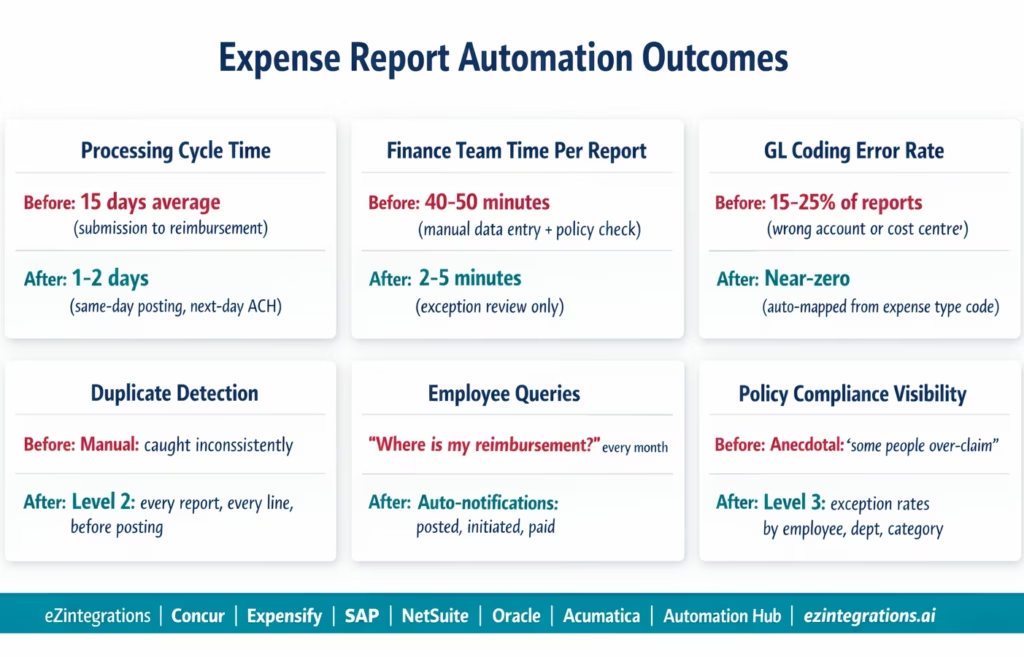
Cycle time: manual expense processing averages 15 days from submission to payment. With automated processing: same-day GL posting after manager approval, next-business-day payment initiation for organisations with daily ACH. Cycle time reduction: 90-95%.
Finance team time per report: manual processing takes 40-50 minutes per report. Automated: 2-5 minutes of exception review for the 10-20% of reports that have policy flags. For a company processing 200 expense reports per month: manual = 133-167 hours/month; automated = 7-17 hours/month (exception review only). Time saved: 120-160 hours/month.
Error rate: GL coding errors (wrong account, wrong cost centre) occur in an estimated 15-25% of manually processed expense reports. Level 2 validation and automatic GL mapping from Concur/Expensify expense type codes eliminate GL coding errors at the source. Error rate drops to near-zero for mapped expense categories.
Duplicate payment prevention: Level 2 duplicate receipt detection catches duplicate expense submissions before they are posted to the ERP. Manual processes catch duplicates inconsistently or not at all.
Employee satisfaction: “Where is my reimbursement?” queries consume significant finance team time and generate employee frustration. Automated notifications (posted, payment initiated, payment processed) eliminate 90%+ of these queries. Employees know the status without asking.
Policy compliance visibility: Level 3 monitors policy exception patterns over time. Finance leaders can see which employees or departments have the highest policy exception rates, which expense categories generate the most exceptions, and whether exception rates are trending up or down. This visibility enables policy enforcement conversations with specific data rather than anecdote.
How to Get Started
Step 1: Map Your Expense Type Codes to GL Accounts
The most important configuration step before anything else: build the mapping table between your expense system’s category codes and your ERP GL accounts. In Concur, these are ExpenseTypeCode values (MEALS, HOTEL, AIRFR, PARKG, MILEAGE, OFFIC, etc.). In Expensify, these are category names. Each maps to one GL account per ERP.
This table takes 2-4 hours to build for the first time (your chart of accounts and your expense categories are already defined) and rarely changes. It is the foundation of the automatic GL coding that eliminates 15-25% of manual processing errors.
Step 2: Explore and Import the Expense Report Automation Template
Go to the Automation Hub and explore the finance automation templates. Import the Expense Report Automation template for your expense system (Concur or Expensify) and ERP (SAP, NetSuite, Oracle, or Acumatica). The template includes: expense system API polling or webhook configuration, expense type to GL mapping, Level 2 policy validation (limits per category, duplicate detection, GL validation, cost centre check), ERP vendor bill or expense claim posting, and employee notification.
Step 3: Configure Policy Rules, API Credentials, and Employee Master
Add your expense system API credentials (Concur OAuth 2.0 Client ID and Secret, or Expensify partner credentials). Add ERP credentials (SAP BTP, NetSuite TBA, Oracle OAuth, or Acumatica OAuth). Ensure each employee who submits expenses has a corresponding vendor record in the ERP (this is required for the vendor bill posting approach). Configure your policy rules per expense category (spend limits, receipt requirements, approval thresholds). Upload the expense type to GL account mapping table.
Step 4: Run a Pilot with 10 Real Expense Reports
Select 10 representative expense reports (include some with policy exceptions, some with multiple expense types, and at least one with a potential duplicate). Run them through the automated flow while also processing them manually. Compare: did every GL code match what the analyst would have assigned? Did policy exceptions get flagged? Were duplicate checks accurate? Validate reimbursement amounts. Allow 3-5 business days for pilot testing before going fully live.
Total configuration time: 2-3 days for a single expense system and ERP pair. Add 1 day for each additional expense system or ERP.
FAQs
eZintegrations polls the Concur API (GET /api/v3.0/expense/reports?approvalStatusCode=A_APPR) or the Expensify API at configurable intervals to detect newly approved expense reports. For each approved report, line item data is retrieved (expense type, amount, merchant, date, cost centre). Level 2 validates each line against configurable policy rules (per-category spend limits, duplicate receipt check, GL account validation, cost centre validation). When validation passes, the report is posted to the ERP as a vendor bill or expense claim via REST API. The employee is notified automatically. When the ERP payment run processes the reimbursement, the Concur or Expensify payment status is updated to reflect payment completion.
2-3 days for a single expense system (Concur or Expensify) and ERP pair (SAP, NetSuite, Oracle, or Acumatica). Key steps: expense type to GL account mapping table (2-4 hours), API credentials and employee vendor master validation (2-4 hours), policy rule configuration (1-2 hours), template import and configuration (2-4 hours), and pilot testing with 10 real reports (1-2 days). Add 1 day per additional expense system or ERP if you run multiple combinations.
Yes, SAP Concur: OAuth 2.0 authentication, GET /api/v3.0/expense/reports for approved reports, GET /api/v3.0/expense/reportentries for line item detail. Expensify: partner API with JSON request files, reporting via APPROVED status filter. Both connect to the same ERP (SAP, NetSuite, Oracle, or Acumatica) using the same GL mapping and policy validation. If your organisation uses different expense tools for different employee groups or subsidiaries, both Concur and Expensify can be connected to the same eZintegrations workflow posting to the same ERP.
The GL mapping table (expense type code → GL account ID) is configured once in eZintegrations. When an approved expense report arrives, each line item's expense type code (Concur: ExpenseTypeCode like MEALS or HOTEL; Expensify: category name like "Meals" or "Accommodation") is looked up in the mapping table and the corresponding GL account is automatically assigned. This replaces the most common source of manual error: the finance analyst assigning the wrong GL account. For expense types not in the mapping table, the line is flagged as an exception for manual GL assignment. Typically, 90-95% of expense lines have matching expense types in the standard mapping table.
Level 2 flags the specific lines that violate policy with the rule violated and the amount over the limit. Based on your configuration, the response is either: (a) informational flag: the report is posted to the ERP with the flag noted in the memo, and the finance team is notified of the exception; or (b) hold for review: reports with violations above a threshold (e.g., more than 20% over the policy limit) are held in the exception queue and require explicit finance team approval before posting. For reports where the manager has added a justification note in the approval, the flag is treated as informational. The exception is recorded in the audit trail regardless of which path the report takes. 1. How does expense report automation work with Concur and Expensify using eZintegrations?
2. How long does it take to set up expense report automation?
3. Does eZintegrations work with both SAP Concur and Expensify for expense report automation?
4. How does the GL coding automation work to eliminate manual GL assignment?
5. What happens when an expense report violates company policy?
James Is No Longer Waiting
The expense report problem is not that employees submit too many expenses. It is that a simple, repeatable process (approved expense → ERP entry → payment) requires 15 days and 40-50 minutes of manual finance team time per report because nobody automated the connection between the expense tool and the ERP.
That connection is exactly what eZintegrations provides. Concur or Expensify approval fires a trigger. Level 2 validates the policy rules and GL codes in seconds. The ERP vendor bill is created automatically. The employee is notified. Payment is initiated. James gets his reimbursement by Thursday, not the following month.
Explore the Expense Report Automation Templates in the Automation Hub. Or visit the Automation Hub directly to import the template for your expense system and ERP combination.
For the related AP automation context (vendor invoices, not employee expenses), see the invoice approval workflow automation guide. For month-end close automation that incorporates posted expense entries, see the month-end close automation guide.

