
How to Automate SaaS User Provisioning Across 10+ Apps When a New Employee Joins
May 5, 2026To automate SaaS user provisioning for new employees across 10 or more applications, eZintegrations monitors Workday, BambooHR, or SAP SuccessFactors for new hire events and triggers a provisioning sequence that creates accounts in each application using either SCIM (for apps like Slack, GitHub, and Zoom that support SCIM 2.0) or custom REST API calls (for apps like Salesforce, Jira, and Notion that have user management APIs but limited or no SCIM support). Each application receives the correct role, group membership, and licence assignment based on the new hire’s job code and department, without requiring a separate Okta or Azure AD licence for every provisioning scenario.
TL;DR
- The average enterprise uses 130+ SaaS applications, making identity and access control a core operational challenge in modern IT environments as highlighted in Gartner research on identity and access management. A new employee needs accounts in 8-15 of them on Day One. Manual provisioning across that many apps takes 2-6 hours of IT time per hire and creates a predictable pattern of missing access on Day One.
- The choice between SCIM provisioning (for apps that support it: Slack, GitHub, Zoom, Dropbox) and custom API provisioning (for apps that do not: Salesforce, Jira, HubSpot, Notion) determines the architecture.
- eZintegrations handles both: SCIM 2.0 for compatible apps, REST API calls with custom field mapping for the rest.
- Level 1 (iPaaS Workflows) handles HRIS trigger detection, per-app provisioning API calls, and role/group assignment. Level 2 (AI Workflows) maps the new hire’s job code to the correct per-app role profile, validates that all required fields are present before provisioning each app, and flags any apps where provisioning failed. Level 3 (AI Agents) monitors provisioning completion status across all apps, sends a Day-One readiness report 24 hours before the start date, and detects apps that were not provisioned due to API errors. Level 4 (Goldfinch AI) provides the Goldfinch AI Chat UI as a Workflow Node: “Which apps is Emma missing access to?”, “What is the provisioning status for all hires starting this week?”, or “Which apps have the highest provisioning failure rate?”
- Works without Okta, or alongside Okta for apps not in the Okta catalogue.
- Configuration time: 2-4 days for 10 applications.
The SaaS Sprawl Problem: 130 Apps, 8-15 Provisioning Tasks, and One New Employee
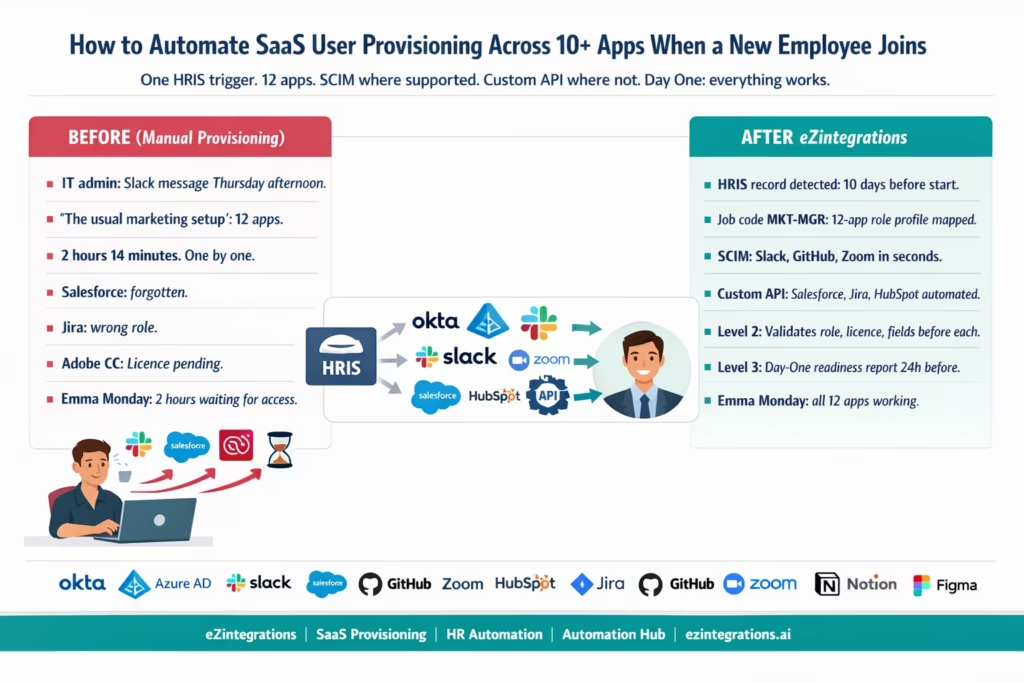
Your IT admin receives a Slack message from HR on Thursday afternoon: “Just to let you know, we have a new Marketing Manager starting Monday. Name is Emma Johnson. She’ll need the usual marketing setup.”
“The usual marketing setup” is 12 separate applications:
- Microsoft 365 (email, Teams, SharePoint, OneDrive)
- Slack (workspace, 4 specific channels)
- Salesforce (Marketing Cloud user, CRM read access)
- HubSpot (marketing user, campaign manager role)
- Jira (project viewer, marketing board)
- Confluence (space access, marketing wiki)
- Google Analytics (read access, marketing property)
- Adobe Creative Cloud (single-seat licence, marketing profile)
- Zoom (standard user, marketing team meeting)
- Notion (member, marketing workspace)
- GitHub (organisation member, marketing assets repo)
- Figma (editor, marketing team)
Your IT admin opens each application one by one. He creates Emma’s account. He assigns the correct role. He adds her to the correct groups and channels. He sends her an activation email for each app separately.
This takes 2 hours and 14 minutes. He does it 8-10 times per month. That is 16-21 hours per month of IT time spent on a completely repeatable, rule-based task.
On Monday, Emma arrives. Microsoft 365: working. Slack: working. Salesforce: not set up (IT admin forgot it was on the list). HubSpot: working. Jira: licence was available but IT admin assigned the wrong role (project administrator instead of viewer). Adobe Creative Cloud: licence request submitted but not yet approved. Figma: working.
Emma spends two hours Monday morning waiting for access to three tools she needs to do her job.
SCIM vs Custom API: Choosing the Right Provisioning Method Per App
The first architectural decision in multi-app provisioning is which method to use for each application. There are two paths: SCIM (System for Cross-domain Identity Management) for apps that support it, and custom REST API calls for apps that do not.
What SCIM Is
SCIM 2.0 is a standardised protocol for automating user provisioning and deprovisioning across different systems. An app that supports SCIM exposes a consistent set of endpoints:
create a new user: POST /scim/v2/Usersfind a user by email: GET /scim/v2/Users?filter=userName eq "{email}":update a user (change role, deactivate): PATCH /scim/v2/Users/{id}deprovision a user: DELETE /scim/v2/Users/{id}orPATCH active:false
Apps that support SCIM: Slack, GitHub, Zoom, Dropbox, Okta, Google Workspace (partially), Box, Atlassian (Jira and Confluence via Atlassian Access), Adobe Creative Cloud (enterprise tier), Salesforce (enterprise tier).
The benefit of SCIM: one consistent provisioning pattern across all SCIM-compatible apps. The same field names, the same endpoints, the same response format.
What Custom REST API Provisioning Is
Many SaaS apps have user management APIs but do not implement SCIM. Each has its own endpoint structure, authentication method, and field naming. Examples:
- Salesforce (non-enterprise or without SCIM enabled):
POST /services/data/v59.0/sobjects/User/ - HubSpot:
POST /crm/v3/objects/contactsfor marketing contacts; user accounts managed viaPOST /settings/v3/users - Notion:
POST /v1/databases/{id}/membersfor workspace member invitation - Figma:
POST /v1/teams/{team_id}/invitations - Google Analytics: Google Analytics Admin API
POST /v1alpha/{parent}/userLinks
For each of these apps, eZintegrations makes a custom API call with the correct endpoint, authentication, and field mapping.
Deciding Which Method to Use
| Application | SCIM Supported | Provisioning Method |
|---|---|---|
| Slack | Yes (SCIM 2.0) | SCIM |
| GitHub | Yes (SCIM 2.0, GitHub Enterprise) | SCIM |
| Zoom | Yes (SCIM 2.0) | SCIM |
| Dropbox Business | Yes (SCIM 2.0) | SCIM |
| Box | Yes (SCIM 2.0) | SCIM |
| Google Workspace | Partial (via Google Directory API) | Google Admin SDK |
| Microsoft 365 / Azure AD | Yes (via Microsoft Graph API) | Microsoft Graph / SCIM |
| Atlassian (Jira, Confluence) | Yes (Atlassian Access, enterprise) | SCIM or REST API |
| Salesforce | Yes (enterprise), No (lower tiers) | SCIM or REST API |
| HubSpot | No native SCIM | Custom REST API |
| Notion | No native SCIM | Custom REST API |
| Figma | No native SCIM | Custom REST API |
| Adobe Creative Cloud | Yes (enterprise), No (standard) | SCIM or REST API |
| GitHub (non-enterprise) | No | REST API (invite to org) |
The HRIS Trigger: One Event, Many Provisioning Streams
The provisioning automation starts with a single trigger: a new hire record in the HRIS with a start date within the configured window (typically 7-10 business days).
From One Trigger to Many Parallel Provisioning Calls
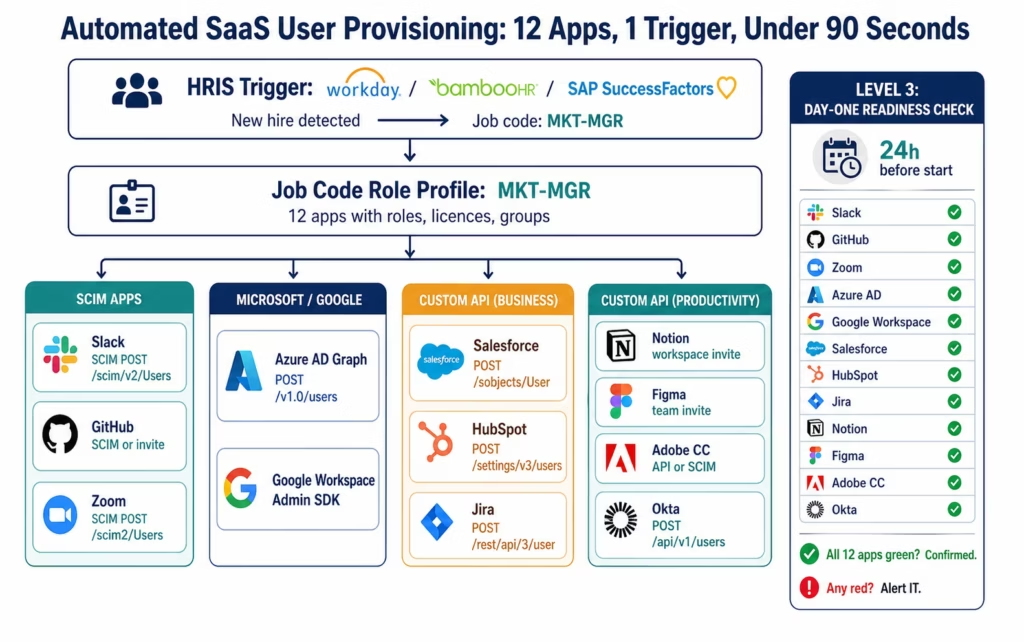
eZintegrations uses a fan-out pattern: when the HRIS trigger fires, it creates parallel provisioning streams for each application. Each stream is independent: a failure in Salesforce provisioning does not block Slack provisioning. Each stream reports its status to the monitoring layer.
HRIS trigger fires (e.g., BambooHR webhook)
    │
    ├─ Stream 1: Microsoft 365 (Azure AD via Graph API)
    ├─ Stream 2: Slack (SCIM)
    ├─ Stream 3: Salesforce (REST API or SCIM)
    ├─ Stream 4: HubSpot (REST API)
    ├─ Stream 5: Jira + Confluence (SCIM or REST API)
    ├─ Stream 6: GitHub (SCIM or REST API)
    ├─ Stream 7: Zoom (SCIM)
    ├─ Stream 8: Notion (REST API)
    ├─ Stream 9: Figma (REST API)
    ├─ Stream 10: Adobe Creative Cloud (SCIM or REST API)
    ├─ Stream 11: Google Analytics (Google Admin SDK)
    └─ Stream 12: Any additional app (configured per role profile)
The fan-out pattern means all 12 apps are provisioned concurrently. Total provisioning time: typically 60-90 seconds for 12 apps (limited by the slowest individual API response, not by sequential processing).
SCIM Provisioning: Slack, GitHub, Zoom, and Dropbox
Slack SCIM Provisioning
POST https://api.slack.com/scim/v2/Users
Authorization: Bearer {slack_scim_token}
Content-Type: application/json

{
  "schemas": ["urn:ietf:params:scim:schemas:core:2.0:User",
              "urn:scim:schemas:extension:enterprise:2.0:User"],
  "userName": "emma.johnson@meridianmanufacturing.com",
  "name": { "givenName": "Emma", "familyName": "Johnson" },
  "emails": [{ "value": "emma.johnson@meridianmanufacturing.com", "primary": true }],
  "active": true,
  "urn:scim:schemas:extension:enterprise:2.0:User": {
    "department": "Marketing",
    "title": "Marketing Manager"
  }
}
After creating the Slack user, add them to channels via the Slack conversations API (not part of SCIM standard):
POST https://slack.com/api/conversations.invite
{
  "channel": "{general_channel_id}",
  "users": "{emma_slack_user_id}"
}
Repeat for each channel from the job code role profile (MKT-MGR: #general, #marketing, #marketing-managers, #announcements).
GitHub SCIM Provisioning (Enterprise)
POST https://api.github.com/scim/v2/organizations/{org}/Users
Authorization: Bearer {github_token}
Content-Type: application/json

{
  "schemas": ["urn:ietf:params:scim:schemas:core:2.0:User"],
  "userName": "emma.johnson@meridianmanufacturing.com",
  "name": { "givenName": "Emma", "familyName": "Johnson" },
  "emails": [{ "value": "emma.johnson@meridianmanufacturing.com", "primary": true }],
  "active": true
}
For non-enterprise GitHub: use the invite API:
POST https://api.github.com/orgs/{org}/invitations
Authorization: Bearer {github_token}
{ "email": "emma.johnson@meridianmanufacturing.com", "role": "direct_member" }
After organisation invitation, add to specific teams (repositories) from the role profile:
PUT https://api.github.com/orgs/{org}/teams/{team_slug}/memberships/{username}
{ "role": "member" }
Zoom SCIM Provisioning
POST https://api.zoom.us/v2/scim2/Users
Authorization: Bearer {zoom_oauth_token}

{
  "schemas": ["urn:ietf:params:scim:schemas:core:2.0:User"],
  "userName": "emma.johnson@meridianmanufacturing.com",
  "name": { "givenName": "Emma", "familyName": "Johnson" },
  "emails": [{ "value": "emma.johnson@meridianmanufacturing.com", "primary": true }],
  "active": true,
  "phoneNumbers": [{ "value": "+14155550122", "primary": true }]
}
Custom API Provisioning: Salesforce, Jira, HubSpot, and Notion
Salesforce User Creation
For Salesforce (standard licence tiers without SCIM):
POST https://{instance}.salesforce.com/services/data/v59.0/sobjects/User/
Authorization: Bearer {sf_token}
Content-Type: application/json

{
  "FirstName": "Emma",
  "LastName": "Johnson",
  "Username": "emma.johnson@meridianmanufacturing.com.prod",
  "Email": "emma.johnson@meridianmanufacturing.com",
  "Alias": "ejohnso",
  "TimeZoneSidKey": "America/Los_Angeles",
  "LocaleSidKey": "en_US",
  "EmailEncodingKey": "UTF-8",
  "ProfileId": "{marketing_user_profile_id}",
  "LanguageLocaleKey": "en_US",
  "IsActive": true,
  "Department": "Marketing",
  "Title": "Marketing Manager"
}
The ProfileId is the Salesforce Profile that maps to the new hire’s role (Marketing User profile, not System Administrator). This comes from the job code role profile.
Jira User Invitation and Role Assignment
Jira does not have a native user creation API (users must accept invitations). The Atlassian REST API handles invitation:
POST https://{domain}.atlassian.net/rest/api/3/user
Authorization: Bearer {atlassian_token}
Content-Type: application/json

{
  "emailAddress": "emma.johnson@meridianmanufacturing.com",
  "displayName": "Emma Johnson",
  "products": ["jira-software"]
}
Then add to specific projects with the correct role:
POST https://{domain}.atlassian.net/rest/api/3/project/{projectKey}/role/{roleId}
{
  "user": ["emma.johnson@meridianmanufacturing.com"]
}
For Jira Service Management projects, add as a customer or team member:
POST https://{domain}.atlassian.net/rest/servicedesk/1/servicedesk/{serviceDeskId}/customer
{
  "usernames": ["emma.johnson@meridianmanufacturing.com"]
}
HubSpot User Invitation
HubSpot user accounts (not contacts) are managed via:
POST https://api.hubapi.com/settings/v3/users
Authorization: Bearer {hubspot_token}
Content-Type: application/json

{
  "email": "emma.johnson@meridianmanufacturing.com",
  "roleId": "{marketing_manager_role_id}",
  "sendWelcomeEmail": true
}
After user creation, add to the correct team:
PUT https://api.hubapi.com/settings/v3/users/{userId}/teams
{ "primaryTeamId": "{marketing_team_id}" }
Notion Workspace Invitation
Notion uses a workspace invitation model:
POST https://api.notion.com/v1/workspaces/{workspace_id}/invite
Authorization: Bearer {notion_token}
Content-Type: application/json

{
  "emails": ["emma.johnson@meridianmanufacturing.com"],
  "role": "member"
}
After workspace invitation, add to specific pages or databases:
PATCH https://api.notion.com/v1/databases/{database_id}
{
  "member": {
    "type": "user",
    "user": { "object": "user", "id": "{notion_user_id}" }
  }
}
Role Profiles by Job Code: Provisioning the Right Access, Not Just Any Access
The job code role profile is the mapping table that connects the new hire’s job code (from the HRIS) to the specific role, permission level, and group membership for each application.
Example Role Profile: MKT-MGR (Marketing Manager)
{
  "jobCode": "MKT-MGR",
  "description": "Marketing Manager",
  "applications": {
    "microsoft365": {
      "licence": "Microsoft_365_E3",
      "groups": ["Marketing-All-Users", "Marketing-Managers", "VPN-Access"],
      "sharepoint_sites": ["Marketing-Resources", "All-Company"]
    },
    "slack": {
      "channels": ["#general", "#marketing", "#marketing-managers", "#announcements"],
      "user_type": "full"
    },
    "salesforce": {
      "profile_id": "MARKETING_USER_PROFILE",
      "permission_sets": ["Marketing_Cloud_User", "Campaign_Manager"],
      "licence_type": "Marketing"
    },
    "hubspot": {
      "role_id": "MARKETING_MANAGER_ROLE",
      "team_id": "MARKETING_TEAM",
      "licence": "Marketing Hub Professional"
    },
    "jira": {
      "projects": ["MKTG", "CONTENT", "BRAND"],
      "role": "developer",
      "service_desk_customer": false
    },
    "confluence": {
      "spaces": ["Marketing", "General"],
      "role": "contributor"
    },
    "github": {
      "org_role": "member",
      "teams": ["marketing-assets", "content-team"]
    },
    "zoom": {
      "user_type": "Licensed",
      "group": "Marketing"
    },
    "notion": {
      "workspace_role": "member",
      "databases": ["Marketing Calendar", "Campaign Tracker", "Brand Assets"]
    },
    "figma": {
      "team_id": "MARKETING_TEAM",
      "role": "editor"
    },
    "adobe_creative_cloud": {
      "licence": "Creative Cloud All Apps",
      "profile": "Standard User"
    },
    "google_analytics": {
      "property": "MERIDIAN_MAIN_PROPERTY",
      "role": "Viewer"
    }
  }
}
This profile is configured once per job code. When Emma is hired as Marketing Manager (job code MKT-MGR), every application receives the correct configuration without the IT admin making manual decisions.
The job code role profile is also what separates good provisioning from dangerous over-provisioning. Without profiles, IT admins often give new hires admin access “to be safe” or because it is faster than understanding the correct permission level. Profiles enforce least-privilege access by default, aligning with identity-centric zero trust security principles where access is granted strictly based on role and necessity, as reflected in frameworks from Okta.
Okta Integration: Using eZintegrations Alongside an Identity Provider
Many organisations already use Okta or Azure AD as their primary identity provider. eZintegrations complements (not replaces) the identity provider in two scenarios:
Scenario 1: Apps Not in the Okta Catalogue
Okta’s Application Network contains thousands of apps. But many niche SaaS tools used by specific teams are not in the Okta catalogue and cannot be provisioned via Okta SCIM. eZintegrations handles these gaps: while Okta provisions the major apps (Microsoft 365, Salesforce, GitHub enterprise), eZintegrations provisions the apps without Okta support (niche analytics tools, industry-specific platforms, legacy apps with custom APIs).
Scenario 2: Okta Not Licensed for Every App
Okta SCIM provisioning requires an Okta Advanced Server Access or Workforce Identity Cloud licence. For organisations where the Okta licence does not cover certain apps, eZintegrations can provision those apps directly from the HRIS trigger without routing through Okta.
Scenario 3: Pre-Okta Provisioning
For the apps where Okta is the identity provider: eZintegrations can trigger Okta’s own provisioning by creating or activating the user in Okta first, which then cascades to all connected Okta-managed apps. This makes eZintegrations the orchestration layer between the HRIS and Okta:
HRIS trigger → eZintegrations
    ├─ Okta: POST /api/v1/users (creates user, triggers Okta-managed app provisioning)
    ├─ Non-Okta App 1: custom API
    ├─ Non-Okta App 2: custom API
    └─ Non-Okta App N: custom API
Okta User Creation
POST https://{okta_domain}.okta.com/api/v1/users
    ?activate=true
Authorization: SSWS {okta_api_token}
Content-Type: application/json

{
  "profile": {
    "firstName": "Emma",
    "lastName": "Johnson",
    "email": "emma.johnson@meridianmanufacturing.com",
    "login": "emma.johnson@meridianmanufacturing.com",
    "department": "Marketing",
    "title": "Marketing Manager",
    "employeeNumber": "{hris_employee_id}"
  },
  "groupIds": ["{marketing_okta_group_id}", "{standard_users_group_id}"]
}
Setting ?activate=true activates the user immediately and triggers Okta to provision all connected applications via SAML/SCIM. The groupIds determines which Okta group policies apply, controlling which apps the user gets access to via Okta.
Provisioning Validation: What Level 2 Checks Before Each App
Before each provisioning API call, Level 2 runs validation:
Required Field Completeness
For each app, certain fields are mandatory:
- Salesforce User requires
Username(must be unique globally in Salesforce, including sandbox environments) andProfileId - Jira requires
emailAddress - Zoom requires
emailandtype(1=basic, 2=licensed, 3=on-prem)
Level 2 checks that all required fields are populated from the HRIS record and the job code role profile before the API call. Missing required fields block that specific app’s provisioning and flag it for IT review, without blocking the other apps.
Duplicate Account Detection
Level 2 queries each app for an existing account with the same email before creating a new one:
Salesforce duplicate check:
SELECT Id, Username, IsActive FROM User WHERE Email = '{email}'
Jira duplicate check:
GET https://{domain}.atlassian.net/rest/api/3/user/search
    ?query={email}&maxResults=1
Slack duplicate check (SCIM):
GET https://api.slack.com/scim/v2/Users?filter=userName eq "{email}"
If an account already exists (a former employee being rehired, or a test account created manually): the provisioning call is changed from POST (create) to PATCH (update), reactivating the existing account rather than creating a second one.
Licence Availability Check
For paid licences (Salesforce, Adobe Creative Cloud, Zoom Licensed seats): Level 2 checks that a licence is available before provisioning:
Salesforce licence check:
SELECT Id, Name, TotalLicenses, UsedLicenses
FROM UserLicence
WHERE Name = 'Salesforce Marketing Cloud'
If UsedLicenses >= TotalLicenses: the provisioning is flagged as blocked (insufficient licences), an alert goes to IT, and the IT manager must either purchase a new licence or reassign an existing one before the provisioning can proceed.
Day-One Readiness: Level 3 Monitoring and Completion Verification
Level 3 runs a continuous monitoring loop from the moment provisioning starts to Day One.
Provisioning Completion Check
After the fan-out provisioning calls complete, Level 3 queries each app to confirm the account exists and is active:
FOR each app in role_profile:
    status = check_account_exists(email, app)
    IF status == "active": mark green ✓
    IF status == "pending_activation": mark amber ⚠ (invitation sent but not accepted)
    IF status == "not_found": mark red ✗ (provisioning failed or not attempted)
    IF status == "inactive": mark red ✗ (account disabled or wrong state)
Day-One Readiness Report
24 hours before the start date, Level 3 sends a Day-One readiness report to the IT admin and the hiring manager:
Subject: Day-One Readiness Check: Emma Johnson - Marketing Manager - Start: March 17

✓ Microsoft 365 (email: emma.johnson@meridianmanufacturing.com) - Active
✓ Slack - Active, 4 channels
✓ HubSpot - Active, Marketing Manager role
✓ Jira - Active, MKTG + CONTENT + BRAND projects
✓ GitHub - Invitation sent, accepted
✓ Zoom - Licensed user active
✓ Notion - Member, 3 databases
✓ Figma - Editor, Marketing team
⚠ Salesforce - Invitation sent, not yet accepted (resend?)
✗ Adobe Creative Cloud - Provisioning failed: licence limit reached
✗ Google Analytics - Not provisioned: API credentials expired

Action required:
- Adobe CC: 0 licences available. Please purchase or reassign.
- Google Analytics: API key for Google Analytics Admin needs renewal.
- Salesforce: Resend invitation if Emma has not received it.

IT Admin contact: it@meridianmanufacturing.com
This report gives IT 24 hours to resolve the 2-3 apps that typically require manual intervention before Day One.
Before vs After: Manual Multi-App Provisioning vs Automated
| Provisioning Step | Manual Process | Automated with eZintegrations |
|---|---|---|
| Trigger detection | IT admin receives Slack/email from HR | HRIS webhook: detected within 5 minutes |
| App list determination | IT admin recalls or checks spreadsheet | Job code role profile: 12 apps predefined |
| Per-app provisioning | Sequential: 2 hours 14 minutes for 12 apps | Parallel fan-out: under 90 seconds |
| Role and permission assignment | Manual: IT admin guesses or researches | Role profile: correct role applied automatically |
| Over-provisioning risk | High: admin access given to avoid mistakes | Near-zero: least-privilege defined in role profile |
| Duplicate account check | Manual: IT admin may not notice former employee | Level 2: query per app before provisioning |
| Licence availability check | Manual: IT admin checks licence count | Level 2: automated check, flag if insufficient |
| Channel and group membership | Manual: IT admin adds to each channel/group | Provisioning profile: all memberships applied |
| SCIM vs custom API decision | None: IT admin does it all by hand | Architecture: SCIM for compatible apps, REST for rest |
| Forgotten apps | Common: 1-3 apps missed per hire | Near-zero: all apps in role profile attempted |
| Wrong role assignment | Common: over-permission “to be safe” | Near-zero: role profile defines correct level |
| Day-One readiness verification | IT admin checks on Day One | Level 3: 24h before start, full status report |
| After-hours provisioning | Not done: queued to next business day | 24/7: provisioning starts 7-10 days before start |
| IT admin time per hire | 2-6 hours (12+ apps) | 15-30 minutes (exception review only) |
| Missing access on Day One | 1-3 apps typically | Near-zero: Level 3 catches gaps 24h before |
| Audit trail | None: no record of who provisioned what | Full digital log: every API call, timestamp, result |
Step-by-Step: A Marketing Manager Provisioned Across 12 Apps
Emma Johnson is starting as Marketing Manager at Meridian Manufacturing on March 17, 2026. The provisioning automation starts 10 days before her start date.
Setup: Meridian uses BambooHR. Job code MKT-MGR role profile configured for 12 apps. Okta manages Microsoft 365 and Salesforce. eZintegrations provisions the remaining 10 apps and triggers Okta for the first two.
March 7, 9:22 AM: BambooHR record created. Emma’s BambooHR record created with hireDate = 2026-03-17, jobCode = MKT-MGR, department = Marketing, managerId = SPARK. Webhook fires.
March 7, 9:22 AM: Level 2 validation (6 seconds).
- Required fields: all present. firstName: Emma, lastName: Johnson, email: emma.johnson@meridianmanufacturing.com, jobCode: MKT-MGR, department: Marketing.
- Job code role profile: MKT-MGR found. 12 apps mapped.
- Duplicate check: no existing accounts found in any app for this email.
- Licence check: Salesforce Marketing (1 available), Adobe CC (0 available: flagged immediately), Zoom Licensed (3 available).
March 7, 9:22 AM: Fan-out provisioning begins (12 parallel streams).
Stream results at 9:24:05 AM (1 minute 43 seconds later):
✓ Okta:
POST /api/v1/users?activate=true → user created, cascades to Microsoft 365 and Salesforce via Okta-managed provisioning.
✓ Slack:
SCIM POST → user created, added to #general, #marketing, #marketing-managers, #announcements. ✓ HubSpot:
REST POST /settings/v3/users → Marketing Manager role, Marketing Team.
✓ Jira:
REST POST /rest/api/3/user → invited to MKTG, CONTENT, BRAND projects as developer. ✓ Confluence:
REST → Marketing and General spaces, contributor.
✓ GitHub:
SCIM invite → org member, marketing-assets team, content-team.
✓ Zoom:
SCIM POST → Licensed user, Marketing group.
✓ Notion:
REST invite → member, Marketing Calendar + Campaign Tracker + Brand Assets.
✓ Figma:
REST POST /v1/teams/{id}/invitations → editor, Marketing team.
⚠ Adobe Creative Cloud:
BLOCKED: 0 licences available. Alert sent to IT admin and CFO (licence purchase required).
✓ Google Analytics:
Admin SDK → Viewer, Meridian main property.
✓ Salesforce: (via Okta provisioning cascade) → Marketing User profile, Marketing Cloud licence.
10 of 12 apps provisioned in 1 minute 43 seconds. 1 blocked (Adobe CC: licence). 1 pending IT action.
March 16, 9:22 AM (24h before start): Day-One readiness report sent.
IT admin Marcus receives:
Day-One Readiness: Emma Johnson | Starts March 17, 9 AM

✓ Microsoft 365 - Active
✓ Slack - Active, 4 channels
✓ Salesforce - Active, Marketing User profile
✓ HubSpot - Active, Marketing Manager
✓ Jira - Active, 3 projects
✓ Confluence - Active, 2 spaces
✓ GitHub - Active, 2 teams
✓ Zoom - Licensed
✓ Notion - Member, 3 databases
✓ Figma - Editor
✗ Adobe Creative Cloud - BLOCKED: licence limit reached (IT action required)
✓ Google Analytics - Active, Viewer

Action: Adobe CC requires 1 additional licence. Please purchase or reassign before March 17.
Marcus buys one additional Adobe CC licence at 9:40 AM. eZintegrations retries the Adobe CC provisioning at 10:00 AM: success.
March 17, 9:00 AM: Emma arrives. All 12 apps working. She logs into her Microsoft 365 email, joins #marketing on Slack, and opens Adobe Creative Cloud. Everything works.
Total IT admin time: 15 minutes (reviewing the Day-One readiness report and purchasing the Adobe CC licence). Previous: 2 hours 14 minutes of manual provisioning.
Key Outcomes and Results
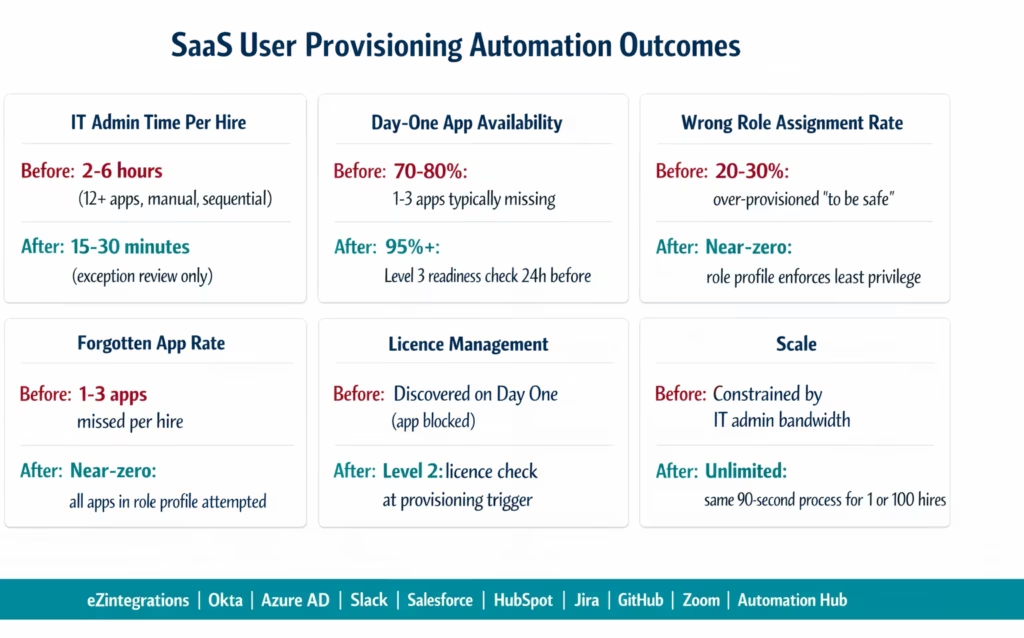
IT admin time per hire: manual provisioning across 12+ apps takes 2-6 hours per hire (depending on app count and role complexity).Automated provisioning with fan-out reduces this to 15–30 minutes, and this type of identity-driven provisioning automation reflects a broader shift toward digitally orchestrated operations, where manual coordination is replaced by system-driven execution at scale, as outlined by McKinsey & Company. For a company onboarding 10 hires per month: 20-60 hours/month recovered.
Apps provisioned correctly: manual provisioning misses 1-3 apps per hire on average, typically the less-frequently-used tools (analytics, design, documentation). Automated provisioning using role profiles attempts all defined apps every time.
Wrong role assignment: manual provisioning results in over-permissioned access in 20-30% of cases (IT admins give admin or editor access when viewer or member is correct, “to avoid support requests later”). Role profiles enforce least-privilege access by default.
Day-One app availability: typical manual provisioning achieves 70-80% app availability on Day One (some apps missing, some with wrong roles). Automated provisioning with Level 3 Day-One readiness verification achieves 95%+ availability before Day One.
Security posture: over-provisioned access (users with more access than needed) is among the most common findings in IT security audits. Role profile enforcement eliminates ad-hoc over-provisioning. When the employee leaves, the same profiles drive automated deprovisioning (see the offboarding automation guide for the mirror workflow).
Scale: manual provisioning is constrained by IT admin bandwidth. Automated provisioning handles any number of concurrent hires with the same 90-second processing time.
How to Get Started
Step 1: Inventory Your Application Stack and Identify Which Need Provisioning
List every SaaS application a new employee might need access to, grouped by department or job function. For each app, note: does it support SCIM 2.0? Is it in the Okta catalogue? Does it have a user management API? What fields are required for user creation? This inventory takes 2-4 hours and is the foundation of the provisioning architecture.
Step 2: Build Job Code Role Profiles for Your Top 5 Job Categories
Start with the 5 most common job categories at your company (e.g., Sales Rep, Marketing Manager, Software Engineer, Finance Analyst, Operations Manager). For each, define: which apps, which role within each app, which groups and channels, which licences. This is the configuration that prevents over-provisioning and forgotten apps. Allow 2-3 hours per role profile. Once built, role profiles rarely need to change.
Step 3: Import the SaaS Provisioning Template
Go to the Automation Hub and import the SaaS User Provisioning template for your HRIS (Workday, BambooHR, or SAP SuccessFactors). The template includes: HRIS webhook configuration, job code role profile mapping, parallel fan-out provisioning engine, SCIM provisioning for compatible apps, custom REST API provisioning for the rest, Level 2 duplicate and licence validation, and Level 3 Day-One readiness monitoring.
Step 4: Configure API Credentials and Test with One Job Code
Add credentials for each app in your provisioning stack. Connect your HRIS. Test the full provisioning flow for one job code with a real (test account) hire. Verify: did all apps receive the correct role? Did the duplicate check work? Did the licence check flag the correct apps? Did the Day-One readiness report arrive 24 hours before the test start date? Allow 1-2 days for credential configuration and testing.
Start your free trial to import the SaaS provisioning template and connect your first 5 applications. No credit card required.
Total configuration time: 2-4 days for 10 applications with 3-5 job code role profiles.
FAQ
eZintegrations detects new hire events from Workday, BambooHR, or SAP SuccessFactors (via webhook or polling), looks up the new hire's job code in the configured role profile table to identify which applications need provisioning and with which roles, then executes parallel provisioning calls to each application: SCIM 2.0 for compatible apps (Slack, GitHub Enterprise, Zoom, Dropbox), Microsoft Graph API for Azure AD and Microsoft 365, Okta API for identity provider-managed apps, and custom REST API calls for apps without SCIM support (Salesforce, HubSpot, Jira, Notion, Figma). Level 2 validates required fields and licence availability before each call. Level 3 monitors completion and sends a Day-One readiness report 24 hours before the start date.
2-4 days for 10 applications with 3-5 job code role profiles. App inventory: 2-4 hours. Role profile creation: 2-3 hours per profile. API credential configuration: 30-60 minutes per app. HRIS connection and template import: 2-4 hours. Test validation with one hire: 1-2 days. The most time-consuming step is API credential setup for apps that require manual steps (some Salesforce Connected Apps, Okta API token creation, and Adobe CC enterprise provisioning setup require admin involvement in each app).
Both. For apps that support SCIM 2.0 (Slack, GitHub Enterprise, Zoom, Dropbox, Box, Atlassian Access, Okta), eZintegrations uses the standardised SCIM endpoints (POST /scim/v2/Users, PATCH /scim/v2/Users/{id}, etc.) for provisioning and deprovisioning. For apps without SCIM or with limited SCIM support (Salesforce standard edition, HubSpot, Notion, Figma, Google Analytics, non-enterprise GitHub), eZintegrations uses custom REST API calls with app-specific endpoint and field mapping. The same workflow handles both methods: the provisioning architecture automatically selects SCIM or REST based on the app configuration in the role profile.
It works alongside Okta. eZintegrations handles three scenarios with Okta: apps not in the Okta catalogue that need custom API provisioning, the initial HRIS-to-Okta trigger (creating the Okta user from the HRIS event, after which Okta handles its connected apps via SCIM), and apps where Okta is not licensed or not configured. eZintegrations does not replace Okta's SSO, MFA, or identity governance functions. It fills the gaps between the HRIS event and the Okta provisioning trigger, and handles the apps that Okta does not cover.
Level 2 queries the app's licence availability before the provisioning API call. If no licence is available (e.g., Salesforce Marketing Cloud licences at capacity, Adobe Creative Cloud seats exhausted): the provisioning for that specific app is blocked and an alert is sent to the IT admin and IT manager with the specific app, the current licence count, and the number needed. The other apps in the provisioning profile continue as normal. The blocked app is included in the Day-One readiness report with a red flag. When the IT team adds a licence, the provisioning retry runs automatically without requiring a full re-run of the provisioning workflow. 1. How does eZintegrations automate SaaS user provisioning across multiple applications?
2. How long does it take to set up multi-app SaaS provisioning?
3. Does eZintegrations support SCIM provisioning or only custom REST API?
4. Does eZintegrations work alongside Okta, or does it replace Okta?
5. What happens if a licence is not available for one of the apps during provisioning?
Emma Starts on Monday. All 12 Apps Were Ready on Friday.
Manual SaaS provisioning fails for the same reason every time: it is a multi-step, multi-system process that relies on a single IT admin to remember every step, across every application, without a checklist, on a consistent timeline.
The automated version removes the memory requirement. The HRIS record is the trigger. The role profile is the checklist. The fan-out is the parallel execution. The Day-One readiness report is the verification.
Emma walked in on Monday. All 12 apps worked. The IT admin spent 15 minutes on the Adobe CC licence. That is the entire human effort required.
Start your free trial to import the SaaS provisioning template and connect your first applications. No credit card required.
For the full onboarding workflow that includes Active Directory, payroll, and welcome communication alongside SaaS provisioning, see the employee onboarding automation guide. For the mirror offboarding workflow that deprovisions all apps when an employee leaves, see the employee offboarding automation guide.

