
How to Automate PO and Invoice Matching in Microsoft Dynamics 365 Finance
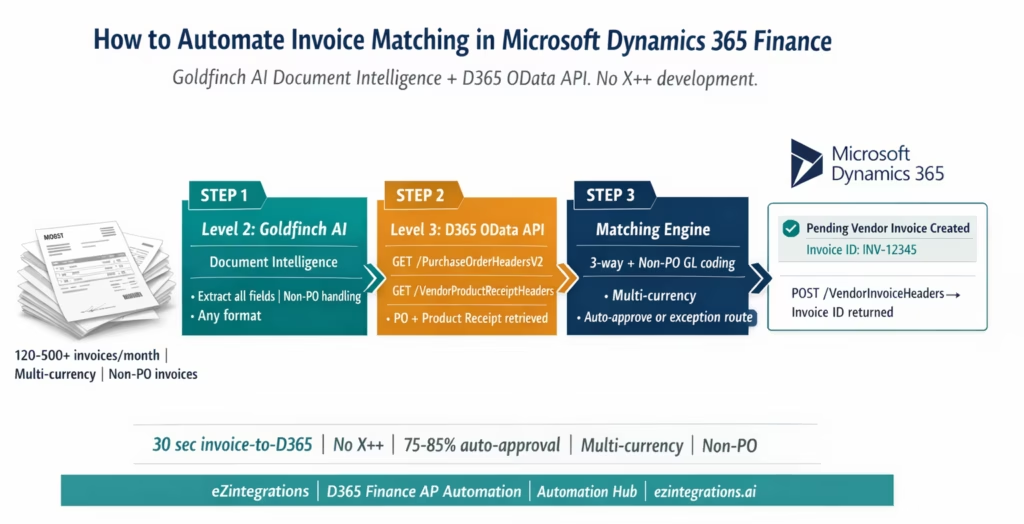
April 6, 2026To automate invoice matching in Microsoft Dynamics 365 Finance without custom X++ development, eZintegrations uses Goldfinch AI Document Intelligence to extract invoice data from any supplier PDF, calls the D365 Finance OData API to retrieve purchase order data (GET /data/PurchaseOrderHeadersV2?$filter=PurchaseOrderNumber eq '{PO}') and product receipt data (GET /data/VendorProductReceiptHeaders?$filter=PurchaseOrderNumber eq '{PO}'), runs a configurable tolerance-based matching engine, and creates a pending vendor invoice in D365 Finance via POST /data/VendorInvoiceHeaders with PO-linked line items via POST /data/VendorInvoiceLines. The workflow handles non-PO invoices, multi-currency scenarios, and multi-company environments using D365’s cross-company=true OData parameter, all without X++ customisation or the D365 Finance Invoice Capture add-in.
TL;DR
Dynamics 365 Finance has native AP tools: Pending Vendor Invoices, three-way matching against Purchase Orders and Product Receipts, approval workflows, and payment processing. What it does not have: AI-powered extraction from any supplier PDF format, automated pre-matching before the invoice enters D365, and intelligent exception routing with pre-populated context. eZintegrations adds the automation layer before and around D365 Finance: Goldfinch AI Document Intelligence (Level 2) extracts invoices, Level 3 AI Agents call D365 OData APIs for PO and Product Receipt data, and matched invoices are posted to D365 Finance as Pending Vendor Invoices via POST /data/VendorInvoiceHeaders.
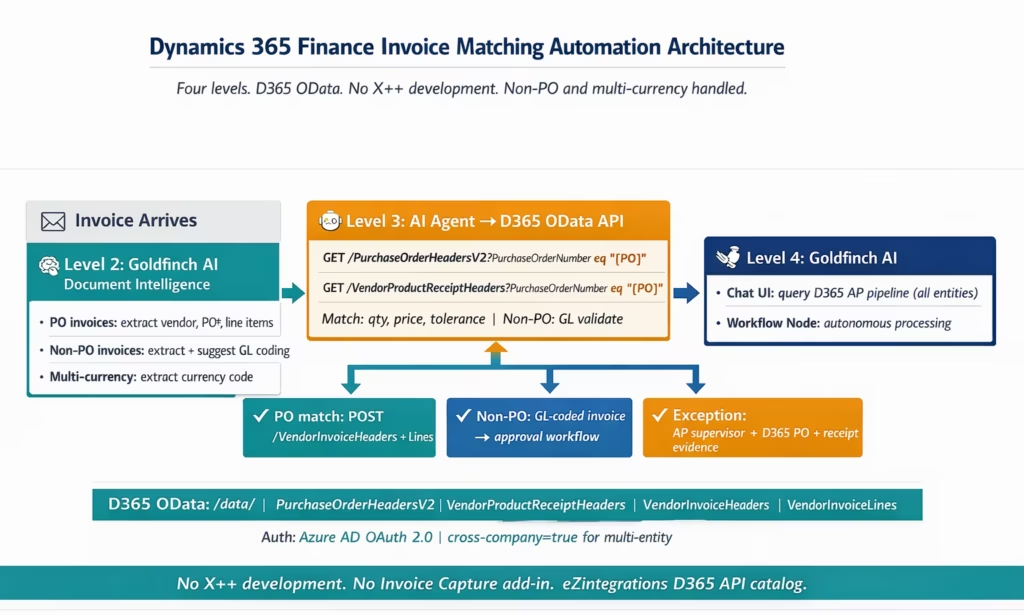
D365 Finance OData base: https://{instance}.cloudax.dynamics.com/data/. Key entities: PurchaseOrderHeadersV2, PurchaseOrderLinesV2, VendorProductReceiptHeaders, VendorInvoiceHeaders, VendorInvoiceLines. Multi-currency and multi-company are handled natively: the cross-company=true OData parameter queries across D365 legal entities; CurrencyCode and exchange rate fields are mapped during invoice creation. No X++ development. No D365 customisation. No D365 Finance Invoice Capture add-in required. Go live from the Automation Hub D365 Finance AP Invoice Processing template in 6-8 hours.
The D365 Finance AP Bottleneck Every AP Team Recognises
Your AP coordinator opens the shared inbox at 8:30 AM. There are 120 invoice emails from overnight. Some are PDFs from single-product suppliers with a clean PO reference. Some are multi-page invoices in euros from European suppliers. A few have no PO reference at all and need to be coded manually against G/L accounts. One is in a format your team has never seen before from a new vendor.
Each of them needs to reach D365 Finance as a Pending Vendor Invoice before your team can start matching, approving, and paying. None of them get there automatically.
Your AP coordinator opens the first PDF, reads the details, navigates to Accounts Payable in D365 Finance, opens the Pending Vendor Invoices list, clicks New, selects the vendor, enters the invoice number, the invoice date, the amounts. Then links to the Purchase Order. Then checks whether the Product Receipt is posted. Then saves and submits for matching.
At 120 invoices and 10-15 minutes each, this is 20-30 hours of data entry before a single D365 matching workflow has fired.
What D365 Finance Provides for Invoice Matching
Dynamics 365 Finance has capable Accounts Payable tools once invoices are in the system. Understanding what it does and where it needs supplementing is the starting point.
What D365 Finance AP provides natively:
Pending Vendor Invoices: The primary AP workspace in D365 Finance. Vendor invoices are created here either manually or via import. The workspace shows invoices awaiting matching, approval, and posting.
Three-way matching: D365 Finance compares the vendor invoice (in the Pending Vendor Invoices workspace) against the Purchase Order (prices and quantities) and the Product Receipt (quantities received). The Invoice Matching page shows match status per invoice line. Tolerance thresholds are configured in the Accounts Payable parameters (Setup > Accounts Payable parameters > Invoice validation tab). Invoices outside tolerance receive a matching discrepancy warning or blocking.
Invoice Approval Journals: For non-PO invoices (service invoices, expense invoices, and invoices coded directly to G/L accounts), D365 Finance provides Invoice Approval Journals where invoices are entered, G/L coded, and routed for approval without PO matching.
D365 Finance Invoice Capture (optional add-in): Microsoft provides an Invoice Capture solution (built on Power Platform, Dataverse, and AI Builder) that handles invoice scanning and OCR, creating Pending Vendor Invoices from scanned invoices. This requires additional licencing and Power Platform deployment.
Where D365 Finance AP stops:
D365 Finance assumes invoices arrive as structured data: manually entered by an AP clerk, imported via Data Management Framework (DMF), or captured via the Invoice Capture add-in. It does not read supplier PDF email attachments natively, does not automate pre-matching before the invoice enters the system, and does not handle intelligent exception routing with pre-populated AP evidence.
eZintegrations provides these capabilities on top of the D365 Finance OData API, without the Power Platform dependency or Invoice Capture add-in licensing.
What the Manual Gap Looks Like in a D365 Environment
Three specific manual bottlenecks remain in most D365 Finance AP environments.
Bottleneck 1: Format variability across the supplier base. D365 Finance’s Invoice Capture add-in improves structured invoice ingestion for suppliers enrolled in the supplier portal or submitting structured formats. The majority of AP teams still receive most invoices as PDF email attachments in formats that require manual reading and keying. Each supplier has a different invoice layout. Some reference the D365 Purchase Order number directly. Some reference an internal order reference that needs to be looked up. Some provide no PO reference at all (non-PO invoices).
Bottleneck 2: Non-PO invoice GL coding without context. Non-PO invoices (service subscriptions, utilities, consulting fees, expense reimbursements) require an AP clerk to manually assign the G/L account, cost centre, and any project or dimension codes. In D365 Finance, this is done in the Invoice Approval Journal. The AP clerk reads the invoice, determines the correct G/L coding, and enters it manually. Without AI document intelligence that can suggest GL coding based on vendor history and invoice content, this step remains entirely manual.
Bottleneck 3: Multi-currency invoice handling. Enterprises using D365 Finance across multiple legal entities frequently receive invoices in currencies different from the legal entity’s accounting currency. The AP clerk must verify the exchange rate, apply the correct rate type (spot, corporate, or specific), and ensure the invoice amount in the accounting currency is correct. Manual currency handling is a common source of AP posting errors in D365 Finance multi-company environments.
How eZintegrations Automates D365 Finance Invoice Matching
eZintegrations adds the extraction, pre-matching, and GL coding intelligence layer before invoices enter D365 Finance, using D365’s published OData API for all data access and invoice creation.
Level 1 (iPaaS Workflows): Receives invoice email attachments, routes files from SFTP, calls D365 Finance OData APIs for PO and Product Receipt data, and creates Pending Vendor Invoices in D365 via POST /data/VendorInvoiceHeaders and POST /data/VendorInvoiceLines. Level 1 handles the D365 multi-company dataAreaId and cross-company=true routing.
Level 2 (AI Workflows, Goldfinch AI Document Intelligence): Extracts all invoice fields from any supplier PDF format. For PO-referenced invoices: extracts vendor, invoice number, D365 PO number, line items, quantities, unit prices, currency. For non-PO invoices: extracts vendor, invoice number, amount, VAT, description, and uses the vendor history knowledge base to suggest G/L account coding. Multi-currency: extracts the invoice currency code for D365 currency conversion handling.
Level 3 (AI Agents, D365 OData calls): Retrieves PO and Product Receipt data via D365 OData. For PO-referenced invoices: applies the 3-way matching engine with configurable tolerance. For non-PO invoices: uses the suggested G/L coding, validates against the vendor’s approved cost centres, and routes the pre-coded invoice for approval. For multi-currency: retrieves the D365 exchange rate configuration and applies the correct rate type.
Level 4 (Goldfinch AI): Orchestrates the full workflow as a Workflow Node (autonomous processing for all invoice types) and as Chat UI (AP manager queries D365 AP pipeline status across all legal entities).
The D365 Finance OData API Layer: Entities and Endpoints
Here are the exact D365 Finance OData entities and calls eZintegrations uses for invoice matching automation.
Base URL and Authentication
Microsoft Dynamics 365 Finance

Base URL:
https://{instance}.cloudax.dynamics.com/data/

Authentication:
Azure AD OAuth 2.0 (Client Credentials)

Token Endpoint:
https://login.microsoftonline.com/{tenantId}/oauth2/token

Resource:
https://{instance}.cloudax.dynamics.com
Register an Azure AD Application in your tenant. Grant it the Dynamics ERP API permission with Application User access in D365 Finance (System Administration > Users > New > Application User, assign the Application ID). OAuth 2.0 Client Credentials flow: grant_type=client_credentials, client_id={appId}, client_secret={secret}, resource=https://{instance}.cloudax.dynamics.com.
Purchase Order Retrieval
GET https://{instance}.cloudax.dynamics.com/data/PurchaseOrderHeadersV2
  ?$filter=PurchaseOrderNumber eq 'PO-2026-2089'
  &$select=PurchaseOrderNumber,
            OrderVendorAccountNumber,
            CurrencyCode,
            TotalInvoiceAmount,
            DataAreaId
For PO line items:
GET /data/PurchaseOrderLinesV2
  ?$filter=PurchaseOrderNumber eq 'PO-2026-2089'
  &$select=PurchaseOrderNumber,
           LineNumber,
           ItemNumber,
           OrderedPurchaseQuantity,
           PurchasePrice,
           LineAmount,
           UnitSymbol
The DataAreaId field identifies the D365 legal entity (company). For multi-company environments, add &cross-company=true to query across all legal entities the integration user has access to.
Product Receipt (GRN) Retrieval
In D365 Finance, goods receipts are Product Receipts. The OData entity is VendorProductReceiptHeaders:
GET /data/VendorProductReceiptHeaders
  ?$filter=PurchaseOrderNumber eq 'PO-2026-2089'
  &$select=ProductReceiptNumber,
           PurchaseOrderNumber,
           ProductReceiptDate,
           DeliveryDate
Product Receipt lines (received quantities per PO line):
GET /data/VendorProductReceiptLines
  ?$filter=PurchaseOrderNumber eq 'PO-2026-2089'
  &$select=ProductReceiptNumber,
           LineNumber,
           ItemNumber,
           ReceiveNow,
           PurchasePrice,
           CatchWeightQuantity
The ReceiveNow field gives the quantity received on the Product Receipt for each PO line. This is the equivalent of the GRN quantity for 3-way matching.
Pending Vendor Invoice Creation
Creating a Pending Vendor Invoice in D365 Finance via OData is a two-step process: header first, then lines.
Step 1: Create the invoice header
POST /data/VendorInvoiceHeaders
Content-Type: application/json

{
  "DataAreaId": "USMF",
  "VendorInvoiceNumber": "INV-2026-04721",
  "InvoiceDate": "2026-03-18",
  "DueDate": "2026-04-17",
  "VendorAccountNumber": "US-001",
  "DocumentDate": "2026-03-18",
  "CurrencyCode": "USD",
  "InvoiceHeaderDescription": "Automated via eZintegrations"
}
The response returns the HeaderRecId (internal D365 invoice record ID).
Step 2: Create invoice lines linked to PO
POST /data/VendorInvoiceLines
Content-Type: application/json

{
  "DataAreaId": "USMF",
  "HeaderRecId": "{HEADER_REC_ID}",
  "LineNumber": 1,
  "PurchaseOrderNumber": "PO-2026-2089",
  "PurchaseLineNumber": 1,
  "ItemNumber": "D0001",
  "InvoiceQuantity": 100,
  "PurchasePrice": 42.50,
  "LineAmount": 4250.00,
  "UnitSymbol": "ea"
}
The PurchaseOrderNumber and PurchaseLineNumber fields on the VendorInvoiceLine link the invoice line to the specific D365 PO line. D365 Finance then performs its own matching validation against the PO and Product Receipt when the invoice is submitted for matching in the Pending Vendor Invoices workspace.
Non-PO Invoice: Invoice Approval Journal Entry
For invoices without a PO reference, eZintegrations creates a D365 Finance Invoice Approval Journal entry:
POST /data/VendorInvoiceJournalHeaders
Content-Type: application/json

{
  "DataAreaId": "USMF",
  "JournalName": "APInvoice",
  "Description": "Non-PO invoice: INV-2026-04722"
}

POST /data/VendorInvoiceJournalLines
Content-Type: application/json

{
  "DataAreaId": "USMF",
  "JournalBatchNumber": "{JOURNAL_BATCH}",
  "AccountType": "Vendor",
  "Account": "US-002",
  "InvoiceNumber": "INV-2026-04722",
  "TransactionDate": "2026-03-18",
  "LedgerDimension": "{GL_ACCOUNT_CODE}",
  "AmountCreditInAccountingCurrency": 1250.00,
  "CurrencyCode": "USD",
  "Description": "IT Services - March 2026"
}
The LedgerDimension field is the D365 account structure string (G/L account + financial dimensions), populated from Goldfinch AI’s GL coding suggestion based on vendor history.
Handling Non-PO Invoices and Multi-Currency in D365
Two areas where D365 Finance AP automation requires additional configuration beyond standard 3-way matching.
Non-PO Invoice GL Coding
When Goldfinch AI Document Intelligence extracts an invoice with no PO reference, the Level 3 AI Agent applies the vendor history model to suggest G/L coding. The agent:
- Queries the Goldfinch AI Knowledge Base for historical GL coding for this vendor (or vendor category): “What G/L accounts has this vendor typically been coded against? What cost centres?”
- Extracts the invoice description and amount to identify the cost type
- Suggests the G/L account and financial dimensions from the knowledge base
- Routes the pre-coded invoice for human approval (a finance analyst confirms the G/L coding in a 2-minute review rather than researching it from scratch)
- On approval, creates the D365 Invoice Approval Journal entry via the
VendorInvoiceJournalHeadersandVendorInvoiceJournalLinesOData entities
For recurring vendors with consistent GL coding (e.g. monthly SaaS subscription invoices from Salesforce always code to G/L 6200, cost centre IT), the agent can auto-approve without human review once the confidence exceeds the configured threshold.
Multi-Currency Invoice Handling
D365 Finance uses the CurrencyCode field on vendor invoices and applies exchange rates from the D365 exchange rate tables. When eZintegrations processes a multi-currency invoice:
- Goldfinch AI Document Intelligence extracts the
CurrencyCodefrom the invoice (e.g.EUR) - The Level 3 agent queries D365 for the exchange rate configuration for the legal entity:
GET /data/LedgerExchangeRates?$filter=ExchangeRateTypeName eq 'Default'&FromCurrencyCode eq 'EUR' - The matching engine applies the exchange rate to calculate the accounting currency equivalent for tolerance comparison
- The
VendorInvoiceHeaderis created with theCurrencyCode: 'EUR'field; D365 Finance applies its own currency conversion using the configured rate type on the invoice posting
For multi-company environments where invoices arrive for different D365 legal entities, the DataAreaId and cross-company=true parameter route each invoice to the correct D365 company. The Goldfinch AI Document Intelligence extraction identifies the legal entity from the invoice billing address or vendor code, and the Level 1 workflow routes accordingly.
Before vs After: Manual D365 AP vs Automated
| Process Step | Manual D365 Finance AP | Automated with eZintegrations |
|---|---|---|
| Invoice capture | AP clerk monitors email inbox | Level 1 email connector receives all PDF attachments |
| D365 pending invoice entry | AP clerk navigates D365 and keys all fields manually | Level 2 Goldfinch AI extracts all fields no D365 screen navigation |
| PO lookup | AP clerk navigates purchasing and PO list | GET PurchaseOrderHeadersV2 returns PO in 1 to 2 seconds |
| Product receipt check | AP clerk checks product receipts in D365 | GET VendorProductReceiptHeaders returns GRN data |
| Non PO invoice GL coding | AP clerk researches GL account and dimensions manually | Goldfinch AI suggests GL coding using vendor history knowledge base |
| Multi currency handling | AP clerk verifies exchange rate manually | Currency code extracted and D365 rate type applied automatically |
| Multi company routing | Manual identification of correct legal entity | DataAreaId set from invoice billing address or vendor code |
| D365 invoice posting | AP clerk saves in pending vendor invoices | POST VendorInvoiceHeaders and lines via OData |
| Timing mismatch no receipt | Invoice held manual follow up with receiving | Watcher polls product receipt data and resumes automatically |
| Exception investigation | AP clerk navigates multiple D365 screens | Pre populated with extracted invoice PO and receipt data |
| AP manager visibility | D365 reports and manual navigation | Goldfinch AI Chat UI natural language query across entities |
| X plus plus customisation required | Some teams build custom X plus plus for integration | Zero X plus plus development required |
| Invoice capture add in | Optional add in with Power Platform and licensing | Not required direct connection to D365 OData APIs |
Step-by-Step: From Email Invoice to D365 Pending Vendor Invoice
Here is the complete automated cycle for a PO-referenced vendor invoice in a D365 Finance multi-currency environment.
Step 1: Invoice email arrives. Level 1 routes to extraction. A European supplier sends a PDF invoice in euros. The eZintegrations email connector detects the attachment and passes it to Level 2. Time: 2-3 seconds.
Step 2: Goldfinch AI Document Intelligence extracts all fields. Extracted: vendor: "Becker Industrial GmbH", invoiceNumber: "BIG-2026-00847", poReference: "PO-2026-2089", 8 line items. invoiceAmount: 34,200.00 EUR. currencyCode: EUR. paymentTerms: 30 days net. Key extraction: DataAreaId inferred from billing address (EU subsidiary: DEMF). Time: 8 seconds.
Step 3: Level 3 agent calls D365 PurchaseOrderHeadersV2.
GET /data/PurchaseOrderHeadersV2
  ?$filter=PurchaseOrderNumber eq 'PO-2026-2089'
           and dataAreaId eq 'DEMF'
  &$select=PurchaseOrderNumber,
           OrderVendorAccountNumber,
           CurrencyCode,
           TotalInvoiceAmount
Response: PO exists in legal entity DEMF, vendor DE-001 (Becker Industrial GmbH), CurrencyCode: EUR, approved PO value 35,000.00 EUR. Time: 1-2 seconds.
Step 4: Level 3 agent retrieves PO lines and Product Receipt.
GET /data/PurchaseOrderLinesV2
  ?$filter=PurchaseOrderNumber eq 'PO-2026-2089'

GET /data/VendorProductReceiptHeaders
  ?$filter=PurchaseOrderNumber eq 'PO-2026-2089'

GET /data/VendorProductReceiptLines
  ?$filter=PurchaseOrderNumber eq 'PO-2026-2089'
Response: Product Receipt GR-2026-03284 posted on March 15. All 8 line items received. Quantities on ReceiveNow field match PO ordered quantities. Time: 2-3 seconds.
Step 5: Matching engine comparison. 8 invoice lines vs D365 Product Receipt quantities: all quantities match received quantities. Invoice unit prices vs D365 PO prices: all within 2.1% of PO price (within 3% tolerance). Invoice total EUR 34,200.00 vs PO EUR 35,000.00: -2.3% variance, within tolerance. Duplicate check: BIG-2026-00847 not in D365 invoice history for DEMF. Match result: approved. Time: under 1 second.
Step 6: Create D365 Pending Vendor Invoice via OData.
Header POST:
POST /data/VendorInvoiceHeaders
Content-Type: application/json

{
  "DataAreaId": "DEMF",
  "VendorInvoiceNumber": "BIG-2026-00847",
  "InvoiceDate": "2026-03-18",
  "DueDate": "2026-04-17",
  "VendorAccountNumber": "DE-001",
  "CurrencyCode": "EUR",
  "InvoiceHeaderDescription": "eZintegrations automated - PO-2026-2089"
}
Then 8 VendorInvoiceLines POSTed with PurchaseOrderNumber: 'PO-2026-2089' and PurchaseLineNumber per line.
D365 response: invoice created. D365 Finance’s matching workflow fires automatically on the Pending Vendor Invoice. All 8 lines within tolerance: invoice auto-approved in D365 matching. Scheduled for payment per Net 30 terms. Time: 3-4 seconds.
Total elapsed time: 18-25 seconds. Human involvement: zero.
Non-PO invoice scenario: A different invoice from a SaaS vendor has no PO reference. Goldfinch AI extracts the vendor (AZURE-CLOUD-CORP), invoice number, amount (USD 4,800.00), and description (“Azure Enterprise subscription, March 2026”). The Knowledge Base returns: this vendor historically codes to G/L 63100 (Cloud Services), cost centre IT-CORP. Confidence: 0.94. Exceeds the 0.90 auto-code threshold. A D365 Invoice Approval Journal entry is created via OData with G/L 63100 and cost centre IT-CORP. The journal is submitted for the AP manager’s approval notification. No AP clerk involvement on GL coding.
Key Outcomes and Results
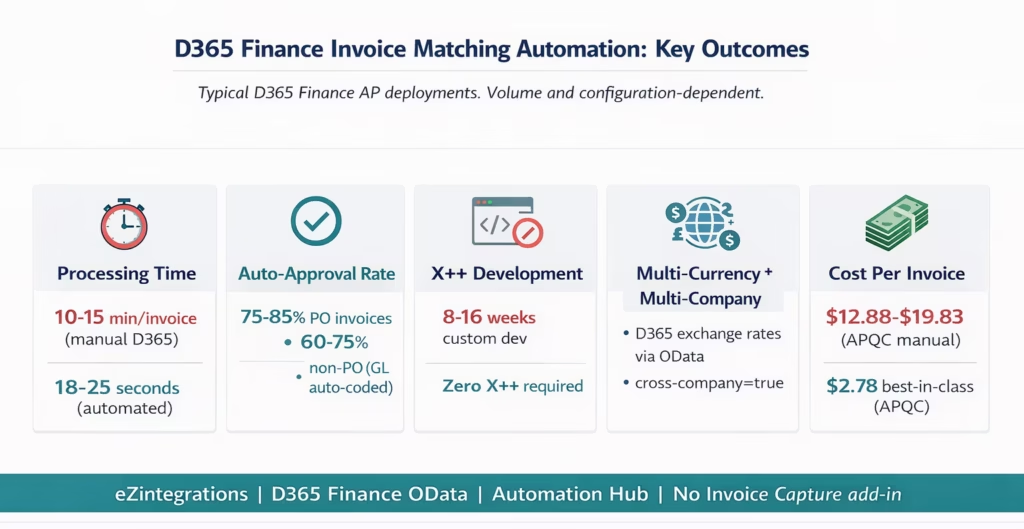
Processing time: 18-25 seconds from invoice PDF arrival to D365 Pending Vendor Invoice creation for PO-matched invoices. 20-30 seconds for GL-coded non-PO invoices (includes knowledge base lookup and routing). Compared to 10-15 minutes of manual D365 entry per invoice.
Auto-approval rate: 75-85% of PO invoices processed without AP team involvement. For non-PO invoices with established vendor GL coding patterns, 60-75% are auto-coded and routed for a single-click approval rather than manual GL research.
X++ development eliminated: Teams planning X++ extensions for invoice extraction and AP workflow integration typically estimate 8-16 weeks. eZintegrations achieves equivalent functionality using D365 OData APIs from the no-code canvas in 6-8 hours of configuration.
Multi-currency accuracy: D365 Finance exchange rate configuration is queried directly via OData, ensuring the correct rate type (spot, corporate, fixed) is applied per legal entity. Manual currency handling errors (wrong rate type, manual calculation mistakes) are eliminated.
Non-PO invoice GL coding acceleration: Manual GL research for non-PO invoices typically takes 3-8 minutes per invoice for AP clerks who need to check vendor history, cost centre policy, and account structures. Goldfinch AI’s Knowledge Base reduces this to a 1-2 minute confirmation review for pre-coded suggestions.
D365 Invoice Capture add-in not required: The Microsoft D365 Finance Invoice Capture solution (built on Power Platform) requires additional Power Apps/Automate licencing, Power Platform capacity, and deployment time (typically 4-8 weeks to configure and go live). eZintegrations achieves comparable invoice extraction and AP automation connecting directly to D365 OData APIs without Power Platform dependencies.
Cost per invoice: Best-in-class automated AP teams achieve $2.78 per invoice versus $12.88-$19.83 for manual processing (APQC 2025). At 1,500 invoices per month including PO and non-PO mix, annual savings: $182,520-$306,720.
How to Get Started
Step 1: Register an Azure AD Application for D365 Finance Access
In the Azure portal, navigate to Azure Active Directory > App Registrations > New Registration. Create an application, note the Application (Client) ID and Tenant ID. Generate a Client Secret (Certificates & Secrets > New Client Secret). In D365 Finance, navigate to System Administration > Users > New. Create an Application User: set the User type to Application, paste the Azure AD Application ID, assign the required security roles (Accounts Payable Clerk, Accounts Payable Manager, and the Finance shared service role for the legal entities in scope).
Setup time: approximately 30-45 minutes.
Step 2: Import the D365 Finance AP Invoice Processing Template
Go to the Automation Hub and import the D365 Finance AP Invoice Processing template. It includes Goldfinch AI Document Intelligence (with non-PO GL coding support), the D365 OData API calls for PurchaseOrderHeadersV2, PurchaseOrderLinesV2, VendorProductReceiptHeaders, VendorProductReceiptLines, the matching engine with multi-currency support, the VendorInvoiceHeaders and VendorInvoiceLines POST calls, the non-PO Invoice Approval Journal flow, and the Watcher for Product Receipt timing mismatches.
Step 3: Add D365 Credentials and Email Ingestion
Add the Azure AD Application ID, Client Secret, Tenant ID, and D365 Finance base URL to the eZintegrations credential vault. Add email system credentials (Gmail API or Microsoft Graph) for invoice PDF ingestion. For multi-company environments, configure the DataAreaId routing logic (which legal entity receives which invoices based on billing address or vendor code). Average credential setup: 20-30 minutes.
Step 4: Configure Matching Rules, GL Coding Knowledge Base, and Routing
For PO invoices: set price and quantity tolerance thresholds per vendor category. For non-PO invoices: build the GL coding knowledge base by uploading your vendor-to-GL-account mapping (can be exported from D365 Finance Chart of Accounts and vendor history). Configure the AP supervisor routing for PO exceptions and the approval routing for non-PO GL-coded invoices.
Step 5: Dev Test with Real D365 Finance Data and Promote
Test PO-referenced invoices against real D365 PO numbers in your Dev environment. Test non-PO invoices with vendors in the GL coding knowledge base. Test a multi-currency EUR invoice for your DEMF (or equivalent) legal entity. Test a Product Receipt timing mismatch scenario. Promote to production when validated.
Total configuration time: 6-8 hours from template import to D365 Finance production go-live.
FAQs
1. How does invoice matching automation work with Dynamics 365 Finance in eZintegrations
eZintegrations automates the full Dynamics 365 Finance accounts payable cycle without X plus plus development. Goldfinch AI Document Intelligence extracts invoice fields from any PDF including currency and legal entity identification. AI agents call D365 OData APIs to retrieve purchase order and product receipt data and perform line item level matching with configurable tolerance. Matched invoices are posted automatically as pending vendor invoices while non PO invoices are GL coded using a knowledge base and posted as invoice approval journal entries.
2. How long does it take to set up automated invoice matching with Dynamics 365 Finance
Setup typically takes six to eight hours from template import to production go live. This includes Azure AD application setup D365 application user creation credential configuration email ingestion tolerance setup GL coding knowledge base configuration and testing with real invoices. No custom development or system modification is required.
3. Does eZintegrations require the D365 Finance Invoice Capture add in
No, eZintegrations uses Goldfinch AI Document Intelligence for invoice extraction and connects directly to Dynamics 365 Finance through OData APIs. This removes the need for the Invoice Capture add in Power Platform licensing and the typical multi week deployment cycle associated with that solution.
4. How does eZintegrations handle non PO invoices in Dynamics 365 Finance
Non PO invoices are processed using AI extraction combined with a knowledge base that maps vendors to general ledger accounts and financial dimensions based on historical data. High confidence matches are auto populated and routed for approval while low confidence cases are sent to an AP analyst for review before posting.
5. Does eZintegrations support multi company and multi currency deployments in Dynamics 365 Finance
Yes, multi company routing is handled using the DataAreaId field which directs invoices to the correct legal entity based on extracted invoice data. Multi currency invoices are processed using the extracted currency code and Dynamics 365 applies exchange rates automatically. Matching logic also accounts for currency conversion using ERP exchange rate tables for accurate comparison.
Automate D365 Finance AP Without X++ and Without Invoice Capture
Dynamics 365 Finance’s AP module is a capable platform for invoice matching, approval workflow, and payment processing. The manual work that remains is in the 10-15 minutes before each invoice reaches D365: reading supplier PDFs, entering data in Pending Vendor Invoices, looking up POs and Product Receipts, manually coding non-PO invoices, and handling multi-currency calculations.
eZintegrations automates all of that using D365 Finance’s published OData API. Goldfinch AI Document Intelligence extracts invoices in any format, including non-PO invoices and multi-currency invoices. Level 3 AI Agents retrieve PO and Product Receipt data, apply the matching engine, suggest GL coding for non-PO invoices from the Knowledge Base, and post matched invoices to D365 Finance as Pending Vendor Invoices or Invoice Approval Journal entries.
No X++ development. No D365 customisation. No Invoice Capture add-in licensing. The D365 Finance AP Invoice Processing template in the Automation Hub covers the complete workflow.
Import the D365 Finance AP Invoice Processing Template and go live in 6-8 hours.
Or book a free demo with your D365 Finance environment details (legal entities, invoice volume, PO and non-PO mix, currencies). We will map the OData configuration and knowledge base setup in the session.
For the complete matching method context, see 2-Way vs 3-Way vs 4-Way Invoice Matching. For the broader AP automation context, see the enterprise AP automation guide.

