
How to Automate Approval Workflows Across ERP, Slack and Email Without Custom Development
May 9, 2026To automate approval workflows across ERP, Slack, and email without custom development, eZintegrations monitors your ERP (SAP S/4HANA, NetSuite, or Dynamics 365) for records that need approval, formats a contextual notification with all relevant details, delivers it to the approver via Slack interactive message or email, captures the approve or reject decision from a button click, writes the decision back to the ERP record via REST API, and triggers the next step in the process (PO release, payment run, PR conversion, or rejection notification) automatically. The full cycle, from ERP detection to approval decision written back, completes without any custom code or developer involvement.
TL;DR
- Approval workflows are among the most expensive manual processes in finance, procurement, and IT operations, consistent with McKinsey & Company insights on digital-era operations and decision workflows and Gartner on enterprise automation timelines and value realisation: a purchase order awaiting approval ties up capital, a contract pending sign-off delays a project, and an invoice stuck in a Slack thread holds up payment and supplier relationships.
- The reason most approval automation projects require custom development: writing decisions back to the ERP from a Slack button click or an email response requires authenticated API calls, state management, and error handling that a simple webhook cannot provide alone.
- eZintegrations handles the full cycle without custom code: ERP detection, contextual notification (Slack or email), interactive approval capture, ERP write-back, and downstream process trigger. Level 1 (iPaaS Workflows) handles the detection, notification, and write-back. Level 2 (AI Workflows) validates the approval request before routing (is the budget available? is the vendor on the approved list? does this exceed the approver’s delegation limit?). Level 3 (AI Agents) monitors approval pipeline health, flags overdue requests, and escalates to the next approver when the SLA window closes. Level 4 (Goldfinch AI) provides the Goldfinch AI Chat UI as a Workflow Node: “Which purchase orders are waiting for my approval?”, “What is the average approval cycle time this month?”, or “Which approvals are overdue by more than 24 hours?”
- Works with SAP S/4HANA, NetSuite, Dynamics 365, Oracle, and Sage on the ERP side; Slack, Microsoft Teams, and email (Outlook, Gmail, SendGrid) on the notification side.
- Configuration time: 1-3 days per approval workflow type.
Why Approval Workflows Are Still Manual in 2026
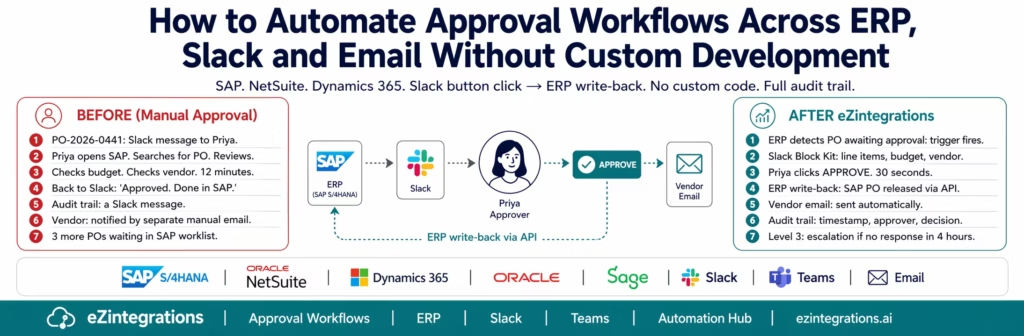
Your procurement manager Priya receives a Slack message at 2:14 PM: “Hey, can you approve PO-2026-0441? It’s for the Austin server hardware, $18,500, we need it by Friday.”
Priya opens SAP. She searches for PO-2026-0441. She reviews the line items. She checks the budget for the cost centre. She looks up the vendor (TechEquip Inc.) to confirm they are on the approved vendor list. She approves the PO in SAP. She goes back to Slack and types “Approved. Done in SAP.”
This took 12 minutes. The requestor then opens SAP to confirm the PO was released. The vendor is notified by a separate manual email from the purchasing team.
Meanwhile, three more POs are waiting in Priya’s SAP worklist, buried among 47 other workflow items. She will get to them tomorrow morning.
This is a manual approval workflow. It has a Slack message, an ERP action, and an email, none of them connected. The approver has to context-switch between three systems. The audit trail is “Priya said approved in a Slack thread.” And the vendor does not know the PO was approved until someone emails them.
The Approval Problem That Custom Code Creates
Most teams attempting to connect Slack approvals to ERP write-backs hit the same wall: the Slack button click produces a webhook payload, but doing something useful with that payload (authenticating to SAP, finding the right PO record, calling the approval API, handling errors, updating the Slack message to show the approved state) requires application logic that goes beyond a simple webhook receiver.
The typical outcome: a developer builds a small Node.js or Python service. It handles the Slack interaction callback, maps the button payload to an SAP API call, and updates the Slack message. It works for the first workflow. Then a second approval type is needed (invoice approval, contract approval, budget exception approval). Each one requires another bespoke function. The “small automation” becomes a microservice portfolio that a developer owns and maintains.
When the developer leaves or is reassigned, the approval automation breaks and nobody knows how to fix it. The business reverts to the manual process while waiting for IT to prioritise the repair.
eZintegrations handles the full cycle in a visual workflow builder. No Node.js. No Python. No custom webhook handler. No microservice to maintain.
The Four Components of a Complete Approval Automation
Every Workflow management system has the same four components in an approval workflow:
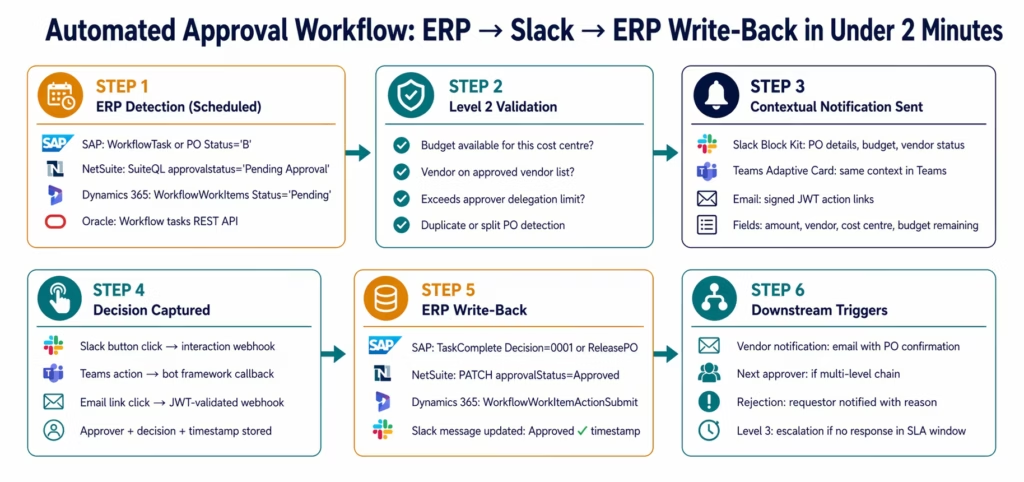
1. Detection: the ERP identifies a record that has entered an approval state (a PO with status “Pending Approval,” an invoice with status “Awaiting Manager Sign-Off,” a budget exception with status “Submitted for Review”).
2. Contextual notification: the approver receives a message via Slack, Teams, or email that contains all the information they need to make the decision, without having to open the ERP. The message includes the record details, the relevant budget context, and action buttons (Approve, Reject, Request More Information).
3. Decision capture: when the approver clicks a button, the response is captured and the decision (with approver identity and timestamp) is stored.
4. ERP write-back: the decision is written back to the ERP record via REST API. The PO is released, the invoice is approved for payment, or the request is rejected with a reason code. Downstream processes trigger automatically: vendor notification, payment run, PO conversion, or rejection email to the requestor.
ERP Detection: Finding Records That Need Approval
SAP S/4HANA: Purchase Order Approval Detection
SAP’s approval workflows create workflow items (workitems) in the SAP Business Workplace. eZintegrations monitors SAP for new workitems assigned to specific approver roles:
GET /sap/opu/odata/sap/SWF_TASKEXECUTION_ODATA_SRV/
    TaskCollection
    ?$filter=TaskDefinitionID eq 'TS20000276'
    and Status eq '1'
    &$select=InstanceID,TaskDefinitionID,TaskTitle,
    CreatedAt,ProcessorID,ReferencedObject
Authorization: Bearer {sap_token}
TS20000276 is the standard SAP task for purchase order approval. Status eq '1' returns only the open (unprocessed) workitems.
Alternatively, for POs specifically:
GET /sap/opu/odata/sap/API_PURCHASEORDER_PROCESS_SRV/
    A_PurchaseOrder
    ?$filter=PurchaseOrderStatus eq 'B'
    and PurchasingGroup eq '{purchasing_group}'
    and ChangedDateTime ge datetime'{last_check}'
    &$select=PurchaseOrder,Supplier,DocumentCurrency,
    NetPaymentAmount,PurchasingGroup,CreatedByUser,
    PurchaseOrderDate
PurchaseOrderStatus eq 'B' returns POs in “Blocked for Release” status, meaning they are waiting for approval. The to_PurchaseOrderItem navigation property retrieves the line items.
NetSuite: Record in Pending Approval Status
SELECT
  t.id AS record_id,
  t.tranid AS document_number,
  t.type AS record_type,
  t.approvalstatus AS status,
  t.entity AS vendor_id,
  t.amount,
  t.subsidiary,
  t.department,
  e.name AS vendor_name,
  t.trandate,
  t.memo
FROM transaction t
LEFT JOIN entity e ON e.id = t.entity
WHERE t.approvalstatus = 'Pending Approval'
AND t.type IN ('PurchOrd', 'VendBill', 'ExpRept')
AND t.lastmodifieddate >= SYSDATE - INTERVAL '15' MINUTE
ORDER BY t.amount DESC
This returns all purchase orders, vendor bills, and expense reports that entered “Pending Approval” status in the last 15 minutes.
Dynamics 365: Workflow Task Detection
GET https://{tenant}.dynamics.com/data/WorkflowWorkItems
    ?$filter=Status eq 'Pending'
    and AssignedUserId eq '{approver_user_id}'
    and createdDateTime ge {last_check}
    &$select=RecId,WorkflowDocument,AssignedUserId,
    DueDateTime,WorkflowStepName,CreatedDateTime
Authorization: Bearer {d365_token}
Contextual Notification: The Slack Block Kit Approval Message
The approval notification must give the approver everything they need to decide without opening the ERP. A well-designed Slack Block Kit message includes: record header (type, number, amount, date), context fields (vendor, cost centre, budget remaining), line items (for POs), and action buttons.
Slack Block Kit: Purchase Order Approval
{
  "blocks": [
    {
      "type": "header",
      "text": { "type": "plain_text", "text": "Purchase Order Approval Required" }
    },
    {
      "type": "section",
      "fields": [
        { "type": "mrkdwn", "text": "*PO Number:*\nPO-2026-0441" },
        { "type": "mrkdwn", "text": "*Amount:*\n$18,500.00 USD" },
        { "type": "mrkdwn", "text": "*Vendor:*\nTechEquip Inc. (Vendor: HW-441)" },
        { "type": "mrkdwn", "text": "*Requested by:*\nJames Chen" },
        { "type": "mrkdwn", "text": "*Required by:*\nMarch 21, 2026" },
        { "type": "mrkdwn", "text": "*Cost Centre:*\nIT Infrastructure (CC-1050)" }
      ]
    },
    {
      "type": "section",
      "text": { "type": "mrkdwn", "text": "*Budget Status:* CC-1050 Q1 remaining: $42,300 of $150,000 (72% consumed)" }
    },
    {
      "type": "section",
      "text": { "type": "mrkdwn", "text": "*Line Items:*\n• Dell PowerEdge R750 Server (×2): $14,000\n• Server Rack Rails and Cable Mgmt: $1,500\n• 5-Year ProSupport Plus: $3,000\n\n*Purpose:* Replacement for Austin Data Centre Node 3 (failure 03/14/2026)" }
    },
    {
      "type": "context",
      "elements": [
        { "type": "mrkdwn", "text": ":information_source: Vendor TechEquip Inc. is on the *Approved Vendor List*. Last PO: $12,400 (Jan 2026)." }
      ]
    },
    {
      "type": "actions",
      "block_id": "po_approval_actions",
      "elements": [
        {
          "type": "button",
          "text": { "type": "plain_text", "text": "Approve" },
          "style": "primary",
          "action_id": "approve_po",
          "value": "{\"po_number\": \"PO-2026-0441\", \"sap_po_id\": \"4500882571\", \"approver\": \"priya.sharma\"}"
        },
        {
          "type": "button",
          "text": { "type": "plain_text", "text": "Reject" },
          "style": "danger",
          "action_id": "reject_po",
          "value": "{\"po_number\": \"PO-2026-0441\", \"sap_po_id\": \"4500882571\"}"
        },
        {
          "type": "button",
          "text": { "type": "plain_text", "text": "Request More Info" },
          "action_id": "request_info_po",
          "value": "{\"po_number\": \"PO-2026-0441\"}"
        }
      ]
    },
    {
      "type": "context",
      "elements": [
        { "type": "mrkdwn", "text": ":clock1: Approval needed by 5:00 PM today (SLA: 4 hours). Sent 2:14 PM." }
      ]
    }
  ]
}
This message is sent to the approver’s Slack DM using the Slack Web API:
POST https://slack.com/api/chat.postMessage
Authorization: Bearer {slack_bot_token}
{
  "channel": "{approver_slack_user_id}",
  "blocks": [{the above block kit JSON}],
  "text": "Purchase Order PO-2026-0441 awaiting your approval: $18,500 from TechEquip Inc."
}
The text field is the fallback text for notifications and screen readers.
Capturing the Button Click
When Priya clicks “Approve,” Slack sends an interaction payload to the eZintegrations webhook endpoint:
{
  "type": "block_actions",
  "user": { "id": "U05ABC123", "username": "priya.sharma" },
  "actions": [{
    "action_id": "approve_po",
    "value": "{\"po_number\": \"PO-2026-0441\", \"sap_po_id\": \"4500882571\", \"approver\": \"priya.sharma\"}",
    "action_ts": "1741967640.123456"
  }],
  "message": { "ts": "1741967040.123456" },
  "channel": { "id": "D05ABC123" }
}
eZintegrations receives this payload, extracts the action (approve), the PO reference, and the approver identity, and immediately:
- Updates the Slack message to show the approved state (prevents double-approval)
- Calls the SAP PO release API
Microsoft Teams Adaptive Cards: Approval in Teams
For organisations using Microsoft Teams rather than Slack:
Teams Adaptive Card for PO Approval
{
  "type": "AdaptiveCard",
  "$schema": "http://adaptivecards.io/schemas/adaptive-card.json",
  "version": "1.4",
  "body": [
    {
      "type": "TextBlock",
      "text": "Purchase Order Approval Required",
      "size": "Large",
      "weight": "Bolder"
    },
    {
      "type": "FactSet",
      "facts": [
        { "title": "PO Number:", "value": "PO-2026-0441" },
        { "title": "Amount:", "value": "$18,500.00 USD" },
        { "title": "Vendor:", "value": "TechEquip Inc." },
        { "title": "Requested by:", "value": "James Chen" },
        { "title": "Cost Centre:", "value": "IT Infrastructure (CC-1050)" },
        { "title": "Budget remaining:", "value": "$42,300 of $150,000" }
      ]
    },
    {
      "type": "TextBlock",
      "text": "Purpose: Replacement for Austin Data Centre Node 3 (failure 03/14/2026)",
      "wrap": true
    }
  ],
  "actions": [
    {
      "type": "Action.Submit",
      "title": "Approve",
      "style": "positive",
      "data": {
        "action": "approve",
        "po_number": "PO-2026-0441",
        "sap_po_id": "4500882571"
      }
    },
    {
      "type": "Action.Submit",
      "title": "Reject",
      "style": "destructive",
      "data": {
        "action": "reject",
        "po_number": "PO-2026-0441"
      }
    }
  ]
}
Sent via the Microsoft Teams Incoming Webhook or Bot Framework to the approver’s Teams chat.
Email-Based Approval Capture
For approvers who prefer email or for workflows where Slack/Teams is not available:
Approval Email with Action Links
The approval email contains one-click action links that call the eZintegrations webhook with an authentication token:
Subject: Action Required: Approve PO-2026-0441: $18,500 TechEquip Inc. (Due: 5:00 PM today)

Priya,

Purchase Order PO-2026-0441 requires your approval.

Details:
• Amount: $18,500.00 USD
• Vendor: TechEquip Inc. (Approved Vendor)
• Requested by: James Chen
• Purpose: Austin Data Centre Node 3 Replacement
• Cost Centre: CC-1050 (Budget remaining: $42,300)
• Required by: March 21, 2026

[APPROVE] https://hooks.ezintegrations.ai/approval/respond?token={signed_jwt}&action=approve
[REJECT]  https://hooks.ezintegrations.ai/approval/respond?token={signed_jwt}&action=reject

The approval token in these links is unique to this request and expires at 5:00 PM today.
Each link can only be used once.

eZintegrations Approval System
The {signed_jwt} is a short-lived, single-use JSON Web Token containing the PO reference, approver identity assertion, and expiry timestamp. When Priya clicks the link, eZintegrations validates the JWT and executes the ERP write-back. The link is then invalidated.
This approach works for any email client without requiring a separate application or login.
Writing the Decision Back to the ERP
The write-back is the step that requires ERP-specific API knowledge, which is why teams without a platform typically resort to custom code. eZintegrations handles this natively.
SAP S/4HANA: Release a Purchase Order
When Priya approves, the SAP workflow workitem must be completed. For standard SAP procurement approval:
POST /sap/opu/odata/sap/SWF_TASKEXECUTION_ODATA_SRV/
    TaskComplete
{
  "InstanceID": "{workitem_id}",
  "Decision": "0001",
  "Comment": "Approved via eZintegrations Slack workflow by Priya Sharma at 2:26 PM"
}
Decision: "0001" is the standard SAP approval decision code. "0002" is rejection.
Alternatively, for direct PO release (bypassing the workitem):
POST /sap/opu/odata/sap/API_PURCHASEORDER_PROCESS_SRV/
    ReleasePurchaseOrder
{
  "PurchaseOrder": "4500882571"
}
SAP S/4HANA returns the updated PO with PurchaseOrderStatus changed from B (blocked) to A (released).
NetSuite: Approve a Record
POST /services/rest/record/v1/purchaseOrder/{record_id}
Authorization: {TBA headers}
Content-Type: application/json

{
  "approvalStatus": "Approved",
  "memo": "Approved via eZintegrations Slack workflow by Priya Sharma at 2026-03-18T14:26:00Z"
}
For records using NetSuite’s native approval routing:
POST /services/rest/record/v1/purchaseOrder/{record_id}/!transform/purchaseOrder
{
  "approvalStatus": "Approved"
}
Dynamics 365: Approve a Workflow Task
POST https://{tenant}.dynamics.com/data/WorkflowWorkItems({recid})/
    Microsoft.Dynamics.DataEntities.WorkflowWorkItemActionSubmit
Authorization: Bearer {d365_token}
Content-Type: application/json

{
  "comment": "Approved via eZintegrations Teams workflow by Priya Sharma",
  "menuItemName": "WorkflowApprovalRouteApprove"
}
Updating the Slack Message After Decision
Immediately after the write-back API call succeeds, eZintegrations updates the original Slack message to show the decision state, preventing double-approval and confirming the ERP action:
POST https://slack.com/api/chat.update
{
  "channel": "{channel_id}",
  "ts": "{original_message_ts}",
  "blocks": [
    {
      "type": "header",
      "text": { "type": "plain_text", "text": "Purchase Order Approved ✓" }
    },
    {
      "type": "section",
      "text": { "type": "mrkdwn", "text": "*PO-2026-0441* approved by *Priya Sharma* at 2:26 PM\n*SAP PO 4500882571 has been released.*\nVendor TechEquip Inc. will be notified." }
    }
  ]
}
Level 2 Validation: What Gets Checked Before Routing
Not every approval request should reach the approver in its raw ERP state. Level 2 adds validation logic before the notification is sent, catching common issues before they reach the approver.
Budget Availability Check
cost_centre_budget = get_current_budget(cost_centre_id)
remaining_budget = cost_centre_budget.approved - cost_centre_budget.committed - cost_centre_budget.actual

if po_amount > remaining_budget:
    FLAG: "PO amount ($18,500) exceeds remaining CC-1050 budget ($12,300)."
    ROUTE: escalation_approver  # escalate to budget owner, not standard approver
    NOTIFY: budget_owner AND standard_approver
If the PO exceeds the available budget, the notification is routed to the budget owner with a budget exception flag, not to the standard approver who does not have authority to approve over budget.
Approved Vendor List Check
vendor_status = check_vendor_approval_status(vendor_id)

if vendor_status == "not_approved":
    BLOCK: send to requestor with message "Vendor not on approved list. Please submit vendor onboarding request."
elif vendor_status == "on_hold":
    FLAG: "Vendor TechEquip Inc. is currently on procurement hold. Reason: credit check pending."
    NOTIFY: approver AND procurement_manager
elif vendor_status == "approved":
    INCLUDE_IN_MESSAGE: "Vendor on Approved Vendor List. Last PO: $12,400 (Jan 2026)."
Delegation Limit Check
approver_delegation = get_approver_delegation_limit(approver_id)

if po_amount > approver_delegation.limit:
    ESCALATE: to approver.manager
    NOTIFY: original_approver "This PO ($18,500) exceeds your delegation limit ($15,000). Escalated to {manager_name}."
Duplicate or Split PO Detection
Level 2 checks for other recent POs to the same vendor from the same requestor within a defined window:
SELECT COUNT(*), SUM(amount)
FROM transaction
WHERE entity = {vendor_id}
AND createdby = {requestor_id}
AND trandate >= SYSDATE - INTERVAL '30' DAY
AND type = 'PurchOrd'
AND approvalstatus != 'Rejected'
If multiple POs to the same vendor total more than the single-PO approval threshold (suggesting possible PO splitting to avoid approval limits), a flag is added to the notification and the procurement manager is copied.
Escalation Logic: When Approvers Do Not Respond
Level 3 monitors every pending approval against its SLA. When no response is received within the configured window:
IF approval.status = "pending"
AND elapsed_time >= (sla_window * 0.75):
    SEND pre-escalation reminder to approver:
    "Reminder: PO-2026-0441 ($18,500) awaiting your approval. Due by 5:00 PM (1.5 hours remaining)."

IF approval.status = "pending"
AND elapsed_time >= sla_window:
    ESCALATE to approver.manager:
    "Escalation: PO-2026-0441 has not been approved. Priya Sharma's approval window has closed. Action required."
    SET approval.status = "escalated"
    NOTIFY: requestor "Your PO has been escalated to {manager_name} for approval."

IF approval.status = "escalated"
AND elapsed_time >= (sla_window * 2):
    ESCALATE to department_head
    LOG: escalation_chain_exhausted_alert
The escalation chain is configurable per approval type. P1 (critical, large-value) approvals escalate faster. Standard approvals follow the normal 4-8 hour window.
Multi-Level Approval Chains
Some approval workflows require sequential approvals from multiple people: the direct manager first, then the department head, then the CFO for amounts above a threshold.
APPROVAL CHAIN CONFIGURATION:
PO value $0-$5,000: Level 1 approval (purchasing supervisor) only
PO value $5,001-$25,000: Level 1 (purchasing supervisor) → Level 2 (department manager)
PO value $25,001-$100,000: Level 1 → Level 2 → Level 3 (VP Finance)
PO value $100,001+: Level 1 → Level 2 → Level 3 → Level 4 (CFO)
When the Level 1 approver approves, eZintegrations does not release the PO immediately. Instead, it:
- Records the Level 1 approval (approver + timestamp + comment)
- Generates the Level 2 notification with the same contextual details plus the Level 1 approval noted
- Monitors for the Level 2 response
Only when all required approval levels have been captured does the ERP write-back execute.
The notification for a subsequent-level approver includes the lower-level approval history:
"PO-2026-0441 requires your approval ($18,500 - TechEquip Inc.)
Level 1 approved by Priya Sharma (Purchasing Supervisor) at 2:26 PM"
Before vs After: Manual Approval Process vs Automated
| Approval Step | Manual Process | Automated with eZintegrations |
|---|---|---|
| Approval request initiation | Manual message (Slack, email, or phone call) | ERP trigger: detected automatically when record enters pending state |
| Approver awareness | Depends on someone remembering to notify | Immediate: notification within 5 minutes of ERP detection |
| Context provided to approver | Verbal description or ERP record number | Full context: amount, vendor, cost centre, budget remaining, line items |
| Approver must open ERP | Yes: navigate to record, review, approve | No: button click in Slack, Teams, or email |
| Approval time | 12-30 minutes (context switch + ERP navigation) | 30-90 seconds (review context in message, click button) |
| Audit trail | Slack thread or email chain | Immutable: approver, decision, timestamp, ERP write-back confirmation |
| ERP record update | Manual: approver navigates to ERP and approves | Automatic: API write-back immediately after button click |
| Budget check | Manual: approver checks budget separately | Level 2: budget status included in notification |
| Vendor check | Manual: approver recalls or looks up | Level 2: approved vendor status included |
| Delegation limit | Manual: approver may not know their limit | Level 2: automatic check, escalate if exceeded |
| Escalation | Requestor chases approver manually | Level 3: automatic reminder at 75% SLA, escalation at SLA expiry |
| Multi-level chain | Manual hand-off between approvers | Sequential chain: each level notified only after prior level approves |
| Downstream actions (vendor email, PO release) | Manual: separate steps after ERP approval | Automatic: triggered by ERP write-back confirmation |
| After-hours approvals | Queued until next business day | 24/7: notification sent immediately, approver responds on phone |
| Double-approval risk | High: two people may both approve manually | Zero: Slack message updated to Approved state after first click |
| End-to-end approval time | Hours to days (average across organisations) | Minutes to hours (limited by approver response, not process) |
Step-by-Step: A Purchase Order Approval in Under 8 Minutes
Setup: Meridian Manufacturing uses SAP S/4HANA. PO approval SLA: 4 hours for standard, 1 hour for P1. Approver for IT cost centre (CC-1050) under $25,000: Priya Sharma (purchasing supervisor). eZintegrations polls SAP for new approval workitems every 5 minutes.
March 18, 2:14 PM: James Chen submits PO-2026-0441 ($18,500, TechEquip Inc.) in SAP. SAP creates workitem TS20000276 for Priya Sharma’s approval.
March 18, 2:14 PM: eZintegrations detects the new workitem. SAP API poll returns the new workitem for PO 4500882571. Level 2 validation runs (8 seconds):
- Budget check: CC-1050 remaining $42,300. PO $18,500: within budget. Include budget status in message.
- Vendor check: TechEquip Inc. (HW-441): Approved Vendor, last PO Jan 2026. Include in message.
- Delegation check: Priya’s limit $25,000. PO $18,500: within limit. Proceed.
- Duplicate check: no other TechEquip POs from James in last 30 days.
March 18, 2:14 PM: Slack Block Kit message sent to Priya. Full message with PO details, line items, budget status, vendor status, approve/reject/request-info buttons.
March 18, 2:26 PM: Priya clicks Approve. Slack interaction webhook fires. eZintegrations receives:
- action_id:
approve_po - value:
{"po_number": "PO-2026-0441", "sap_po_id": "4500882571", "approver": "priya.sharma"} - timestamp:
1741967640
March 18, 2:26 PM: SAP write-back (3 seconds).
POST /SWF_TASKEXECUTION_ODATA_SRV/TaskComplete
{ "InstanceID": "{workitem_id}", "Decision": "0001",
  "Comment": "Approved via Slack by Priya Sharma at 2026-03-18T14:26:00Z" }
SAP PO 4500882571 status: Released. SAP returns confirmation.
March 18, 2:26 PM: Slack message updated. Original message replaced: “PO-2026-0441 approved by Priya Sharma at 2:26 PM. SAP PO 4500882571 released.” Approve/Reject buttons removed.
March 18, 2:26 PM: James Chen notified in Slack. “Your PO-2026-0441 ($18,500, TechEquip Inc.) has been approved by Priya Sharma. SAP PO 4500882571 is now released.”
March 18, 2:27 PM: Vendor notification sent. Automated email to TechEquip Inc. procurement contact: PO-2026-0441 confirmed, delivery required by March 21.
Total elapsed time: 12 minutes (including 12-minute review and decision time from Priya). Priya’s active time: 30 seconds (reading the Slack message and clicking Approve). Previous manual process: 12 minutes active for Priya (ERP navigation + Slack reply), plus separate vendor email by purchasing team.
Key Outcomes and Results
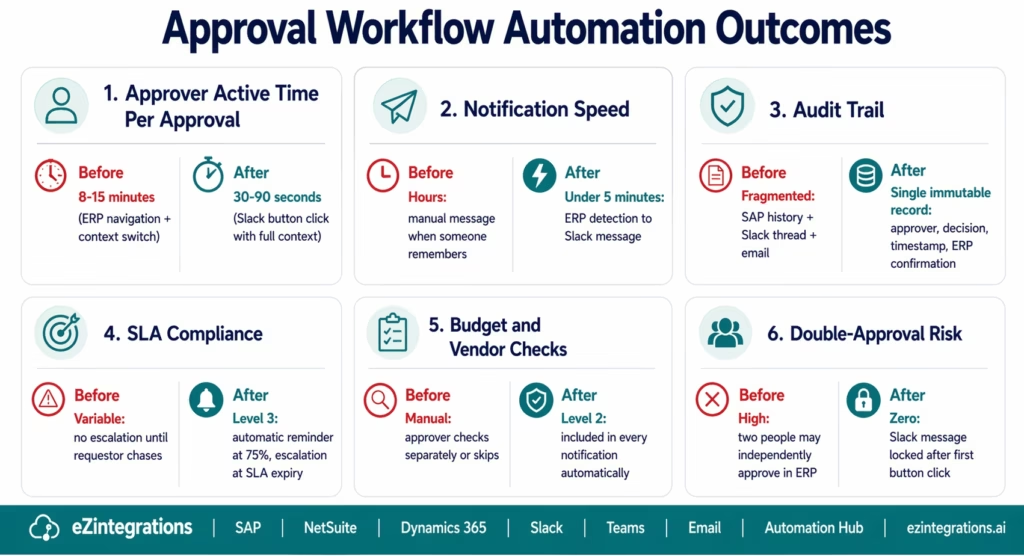
Approver time per approval: the biggest time saving is eliminating the ERP context switch. A typical ERP approval (navigate to workflow inbox, find the record, open it, review, return to inbox) takes 8-15 minutes. A Slack button click, with full context provided in the message, takes 30-90 seconds. For an approver handling 20 approvals per month, this recovers 2-4 hours.
Approval cycle time: the delay between a record entering pending status and the approver knowing about it is often hours in a manual process. eZintegrations sends the notification within 5 minutes of ERP detection. For time-sensitive approvals (construction POs with delivery deadlines, contract approvals tied to project start dates), this compression matters operationally.
Approval compliance rate: approval SLA compliance (what percentage of approvals are completed within the required window) improves significantly when approvers receive proactive notifications with context rather than relying on ERP inbox monitoring. Level 3 escalation ensures no approval falls through without action.
Audit trail quality: the current audit state at most organisations is “check the SAP workitem history” (which shows who completed the workitem but not the conversation context that led to the decision) plus “search the Slack thread” (which may have been deleted or is hard to find). eZintegrations produces a single audit record: approver identity, decision, timestamp, context provided, ERP record written, and downstream actions triggered.
Error rate: manual ERP approval processes occasionally result in the wrong record being approved (the approver approves PO-2026-0441 but accidentally approves PO-2026-0442 in the SAP worklist because the items looked similar). The automated process creates a direct link between the Slack message and the specific ERP record ID, with no opportunity for mix-up.
Common Approval Workflow Types
eZintegrations’ approval workflow framework handles any ERP record type. The most commonly automated approval workflows:
Purchase Order Approval: triggered when PO enters pending state in SAP, NetSuite, or Dynamics. Includes vendor check, budget check, and delegation limit validation. Supports multi-level chains by PO value.
Invoice Approval: triggered when a vendor invoice enters the review queue. Level 2 validates the invoice against the corresponding PO (3-way match), flags discrepancies (price variance, quantity mismatch), and routes exceptions to the accounts payable manager.
Expense Report Approval: triggered when an expense report is submitted. Level 2 checks each expense line for policy compliance (is the meal within the per-diem limit? is the hotel above the corporate rate cap?). Out-of-policy items are flagged in the notification.
Budget Exception Approval: triggered when a cost centre owner submits a request to exceed their approved budget. Routed to the finance manager and budget owner with current YTD spend and the exception justification.
Contract Approval: triggered when a contract record moves to pending sign-off in the CLM or CRM system. Routes to legal (for review), then the business owner (for commercial terms), then the CFO (for financial commitment above the threshold).
Change Order Approval: triggered when a project change order is raised that exceeds the original contract value. Routes to the project manager, then the client, with the original scope and the change delta clearly displayed.
How to Get Started
Step 1: Select Your First Approval Workflow Type
Start with the highest-volume, highest-friction approval process at your organisation. For most companies, this is either purchase order approval (high volume, directly affects vendor relationships and procurement SLAs) or invoice approval (directly affects cash flow and payment terms compliance). Document: how does the record enter the approval state in your ERP? Who are the approvers? What value thresholds change the approval chain? What is the current cycle time?
Step 2: Map the ERP API for Your Approval State
Identify the ERP API endpoint that detects records in pending approval state and the API call that writes the approval decision back. For SAP, this is the SWF Task Execution API or the ReleasePurchaseOrder API. For NetSuite, it is the approvalStatus field on the transaction record. For Dynamics 365, it is the Workflow Work Items entity. If you are not sure which API to use, the eZintegrations team will map this in the migration demo.
Step 3: Import the Approval Workflow Template
Go to the Automation Hub and import the Approval Workflow template for your ERP and notification channel (SAP + Slack, NetSuite + Teams, Dynamics 365 + Email, etc.). The template includes: ERP polling for pending records, Level 2 budget and vendor validation, Slack Block Kit or Teams Adaptive Card notification, interaction webhook capture, ERP write-back API call, Slack message update, requestor notification, and Level 3 SLA escalation.
Step 4: Configure Delegation Limits, Approval Chains, and SLA Rules
Connect your ERP credentials and Slack/Teams bot token. Configure the approval chain rules (which value thresholds trigger which approver levels). Set delegation limits per approver (imported from your HR system or configured manually). Set SLA windows (how many hours before escalation). Set escalation chain (who receives the escalated notification). Test with a live approval record in your ERP.
Book a free demo to walk through your specific approval workflow type, ERP, and notification channel. Most teams are live within 1-3 days.
FAQs
eZintegrations polls the ERP (SAP SWF Task API, NetSuite SuiteQL approvalstatus='Pending Approval', Dynamics 365 WorkflowWorkItems) for records entering pending approval state. Level 2 validates the record (budget availability, approved vendor status, delegation limit check) before routing. A contextual notification is sent via Slack Block Kit interactive message, Teams Adaptive Card, or a signed-URL email. When the approver clicks Approve or Reject, the interaction is captured, the decision is written back to the ERP via REST API (SAP TaskComplete, NetSuite PATCH approvalStatus, D365 WorkflowWorkItemActionSubmit), the Slack message is updated to show the approved state, and downstream processes fire automatically. No custom code required.
1-3 days for a single approval workflow type. ERP credentials and API configuration: 2-4 hours. Slack or Teams bot connection: 1-2 hours. Level 2 validation rules (budget check, vendor check, delegation limits): 2-4 hours. Approval chain configuration: 1-2 hours. Notification template customisation: 1-2 hours. Test with live ERP records: 2-4 hours. More complex configurations (multi-level chains with 3+ levels, cross-system approvals, or custom escalation chains) add 1-2 days.
Yes. SAP S/4HANA: SWF Task Execution OData API for workitem detection and completion, plus direct PO release via API_PURCHASEORDER_PROCESS_SRV. NetSuite: SuiteQL for pending approval record detection, REST API PATCH for approval status write-back. Dynamics 365: WorkflowWorkItems OData for task detection, WorkflowWorkItemActionSubmit for approval. Oracle: Workflow Tasks REST API. Slack: Block Kit interactive messages with button actions, chat.update for post-approval confirmation. Microsoft Teams: Adaptive Cards with Action.Submit for approvals. Email: signed-URL one-click approve/reject links via Outlook, Gmail, or SendGrid. Pre-built templates for all major ERP and channel combinations are available in the Automation Hub.
eZintegrations uses SAP's standard SWF Task Execution OData API (/sap/opu/odata/sap/SWF_TASKEXECUTION_ODATA_SRV/) to complete workflow workitems with the approval decision. This is the same API that SAP's own Fiori approval apps use. When the approver clicks Approve in Slack, eZintegrations posts to the TaskComplete endpoint with Decision: "0001" (approve) or "0002" (reject), including the approver name and timestamp in the comment field. SAP processes this identically to an approval made directly in the SAP Fiori Workflow Inbox. No ABAP development, no custom function modules, and no SAP Enhancement Packages are required. The API is standard with SAP S/4HANA and available via Communication Arrangement SAP_COM_0447.
When the approver clicks Reject, eZintegrations captures the rejection, updates the Slack message to show the rejected state, writes the rejection decision back to the ERP (SAP Decision: "0002", NetSuite approvalStatus: "Rejected"), sends a notification to the requestor with the rejection reason (prompted from the approver if configured), and logs the full rejection audit trail. For workflows configured with a rejection reason prompt, eZintegrations sends a follow-up Slack message asking the approver to provide a reason before the ERP write-back executes. 1. How does eZintegrations automate approval workflows across ERP, Slack, and email?
2. How long does approval workflow automation take to set up?
3. Does eZintegrations work with SAP, NetSuite, Dynamics 365, Slack, and Teams for approvals?
4. How does the approval write-back to SAP work without custom code?
5. What happens if an approver rejects the request?
Priya Clicked Approve at 2:26 PM. SAP Released the PO at 2:26 PM. The Vendor Was Notified at 2:27 PM.
The entire approval cycle took 12 minutes, and 30 seconds of that was Priya’s active time.
The 12-minute manual version required Priya to navigate to SAP, find the right PO, check the budget in a separate screen, verify the vendor in a third screen, approve in SAP, return to Slack to confirm, and forward the request to purchasing for vendor notification. The approval itself took the same 30 seconds. The process around it took 11.5 minutes, reflecting inefficiencies highlighted in Deloitte CFO survey data on operational decision-making.
No custom development. No Node.js webhook handler. No Python microservice to maintain. A visual workflow that any operations manager can configure, modify, and extend without IT involvement.
Book a free demo to walk through your specific ERP, approval workflow type, and notification channel. Most teams are processing approvals in Slack or Teams within 1-3 days of starting configuration.
For the procurement context that feeds into approval workflows, see the purchase requisition to PO automation guide and the invoice approval workflow guide.

