
Purchase Order Automation 101: From Manual PO Processing to Zero-Touch Approval
March 30, 2026Purchase order automation connects your purchase requisition, approval workflow, ERP purchase order creation, and supplier notification into a single no-code workflow, eliminating manual data entry and approval chasing at each step. A fully automated PO process takes a purchase requisition from submission to approved ERP purchase order in under 15 minutes (compared to 3-5 business days manually), posting directly to SAP, NetSuite, Oracle Fusion Cloud, or JD Edwards via their published REST and OData APIs.
TL;DR
Purchase order automation eliminates the manual steps in the PO lifecycle: requisition entry, approval routing, ERP purchase order creation, and supplier notification. The full PO lifecycle has five stages: purchase requisition, approval, PO creation, supplier communication, and goods receipt/three-way matching. Each stage can be automated individually or as an end-to-end workflow. eZintegrations connects to SAP S/4HANA (OData V4), Oracle Fusion Cloud (fscmRestApi REST), NetSuite (SuiteQL + SuiteTalk REST), and JD Edwards (Orchestrator REST) to create and manage purchase orders programmatically. No-code configuration. Automation Hub templates for each ERP. Start with one stage (approval routing is usually the highest ROI starting point) and expand. The end state: a purchase requisition submitted in any system triggers an automated PO workflow that routes for approval, creates the ERP purchase order, notifies the supplier, and prepares the goods receipt matching rules before a human touches anything.
What Is Purchase Order Automation?
A purchase order is a legally binding commercial document your organisation sends to a supplier to authorise the purchase of goods or services at agreed terms: items, quantities, prices, delivery dates, and payment terms.
Purchase order automation uses software to handle the creation, routing, approval, and transmission of purchase orders without manual data entry or email-based approval chains. In practice, this means:
- A purchase requisition submitted by an employee in any system triggers an automated workflow
- The workflow routes the requisition to the correct approver based on rules (value, category, cost centre, budget)
- The approver reviews and signs off digitally, without an email chain
- The approved requisition automatically creates a purchase order in the ERP with all fields populated
- The PO is transmitted to the supplier automatically
- The PO record is used as the matching baseline when the supplier’s invoice arrives
PO automation does not replace human decision-making. It removes the administrative work (copying data between systems, chasing approvers by email, manually entering PO data into the ERP) from the steps where human judgment is not required.
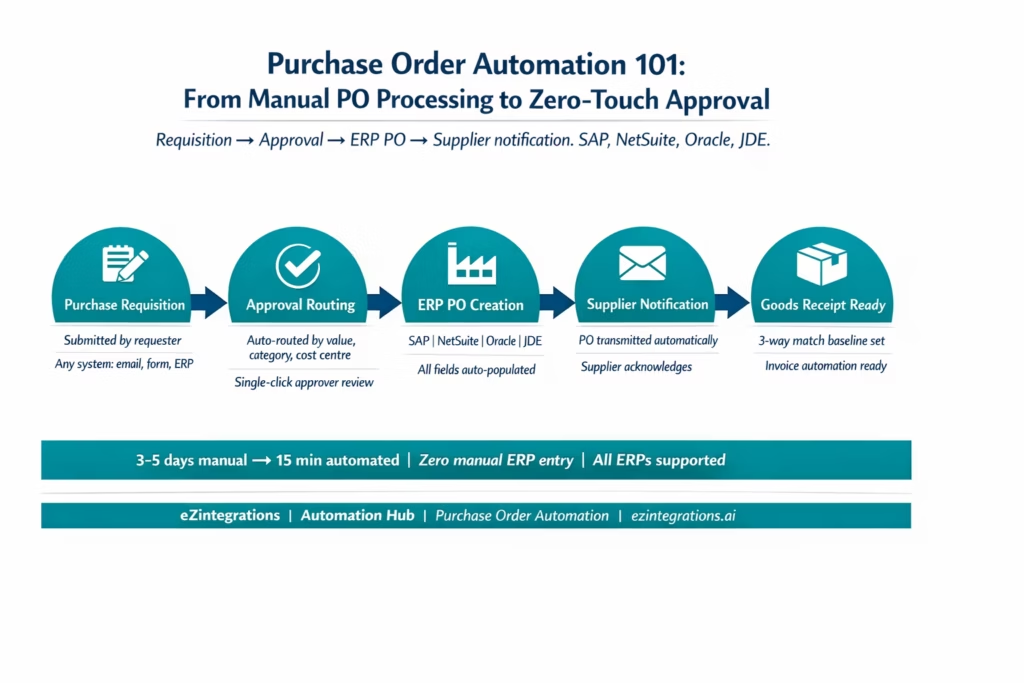
The Five Stages of the PO Lifecycle
Understanding the complete PO lifecycle is the foundation for deciding what to automate and in what order.
Stage 1: Purchase Requisition (PR) An employee or system identifies a need for goods or services and submits a formal request. The PR contains: requested item or service description, estimated cost, required date, cost centre or project code, and preferred supplier (if applicable). In manual environments, PRs arrive as emails, filled-in forms, or requests entered in a separate system that does not connect to the ERP.
Stage 2: Approval The PR is reviewed and approved by authorised personnel. Approval rules typically involve: value thresholds (purchases above $5,000 require manager approval; above $25,000 require director approval), spend category (capex vs opex, certain categories require additional sign-off), and budget verification (is there budget available in the cost centre?). In manual environments, approval happens by email: the PR is forwarded to the approver, who replies “approved” or “rejected,” and the reply is forwarded to the next approver if required.
Stage 3: Purchase Order Creation After approval, the purchase order is created in the ERP. The PO formally documents the commercial terms: supplier, items (with item codes), quantities, agreed unit prices, delivery date, and payment terms. In manual environments, the ERP buyer or purchasing administrator enters the PO data by hand from the approved PR.
Stage 4: Supplier Communication The approved PO is transmitted to the supplier (by email, EDI, supplier portal, or fax in legacy environments). The supplier acknowledges receipt and confirms they can fulfil the order at the stated terms. In manual environments, the PO PDF is emailed from the ERP and the supplier acknowledgement is received by email and filed.
Stage 5: Goods Receipt and Three-Way Matching When the goods arrive, a goods receipt is posted against the PO in the ERP. When the supplier’s invoice arrives, it is matched against the PO and goods receipt. The PO terms established in Stage 3 are the matching baseline for the invoice in Stage 5. This is why accurate PO data entry matters: errors in the PO become errors in the matching process, causing exceptions.
Where Manual PO Processes Break Down
Manual PO processing has four specific failure modes that automation addresses.
Failure Mode 1: Approval bottlenecks. Email-based approval chains stall at every step. The approver is in meetings. The approval email is buried. A three-level approval chain (manager, director, finance) that should take 4 hours takes 3-5 business days because someone was out of office and nobody chased the chain. Urgent purchases are delayed. Suppliers are not notified. Production is waiting.
Failure Mode 2: Data re-entry errors between PR and PO. The PR is entered in one system. The PO is entered manually in the ERP. Every re-entry introduces transcription risk: wrong item code, wrong quantity, wrong unit price, wrong delivery date. These errors flow downstream into the goods receipt and invoice matching process, generating AP exceptions that cost 15-20 minutes each to investigate and resolve.
Failure Mode 3: No budget visibility at the time of approval. The approver reviewing the PR does not have real-time budget information. They approve the purchase. The ERP is updated. The month-end budget report shows the cost centre overspent. By then, the commitment is made. Automated PO workflows can query the ERP budget balance at the time of routing, providing the approver with real-time remaining budget before they approve.
Failure Mode 4: PO data quality degrading over time. In manual ERP entry, purchasing teams develop shortcuts: reusing old POs, copying and modifying, leaving fields blank that “are not important.” Over time, PO data quality deteriorates: wrong payment terms on the vendor master, missing delivery dates, item descriptions that do not match the catalogue. This drives AP exception rates and makes spend analysis unreliable.
What PO Automation Actually Automates
PO automation does not mean one button creates every purchase order. It means each manual step in the PO lifecycle is replaced with a system-driven action that the human only touches if judgment is genuinely needed.
What gets automated:
Requisition intake: a standardised digital form or integration from any source system (travel booking system, facilities management, MRP output) feeds the PR into the PO workflow. No email, no PDF attachment, no manual routing.
Approval routing: rules-based routing sends the PR to the correct approver without manual forwarding. Multi-level chains are sequenced automatically. Approval reminders are sent at configurable intervals. Delegations (when an approver is out of office) redirect automatically. The approver reviews a structured summary and clicks to approve or reject.
Budget check: before routing to the approver, the workflow queries the ERP budget balance for the relevant cost centre (GET /data/Budgets in Dynamics 365, SuiteQL against the NetSuite budget table, SAP FM module API, Oracle Budgetary Control API). The approver sees current budget balance alongside the PR.
ERP PO creation: on approval, the workflow calls the ERP API to create the purchase order with all fields from the approved PR. No data re-entry.
SAP:
SAP (OData API):
POST /sap/opu/odata4/.../purchaseorder
NetSuite:
POST /services/rest/record/v1/purchaseOrder

Oracle:
POST /fscmRestApi/resources/11.13.18.05/purchaseOrders

JD Edwards (Orchestrator):
POST /jderest/orchestrator/CreatePurchaseOrder
Supplier notification: the created PO is retrieved from the ERP, formatted as a PDF or structured data file, and transmitted to the supplier (email, EDI, or supplier portal API). No manual email drafting.
Acknowledgement tracking: a Watcher monitors the supplier portal or inbox for the supplier’s acknowledgement. When received, the acknowledgement is matched to the PO and the PO status is updated in the ERP.
What stays manual (for good reason): – The initial decision to purchase (what to buy, from whom, at what price): this requires business judgment – Resolving supplier disputes or negotiating terms changes – Approving purchases that trigger an exception (budget exceeded, unapproved supplier, unusual category)
PO Automation by ERP: SAP, NetSuite, Oracle, and JDE
Each ERP uses different APIs for purchase order creation and management. Here are the specific integration points.
SAP S/4HANA
SAP provides the OData V4 Purchasing API for programmatic PO creation:
Create PO header:
POST /sap/opu/odata4/sap/api_purchaseorder_2/srvd_a2x/sap/purchaseorder/0001/PurchaseOrder {
  "CompanyCode": "1000",
  "PurchaseOrderType": "NB",
  "Supplier": "0000100001",
  "PurchasingOrganization": "1000",
  "PurchasingGroup": "001",
  "DocumentCurrency": "USD",
  "to_PurchaseOrderItem": [
    {
      "PurchaseOrderItem": "00010",
      "Material": "MAT-001",
      "Plant": "1000",
      "OrderQuantity": "100",
      "NetPriceAmount": "42.50",
      "PurchaseOrderItemText": "Titanium fastener Grade 5"
    }
  ]
}
SuiteQL can retrieve existing POs for budget checking and deduplication:
SELECT
  t.id,
  t.tranid,
  t.entity,
  t.status,
  t.amount
FROM transaction t
WHERE t.recordtype = 'purchaseorder'
  AND t.trandate >= '2026-01-01'
  AND t.entity = 847;
Oracle Fusion Cloud
Oracle Fusion Cloud’s Procurement REST API:
POST https://{instance}.oraclecloud.com/fscmRestApi/resources/11.13.18.05/purchaseOrders
{
  "BuyerEmail": "procurement@company.com",
  "BusinessUnit": "US1 Business Unit",
  "Supplier": "Hartland Building Materials",
  "SupplierSite": "HARTLAND-HQ",
  "CurrencyCode": "USD",
  "lines": [
    {
      "LineNumber": 1,
      "ItemDescription": "Titanium fastener Grade 5",
      "Quantity": 100,
      "UnitOfMeasureCode": "EA",
      "UnitPrice": 42.50,
      "NeedByDate": "2026-04-15"
    }
  ]
}
JD Edwards EnterpriseOne
JDE PO creation via Orchestrator REST:
POST https://{jde-server}:{port}/jderest/orchestrator/CreatePurchaseOrder
Authorization: Bearer {SESSION_TOKEN}

{
  "BusinessUnit": "M30",
  "SupplierNumber": "4021",
  "ItemNumber": "TF-7740",
  "Quantity": 100,
  "UnitCost": 42.50,
  "PromisedDate": "2026115",
  "PaymentTerms": "N030"
}
Note: JDE dates use Julian format (YYYYDDD). The Level 1 data transformation converts standard dates to Julian automatically.
Before vs After: Manual PO Processing vs Automated
| Stage | Manual PO Process | Automated with eZintegrations |
|---|---|---|
| PR submission | Email or paper form manually routed | Standardised digital form auto routed on submit |
| Approval routing | Email chain manual forwarding | Rules based routing by value category and cost centre |
| Approval time | 3 to 5 business days average | Under 2 hours for standard approvals |
| Budget check | Separate manual query or none | Real time ERP budget query before routing |
| ERP PO creation | Manual data entry by purchasing team | API call on approval all fields from approved PR |
| Data re entry errors | Common transcription risk at each re entry | Zero data flows directly from PR to ERP |
| Supplier notification | Manual email from ERP PDF export | Automated PO transmitted immediately after creation |
| Acknowledgement tracking | Manual email inbox monitoring | Watcher auto matched to PO on receipt |
| PO status visibility | Periodic manual checks in ERP | Real time status queryable via Goldfinch AI Chat UI |
| Approval delegation | Manual out of office reassignment | Automated delegation rules redirect approvals |
| Multi level approval | Sequential email chain manual steps | Sequenced automatically parallel where rules allow |
| Invoice matching preparation | PO data manually verified before invoice | PO data quality ensured at creation ready for matching |
| Exception handling | Discovered later in accounts payable | Flagged at requisition stage before PO creation |
| Spend analytics | Manual ERP report extraction | Real time data queryable anytime |
Step-by-Step: A Purchase Requisition Through the Automated PO Workflow
Here is the complete automated PO workflow for a facilities manager at a mid-size manufacturing company requesting cleaning consumables.
The scenario: Mark, a facilities manager, needs 100 units of industrial floor cleaner for the plant. Unit cost is approximately $42.50. Supplier: Hartland Maintenance Supplies. His cost centre is Facilities-Ohio. The approval rule: purchases above $1,000 require manager approval; above $10,000 require director approval. This order is $4,250: manager approval only.
Step 1: Mark submits the purchase requisition. (9:03 AM) Mark opens the company’s procurement portal (an eZintegrations-hosted form, or a form in the company’s existing ITSM, ERP, or Slack integration). He enters: – Item: Industrial floor cleaner (product code FLC-2200) – Quantity: 100 units at $42.50 – Preferred supplier: Hartland Maintenance Supplies – Required date: April 15 – Cost centre: Facilities-Ohio
He submits. eZintegrations receives the PR, assigns reference number PR-2026-00441, and records the submission timestamp. Time: 2 minutes.
Step 2: Budget check. (9:03 AM, automated) The Level 3 AI Agent queries the ERP (example: NetSuite) for the Facilities-Ohio cost centre remaining budget:
SELECT b.remaining FROM budgetitem b
WHERE b.period = '2026-Q1' AND b.department = 'Facilities-Ohio'
Response: $18,400 remaining in the facilities Q1 budget. $4,250 is 23% of remaining budget. Budget check: passed.
Step 3: Approval routing. (9:03 AM, automated) eZintegrations routes the PR to Sarah Chen, Facilities Director (Mark’s manager), via: – Email notification with structured PR summary (item, quantity, cost, budget impact, supplier) – Slack notification with single-click approve/reject buttons – Mobile-accessible approval portal
The approval notification includes: PR-2026-00441 details, Hartland Maintenance Supplies profile (approved supplier: yes, last used 6 months ago), and remaining Facilities-Ohio budget ($18,400, this PR uses 23%).
Step 4: Sarah approves. (9:47 AM) Sarah receives the Slack notification during a meeting break. She reviews the structured summary, confirms Hartland is on the approved supplier list, and clicks “Approve.” Her identity (email, timestamp) is recorded in the approval log. Time since PR submission: 44 minutes.
Step 5: ERP purchase order created. (9:47 AM, automated) eZintegrations calls the NetSuite SuiteTalk REST API:
POST /services/rest/record/v1/purchaseOrder

{
  "entity": { "id": "847" },
  "trandate": "2026-03-18",
  "memo": "PR-2026-00441 - Approved by S.Chen 09:47",
  "item": {
    "items": [
      {
        "item": { "id": "1234" },
        "quantity": 100,
        "rate": 42.50,
        "description": "Industrial floor cleaner FLC-2200",
        "expectedreceiptdate": "2026-04-15"
      }
    ]
  }
}
NetSuite response: PO PO-2026-2089 created. Time: 3 seconds.
Step 6: Supplier notification. (9:47 AM, automated) eZintegrations retrieves the created PO, formats it as a PDF, and emails it to Hartland Maintenance Supplies’ procurement contact with the order details, delivery address, requested date, and payment terms. Subject: “Purchase Order PO-2026-2089 from [Company] – Please Confirm.”
Step 7: Supplier acknowledgement tracked. (Next day) Hartland replies to confirm the order. The Watcher detects the confirmation email, extracts the key fields (confirmed delivery date: April 14, confirmed quantity: 100), and updates PO-2026-2089 in NetSuite with the confirmed delivery date. The PO status moves from Open to Confirmed.
Step 8: Goods receipt and invoice matching ready. When the goods arrive on April 14, the warehouse team posts the goods receipt against PO-2026-2089. When Hartland’s invoice arrives, the three-way matching workflow has the PO data ready: item code, quantity, unit price, and payment terms. No manual PO data lookup required by the AP team.
Total time from Mark’s requisition to approved ERP purchase order: 44 minutes (all but 2 minutes was the approver’s review time). Human steps: Mark submits the PR (2 min), Sarah approves (3 min).
Key Outcomes and Results
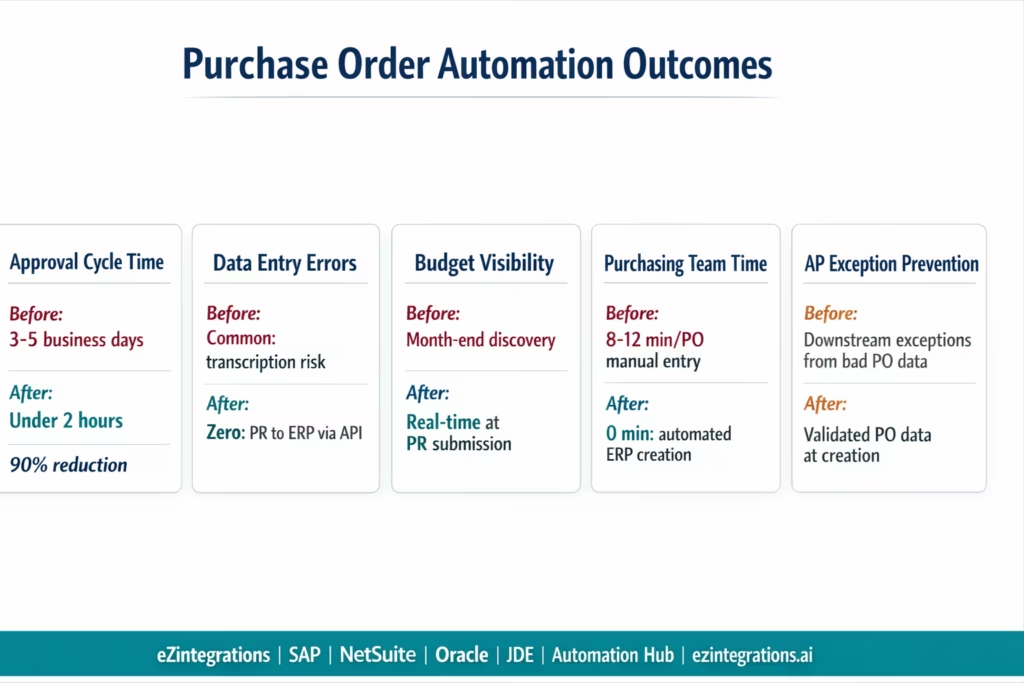
Approval cycle time: from a median 3-5 business days manual (email-based approval chains, approvers out of office, unclear routing rules) to under 2 hours for standard approvals (approver receives structured notification, single-click review, automatic reminder at 4-hour intervals if no response).
PO data quality: zero re-entry errors. PR data flows directly to the ERP PO via API, with no manual transcription. Field validation at the PR submission stage catches missing or incorrect data before it reaches the ERP, versus manual PO entry where errors are discovered during AP matching weeks later.
Budget visibility: real-time budget check at PR submission and at approval routing. Approvers see current budget balance before approving. Budget overruns caught at the PR stage instead of in month-end reports.
Purchasing team capacity: the manual ERP entry step (the purchasing administrator who enters approved PRs as POs in the ERP) is eliminated. For a procurement team processing 150 POs per month at 8-12 minutes of manual entry each: 20-30 hours of purchasing administrator time recovered per month.
AP exception prevention: PO data quality improvement directly reduces downstream AP exceptions. Automated PO creation with validated data (correct item codes, correct prices, correct payment terms) means the invoice matching engine has accurate PO data to match against.
Supplier notification speed: PO transmitted to supplier within minutes of approval rather than waiting for the purchasing team to draft and send the email. For time-sensitive procurement (production materials with tight lead times), this is directly valuable.
Multi-ERP support: the same approval workflow routes to SAP, NetSuite, Oracle Fusion Cloud, or JDE depending on the legal entity and business unit. For organisations with multiple ERPs, the eZintegrations Level 1 routing layer determines which ERP receives the PO based on the cost centre, company code, or business unit on the PR.
How to Get Started
Step 1: Map Your Current PO Process
Before importing a template, document your current PO approval rules: what value thresholds trigger which approval levels, which spend categories require additional sign-off, which cost centres have which approvers, and which ERP (or ERPs) your POs live in. This process map becomes the configuration input for the approval routing rules.
Level 2 (AI Workflows): for organisations that want to automate spend category classification or intelligently suggest preferred suppliers from historical PO data, Goldfinch AI can analyse the PR description and recommend the correct category code and supplier before routing. This reduces the time the approver spends on categorisation.
For multi-entity environments: identify which legal entity maps to which ERP and which company code. The Level 1 routing logic in eZintegrations uses these mappings to direct PO creation to the correct ERP instance.
Step 2: Import the Purchase Order Automation Template
Go to the Automation Hub and import the Purchase Order Automation template for your ERP (SAP S/4HANA, NetSuite, Oracle Fusion Cloud, or JD Edwards). The template includes the PR intake form, the budget check workflow, the approval routing engine with configurable rules, the ERP PO creation call, the supplier notification email, and the acknowledgement Watcher.
Step 3: Configure Approval Rules and ERP Credentials
Add your ERP API credentials (SAP BTP Communication Arrangement, NetSuite TBA, Oracle Azure AD OAuth 2.0, or JDE AIS Server credentials). Configure the approval routing rules: value thresholds, category overrides, approver assignments, delegation rules. Configure the budget check: connect to the relevant ERP budget entity and set the budget fields to query. Set the approver notification channel (email, Slack, Teams, or approval portal).
Step 4: Connect Your Supplier Notification Channel
Configure the supplier notification: email template with PO data fields, or EDI/supplier portal integration for larger supplier relationships. Configure the acknowledgement Watcher: which email addresses or portal webhooks to monitor, which fields to extract from the acknowledgement, and how to update the ERP PO status on acknowledgement.
Step 5: Parallel Test with 10 Real PRs and Promote
Run 10 real PRs through the automation in parallel with your existing process. Verify budget check accuracy, approval routing correctness, ERP PO data quality, and supplier notification delivery. Adjust tolerance rules or field mappings based on the test results. Promote to production.
Total configuration time: 4-8 hours from template import to production go-live.
FAQs
From Requisition to Zero-Touch Approval
Every manual step in the PO lifecycle has a cost: approval delays that hold up production, data entry errors that create AP exceptions, budget surprises discovered at month-end, and purchasing administrators spending their day converting approved PRs into ERP purchase orders.
PO automation addresses all of these in a single workflow. The requisition is submitted once. Budget is checked automatically. The correct approver is notified with context. The ERP PO is created on approval, with no re-entry. The supplier is notified. The acknowledgement is tracked. The invoice matching baseline is ready.
eZintegrations connects to SAP, NetSuite, Oracle, and JDE via their published APIs, with Automation Hub templates pre-configured for each ERP’s PO creation endpoint, field structure, and approval integration.
Import the Purchase Order Automation Template from the Automation Hub and go live in 4-8 hours. Or start a free trial with your ERP details and approval rules. We will configure the template for your specific PO workflow in the onboarding session.

