
How to Build an AI Agent for Enterprise Data Workflows (No Code Required)
March 16, 2026To build AI agent for enterprise without code in eZintegrations: open Goldfinch AI, create a new agent, define the goal, add agent tools (Document Intelligence, API Tool Call, Knowledge Base Search), set your confidence threshold, configure the human approval gate, connect to your enterprise systems via the API catalog, test in the Dev environment, and promote to Production.
TL;DR
You can build a production-ready enterprise AI agent in eZintegrations without writing a single line of code, using the Goldfinch AI no-code agent canvas. The agent uses native tools: Document Intelligence, Knowledge Base Vector Search, Data Analysis, API Tool Call, Web Crawling, Watcher, and more. You configure them visually, not programmatically. Set a confidence threshold before going live. This determines which agent decisions are automatic and which route to a human reviewer. Test in your Dev environment first. Promote to Production only after successful test runs with real data samples. The Automation Hub includes pre-built AI agent templates. Importing one reduces your setup time from hours to minutes.
Before You Start
You need these four things before building your first enterprise AI agent in eZintegrations.
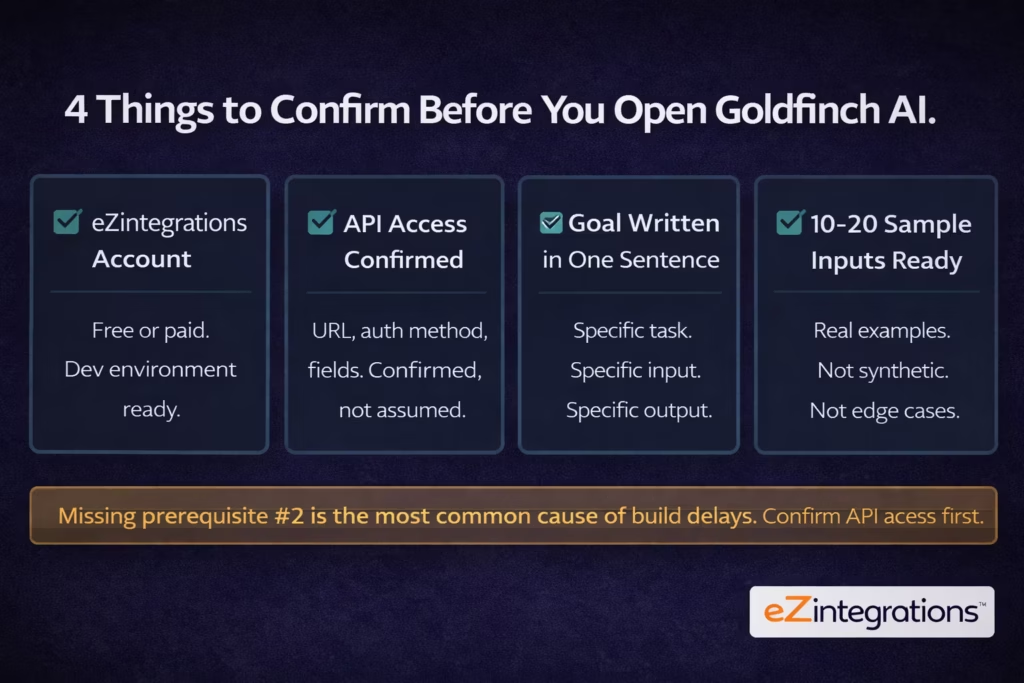
Prerequisite 1: An active eZintegrations account. You need at minimum a free account to access Goldfinch AI. A paid plan unlocks production deployment and full API catalog access. If you don’t have an account, start at eZintegrations pricing. Build in the Dev environment, which costs approximately one-third of production pricing.
Prerequisite 2: API access to your target systems. Before you build the agent, walk through every system it needs to read from or write to. For each system, confirm: the API base URL, the authentication method (API key, Bearer token, OAuth 2.0, or basic auth), the specific endpoints your agent will call, and the data fields available in the API response. Write this down. You’ll need it in Step 5.
Prerequisite 3: A one-sentence agent goal. Write the goal before you open the builder. A good goal is specific: “Read inbound invoice PDFs from the email attachment folder, extract vendor, date, amount, and line items using Document Intelligence, validate against the purchase order database, and post approved invoices to SAP via API.” A bad goal is vague: “Automate invoice processing.” Specific goals produce specific agents.
Prerequisite 4: Sample data for testing. Collect 10 to 20 real examples of the input your agent will process. These should be representative of your actual data range, not edge cases. You’ll use them in Step 8 to validate the agent behaves correctly before promoting to production.
Template Shortcut: Import a Ready-Built AI Agent
If your use case matches a common enterprise pattern, import a pre-built Goldfinch AI template from the Automation Hub and skip to configuration. This cuts your setup time from hours to minutes.
The Automation Hub includes 1,000+ pre-built templates for integration workflows and AI agent workflows. AI agent templates for common enterprise use cases (invoice processing, support ticket routing, contract review, HR onboarding orchestration, and sales intelligence research) are ready to import with your system credentials and confidence thresholds.
To use a template:
- Open the Automation Hub.
- Filter by “AI Agent” template category.
- Find the template that matches your use case.
- Click “Import Template.”
- The agent canvas opens with tools and steps pre-configured.
- Jump to Step 5 (connect to your enterprise systems) and configure your specific API credentials and endpoints.
If no template matches your use case exactly, follow the full tutorial below to build from scratch. The manual path gives you complete control over every tool, threshold, and trigger.
Step-by-Step Tutorial
Step 1: Open Goldfinch AI and Create a New Agent
Navigate to Goldfinch AI in your eZintegrations workspace and create a new agent project.
- Log in to your eZintegrations account.
- In the left navigation, click Goldfinch AI.
- Click New Agent.
- Name your agent. Use a descriptive name that includes the task: “AP Invoice Processing Agent” or “Support Ticket Routing Agent.” Not “My Agent” or “Test 1.”
- Select the environment: Dev for this build. You’ll promote to Production in Step 10.
- Click Create Agent.
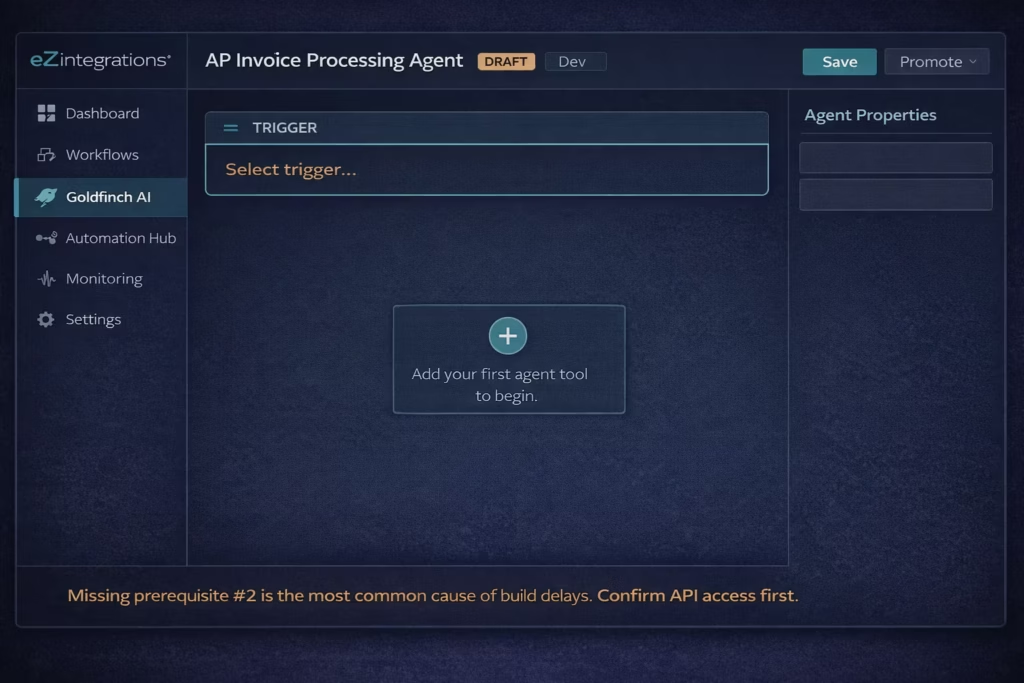
What you’ll see: The Goldfinch AI agent canvas opens. It shows an empty workflow with a trigger input at the top and an empty tool canvas below. The agent is in Draft status.
Pro tip: Name your agent for the specific task it performs, not the technology it uses. “Contract Risk Review Agent” is a name your operations team understands. “Goldfinch LLM Workflow” is not.
Step 2: Define the Agent Goal
Type your agent goal into the Goal Description field. This is the instruction that guides the agent’s reasoning at every step.
- In the right panel, click Agent Properties.
- In the Goal Description field, type your one-sentence goal from your prerequisites.
- Be specific. Include: what input the agent receives, what actions it takes, what output it produces, and what it does when uncertain.
Example goal for an AP invoice agent: “Read the attached invoice PDF using Document Intelligence. Extract vendor name, invoice number, date, total amount, and line items. Validate the vendor against the vendor master via API and match the invoice to an open purchase order. If a match is found with confidence above 88%, post the invoice to SAP via API and send a confirmation. If confidence is below 88% or no PO match is found, route to the AP reviewer queue with extracted data pre-filled.”
- Select your LLM Model. For most enterprise data workflow agents: choose Claude Sonnet (balanced capability and speed) or Claude Opus (for high-complexity reasoning tasks like contract review). For simple classification agents: Claude Haiku is faster and lower cost.
- Set Max Iterations: the maximum number of reasoning cycles the agent runs per task. Start with 10 for a new agent. Adjust after testing.
What you’ll see: The goal text populates the properties panel. The canvas header updates to show your agent name and “1 configuration.”
Pro tip: Write your goal in the same language your operations team uses for this task. If your AP team says “match the invoice to a PO,” write that. The LLM reads your goal description and uses it to plan tool calls. Clear business language produces clearer agent behaviour than technical jargon.
Step 3: Add Your First Agent Tool
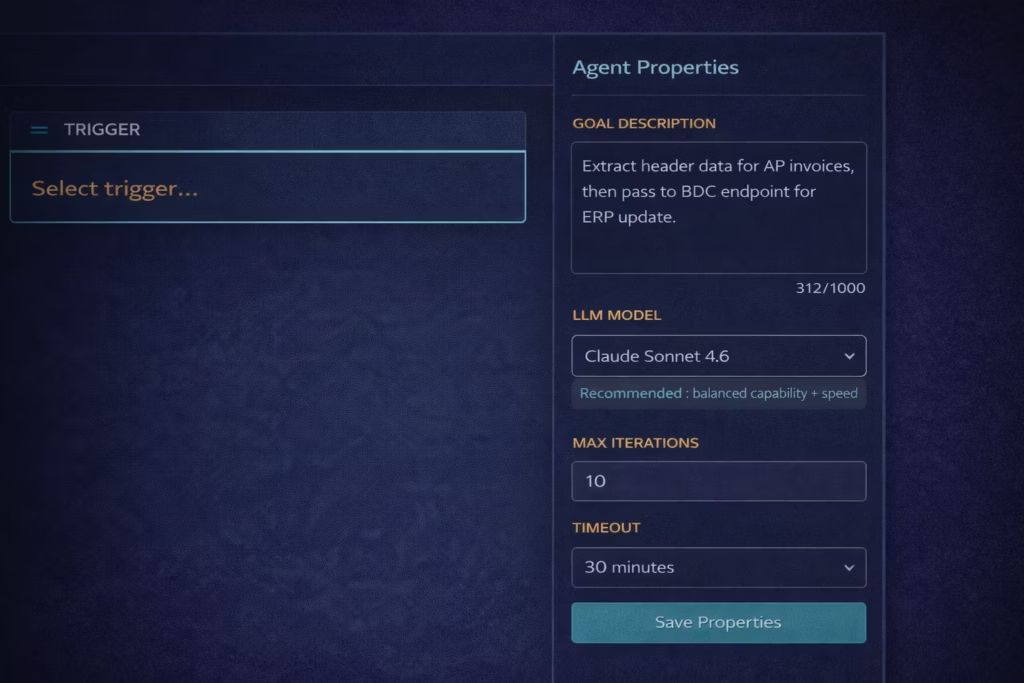
Add the first tool your agent needs. The tool you add first should correspond to the first action in your agent goal: the step that processes the incoming input.
- On the agent canvas, click the “+” button below the trigger card.
- The tool picker opens. You’ll see the 9 native Goldfinch AI tools:
- Knowledge Base Vector Search
- Document Intelligence
- Data Analysis
- Data Analytics with Charts/Graphs/Dashboards
- Web Crawling
- Watcher Tools
- API Tool Call
- Integration Workflow as Tool
- Integration Flow as MCP
- Select the tool that processes your input. For invoice processing: select Document Intelligence. For support ticket routing: select Knowledge Base Vector Search. For data anomaly detection: select Data Analysis.
- Click Add Tool. The tool card appears on the canvas.
- Click the tool card to open its configuration panel.
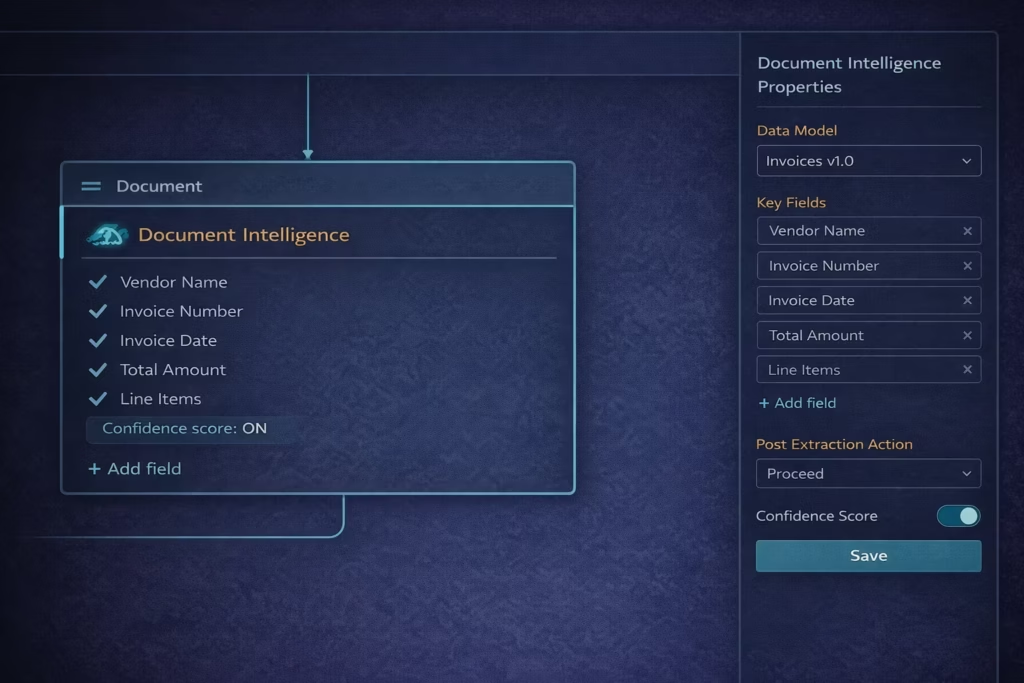
For Document Intelligence: – Set Input source: “Trigger input” (the agent will read whatever document arrives as the trigger input). – Set Output fields: Add the specific fields you want extracted. Click “+ Add Field” for each: Vendor Name, Invoice Number, Date, Total Amount, Line Items. – Set the Field type for each: Text, Number, Date, or Array. – Enable “Return confidence score”: Yes. You’ll use this in Step 6.
What you’ll see: The Document Intelligence tool card shows your configured output fields. A connecting line appears between the trigger and the tool card.
Pro tip: Only extract the fields you actually need in downstream steps. The more fields you request, the higher the model’s processing load and the lower the per-field confidence. For an invoice agent, you need vendor, amount, and PO reference. You don’t need every line item description unless your downstream system uses them.
Step 4: Configure Additional Tools
Add the remaining tools your agent needs to complete its goal. Most enterprise data workflow agents need 2 to 4 tools.
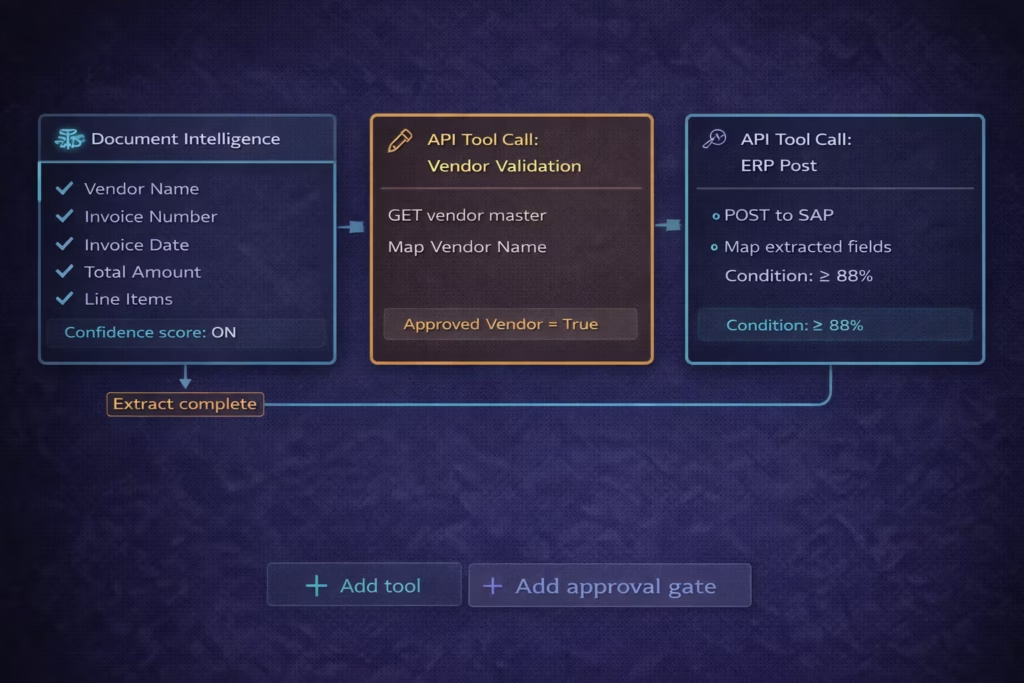
For the AP invoice agent example, add two more tools:
Tool 2: API Tool Call (Vendor Validation)
- Click “+” below the Document Intelligence card.
- Select API Tool Call.
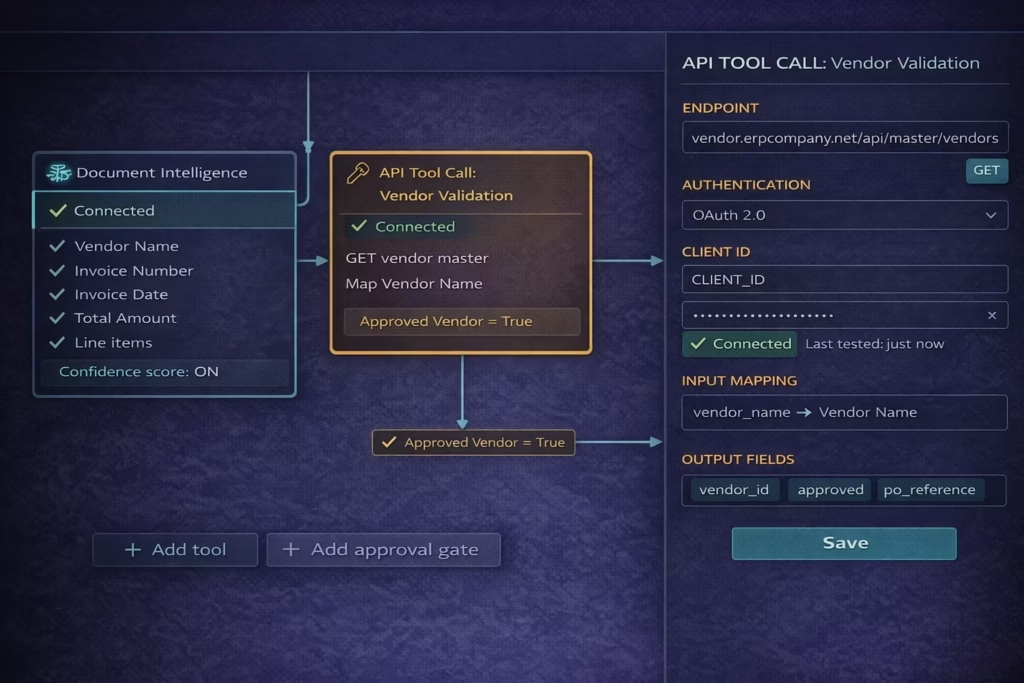
- In the tool configuration panel:
- API endpoint: Enter your vendor master API endpoint (for example:
https://your-erp.com/api/vendors/{vendorId}). - Method: GET.
- Auth method: Select from API Key, Bearer Token, or OAuth 2.0. Enter your credentials.
- Input mapping: Map the “Vendor Name” output from Document Intelligence to the API query parameter.
- Output fields: Add “Vendor ID,” “Approved Vendor,” “PO Reference.”
- API endpoint: Enter your vendor master API endpoint (for example:
- Click Save Tool.
Tool 3: API Tool Call (PO Match and ERP Post)
- Click “+” below the Vendor Validation tool.
- Select API Tool Call again. You can use the same tool type for multiple API calls.
- Configure:
- API endpoint: Your ERP invoice posting endpoint.
- Method: POST.
- Input mapping: Map the extracted invoice fields and the validated Vendor ID from the upstream tools to the ERP API payload fields.
- Condition for execution: Set a condition: “Execute only if Approved Vendor = True AND confidence score >= 88%.” (You’ll set the threshold fully in Step 6, but pre-condition the tool here.)
- Click Save Tool.
What you’ll see: Three tool cards on the canvas, connected by flow lines. Each card shows its configured status. The canvas now reflects your complete agent logic from input to ERP post.
Pro tip: You can use the Integration Workflow as Tool option if you already have an existing eZintegrations integration workflow for your ERP post. This exposes your existing workflow as an agent tool call, so you don’t rebuild it. Go to the tool picker, select “Integration Workflow as Tool,” and choose your existing ERP posting workflow from the dropdown.
Step 5: Connect to Your Enterprise Systems
Configure authentication for every API Tool Call your agent uses. This is the step where agents most commonly stall: confirm access before building was the prerequisite for a reason.
For each API Tool Call tool on your canvas:
- Click the tool card to open its configuration.
- Click Authentication in the config panel.
- Select the authentication method:
- API Key: Paste your key. Select whether it goes in the header (most common) or as a query parameter.
- Bearer Token: Paste the token. eZintegrations stores it encrypted.
- OAuth 2.0: Enter Client ID, Client Secret, and Token URL. Click “Test Auth” to confirm the connection.
- Basic Auth: Username and password.
- Click “Test Connection.” You’ll see a green “Connected” indicator if authentication succeeds, or a red error message with the HTTP status code if it fails.
- Confirm the test passes before moving to the next tool.
What you’ll see: Each API Tool Call card shows a green “Connected” badge after a successful test. The canvas footer updates to show “All tools connected.”
Pro tip: eZintegrations stores all credentials encrypted in the platform. You never need to paste credentials into the agent configuration again after initial setup. When credentials rotate (API key expiry, token refresh), update them once in the credential store and all agents using that credential update automatically.
Note on the API catalog: eZintegrations includes a catalog of 5,000+ pre-catalogued enterprise API endpoints. If your system appears in the catalog, select it from the catalog picker rather than entering the URL manually. The catalog pre-fills the base URL, authentication type, and common endpoint paths. For systems not in the catalog, enter the API URL directly and configure authentication manually. Any API your team adds is stored in your organisation’s catalog and reusable across all agents and workflows.
Step 6: Set Your Confidence Threshold and Human Approval Gate
This step determines which agent decisions proceed automatically and which route to human review. Setting this correctly before go-live is the most important governance decision in the entire build.
- On the canvas, click “Add approval gate” at the bottom of your tool chain.
- The Human Approval Gate tool card appears.
- Click the card to open configuration.
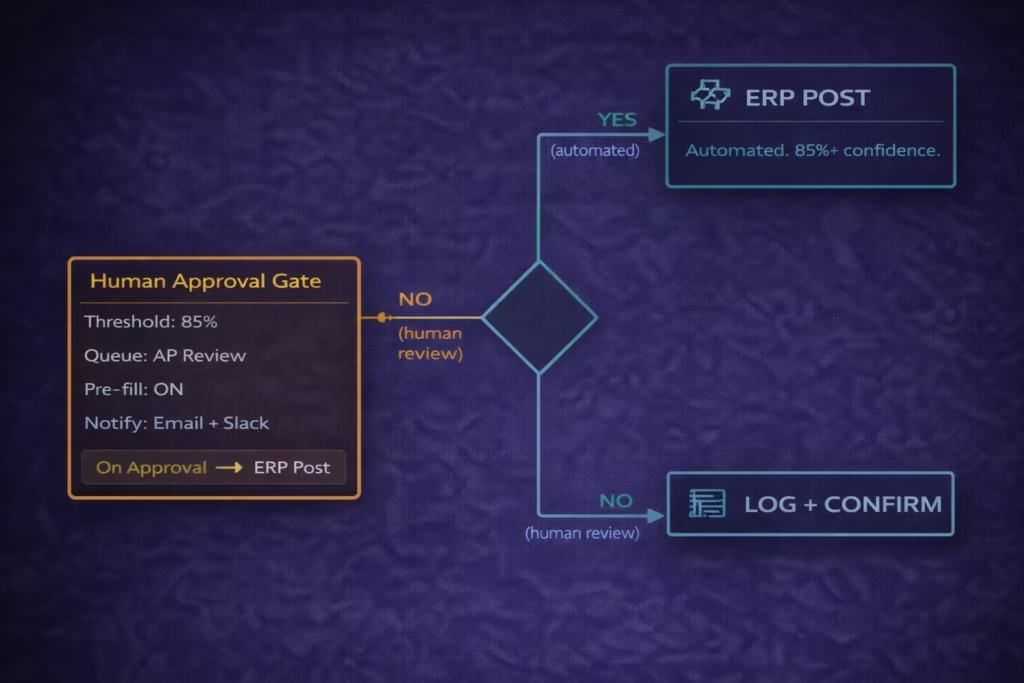
- Set Trigger condition: “Route to human review when overall agent confidence is below [threshold].”
- Set the threshold value. Start at 85%. You’ll adjust this after test runs.
- Set Review queue: Select or create the review queue (the team or individual who receives low-confidence cases). Enter the notification method (email, Slack notification, or in-platform queue).
- Set Pre-fill behaviour: “Yes, pre-fill the review form with extracted data.” This means reviewers see the agent’s extracted data ready for validation, not a blank form.
- Set On approval: “Continue with the approved data to the ERP post tool.”
- Set On rejection: “Log rejection, notify submitter, close the task.”
- Click Save Gate.
What you’ll see: The approval gate card appears on the canvas. A branch appears in the flow: one path goes directly to the ERP post for high-confidence cases, one path routes to the approval gate for low-confidence cases. Both paths converge at the logging step.
Pro tip: Start conservative. 85% is a reasonable first threshold. After two weeks of production volume, review your execution log: if reviewers are approving more than 95% of routed items without changes, raise the threshold to 90%. If auto-processed items are producing errors, lower it to 80%.
Step 7: Configure the Agent Trigger
Set what activates your agent. The trigger determines when the agent starts a new task run.
- Click the Trigger card at the top of the canvas.
- Select your trigger type:
- Email attachment: Agent activates when an email arrives with an attachment (for invoice processing, contract intake, or document workflows).
- API event: Agent activates when your system sends an event to the eZintegrations webhook URL.
- Database change: Agent activates when a new record appears in a specified database table.
- Schedule: Agent runs on a defined schedule (hourly, daily, every 15 minutes).
- Watcher trigger: Agent activates when a monitored data source meets a defined condition.
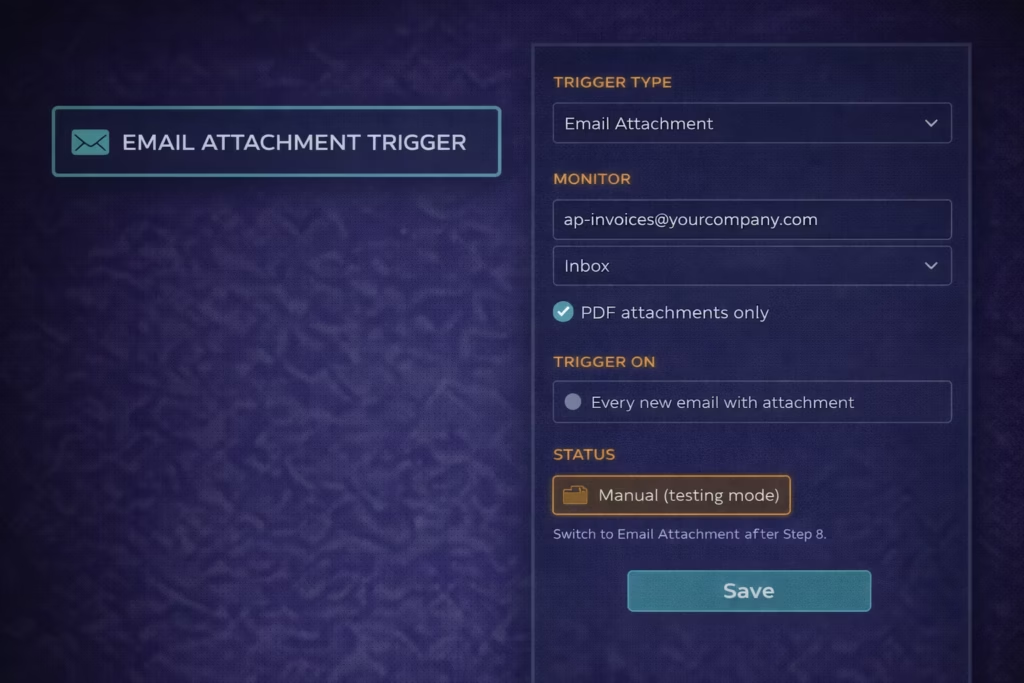
- Manual: Agent runs when a user triggers it manually from the dashboard (useful for testing).
- Configure the trigger settings for your selected type.
- For email trigger: enter the monitored email address or folder. Set the attachment type filter (PDF only, all documents, or specific MIME types).
- Click Save Trigger.
What you’ll see: The trigger card updates with your trigger type and configuration summary. The trigger status shows “Active” for real triggers and “Manual only” for manual triggers.
Pro tip: Use Manual trigger for your test runs in Step 8. Switch to your production trigger type only after successful testing. This prevents test runs from affecting live data.
Step 8: Test in the Dev Environment
Run your agent against real sample inputs in the Dev environment before promoting to production. This step is non-optional.
- Confirm the trigger is set to Manual (from Step 7).
- Click “Run Agent” in the canvas top bar.
- The Run Agent dialog opens. Click “Upload test input” and upload the first sample from your prerequisites (one invoice PDF, one support ticket, one contract, depending on your use case).
- Click “Start Run.”
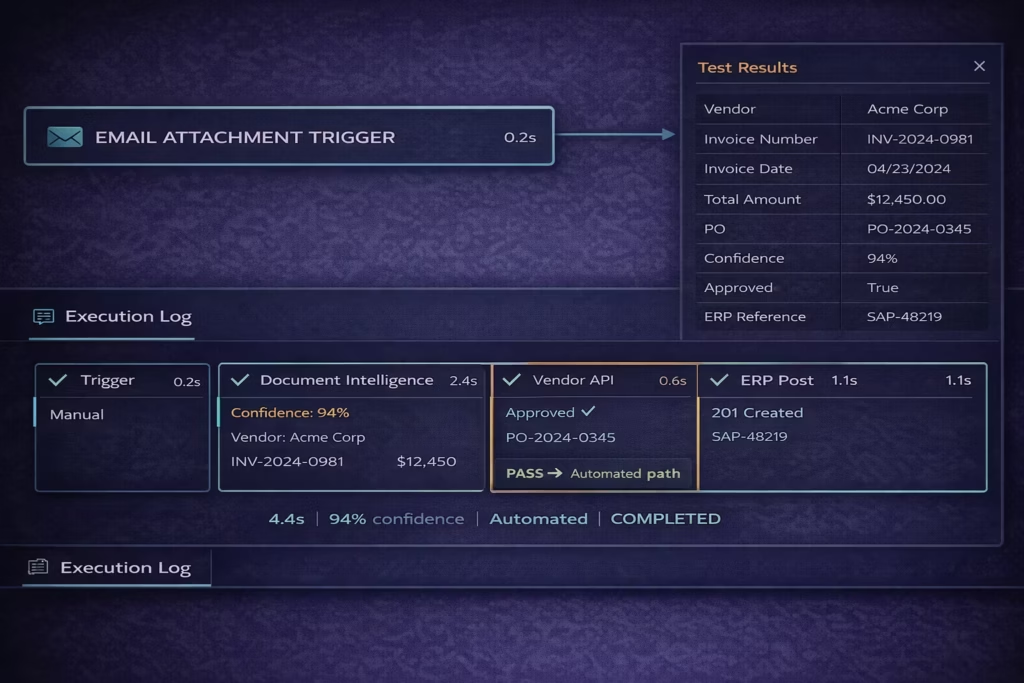
- Watch the execution log (right panel, click “Execution Log” tab). Each tool step shows its execution status in real time:
- Grey: pending.
- Amber spinning: processing.
- Green check: completed successfully.
- Red X: error. Click the step to see the error details.
- When the run completes, click “View Results.”
- Check the extracted output against your sample input. Verify:
- Did Document Intelligence extract the correct values?
- Did the Vendor API return the expected match?
- What was the confidence score?
- Did the branching behave correctly (automatic path or approval gate)?
- Repeat with 5 to 10 more samples from your test set.
What you’ll see: The execution log shows a timeline of each step’s execution, duration, inputs passed, outputs produced, and confidence score. The results panel shows the final agent output and which path was taken.
Pro tip: Save your test run results. The execution log is exportable (click “Export Log”). Use the log from your test runs as your baseline for the production performance review you’ll do in Step 12.
Step 9: Review Test Results and Calibrate
Review the results of all test runs and adjust configuration before promoting to production.
After running 10 or more test samples:
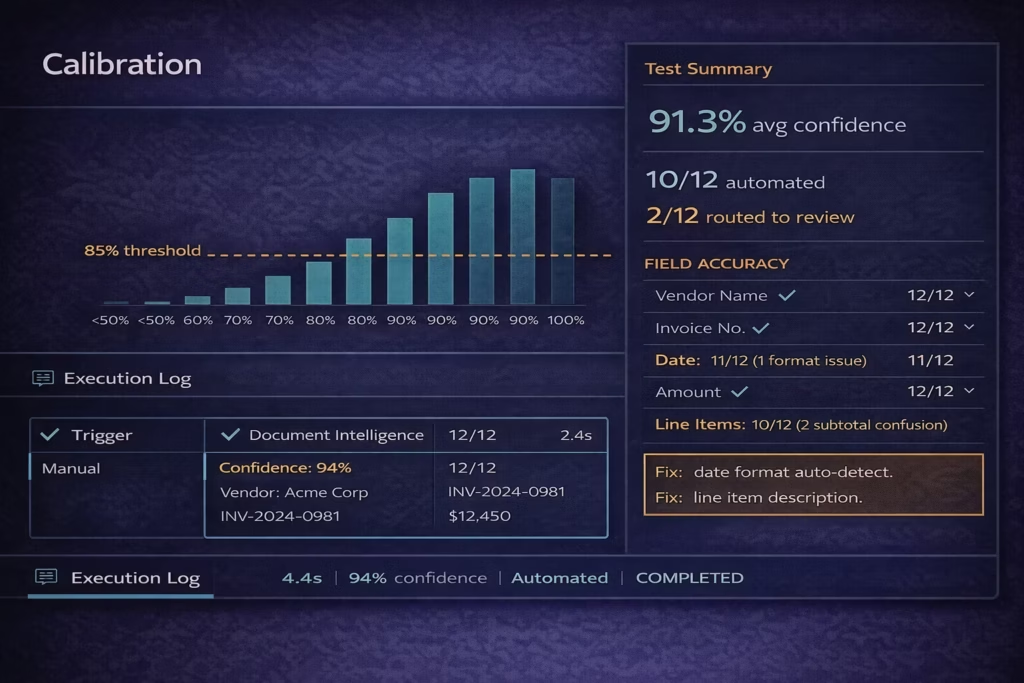
- Open Execution Log and review all completed runs.
- Check the confidence score distribution:
- If most runs score above 90%: your current threshold of 85% is appropriate.
- If many runs score between 70-85%: your threshold is at risk of routing too many cases to human review. Check if the issue is input quality (blurry PDF scan, non-standard format) or extraction configuration (too many fields requested).
- If any auto-processed runs produced incorrect results: lower the threshold until those cases are routed to human review.
- Check the field extraction accuracy:
- Open 3 to 5 results and compare extracted values against the original input manually.
- Common issues: Date format misread, line item total vs. subtotal confusion, vendor name abbreviations not matching vendor master.
- Fix any configuration issues found:
- Output field type mismatches: change field type from Text to Number if the ERP API expects a numeric value.
- Input mapping errors: check that upstream tool output names exactly match the downstream API parameter names.
- Adjust the confidence threshold if needed.
- Run 5 more test samples after any changes.
- When all test samples produce the expected result (correct extraction, correct path, correct API action), proceed to Step 10.
What you’ll see: Each configuration change you make is versioned automatically. The version history appears in the canvas top bar as “v1.3 (Dev)”. You can roll back to any previous version if a change makes things worse.
Pro tip: Pay attention to the cases that route to the human approval gate. Click through to the review queue and examine those cases. Are they genuinely ambiguous, or are they extractable with a small configuration change? The goal is a 5% or lower exception rate before going to production.
Step 10: Promote to Production
When your test results are clean and your confidence threshold is calibrated, promote the agent from Dev to Production.
- In the canvas top bar, click “Promote to Production.”
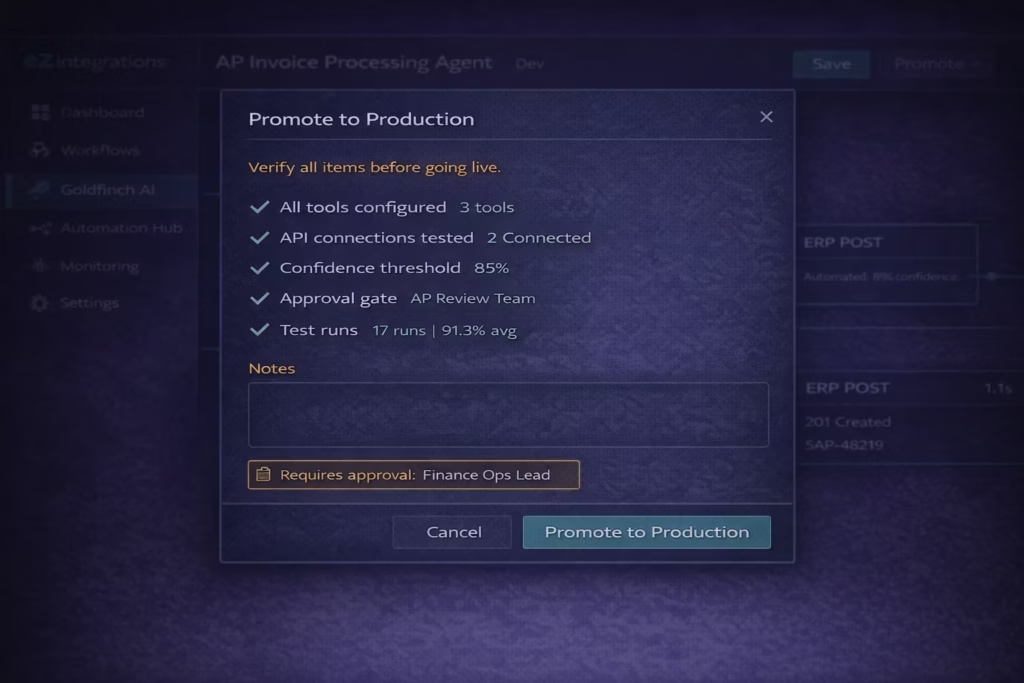
- A promotion checklist appears. Review each item:
- All tools configured: green check.
- All API connections tested: green check.
- Confidence threshold set: green check.
- Human approval gate configured: green check.
- Test runs completed: shows your count (e.g., “17 test runs completed”).
- Promotion notes field: type a brief description of what this version does.
- Click “Submit for Review” (if your organisation uses approval-gated promotion) or “Promote to Production” directly (if you have production deployment permissions).
- If approval-gated: the promotion request goes to your designated approver. They receive a notification and can approve or reject with comments.
- After approval (or direct promotion): the agent appears in your Production environment.
- Switch the trigger from Manual to your production trigger type (email attachment, API event, etc.).
- Click “Activate.”
What you’ll see: The agent status changes from “Draft (Dev)” to “Active (Production).” The trigger starts listening for real inputs.
Pro tip: Keep the Dev version of your agent active after promotion. When you need to make changes (threshold adjustment, new field, endpoint update), make them in Dev first, test, and promote again. Never edit a live Production agent directly.
Test Your Agent in Production
After going live, run a real-world validation within the first 30 minutes. Don’t assume the test environment results will transfer perfectly: confirm it with production data.
- Send a real invoice to the monitored email address (or trigger the agent via your production trigger method).
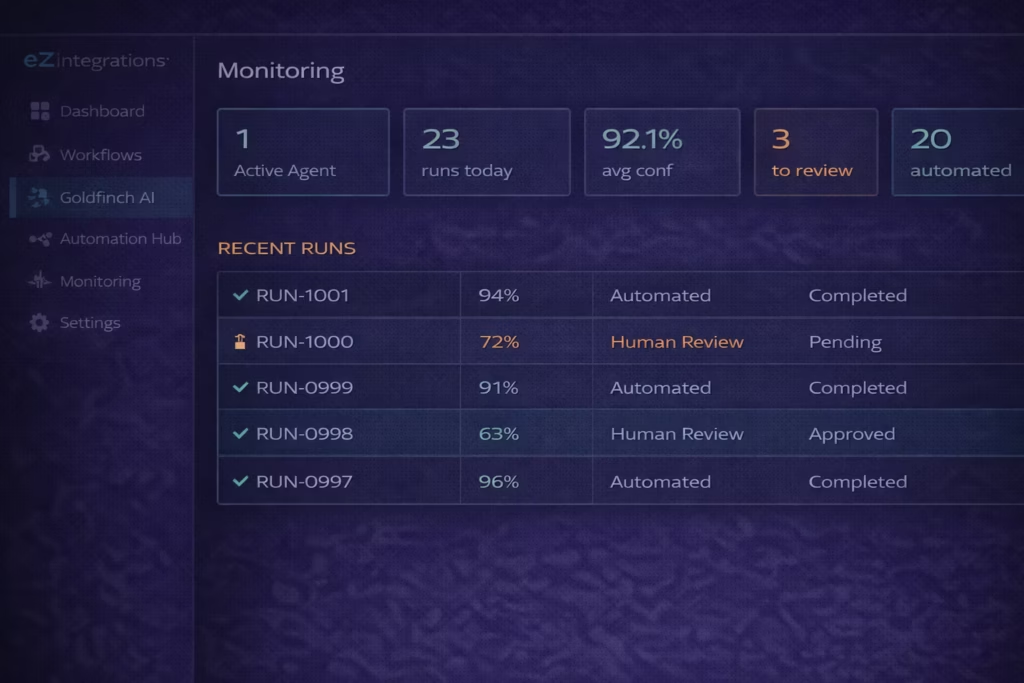
- Open the Monitoring dashboard (left navigation, “Monitoring” then “Goldfinch AI Agents”).
- Find your agent run in the active runs list.
- Click the run to open the execution log.
- Verify each step completed as expected: correct extraction, correct API response, correct path (automated or human review queue).
- If the agent routed to the human review queue: open the queue, confirm the pre-filled data is correct, and approve the first run manually as a validation.
- Check the ERP system (or destination system) to confirm the data posted correctly.
Success looks like this: – The invoice arrives, the agent activates within 30 seconds. – Document Intelligence extracts the correct vendor name, invoice number, amount, and line items. – The vendor API returns the approved vendor record and PO match. – If confidence is above 85%: the ERP posts the invoice and a confirmation notification is sent. – If confidence is below 85%: the AP reviewer receives a notification with the pre-filled form and can approve in under 30 seconds. – The execution log shows the complete run with a green “Completed” status.\
Troubleshooting Common Issues
Issue 1: Document Intelligence Returns Wrong Field Values
Symptom: The extracted vendor name, amount, or invoice number doesn’t match the actual document.
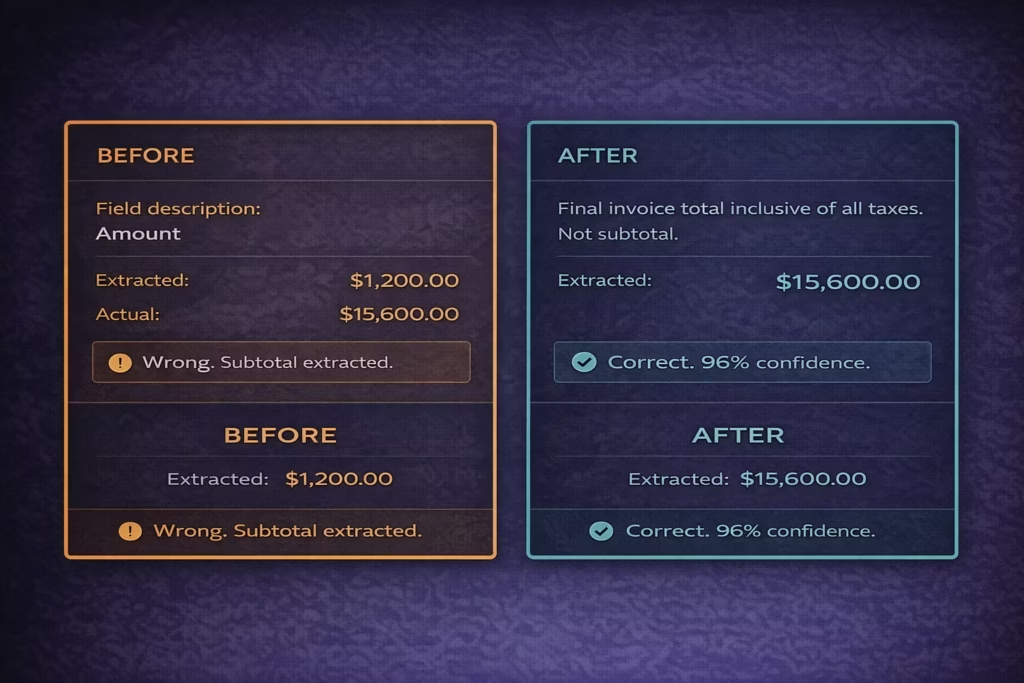
Most likely cause: The field description in the Document Intelligence configuration is ambiguous. “Amount” might extract the line item subtotal instead of the invoice total.
Fix:
1. Open the Document Intelligence tool configuration.
2. Click the field that’s extracting incorrectly.
3. Add a description to the field: for “Total Amount,” write “The final invoice total inclusive of all taxes and fees. Not a line item subtotal.” Be specific.
4. Re-run 3 test samples to confirm the fix.
Issue 2: API Tool Call Returns 401 Unauthorised
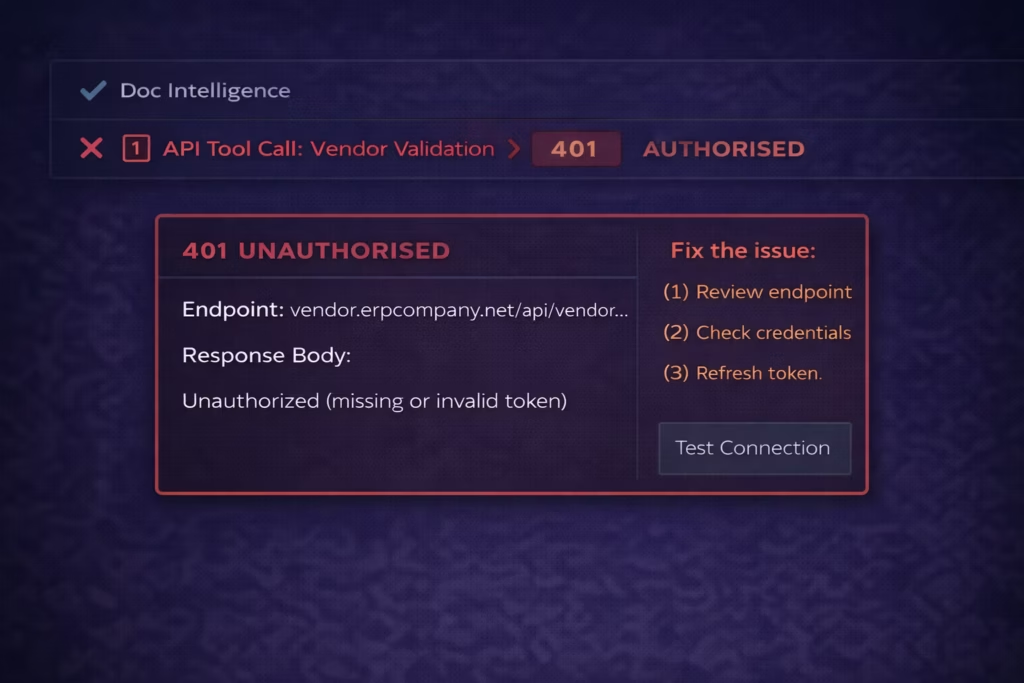
Symptom: The execution log shows a red error on the API Tool Call step. Error message: “401 Unauthorised” or “403 Forbidden.”
Most likely cause: The API credentials are incorrect, expired, or the service account lacks permissions for the specific endpoint.
Fix:
1. Open the failing API Tool Call tool configuration.
2. Click Authentication and then “Test Connection.”
3. If the test fails: re-enter or re-paste your credentials. For OAuth: re-enter the Client Secret.
4. Check that the service account or API key has permission for the specific endpoint being called (not just the application generally).
5. For Bearer tokens with expiry: enable the auto-refresh option in the authentication panel.
6. Click Save and re-run the test.
Issue 3: All Cases Routing to Human Review (Threshold Too High)
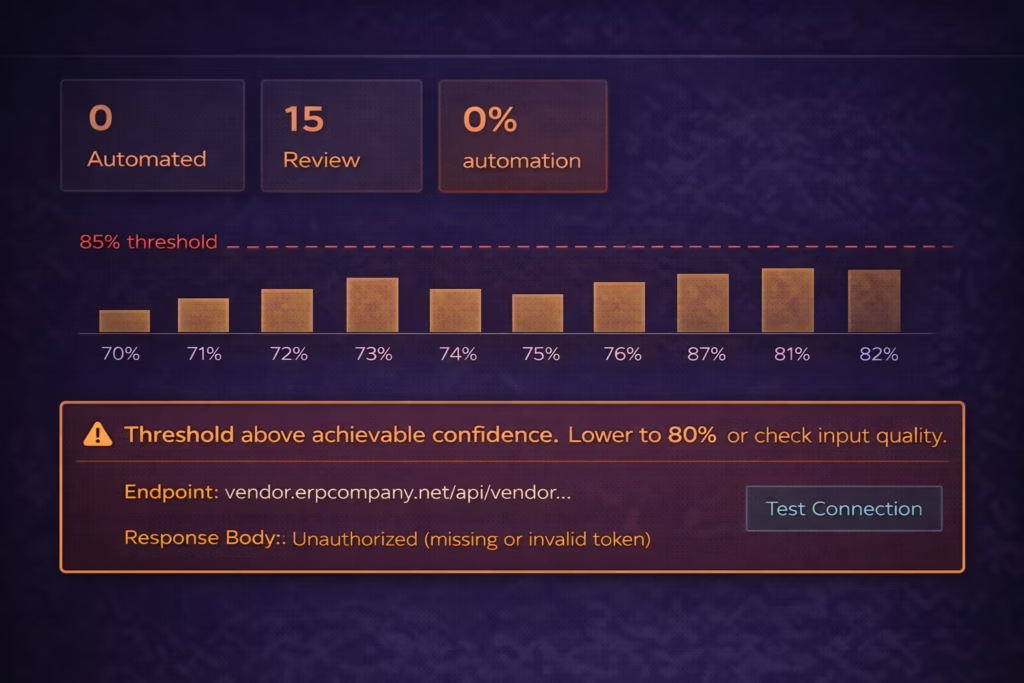
Symptom: The human review queue is receiving every agent run. The automated path is never taken.
Most likely cause: The confidence threshold is set higher than the agent’s achievable accuracy for your data quality. Or the input data quality is lower than your test samples (blurry scans, handwritten annotations, non-standard layouts).
Fix:
1. Open the execution log for the last 10 runs.
2. Check the confidence score for each. If most are between 70-82%: your 85% threshold is above the agent’s natural confidence range for this data.
3. Check input quality: are the PDFs clear, machine-readable documents? Or are they scanned images with low DPI?
4. If data quality is the issue: add a preprocessing step (image enhancement or OCR pre-processing) before Document Intelligence.
5. If threshold is the issue: lower to 80% and monitor for 2 weeks before deciding whether to adjust further.
6. Do not lower below 75% without reviewing the resulting error rate on auto-processed cases.
Issue 4: Agent Takes Too Long per Run
Symptom: Each agent run takes longer than 60 seconds. This causes timeout issues or delays in your review queue.
Most likely cause: Too many API calls per run (each API call adds network latency), or the LLM model selected (Opus) is slower than necessary for your task complexity.
Fix:
1. Open the execution log for a slow run. Click each step to see its individual duration.
2. If Document Intelligence is slow: the PDF may be large or complex. Add a step that extracts specific page ranges if the relevant data is always on page 1.
3. If API Tool Calls are slow: check API response times. A vendor master API taking 8 seconds is a backend issue, not an eZintegrations issue. Raise with your ERP team.
4. If the overall reasoning time is slow: switch the LLM model from Claude Opus to Claude Sonnet in the Agent Properties. Sonnet handles most data extraction tasks with similar accuracy and significantly faster processing.
5. Re-run 5 test samples after changes.
Frequently Asked Questions
1. How long does it take to build an enterprise AI agent in eZintegrations
A simple AI agent using one or two tools such as Document Intelligence and an API Tool Call typically takes two to four hours from initial configuration to the first successful test run including API access verification. A more complex multi tool agent with branching logic generally takes one to two days. The most common delay in the build process is confirming API access to required enterprise systems. Completing API credential validation before starting the build significantly shortens development time.
2. Do I need coding skills to build an enterprise AI agent in eZintegrations
No coding is required. All agent configuration is performed through the Goldfinch AI no code visual canvas. Tool configuration API calls confidence thresholds approval gates and triggers are configured through visual controls rather than code. If an API endpoint is not present in the platform catalog it can be added by entering the endpoint URL selecting the authentication method and confirming the connection. Operations managers business analysts and IT generalists frequently build production agents without developer involvement.
3. What happens if the AI agent makes a wrong decision
The platform includes confidence thresholds and optional human approval gates designed to prevent incorrect automated actions. If the agent confidence score falls below the defined threshold which defaults to eighty five percent the case is routed to a human reviewer with extracted data pre filled. The reviewer can approve or reject the action. Approved items proceed automatically while rejected items are logged. Every decision automated or human reviewed is recorded in the execution log including confidence score tool outputs and decision path so teams can analyze errors and refine thresholds or configuration.
4. Can the agent connect to systems not in the 5000 endpoint catalog
Yes. If an API endpoint is not listed in the catalog it can be added directly through the API Tool Call configuration by entering the endpoint URL selecting the authentication method and testing the connection. Once connected the endpoint becomes part of the organization catalog and can be reused across all workflows and agents. File based systems including SFTP can also be connected because eZintegrations dynamically converts file exchanges into API or database accessible interfaces.
5. How do I know when to adjust my confidence threshold
Review the execution logs after approximately two weeks of production usage. If human reviewers approve more than ninety five percent of routed cases without changes meaning the extracted data is already correct you can raise the threshold by three to five percentage points. If automatically processed items begin producing incorrect outputs in downstream systems you should lower the threshold by approximately five points. Adjustments should never exceed five points at a time and system performance should be monitored for at least one week before making another adjustment.
6. What is the difference between an AI agent and an AI workflow in eZintegrations
An AI workflow is a fixed sequence of steps that executes the same order of operations every time with AI processing applied at defined points. An AI agent is goal oriented and dynamically decides which tools to use next based on the results returned by previous steps. AI workflows are suited to structured deterministic processes where the step order is constant. AI agents are suited to tasks where the next action depends on the context discovered during execution. In many enterprise scenarios a Goldfinch AI agent handles decision making and variable inputs while an AI workflow executes the downstream structured system actions.
Conclusion
You’ve built and deployed an enterprise AI agent that reads unstructured data, validates it against your enterprise systems, makes intelligent routing decisions, and posts results to your system of record, without writing a single line of code.
The same pattern applies to every enterprise AI agent use case: define the goal precisely, add the tools that match each processing step, connect to your systems via the API catalog, set a conservative confidence threshold with a human approval gate, test with real data samples, and promote only after calibration.
Gartner predicts 40% of enterprise applications will embed task-specific AI agents by end of 2026. Your first production agent is live. The Automation Hub has templates for your next use case: support ticket routing, contract review, HR onboarding orchestration, supply chain monitoring, and sales intelligence research.
Import your next AI agent template from the Automation Hub and go from template to production in minutes.
Or book a free demo if you’d like to walk through your specific use case with the eZintegrations team before building.

