
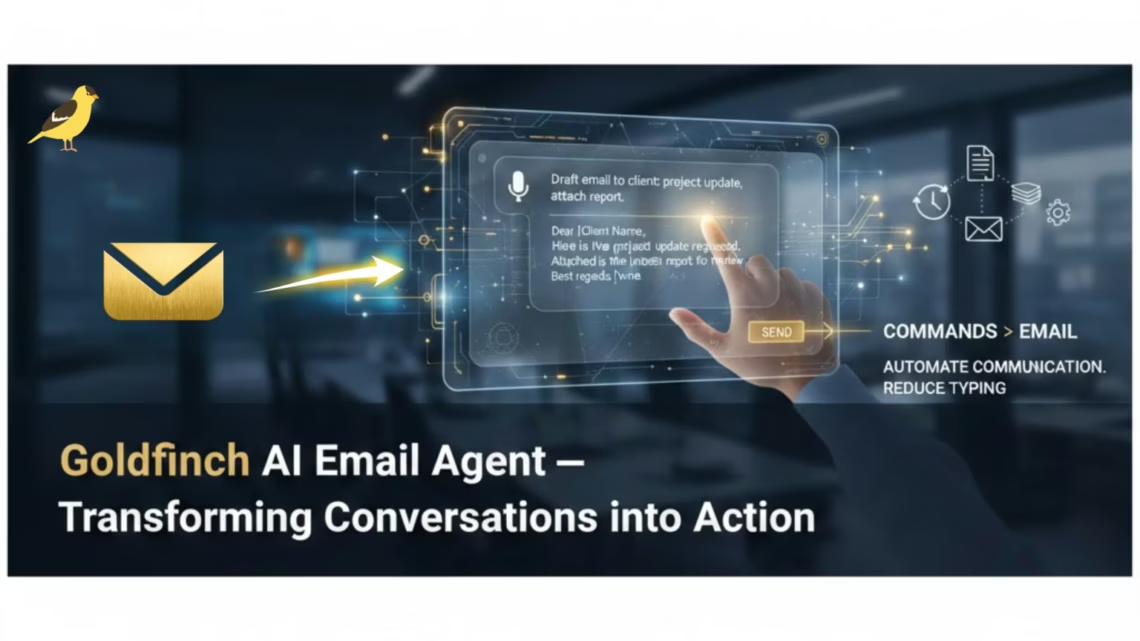
AI Email Agent: 7 Powerful Steps to Set Up Goldfinch AI Easily
December 1, 2025TL;DR
The AI Email Agent in Goldfinch AI is a conversational automation tool that allows users to send emails using simple natural-language commands, without opening or managing a traditional email client.
Users provide instructions such as the recipient, subject, and message content through chat. The agent gathers missing details, shows a confirmation preview, and sends the email securely via authenticated APIs only after user approval. This approval step ensures accuracy, control, and security.
The Email Agent is easy to configure within the Goldfinch interface, supports secure authentication, and integrates seamlessly with other Goldfinch agents such as Document Understanding and WebCrawler. It is ideal for workflow-driven emails, notifications, approvals, and reporting.
In short, the AI Email Agent turns conversations into real email actions—reducing manual effort, improving speed, and enabling end-to-end automation within a single AI platform.
Introduction
What is the AI Email Agent in Goldfinch AI?
The AI Email Agent is a conversational automation tool that sends emails using natural language commands.
Users can type simple instructions, and the agent collects required details, confirms them, and sends the email securely via authenticated APIs.
Definition:
-
AI Email Agent: A software agent that converts conversational input into automated email actions.
When to use: -
When users want to send emails without opening or managing a traditional email client.
How does the AI Email Agent work?
The agent gathers recipient, subject, and message content, shows a preview, and sends the email after user approval.
This approval step reduces errors and ensures user control before execution.
Process (How it works):
-
User enters a conversational command.
-
Agent prompts for missing details.
-
System displays a confirmation preview.
-
User approves or rejects.
-
Backend email API sends the email.
Why use an AI Email Agent instead of manual email sending?
It reduces manual effort, context switching, and human error while improving speed and consistency.
McKinsey reports that 30% of workplace tasks can be automated, with communication workflows being a primary beneficiary.
When to use:
-
High-volume notifications
-
Workflow-triggered emails
-
Enterprise approval or reporting emails
How do you configure the Email Agent in Goldfinch AI?
Configuration involves adding the Email Agent, setting API credentials, and testing the workflow.
The setup is completed entirely within the Goldfinch interface, reducing integration complexity.
Configuration Steps (Simplified):
-
Navigate to My Agents → Create New Agent
-
Add Email Agent from tools
-
Set API endpoint and authentication
-
Define input/output parameters
-
Test and save
Definition:
-
API Authentication: A secure method to verify sender identity before allowing email transmission.
What are the advantages and limitations?
Answer: The Email Agent improves speed and accuracy but currently supports basic email features only.
Support: Advanced capabilities such as attachments can be added in future iterations.
Pros:
-
Natural language interaction
-
Built-in approval workflow
-
Secure, authenticated sending
-
Integrated with other AI agents
Cons:
-
Dependent on API uptime
-
Fixed sender credentials
-
No attachments (yet)
3. Steps to Configure Email Agent Tool While Adding an Agent
Step 1: Navigate to Agent Management
- Open the Goldfinch AI application.
- Go to My Agents from the main navigation menu.
Step 2: Click “Add New Agent”
- Click the “+ Create New Agent” button.
- Enter the Agent Name and Description.
- Click Next to proceed to the configuration step.
- This opens set of tools to select for the agent.
Step 3: Add Email Agent to the Workflow
- Choose the Email Agent from the list of available tools.
- The Email Agent will appear under the workflow section.
Step 4: Update the API Endpoint
- Click on the Edit icon on the Agent Action step within the Email Agent.
- Replace the existing
{{base_URL}} - This ensures the Email Agent connects to the correct backend email API.
Step 5: Set Authentication Details
- Provide the Client ID and Client Secret in their respective fields.
- Enter the Username and password for the sender account:
"username": "<sender_email_address>",
"password": "<sender_password>"
- These credentials authenticate the sender and allow the system to send emails from the authorized sender address to the recipient provided by the user.
- These credentials are mandatory; otherwise, the agent will throw an authentication error and fail to fetch data.
- We can get these credentials from eZintegrations | Dashboard.
Step 6: Define Input and Output Parameters
- Input: User-provided recipient email address and email message content.
- Process: The system automatically forms an email message using the provided content.
- Output: Confirmation message or delivery status returned by the API.
Step 7: Testing the Configuration
- After saving the configuration, click the Test button beside the Email Agent tool name.
- The Interactive Test Chat panel will open on the right.
- Type a test input, for example: need to send email for xyz@gmail.com.
- If configured correctly, the agent should display: Email sent successfully.
- This confirms that the email was sent from the configured sender account to the recipient using the AI Email Agent setup.
Step 8: Save Configuration
- Once the test is successful, click Save to finalize the Email Agent setup.
- The agent is now ready to be used as part of your workflow automation.
4. How to Use the Email Agent
Once configured, the Email Agent is straight-forward to use through conversational commands. The AI Email Agent enhances this experience with automation intelligence.
Usage Flow
- The user initiates the command
- The system prompts for Subject and Body Content.
- The user provides the details.
- The system displays a confirmation card with the full email preview.
- The user selects either:
- Approve — to send the email.
- Reject — to modify the content.
- If approved, the backend API sends the email, and a success message is returned.
5. Pros and Cons
Pros
- Simplifies and accelerates email communication.
- Intuitive natural language interaction.
- Seamless integration into Goldfinch workflows.
- Reduces human error through confirmation steps.
- Secure authentication mechanism ensures controlled email access.
Cons
- Dependent on backend API uptime and connectivity.
- Limited to predefined sender credentials.
- Cannot yet attach files or handle advanced formatting (future enhancement).
Market Landscape – Competitors & Their Setup
- Mail jet offers an Email API and transactional email services. Wikipedia
- Brevo (formerly Send in blue) provides a full-suite marketing and email automation platform with integrations for email, SMS, CRM. Wikipedia
- Workflow automation platforms like Zapier, Make.com, n8n highlight ease of use in general automation but often require configuration across tools. denshub.com
- A comparison piece notes that many email automation / workflow platforms are “powerful but require onboarding; steeper learning curve” for enterprise workflows. UMA Technology
How Goldfinch AI Stands Out – Ease of Configuration
1. Minimal Setup & Single‐Interface Workflow
Unlike many solutions where you must integrate separate email APIs, configure individual senders, manage templates and multiple tools, Goldfinch provides a unified UI: “My Agents → + Create → Add Custom Tool → Email Agent…” and you’re ready. This dramatically reduces configuration time and cognitive load. The AI Email Agent boosts this simplicity.
2. Pre-Built Agent Tool with Seamless Authentication Flow
Many platforms require separate SDKs or coding to hook into email services. With Goldfinch, once you enter your sender username/password and endpoint, you simply define input/output parameters and you’re done. The confirmation preview and approve/reject step are included by default, enabling safe deployment faster.
3. Native Multi-Agent Integration
While many platforms treat email automation as a separate add-on module, in Goldfinch the Email Agent is part of the workflow engine alongside agents like Document Understanding and WebCrawler. That means you don’t need separate systems or glue code — you manage everything within one ecosystem, making configuration simpler and maintenance lighter.
6. Expected Output
When the user successfully sends an email, the expected output displayed in the chat interface will be: “Email sent successfully”.
If there is a configuration or authentication error, the system may return: “Email sending failed”.
7. Example Output
Input:
Send an email to xyz@gmail.com
Subject: Meeting Reminder
Body: Please join the project status meeting at 11 AM.
System Preview:
Recipient: xyz@gmail.com
Subject: Meeting Reminder
Body: Please join the project status meeting at 11 AM.
User Action: Approve
Output: Email sent successfully
8. How It Adds Weight to the Goldfinch Application
The Email Agent significantly enhances Goldfinch AI’s multi-agent ecosystem by enabling communication automation alongside other intelligent agents.
Key Contributions
- Inter-Agent Communication: The Email Agent complements tools like Document Understanding and WebCrawler, allowing automated email notifications or reports based on processed data.
- Workflow Integration: It creates end-to-end task automation – from data extraction to communication – within a single interface.
- User Experience: It transforms Goldfinch from a passive data system into an interactive AI assistant capable of performing real-world tasks.
- Enterprise Utility: Ideal for customer support, project updates, approvals, and reporting automation.
9. Comparison of Goldfinch with Other AI Platforms
| Feature | Goldfinch AI (with Email Agent) | Other Platforms |
|---|---|---|
| Multi-Agent Architecture | Supports integrated multiple agents (Email, WebCrawler, Document Understanding) | Limited or manual task chaining |
| Workflow Automation | Allows sequential automation (fetch→understand→communicate) | Primarily single AI chat interface |
| Email Sending Capability | Built-in with authentication and approval flow | Typically does not support direct email sending |
| Enterprise Integration | Custom API endpoints and credentials supported | Limited connectivity |
| User Interaction Mode | Conversational + visual confirmation workflow | Primarily conversational text |
Goldfinch AI Advantage: Goldfinch’s Email Agent introduces actionable intelligence – where conversations can lead to real-world outcomes like sending an email – unlike Gemini, ChatGPT, Co-pilot etc., which remain informational.
10. Benefits — Why Customers Love It
- Business Efficiency: Reduces manual effort and streamlines communication.
- Intelligent Automation: Learns from user patterns to enhance workflow.
- Security & Reliability: Works through authenticated APIs ensuring safety.
- Productivity & Experience: Provides a single conversational interface for multiple actions.
11. Conclusion
The Email Agent in Goldfinch AI stands as a powerful automation component, bridging the gap between AI-driven conversation and practical communication execution. By combining natural language understanding with secure backend integration, it provides users with a hands-free, intuitive, and efficient way to manage email operations.
This feature not only boosts productivity but also strengthens Goldfinch’s position as a multi-agent automation platform, setting it apart from typical AI chat systems. The AI Email Agent is a core element of this enhanced capability.
FAQ
1. What is the AI Email Agent?
The AI Email Agent automates email sending using natural language commands.
It gathers recipient, subject, and body details, shows a preview, and sends the email upon approval.
You need Client ID, Client Secret, sender email, and password for authentication.
Yes, it integrates with Document Understanding, WebCrawler, and other workflow agents.
The system displays 'Email sent successfully' upon completion.
It currently supports basic email sending without attachments or advanced formatting.

